
How to Use Adobe Firefly Video: 2026 Complete AI Guide
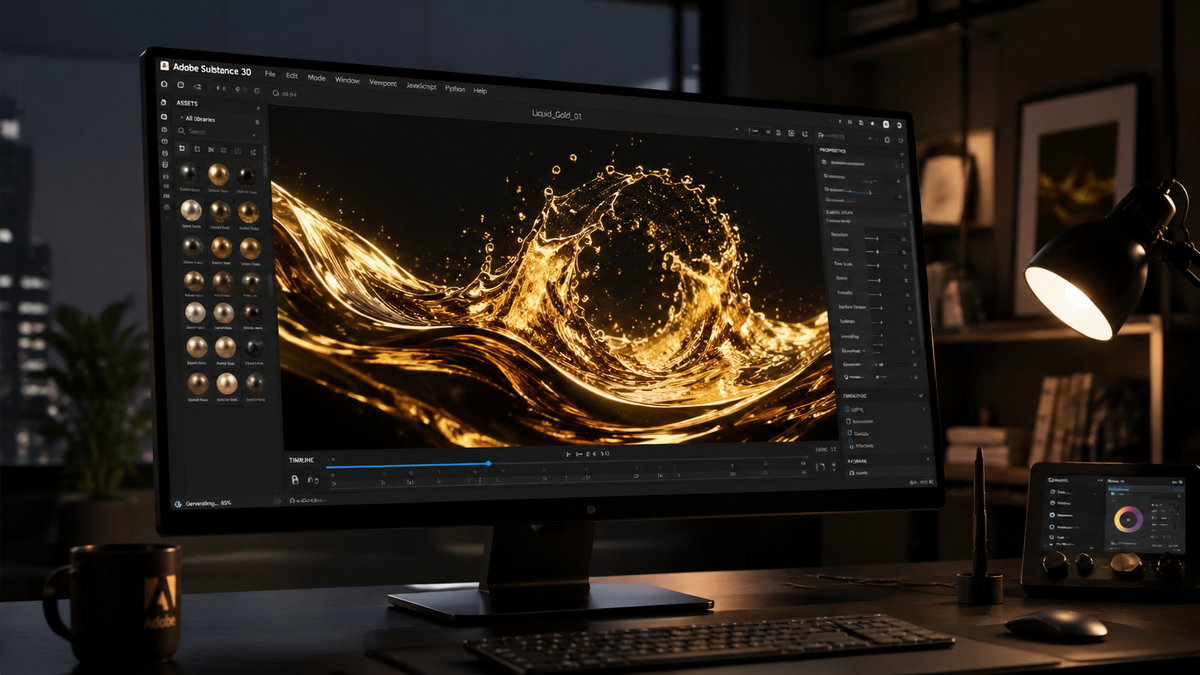
Learning how to use adobe firefly video involves leveraging Adobe's latest generative AI video model to create cinematic clips from text prompts, images, or raw footage. To start, navigate to the Firefly web application or use the integrated Generative Extend tools in Premiere Pro, enter a descriptive prompt, and select your preferred camera settings to generate high-quality video content instantly. In 2026, the workflow has been further streamlined with the introduction of "Firefly Assist," an agentic AI that helps automate the editing process.
Adobe Firefly Video is a generative AI suite that allows users to create high-definition video clips from text descriptions or still images. It integrates directly with Creative Cloud apps like Premiere Pro and After Effects, offering features like Generative Extend to lengthen clips and Firefly Assist to automate the conversion of raw footage into polished first-cut sequences.
- ✓ Access unlimited AI video generations through specific subscription tiers as of early 2026.
- ✓ Utilize "Text-to-Video" and "Image-to-Video" workflows for rapid content creation.
- ✓ Leverage Firefly Assist (Public Beta) for agentic AI editing and automated first-cuts.
- ✓ Ensure commercial safety with models trained exclusively on licensed or public domain content.
- ✓ Export in various aspect ratios and resolutions optimized for social media or cinematic use.
Step-by-Step: How to Use Adobe Firefly Video
The 2026 update to Adobe Firefly has made the video generation process more intuitive than ever. Whether you are a professional editor or a social media creator, the platform provides a unified interface that bridges the gap between static imagery and motion graphics. By following a structured workflow, you can maximize the quality of your output while minimizing the time spent on manual adjustments.
- Access the Platform: Log into the Adobe Firefly web portal or open the latest version of Adobe Premiere Pro (2026 edition). Ensure your Creative Cloud subscription is active to access the new unlimited generation features.
- Select Your Module: Choose between "Text to Video," "Image to Video," or the newly released "Raw to First-Cut" tool.
- Enter Your Prompt: For text-to-video, provide a detailed description including the subject, action, lighting, and camera movement (e.g., "Cinematic drone shot of a futuristic city at sunset, neon lights reflecting on wet pavement").
- Adjust Settings: Use the sidebar to set the aspect ratio (16:9, 9:16, or 1:1), frame rate, and motion intensity. You can also upload a reference image to dictate the color palette.
- Generate and Refine: Click "Generate." Once the initial clip is rendered, use the "Firefly Assist" agent to request specific changes, such as "Make the lighting warmer" or "Slow down the camera movement."
- Export: Download the clip in up to 4K resolution or send it directly to your Premiere Pro timeline for further editing.
The Evolution of AI Video in 2026
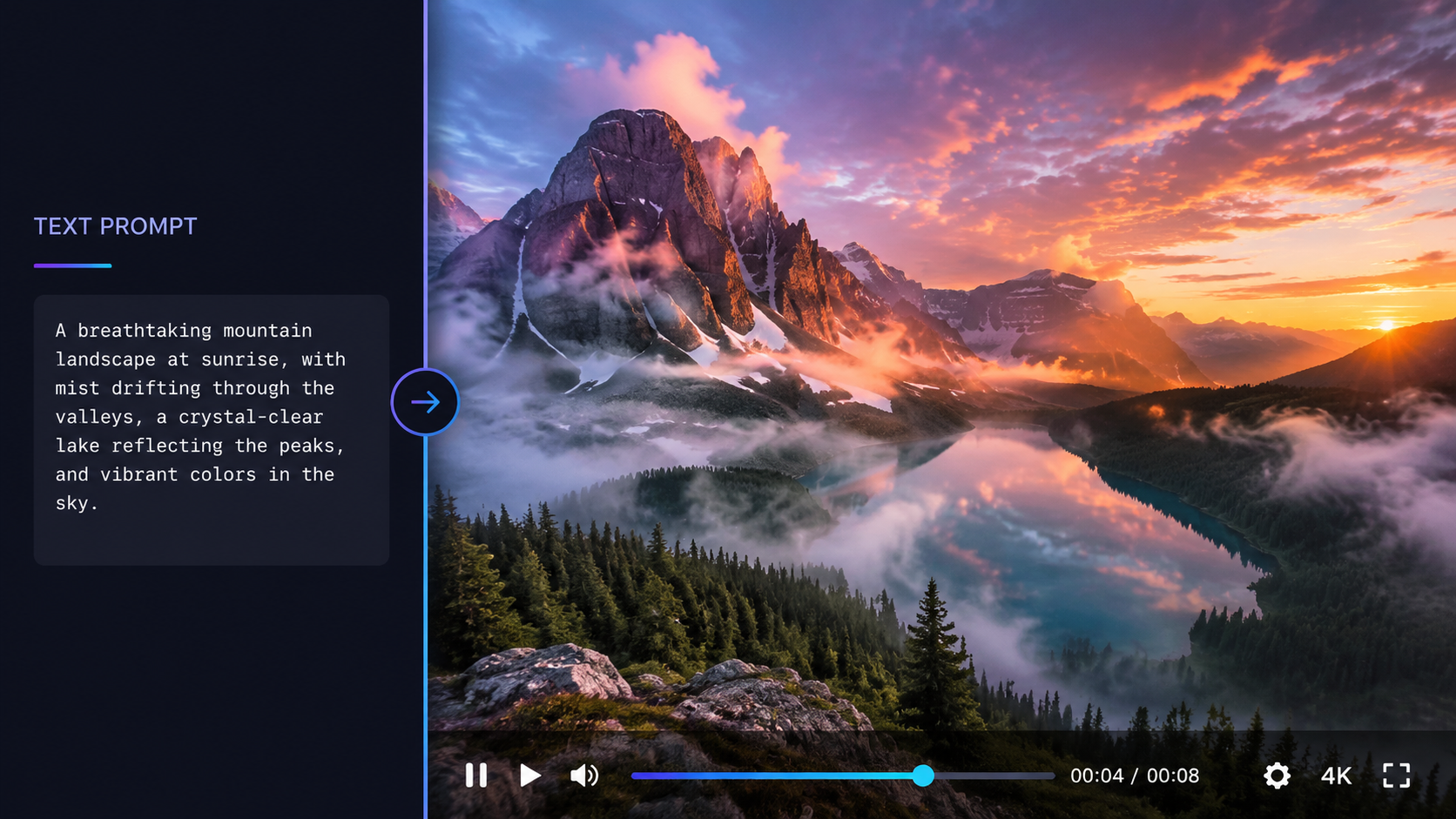
According to Adobe, the release of the Firefly Video Model in late 2025 and its subsequent updates in 2026 have redefined how creators approach motion design. Unlike previous iterations, the 2026 model supports "unlimited generations" for certain users, removing the creative friction of credit-based systems. This shift allows for more experimentation and iterative design, which is essential for high-end commercial production.
A report by ZDNET highlights that Adobe has democratized these tools by offering free tiers with unlimited generations, provided users stay within specific resolution limits. This move was designed to compete with standalone AI video startups by offering a more integrated and legally "safe" alternative. Because Firefly is trained on Adobe Stock and public domain content, it remains the primary choice for enterprise clients who require copyright indemnity.
Key Features of the 2026 Firefly Video Model
| Feature | Description | Primary Use Case |
|---|---|---|
| Generative Extend | Adds frames to the beginning or end of an existing clip. | Fixing "bad" cuts or extending a shot for timing. |
| Text-to-Video | Creates 5-10 second clips from natural language prompts. | B-roll generation and conceptual storyboarding. |
| Firefly Assist | Agentic AI that performs edits based on chat commands. | Automating first-cuts and complex color grading. |
| Image-to-Video | Animates static images with realistic motion. | Bringing concept art or photography to life. |
Mastering Text-to-Video and Image-to-Video Workflows
When learning how to use adobe firefly video, understanding the nuances of prompting is critical. In 2026, the model understands "Cinematic Language." This means instead of just describing the object, you should describe the camera lens (e.g., "35mm"), the movement (e.g., "Parallax"), and the lighting (e.g., "Golden hour"). The more specific your technical descriptors, the more professional the output will appear.
Image-to-video has become a favorite for those who want to maintain brand consistency. By uploading a high-quality product photo, Firefly can generate a video of that product in motion without distorting the brand's visual identity. According to Beebom, the 2026 update significantly improved "temporal consistency," meaning objects no longer morph or disappear between frames, a common issue in earlier AI models.
Advanced Camera Controls
The 2026 interface includes a "Director's Panel" where you can manually override AI decisions. You can lock the camera on a specific axis or dictate the speed of a zoom. This level of granular control ensures that the AI serves the creator's vision rather than the other way around. For instance, you can specify a "Dolly Zoom" effect, which previously required complex physical equipment or manual keyframing in post-production.
Using Firefly Assist for Agentic AI Editing
One of the most significant breakthroughs in 2026 is the public beta of Firefly Assist. As reported by No Film School, this represents Adobe's "double down" into agentic AI. Instead of manually dragging clips onto a timeline, users can now interact with an AI agent that understands the context of the footage. You can simply tell the agent, "Find all the shots with the protagonist smiling and create a 30-second montage set to upbeat music."
This tool is not just about automation; it is about intelligent curation. Firefly Assist can analyze raw footage for technical quality, identifying shots that are out of focus or poorly lit, and suggesting replacements from the generated AI library. This "Raw to First-Cut" capability, as noted by 9to5Mac, can reduce the initial assembly time of a video project by up to 80%, allowing editors to focus on the creative storytelling aspects rather than the technical drudgery.
Automating the First-Cut
To use the First-Cut feature, you upload your raw rushes to the Firefly cloud. The AI analyzes the dialogue, action, and emotional tone. It then generates a rough assembly on the Premiere Pro timeline, complete with basic transitions and audio leveling. While it is rarely a "final" product, it provides a massive head start for professional editors working under tight deadlines in a fast-paced media environment.
Commercial Safety and Ethical AI Standards
A recurring concern with AI video is the legality of the training data. Adobe has maintained a strict stance on "Commercial Safety." Every video generated through Firefly is backed by Adobe's commitment that the model was not trained on scraped content from the open web without permission. This is a crucial factor for agencies and corporate marketing departments who cannot risk copyright infringement lawsuits.
Furthermore, the 2026 version of Firefly automatically attaches "Content Credentials" to every video. This digital "nutrition label" shows that AI was used in the creation process, ensuring transparency. As AI-generated content becomes more prevalent, these credentials help maintain trust between creators and their audiences, providing a verifiable trail of how the media was produced and edited.
Optimizing Your Workflow: Tips for 2026
To get the most out of how to use adobe firefly video, you should integrate it into a hybrid workflow. Don't rely on the AI to do 100% of the work. Instead, use it to fill gaps in your footage. If you're missing a specific transition shot or a wide-angle establishing shot that was forgotten during production, Firefly can generate a matching clip in seconds that blends seamlessly with your high-end camera footage.
Another tip is to use the "Style Reference" feature. If you have a specific aesthetic—such as "Cyberpunk" or "Vintage 16mm Film"—you can upload a single frame of that style. Firefly will then apply that specific visual DNA to all subsequent video generations, ensuring that your AI-generated B-roll matches the look and feel of your primary footage perfectly.
Is Adobe Firefly Video free to use in 2026?
Adobe offers a tiered approach. While there is a free version that allows for a limited number of generations, premium Creative Cloud subscribers now have access to "unlimited generations" for certain resolutions, as part of Adobe's 2026 service update.
Can I use Firefly Video for commercial projects?
Yes, Adobe Firefly is designed to be commercially safe. It is trained on licensed Adobe Stock images and public domain content, and Adobe provides intellectual property indemnity for enterprise users.
What is Firefly Assist?
Firefly Assist is an agentic AI tool available in public beta as of April 2026. it allows users to perform complex editing tasks, like creating a first-cut from raw footage, using simple natural language commands.
Does Firefly Video support 4K resolution?
Yes, the 2026 model supports high-definition and 4K exports, making it suitable for professional film production, social media advertising, and high-quality YouTube content.
Can I extend existing videos with Firefly?
Absolutely. The "Generative Extend" feature in Premiere Pro, powered by Firefly, allows you to add extra frames to the beginning or end of a clip to perfect your timing and transitions.
Comments ()