
How to Edit AI Generated Videos Effectively (2026 Guide)
Editing AI-generated videos effectively is no longer about simply accepting the raw output—it requires a deliberate workflow that combines AI's speed with human creativity and precision. In 2026, the most successful creators know that the secret lies in refining pacing, correcting visual inconsistencies, and adding branded elements that AI models often miss. By following a structured editing process, you can transform a generic AI video into a polished, engaging piece that stands out on any platform.
Editing AI-generated videos effectively is the process of refining raw AI outputs—such as synthetic footage, voiceovers, and animations—by trimming unnecessary content, enhancing visual quality, syncing audio, adding overlays, and ensuring brand consistency. This 2026 guide covers the essential steps, tools, and pitfalls to help you produce professional results every time.
- ✓ Always review the raw AI output for artifacts, unnatural movements, or misaligned audio before making any edits.
- ✓ Use a step-by-step workflow: trim, enhance, add text/overlays, sync audio, apply transitions, and export in the right format.
- ✓ Leverage AI-assisted editing tools like VideoProc Converter AI for upscaling and color correction—but keep human oversight.
- ✓ Avoid over-polishing; AI videos often look best when you retain some of their organic speed and flow.
- ✓ Stay ahead of 2026 trends: real-time collaborative editing and AI-driven script-to-video pipelines are becoming the norm.
Understanding the AI Video Editing Landscape (2026)
The market for AI-generated videos has exploded in 2026. According to a May 2026 guide from INQUIRER.net USA, even complete beginners can now create stunning videos using AI tools—but editing those outputs remains a critical skill. A separate article from Business Review (May 2026) highlighted how marketers can turn product links directly into videos inside AI video editors in seconds, demonstrating the speed of generation. However, raw AI videos often lack the nuance that only a human editor can provide.
The Role of Human Editing in an AI-First World
AI models are excellent at generating content, but they still struggle with context, emotional pacing, and brand-specific requirements. A study published in Frontiers (January 2026) on AI-assisted microlearning found that students engaged more deeply when instructors manually edited AI-generated micro-lessons to add real-world examples and pauses. This underscores a core truth: how to edit AI generated videos effectively is not about replacing human judgment but complementing it. Editors must verify facts, adjust timing, and add creative touches that make the video feel authentic.
Step-by-Step Workflow to Edit AI-Generated Videos Effectively
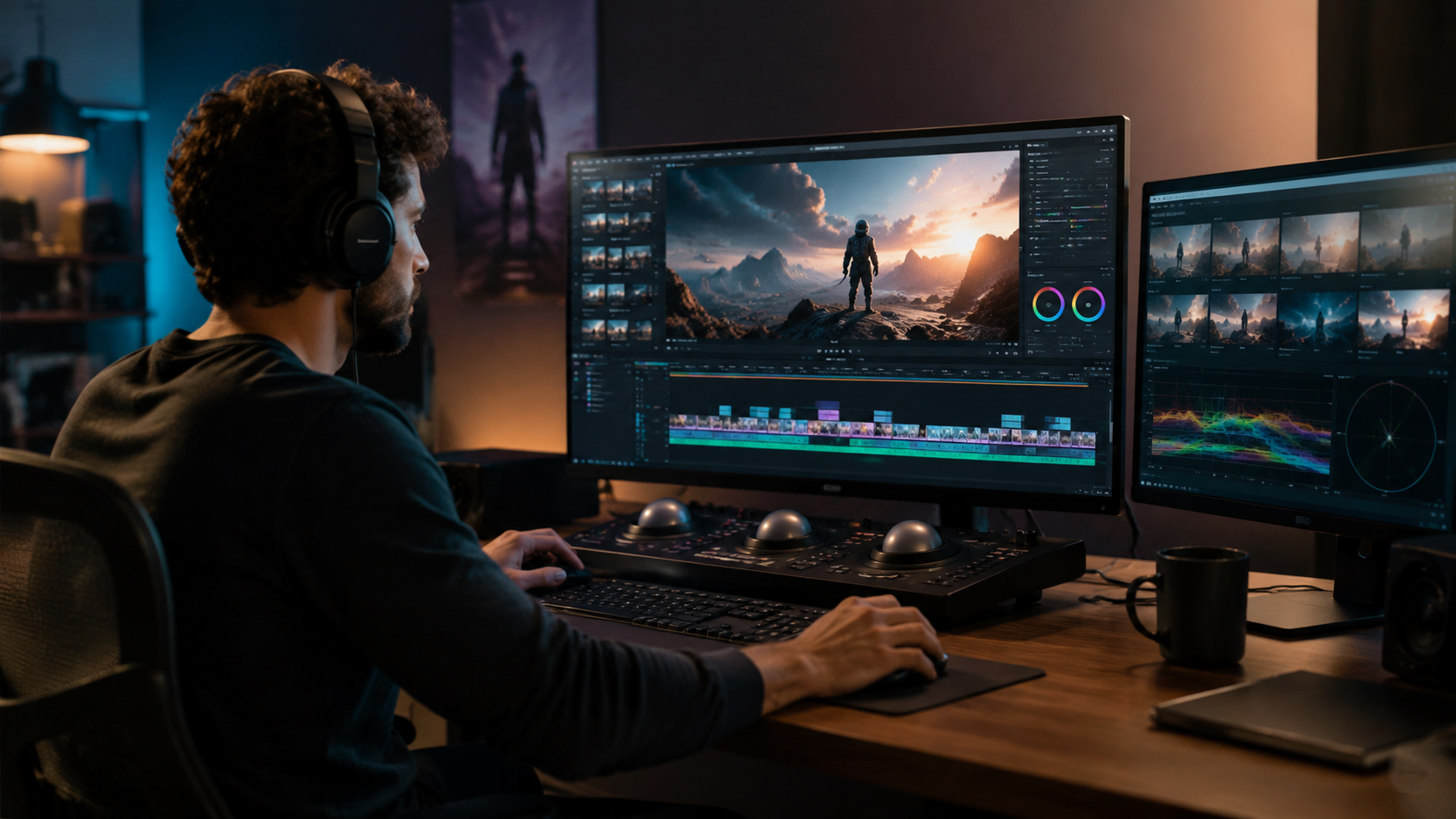
Below is a proven seven-step process that covers everything from initial review to final export. Follow these steps every time you work with AI-generated footage.
- Review the raw output thoroughly. Watch the entire video at least twice. Look for visual artifacts (flickering, glitching), misaligned lipsync, awkward transitions, and factual inaccuracies in on-screen text.
- Trim and cut unnecessary segments. AI models often include redundant or filler content. Use a timeline editor to remove dead air, long pauses, or repetitive visuals.
- Enhance visual quality. Tools like VideoProc Converter AI (reviewed by SLR Lounge in March 2026) offer smart upscaling and noise reduction. Apply these sparingly—over-enhancement can make video look artificial.
- Add text overlays and captions. AI-generated speech recognition isn’t perfect. Manually adjust captions for accuracy, and add lower thirds for speaker names or key statistics.
- Sync and refine audio. Check for audio dropouts or mismatched sound effects. Use a simple equalizer to balance voiceovers and background music.
- Apply transitions and color grading. Use cut, dissolve, or wipe transitions to smooth scene changes. Apply LUTs (Look-Up Tables) for consistent color tone across the video.
- Export in the right format. For social media, use MP4 with H.264 codec. For archival, consider ProRes. Always test playback on multiple devices before publishing.
Essential Tools and Features for Polishing AI Videos
In 2026, the best editing tools combine AI-powered assistance with traditional manual controls. Below is a comparison of popular options. Remember, the goal is not to rely entirely on automation but to use each tool’s strengths to speed up the repetitive parts of editing.
| Tool | Best For | AI Features | Pricing (2026) |
|---|---|---|---|
| VideoProc Converter AI | Enhancement & conversion | AI upscaling, noise reduction, color correction | $39.95 one-time |
| Adobe Premiere Pro (with Sensei AI) | Professional editing | Auto-reframe, speech-to-text, scene edit detection | $22.99/month |
| CapCut (AI-powered) | Quick social media edits | Auto captions, AI script to video, motion tracking | Free (with premium tier at $7.99/month) |
| DaVinci Resolve 19 | Color grading & audio post | AI-based object masking, voice isolation | Free (Studio $295 one-time) |
According to an October 2025 article in CustomerThink, AI video ads are winning the customer experience battle because they are personalized and fast to produce. However, the same article emphasized that the best-performing ads undergo manual refinement to remove "uncanny valley" effects. When selecting your editing suite, prioritize tools that offer both AI shortcuts and granular manual controls.
How to Edit AI Generated Videos Effectively: Choosing the Right Workflow for Your Content
The steps above work for most videos, but you may need to adjust based on your content type. For example, microlearning videos (as studied in the Frontiers January 2026 paper) benefit from extra pauses and interactive elements. Political ads (like those analyzed by Time Magazine in October 2025) require careful editing of AI-generated imagery to avoid misleading voters. Always tailor your editing to the audience and platform.
Common Mistakes to Avoid When Editing AI Videos
Even experienced editors can fall into traps when handling AI-generated content. Here are the most frequent errors and how to avoid them.
Over-relying on AI to Automate Everything
Many editors assume that because the video was created by AI, they only need to click "enhance." This is a mistake. AI models can hallucinate details, misalign lipsync, or generate text that is factually incorrect. Always manually review every element. A 2026 trend noted by Business Review is that leading brands now assign human editors to review AI-generated product videos before publishing—a step that dramatically reduces errors.
Ignoring Audio Quality
AI-generated voiceovers can sound flat or robotic. In the SLR Lounge review of VideoProc Converter AI, the tool’s noise reduction was praised, but the reviewer noted that it works best on real recorded audio, not synthetic voices. To fix AI voiceovers, use a mild compressor, add subtle reverb, and adjust pacing with a waveform editor.
Not Testing on Multiple Screens
AI videos are often rendered at high resolution, but they may not scale down gracefully. Always test your edited video on a smartphone, tablet, and desktop. Check for cropping, text readability, and audio levels. This is especially critical for short-form content used in advertisements.
Future Trends in AI Video Editing (2026 and Beyond)
The landscape continues to evolve rapidly. Based on current trajectory, here are three trends that will shape how to edit AI generated videos effectively in the coming years.
Real-Time Collaborative Editing
Platforms like Frame.io and new AI-native tools now allow multiple editors to work on the same AI-generated video simultaneously. This reduces turnaround time for teams. The INQUIRER.net guide from May 2026 predicted that by late 2027, most AI video editors will include built-in collaborative features.
AI-Powered Script-to-Video Pipelines with Human-Edited Branches
Rather than generating a single rough cut, future tools will produce multiple versions of a video from the same script, allowing editors to cherry-pick the best takes. The CustomerThink article on AI video ads already showed that A/B testing different AI-generated versions was a winning strategy—now editors need to refine each variant quickly.
Ethical Editing and Fact-Checking Built In
Given the political implications exposed by Time Magazine’s analysis of Trump’s AI videos, leading platforms are adding built-in fact-checking modules. Editors will soon be able to highlight parts of a video that may contain inaccuracies, making the editing process safer and more responsible.
Frequently Asked Questions
What is the first step in editing an AI-generated video?
The first step is to watch the raw video at least twice, noting any artifacts, timing issues, or factual errors. This review phase ensures you don’t miss critical problems that will be harder to fix later.
Do I need expensive software to edit AI videos effectively?
No. Many free tools like DaVinci Resolve or the free tier of CapCut offer powerful editing features. For specific enhancements like upscaling, VideoProc Converter AI (around $40) is a cost-effective option.
How long does it take to edit a 5-minute AI-generated video?
If you follow a structured workflow, expect 1–2 hours for a well-polished 5-minute video. This includes review, trimming, audio sync, captions, and color grading. With practice, the time reduces.
Can I use AI to help with the editing itself?
Yes. Tools like Adobe Premiere Pro’s Sensei AI can auto-reframe footage or generate captions. However, always double-check AI-suggested edits—they are not always accurate.
What’s the biggest mistake beginners make when editing AI videos?
The most common error is over-editing—adding too many effects, transitions, or animations. AI-generated content already has a distinct style; minimal editing often yields the best results.
By now, you have a clear roadmap for how to edit AI generated videos effectively in 2026. The key is to combine the speed of AI generation with the thoughtful refinement that only a human editor can provide. Review thoroughly, follow the step-by-step workflow, choose the right tools, and avoid common pitfalls. With practice, you’ll produce videos that look professional, feel authentic, and perform well across platforms.



Comments ()