
Adobe Firefly AI Video Tutorial: Master Text-to-Video (2026)
An adobe firefly ai video tutorial is a comprehensive guide that teaches creators how to leverage Adobe's generative AI engine to transform text prompts into high-quality cinematic video sequences. By utilizing the integrated Luma AI Ray3 model and Firefly’s native video capabilities, users can generate realistic motion, atmospheric effects, and professional-grade transitions directly within the Adobe Creative Cloud ecosystem.
Adobe Firefly Video is a generative AI tool that allows users to create video content from text or image prompts. By integrating the Luma AI Ray3 model (released in late 2025) and specialized sound effect generation, Firefly enables the production of 4K cinematic clips, seamless b-roll, and synchronized audio-visual experiences for professional editors and hobbyists alike.
- ✓ Master text-to-video generation using the state-of-the-art Ray3 Video Model.
- ✓ Learn to synchronize AI-generated sound effects with your visual compositions.
- ✓ Utilize "Generative Extend" to add duration to existing clips without losing quality.
- ✓ Streamline workflows by moving assets directly from Firefly to Premiere Pro and After Effects.
The Evolution of Adobe Firefly Video in 2026
As we navigate through 2026, the landscape of digital content creation has been fundamentally altered by generative intelligence. The adobe firefly ai video tutorial has become an essential curriculum for modern editors. Since the landmark update in July 2025, which introduced industry-leading AI models and the Generate Sound Effects feature, Adobe has focused on "commercially safe" generation. This means every pixel and frame generated is designed to be used in professional projects without the copyright anxieties that plagued early AI adopters.
According to Adobe, the integration of Luma AI’s Ray3 Video Model in September 2025 marked a turning point for the platform. This model brought unprecedented temporal consistency—the ability for objects and lighting to remain stable across a shot—which was previously the "Achilles' heel" of AI video. In 2026, these tools have matured, allowing for higher resolutions, faster rendering times, and a deeper understanding of complex physics within the video frame.
The current iteration of Firefly Video isn't just about creating a clip from scratch; it’s about a holistic creative workflow. Whether you are a concept artist using Firefly to visualize storyboards or a social media manager needing high-quality b-roll, the platform provides a bridge between imagination and execution. The synergy between Firefly and the rest of the Creative Cloud suite ensures that your AI-generated assets are not isolated files but editable layers in a larger masterpiece.
Step-by-Step Adobe Firefly AI Video Tutorial
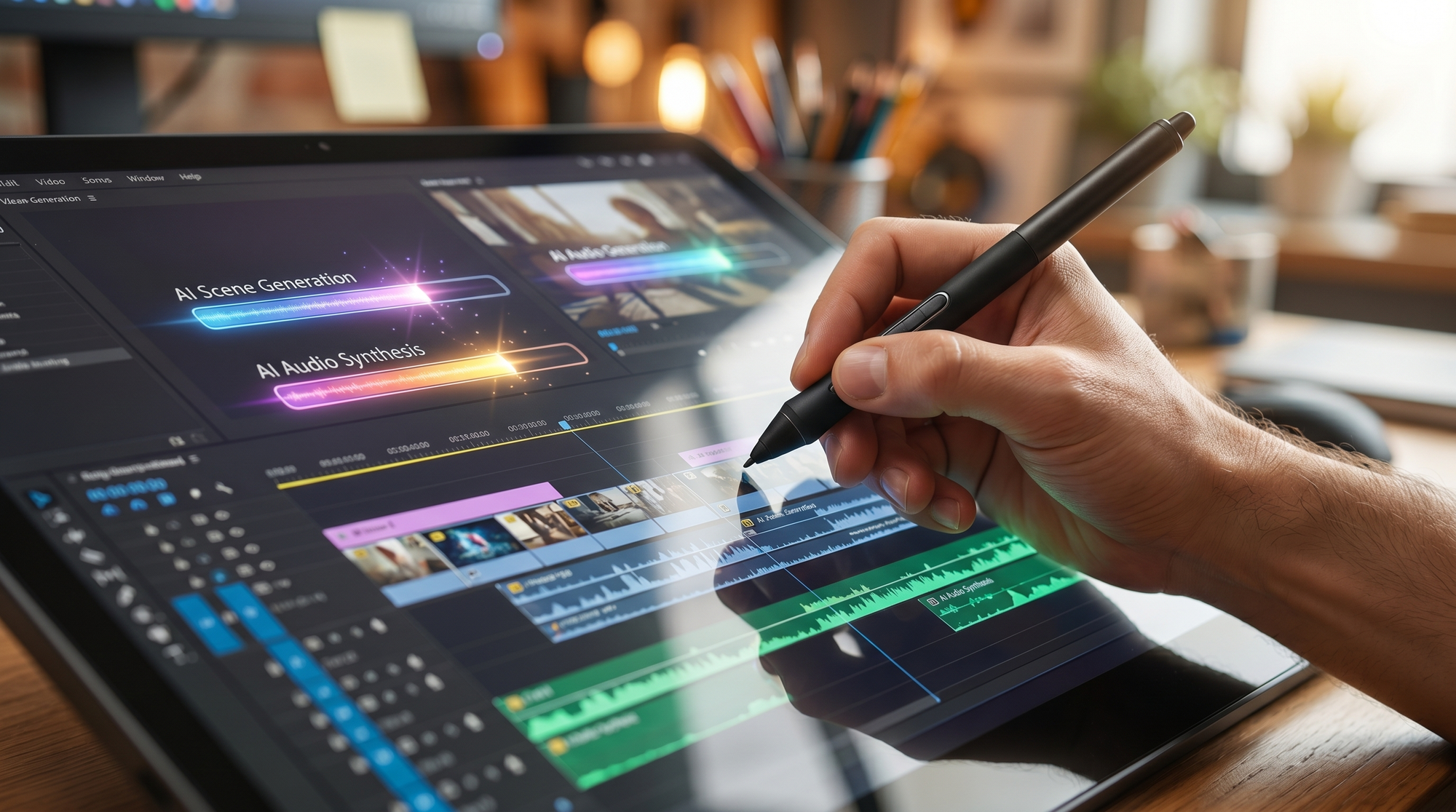
To master the adobe firefly ai video tutorial process, one must understand the nuances of prompting and the technical settings that govern motion. Follow these steps to create your first professional-grade AI video sequence:
- Access the Video Module: Log into the Adobe Firefly web interface and select the "Text to Video" module. Ensure your workspace is set to the 2026 version to access the latest Ray3 model enhancements.
- Input Your Text Prompt: Describe your scene in detail. Instead of saying "a forest," try "a lush, temperate rainforest at dawn, cinematic lighting, mist rolling through ancient ferns, 4K resolution."
- Set Camera Controls: Use the "Camera Motion" settings to define the movement. You can choose from pans, tilts, zooms, or "dolly shots" to give your AI video a professional cinematography feel.
- Apply Style References: Upload an image or select a preset style (such as "Cyberpunk," "Film Noir," or "Hyper-realistic") to ensure the visual aesthetic matches your project’s brand.
- Generate and Refine: Click generate to produce a preview. If the motion is too fast or the subject is distorted, use the "Negative Prompt" field to exclude unwanted elements like "blurry" or "deformed."
- Generate Sound Effects: Once the video is ready, use the "Generate Sound Effects" feature to create ambient audio that matches the visual rhythm of your clip.
- Export to Creative Cloud: Save your video to your Creative Cloud Library for immediate access in Premiere Pro or After Effects for final color grading.
Comparing Adobe Firefly to Industry Standards
In the competitive landscape of 2026, choosing the right tool is vital. While CNET highlights that Sora 2 and Veo 3 remain powerful contenders for long-form generation, Adobe Firefly distinguishes itself through its integration and ethical training data. Below is a comparison of how Firefly stacks up against the current market leaders.
| Feature | Adobe Firefly (2026) | Luma AI Ray3 (Native) | Sora 2 / Veo 3 |
|---|---|---|---|
| Primary Model | Firefly Video + Ray3 | Ray3 Engine | Proprietary LLM-Video |
| Commercial Safety | Certified Safe / Indenmified | Standard Terms | Varies by Tier |
| Sound Integration | Built-in "Generate SFX" | Limited | External Tools Needed |
| Workflow Integration | Full Adobe Suite Sync | API / Web Only | Web/API Only |
| Max Resolution | 4K Upscaled | 4K Native | Variable (Up to 4K) |
Understanding the Ray3 Video Model Integration
The addition of Luma AI’s Ray3 Video Model into Adobe Firefly in late 2025 was a strategic move to enhance "realism and fluid motion." According to RedShark News, this model specifically addresses the "morphing" issues found in earlier AI video versions. In 2026, this means that when you prompt for a person walking, the limbs move with anatomical correctness, and the background doesn't "melt" as the camera pans.
The Power of "Generate Sound Effects"
One of the most significant updates mentioned in the July 2025 Adobe release was the "Generate Sound Effects" feature. This tool allows users to describe a sound—such as "heavy rain on a tin roof" or "futuristic spaceship engine hum"—and Firefly creates a high-fidelity audio file. This eliminates the need for expensive stock audio subscriptions and ensures that the soundscape is as unique as the visuals.
Advanced Techniques in your Adobe Firefly AI Video Tutorial
To truly excel with the adobe firefly ai video tutorial, you must go beyond basic prompts. Advanced users in 2026 are utilizing "Generative Extend" and "Image-to-Video" workflows to maintain complete creative control. Generative Extend is particularly useful for editors who have a shot that is just two seconds too short; the AI analyzes the existing frames and generates new ones that match the motion and lighting perfectly.
Image-to-Video is another powerhouse feature. By starting with a high-quality concept art piece (perhaps created in Firefly's Text-to-Image module), you provide the AI with a visual "anchor." This ensures that the characters, colors, and environment are exactly what you envisioned before the AI adds the dimension of time. Creative Bloq notes that using Firefly in a concept art workflow allows for rapid prototyping that was impossible just a few years ago.
Furthermore, the 2026 version of Firefly allows for "Regional Prompting." This means you can highlight a specific area of a video frame—like a character's eyes or a specific flickering light—and prompt changes only to that region. This level of granular control is what separates Adobe’s professional suite from more "black box" AI generators that offer little post-generation editability.
Ethical AI and Commercial Viability
A major focus of any adobe firefly ai video tutorial must be the ethical use of these tools. Adobe has remained steadfast in training its models on Adobe Stock images and public domain content. This is a critical distinction for corporate clients and professional agencies. According to DIY Photography, the inclusion of Luma AI's Ray3 model within the Firefly ecosystem was done with strict adherence to Adobe's "Content Authenticity Initiative."
This initiative attaches "Content Credentials" to every video generated. In 2026, transparency is mandatory in many jurisdictions. These credentials act as a digital "nutrition label," showing viewers that AI was used in the creation process. For creators, this provides a layer of protection and professional transparency that builds trust with audiences and clients alike. When you use Firefly, you aren't just making a video; you are participating in a responsible creative economy.
The commercial safety aspect also includes legal indemnification. Adobe provides assurance to Enterprise users that the content generated won't result in copyright lawsuits. This makes Firefly the go-to choice for Super Bowl commercials, Hollywood pre-visualization, and global marketing campaigns where the stakes of intellectual property are incredibly high.
Optimizing Your Workflow for 2026
Efficiency is the currency of the 2026 creative industry. To optimize your adobe firefly ai video tutorial workflow, you should utilize the "Batch Generation" feature. Instead of waiting for one clip to render, you can queue up dozens of variations of a scene. This allows you to "direct" the AI by selecting the best take from a variety of interpretations.
Integration with Premiere Pro has reached a peak in 2026. You can now use a "Firefly Panel" directly inside your timeline. If you find a gap in your edit, you can type a prompt directly into the panel, and the generated video will appear on your timeline, automatically color-matched to your existing footage. This "In-Edit Generation" is drastically reducing the time spent on sourcing stock footage and allows for a more fluid, improvisational editing style.
Is Adobe Firefly Video free to use in 2026?
Adobe Firefly Video is included in most Creative Cloud subscriptions, though it operates on a "Generative Credit" system. Users receive a monthly allotment of credits, and additional credits can be purchased if you exceed your limit during heavy production periods.
Can I use my own footage as a base for Firefly Video?
Yes, the "Generative Extend" and "Structure Reference" features allow you to upload your own video clips. The AI then analyzes your footage to either extend the duration or apply new styles while maintaining the original composition and movement.
What is the maximum length of an AI video in Firefly?
As of the latest 2026 updates, Firefly can generate continuous clips up to 10 seconds in length. However, using the "Generative Extend" feature, these clips can be looped or lengthened to meet the needs of longer sequences without noticeable seams.
Does Firefly Video support 4K resolution?
Yes, the integration of the Ray3 model allows for high-definition and 4K output. The system uses advanced upscaling algorithms to ensure that the AI-generated textures remain sharp and professional even on large displays.
How does the "Generate Sound Effects" feature work?
Users enter a text description of the desired sound, and Firefly's audio engine synthesizes a unique wave file. This audio can be automatically synced to the motion cues in your generated video, providing a complete "one-click" audio-visual asset.
Comments ()