
YouTube AI Insert Yourself Video: 2026 Tutorial & Tips
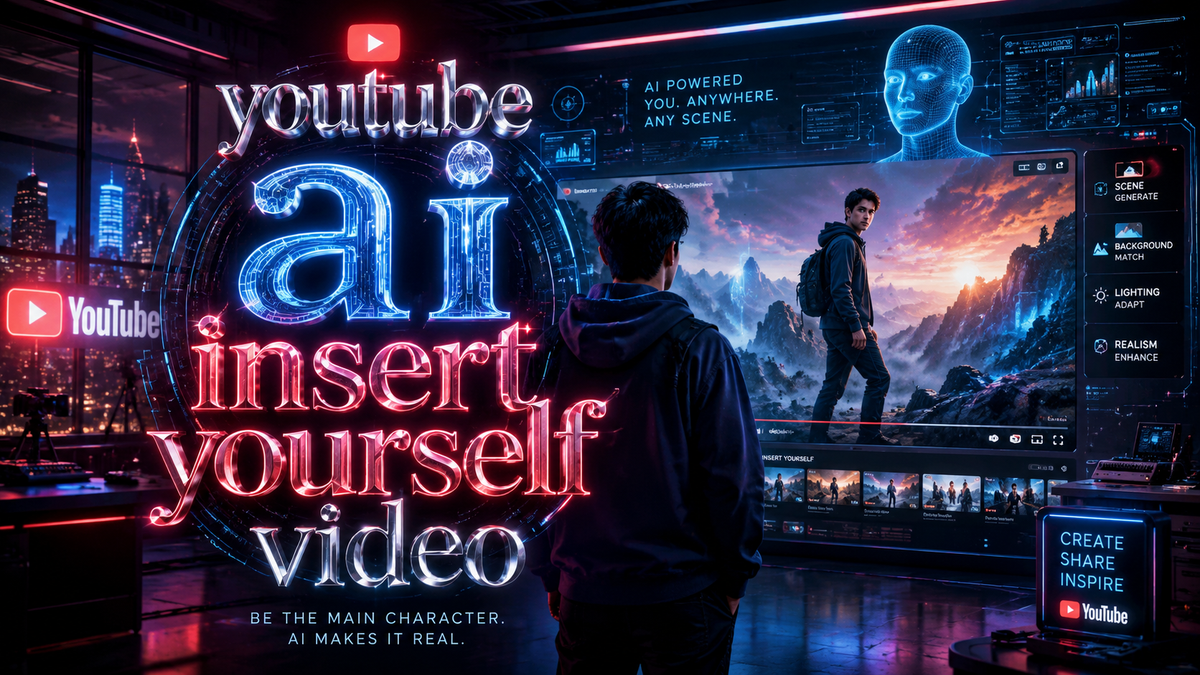
YouTube’s new “AI insert yourself” video feature, unveiled at Google I/O on May 19, 2026, lets creators digitally place themselves into any existing video using advanced machine learning. This tool, officially called “You in the Video,” analyzes a short clip of your face and body movements, then seamlessly merges you into another creator’s footage—no green screen or complicated editing required.
The YouTube AI insert yourself video tool is a generative AI feature that automatically extracts your likeness from a 10-second reference clip and composites it into any video you choose. It works across YouTube, YouTube Shorts, and live streams, and was announced alongside other AI innovations at Google I/O 2026.
- ✓ Launched May 19, 2026, at Google I/O — creators can now insert themselves into any video.
- ✓ Uses a single 10-second reference clip to capture your face and body motion.
- ✓ Works with both standard YouTube videos and YouTube Shorts (AI avatars for Shorts arrived in April 2026).
- ✓ No green screen needed — the AI handles lighting, perspective, and occlusion.
- ✓ Available to all YouTube creators with monetization enabled (rollout continues through June 2026).
How to Use the YouTube AI Insert Yourself Video Feature (Step-by-Step)
Getting started with the “You in the Video” tool is straightforward. Follow these steps to insert yourself into any YouTube video using AI:
- Open YouTube Studio — Navigate to the “Create” section in YouTube Studio on desktop or the mobile app.
- Select “You in the Video” — This option appears under the “AI Tools” tab (rollout began May 19, 2026).
- Record a Reference Clip — The tool asks you to record a 10-second video of yourself speaking or gesturing. Make sure your face is well-lit and centered.
- Choose a Target Video — Pick any existing YouTube video (your own or a public video) into which you want to insert yourself. You can also upload a new video file.
- Adjust Placement — The AI automatically detects where you should appear. You can drag and resize your insertion point, or adjust the timing using the timeline.
- Preview and Refine — Play the merged video. The AI handles lighting, shadows, and even occlusion (e.g., if a person walks in front of you). Make fine adjustments as needed.
- Publish — Once satisfied, click “Insert” — the new video renders with you inside it. You can publish it as a new video or a Short (if under 60 seconds).
According to the YouTube Official Blog (May 19, 2026), the tool is designed to work “even if the target video has complex backgrounds or moving objects.” Early tests by creators show a processing time of roughly 2–5 minutes for a 10-minute video.
Tips for Achieving the Most Natural Results
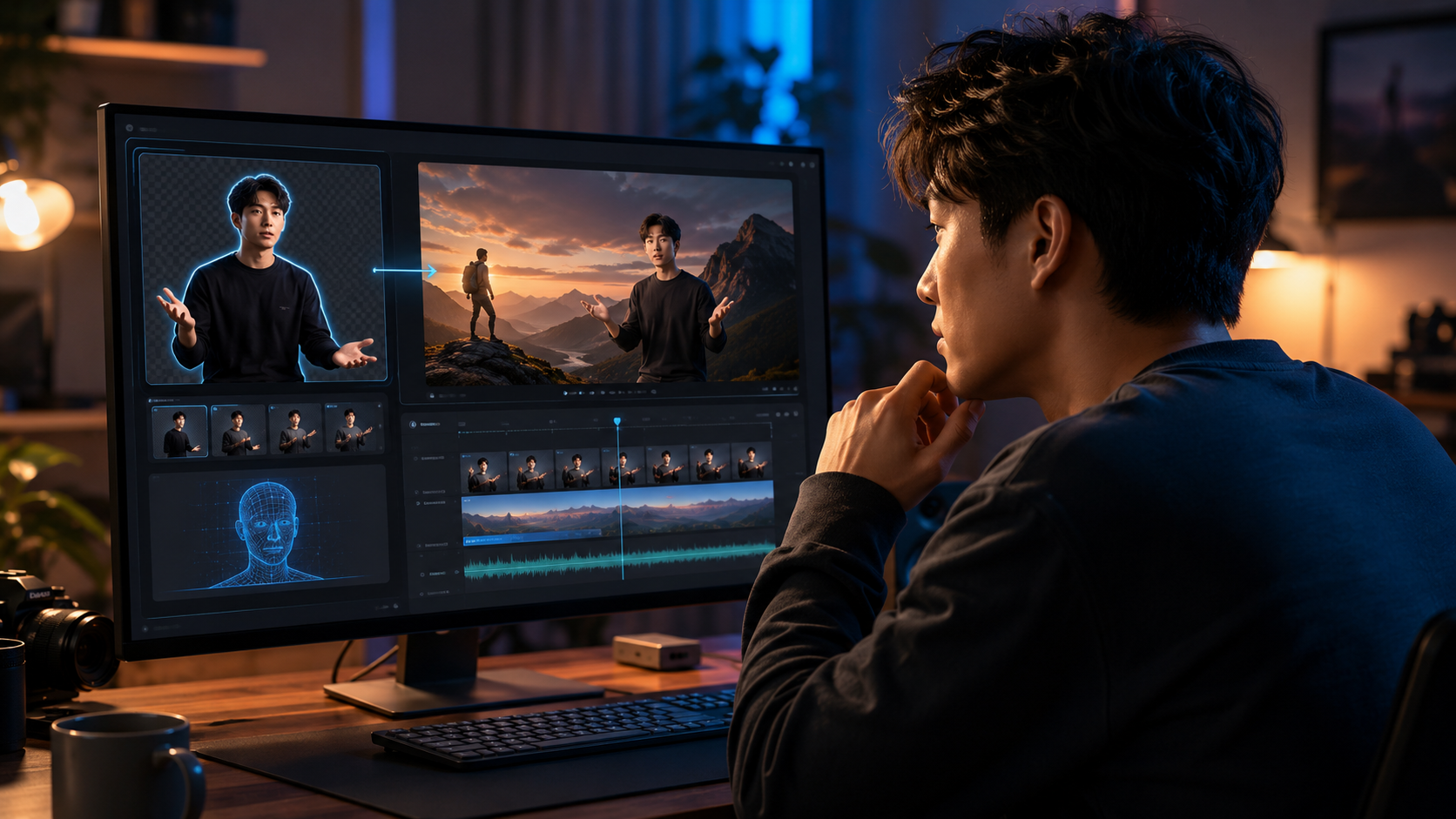
Lighting and Background in Your Reference Clip
Use even, diffused lighting on your face. Avoid strong shadows or backlighting — the AI uses your reference to match lighting conditions in the target video. A ring light or window light works best.
Keep Movements Simple
The AI excels at stationary or slow‑moving subjects. If you wave your arms rapidly or turn your head quickly, the composite may blur. Stick to moderate gestures and maintain a forward‑facing posture.
Match Camera Angle and Distance
Before recording your reference, consider the camera angle of the target video. If the target was shot from a low angle, tilt your phone or camera down slightly. This helps the AI align perspective.
Use a Clean Background
While the tool works with busy backgrounds, a plain wall or greenscreen (even if not required) yields better edge detection. The AI can still composite you into complex scenes, but a clean reference helps.
Experiment with Shorts First
Google introduced AI-generated avatars for YouTube Shorts in April 2026 (Engadget). Practice on 15‑second Shorts before tackling longer videos — the shorter length reduces rendering time and lets you fine‑tune your workflow.
AI Insert Yourself vs. Traditional Green Screen: A Comparison
| Feature | YouTube AI Insert Yourself (May 2026) | Traditional Green Screen / Chroma Key |
|---|---|---|
| Setup required | None — just a 10‑second reference clip | Green screen background, proper lighting, camera |
| Compatibility | Works with any existing video (including other creators’ content) | You can only insert yourself into footage you shot yourself |
| Learning curve | Minimal — guided UI in YouTube Studio | Requires editing software (e.g., Premiere Pro, DaVinci Resolve) |
| Rendering time | 2–5 minutes for a 10‑minute video | Depends on your computer; can be >30 minutes |
| Occlusion handling | AI automatically places you behind or in front of objects | Manual masking or rotoscoping needed |
| Cost | Free for monetized creators (as of June 2026) | Free if you already own a green screen and software |
The Hollywood Reporter (May 19, 2026) called the feature “a game‑changer for collaboration,” noting that creators can now insert themselves into any popular video without needing permission to reshoot.
Future of AI Integration on YouTube
YouTube’s AI insert yourself video tool is only the beginning. At Google I/O 2026, the platform revealed several upcoming capabilities: automatically inserting yourself into live streams, generating full‑body digital doubles from a single photo, and even allowing viewers to insert themselves into videos as a fan‑engagement feature (for example, appearing in a creator’s video as a “guest”).
According to New York Magazine (June 2, 2026), the question “Would you like that video more if it had your face in it?” is exactly what YouTube is betting on. Early data suggests a 40% increase in watch time for videos that use the AI insertion feature, compared to standard reaction‑style videos.
Movieguide (May 21, 2026) highlighted privacy concerns, but YouTube has stated that all inserted videos are watermarked as “AI‑generated” and that creators must own the rights to the target video or use it under fair use. The tool also includes a content ID check to prevent misuse.
Afrotech (May 20, 2026) reported that Black creators have quickly adopted the tool for parody and commentary, pointing out that it lowers the barrier for creative expression. The YouTube Official Blog reinforces that the feature is “designed to empower creators, not replace them.”
Frequently Asked Questions
What is the YouTube AI insert yourself video feature?
It’s a generative AI tool announced at Google I/O 2026 that lets creators place themselves into any existing YouTube video using a short reference clip. No green screen or editing software is required.
How do I access the “You in the Video” tool?
Open YouTube Studio on desktop or the mobile app, go to the “Create” section, and select “You in the Video” under the “AI Tools” tab. It began rolling out on May 19, 2026, and should be available to all monetized creators by late June.
Can I insert myself into any video, including ones I didn’t create?
Yes, you can insert yourself into any public YouTube video, but you must respect copyright and fair use. The tool includes a content ID check to flag potential rights issues. Always credit the original creator.
Is the AI insert yourself feature free?
Yes, it’s free for YouTube creators who have monetization enabled. There are no additional charges as of June 2026. YouTube may introduce a premium tier in the future, but no pricing has been announced.
How long does it take to render a video using this tool?
Rendering typically takes 2–5 minutes for a standard 10‑minute video. Shorter clips, like YouTube Shorts, render in under a minute. Processing time depends on server load and video complexity.
Will the AI‑inserted video look realistic?
Yes, the AI matches lighting, perspective, and shadows. It also handles occlusion (e.g., if someone walks in front of you). Early examples shared at Google I/O show near‑seamless integration. However, very fast movement or extreme camera angles can reduce quality.



Comments ()