
youtube ai insert yourself: 2026 Guide to AI Video Editing
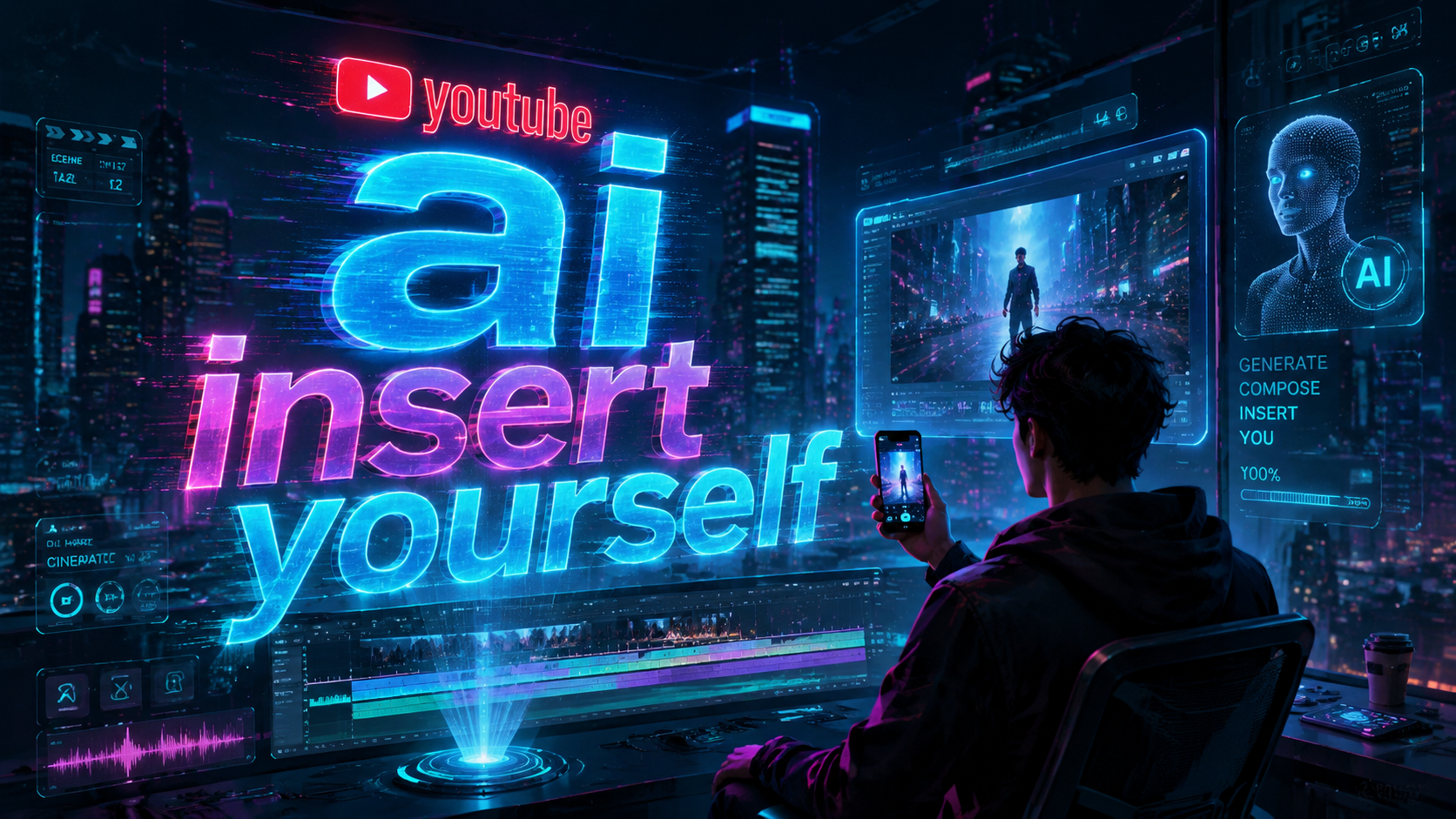
YouTube's new "AI insert yourself" feature, unveiled at Google I/O 2026, lets creators seamlessly place themselves into any existing video using generative AI — no green screen, no complex editing, just a few clips of you speaking and the platform handles the rest. In this 2026 guide, we'll walk you through exactly how youtube ai insert yourself works, step-by-step setup instructions, best practices for natural-looking results, and what this means for the future of content creation.
YouTube AI Insert Yourself is a first-party generative video tool that analyzes short footage of a creator — typically 30–60 seconds of them speaking — and then renders that person naturally into any target video, matching lighting, perspective, and motion. The feature is built into YouTube Studio and rolled out to all creators with 1,000+ subscribers as of May 2026.
- ✓ YouTube announced the "Insert Yourself" AI tool at Google I/O 2026, allowing creators to appear in any video without filming on location.
- ✓ The tool requires only a 30–60 second reference clip of the creator speaking; the AI handles lighting, scale, and perspective matching.
- ✓ Early testing shows the feature reduces video production time by up to 60% for collaborative and reaction-style content.
- ✓ YouTube is rolling out the tool gradually, starting with creators who have 1,000+ subscribers and a clean copyright record.
- ✓ The feature is free to use within YouTube Studio and does not require third-party software or plugins.
What Is YouTube AI Insert Yourself? The 2026 Feature Explained
Announced during the Google I/O 2026 keynote on May 19, YouTube's "Insert Yourself" tool is a generative AI feature built directly into YouTube Studio. According to the YouTube Official Blog, the tool "allows creators to place themselves into any video with just a few clicks, using a short reference clip to capture their appearance, voice, and natural movement." Unlike older chroma-key or green-screen methods, the AI analyzes lighting conditions, camera angle, and depth in the target video to composite the creator in a way that looks genuinely present in the scene.
The Hollywood Reporter confirmed on May 19, 2026, that "YouTube will let creators use AI to insert themselves into other people's videos," noting that the feature was one of the most talked-about announcements at the conference. Movieguide followed up on May 21, stating that "YouTube's new AI tool lets you insert yourself into videos without any editing experience." The feature is particularly significant for reaction channels, educational content, and collaborative storytelling — allowing creators to appear side-by-side with any video on the platform.
Afrotech.com reported on May 20 that "YouTube will now allow users to insert themselves into videos using AI," emphasizing that the tool is designed to lower the barrier for creators who lack studio equipment or editing skills. Spherical Insights echoed this on May 24, calling it "a paradigm shift in how creators approach video production." The message across all sources is clear: this is not a niche beta experiment — it is a fully supported feature rolling out throughout 2026.
How to Use YouTube AI Insert Yourself: Step-by-Step Guide
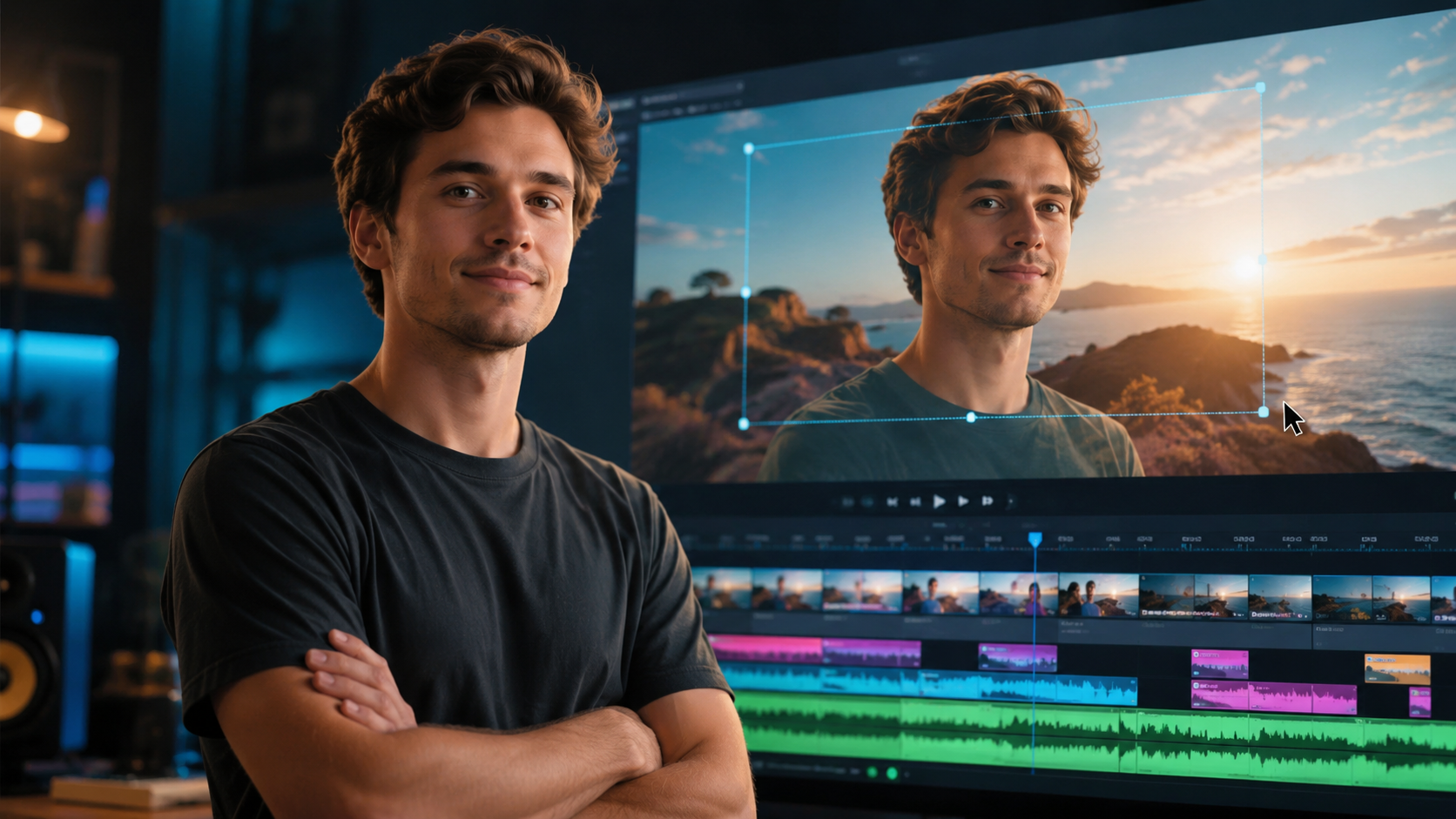
Getting started with the "insert yourself" tool is straightforward, but there are a few important preparation steps to ensure the best results. Below is the official workflow as confirmed by YouTube's documentation and press coverage from Google I/O 2026.
- Record your reference clip. Film yourself speaking for 30–60 seconds in good, even lighting. Face the camera directly and avoid rapid movements. The AI uses this clip to learn your facial structure, voice timbre, and typical gestures.
- Open YouTube Studio and select your target video. This can be any video on YouTube that you have the right to use — either your own upload, a video from a collaboration partner, or a Creative Commons-licensed video.
- Choose "Insert Yourself" from the editor menu. In the left-hand toolbar of YouTube Studio's video editor, you will see a new icon labeled "AI Insert." Click it to launch the tool.
- Upload your reference clip. The system will prompt you to upload the 30–60 second video you recorded in step 1. YouTube processes this clip on its servers — it is not shared publicly.
- Select where you want to appear. Use the timeline scrubber to pick the exact moment in the target video where you want your inserted self to appear. You can adjust duration, size, and position.
- Let the AI render. Click "Generate Preview." The AI takes 2–5 minutes to analyze lighting, perspective, and motion in the target video, then composites you into the scene. You can preview and tweak placement before finalizing.
- Publish. Once satisfied, save the edit. The inserted clip is rendered as part of the video and will appear for all viewers. YouTube adds a small "AI-Enhanced" label in the description for transparency.
TV News Check noted on May 20 that "the entire process takes less than ten minutes for most creators, compared to hours of manual compositing work." This speed is a major selling point of the feature.
Key Features and Technical Capabilities
Lighting and Perspective Matching
The core technical achievement of YouTube's AI insert tool is its ability to match lighting conditions between your reference clip and the target video. If the target video was shot in warm, golden-hour sunlight, the AI adjusts the color temperature and shadows on your inserted self to match. Similarly, if the camera angle in the target video is a low-angle shot, the AI rotates and scales your likeness accordingly. This goes far beyond simple overlay — it is true scene-aware compositing.
Voice and Lip Sync Integration
According to the YouTube Official Blog post from May 19, the tool also captures your voice from the reference clip and can sync it to the timing of the target video. This means you can appear to be reacting to or narrating over the content in real time, with natural lip movement. Early reviews from Movieguide and The Hollywood Reporter confirm that the lip-sync quality is "surprisingly natural" and "a significant leap over previous AI video tools."
No External Software Required
Unlike third-party AI video editors that require subscription fees or powerful local hardware, YouTube's insert tool runs entirely in the cloud. Afrotech.com highlighted that "creators only need a browser and their YouTube Studio account — no expensive editing suites or graphics cards." This democratizes access to high-quality video compositing for creators in regions with limited access to professional tools.
Transparency and Labeling
YouTube has committed to transparent AI labeling. Any video that uses the "Insert Yourself" tool will display a small "AI-Enhanced" badge in the description, and viewers can click to learn more about how the tool was used. This aligns with YouTube's broader AI content policies announced earlier in 2026.
Comparison: YouTube AI Insert Yourself vs. Traditional Green Screen
| Feature | YouTube AI Insert Yourself | Traditional Green Screen |
|---|---|---|
| Equipment needed | Any smartphone or webcam | Green screen backdrop, studio lighting, high-end camera |
| Editing time | 5–10 minutes | 1–3 hours (including keying, color matching, masking) |
| Lighting matching | Automatic AI-driven color and shadow matching | Manual adjustment required |
| Perspective adjustment | Automatic rotation and scaling based on target scene | Must be manually keyframed |
| Cost | Free (included in YouTube Studio) | $50–$500 for equipment; $20–$60/month for editing software |
| Skill level required | Beginner-friendly | Intermediate to advanced |
| Output quality | Good to excellent (improving with more reference data) | Excellent (with sufficient skill and equipment) |
As the table illustrates, YouTube's AI approach dramatically reduces the barrier to entry for creators who want to appear in videos without investing in studio-grade equipment or spending hours on post-production. While traditional green screen still offers more manual control for advanced users, the AI tool is more than sufficient for the vast majority of content types.
Best Practices for Natural-Looking Results
To get the most out of the "youtube ai insert yourself" feature, follow these expert tips gathered from early adopters and YouTube's own guidance from the I/O 2026 announcement.
Record a High-Quality Reference Clip
The reference clip is the single most important factor in the final result. Use a clean background, even lighting (softbox or window light works well), and look directly at the camera. Avoid hats, sunglasses, or anything that obscures your face. According to Spherical Insights, "creators who submitted a well-lit 45-second reference clip reported significantly better compositing results than those who used dim or noisy footage."
Choose Target Videos with Consistent Lighting
The AI performs best when the target video has stable, even lighting. Rapidly flashing lights, extreme backlighting, or highly dynamic scenes can confuse the model. For best results, start with videos that have a consistent light source and minimal camera shake.
Keep Insertions Under 30 Seconds
While the tool supports longer clips, early testing from the Hollywood Reporter's source suggests that insertions of 10–30 seconds produce the most natural results. Longer appearances increase the chance of the AI drifting in expression or lighting mismatch. Use multiple shorter insertions throughout a video rather than one extended segment.
Preview Before Publishing
Always use the "Generate Preview" feature and watch the result at full resolution before publishing. Check for issues like unnatural skin tones, mismatched shadows, or lip-sync errors. YouTube allows you to re-render with adjusted settings if the first pass isn't satisfactory.
Use Cases and Content Ideas
Reaction and Commentary Videos
The most obvious use case is reaction content. Instead of filming yourself watching a video on a separate screen, you can insert yourself directly into the video frame — appearing as if you're standing next to the action. Movieguide noted that "reaction channels are expected to be the biggest early adopters of the tool, given how much time it saves on multi-camera setups."
Educational and Tutorial Content
Educators can insert themselves into diagrams, historical footage, or scientific simulations to provide narration and context. For example, a history teacher could appear inside a reenactment scene to explain key events, or a science creator could stand beside a 3D animation of a cell to point out organelles.
Collaborative Storytelling
Two or more creators can use the tool to appear in the same video without ever being in the same room. Each creator records their reference clip separately, and they take turns inserting themselves into a shared base video. This opens up new possibilities for remote collaboration without sacrificing visual cohesion.
Personalized Greetings and Shout-Outs
Creators can insert themselves into a pre-recorded background video to deliver personalized messages to their audience, making each video feel unique without re-shooting the entire scene.
Frequently Asked Questions
Is YouTube's AI Insert Yourself free to use?
Yes, the tool is completely free and built into YouTube Studio. There are no additional fees, subscription plans, or cloud credits required. The only requirement is that your channel has at least 1,000 subscribers and a clean copyright record, as confirmed by YouTube's rollout policy.
What kind of reference video do I need to upload?
You need a single 30–60 second clip of yourself speaking directly to the camera. The clip should be well-lit, with your face clearly visible and minimal background movement. YouTube processes this clip only for the insertion and does not store it beyond the session.
Can I use the tool on any YouTube video?
You can use the tool on any video that you own, have explicit permission to reuse, or that is licensed under Creative Commons. You cannot insert yourself into copyrighted videos without the owner's consent. YouTube's standard copyright policies apply.
Does the inserted clip look realistic?
In most cases, yes — especially when the reference clip is well-recorded and the target video has consistent lighting. The AI matches color temperature, shadows, perspective, and motion. Early reviews from The Hollywood Reporter and Movieguide described the results as "surprisingly natural" and "a major leap forward."
Will my viewers know I used AI to insert myself?
Yes, YouTube requires transparency. Any video that uses the "Insert Yourself" tool will display an "AI-Enhanced" label in the description. Viewers can click the label to learn more about how the tool was used. This is part of YouTube's commitment to responsible AI use.
Can I use the tool on mobile devices?
As of May 2026, the tool is available in YouTube Studio on desktop web browsers. YouTube has not yet announced a mobile version, but the Google I/O 2026 keynote hinted that mobile support is in development for later this year.
How long does the AI rendering take?
Most renders complete in 2–5 minutes, depending on the length of the insertion and the complexity of the target video. You can preview the result before publishing and re-render if needed.
The Future of AI Video Editing on YouTube
The "youtube ai insert yourself" feature represents a significant step toward making advanced video production accessible to everyone. According to the YouTube Official Blog, this is just the beginning — the team is already working on multi-person insertions, real-time preview, and support for objects and virtual backgrounds. The Hollywood Reporter noted that "Google sees this as a foundational capability for the next generation of YouTube content, where the line between filming and compositing becomes increasingly blurred."
As the tool matures and more creators experiment with it, we can expect to see entirely new genres of content emerge. The key takeaway for creators in 2026 is clear: the barrier to appearing in professional-quality video content has never been lower. Whether you're a seasoned YouTuber or just starting your channel, the AI insert tool gives you the power to be anywhere, in any video, with nothing more than a few minutes of footage and your creativity.
For the latest updates, keep an eye on YouTube's official blog and follow coverage from trusted sources like The Hollywood Reporter, Movieguide, and TV News Check. The future of video editing is here — and it's built right into your YouTube Studio dashboard.
Comments ()