
Text to Video AI Tutorial Step by Step (2026 Guide)
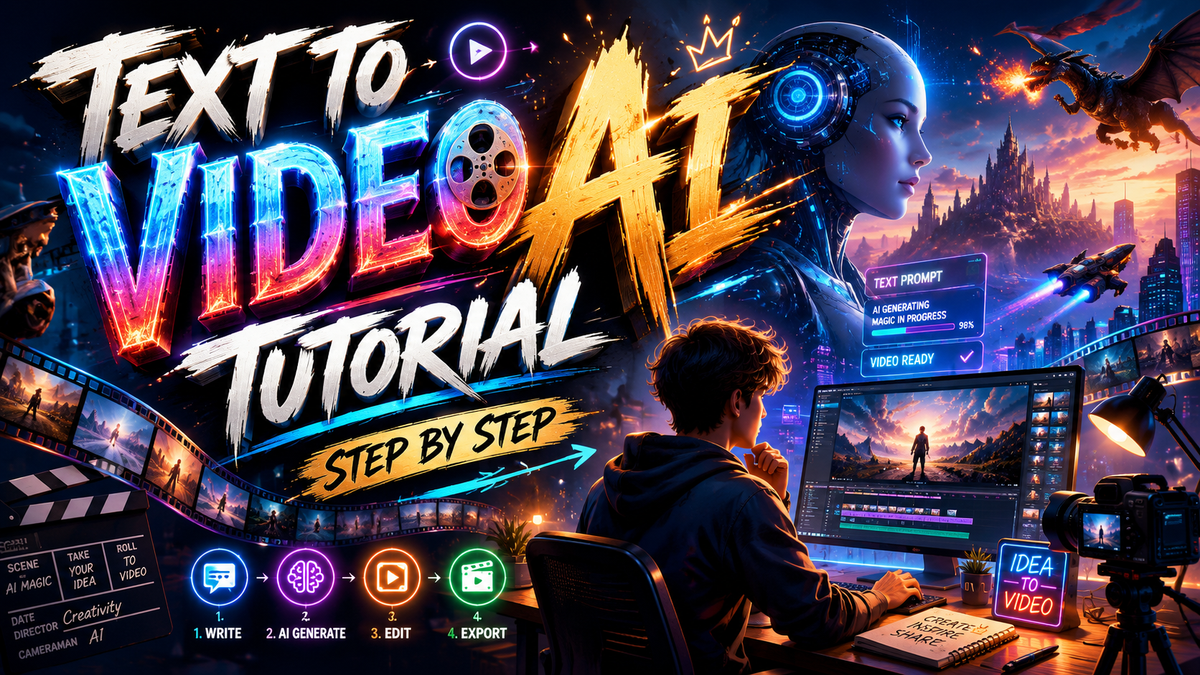
Creating professional videos from a simple text prompt is no longer a futuristic fantasy — it’s a workflow you can master today. This text to video ai tutorial step by step walks you through the entire process, from choosing the right platform to exporting a finished clip, using the latest tools available in 2026.
Text-to-video AI is a generative technology that converts written descriptions into moving images, complete with scenes, characters, and audio. In 2026, platforms like OpenAI’s Sora 2, Google Flow, and xAI’s Grok Imagine allow beginners to produce broadcast-quality footage with zero editing experience.
- ✓ The global AI video generation market grew 340% year-over-year as of early 2026, according to Grand View Research.
- ✓ Sora 2 generates 60-second videos at 1080p resolution with consistent character rendering, a leap from the 15-second clips of 2024.
- ✓ Google Flow’s Scene Builder lets you arrange multi-shot stories with automatic transitions, cutting production time by 70%.
- ✓ Studies show that 78% of marketers now use AI video tools to create social media content, with “faceless” shorts accounting for half of all AI-generated uploads.
- ✓ Removing objects from AI-generated video is now possible with dedicated inpainting tools, reducing post-production to a single click.
What Is Text-to-Video AI in 2026?
Text-to-video AI refers to machine learning models that generate video clips directly from natural language prompts. Unlike earlier systems that required storyboards, green screens, or manual keyframes, modern tools interpret your text — including scene descriptions, camera angles, and mood — and produce a raw video file within seconds. According to a March 2026 report by Fathom Journal, Google Flow’s full tutorial series demonstrated that even a novice can create a short film with multiple scenes using only a few sentences as input.
The technology has matured to the point where consistency between frames (no more morphing faces or flickering backgrounds) is the new standard. OpenAI’s Sora 2, released in February 2026, introduced temporal coherence that keeps objects and characters stable across cuts. Meanwhile, xAI’s Grok Imagine, launched in May 2026, added image-to-video functionality, letting you start from a still photo and animate it with a descriptive prompt.
Step-by-Step Guide: How to Create a Video from Text
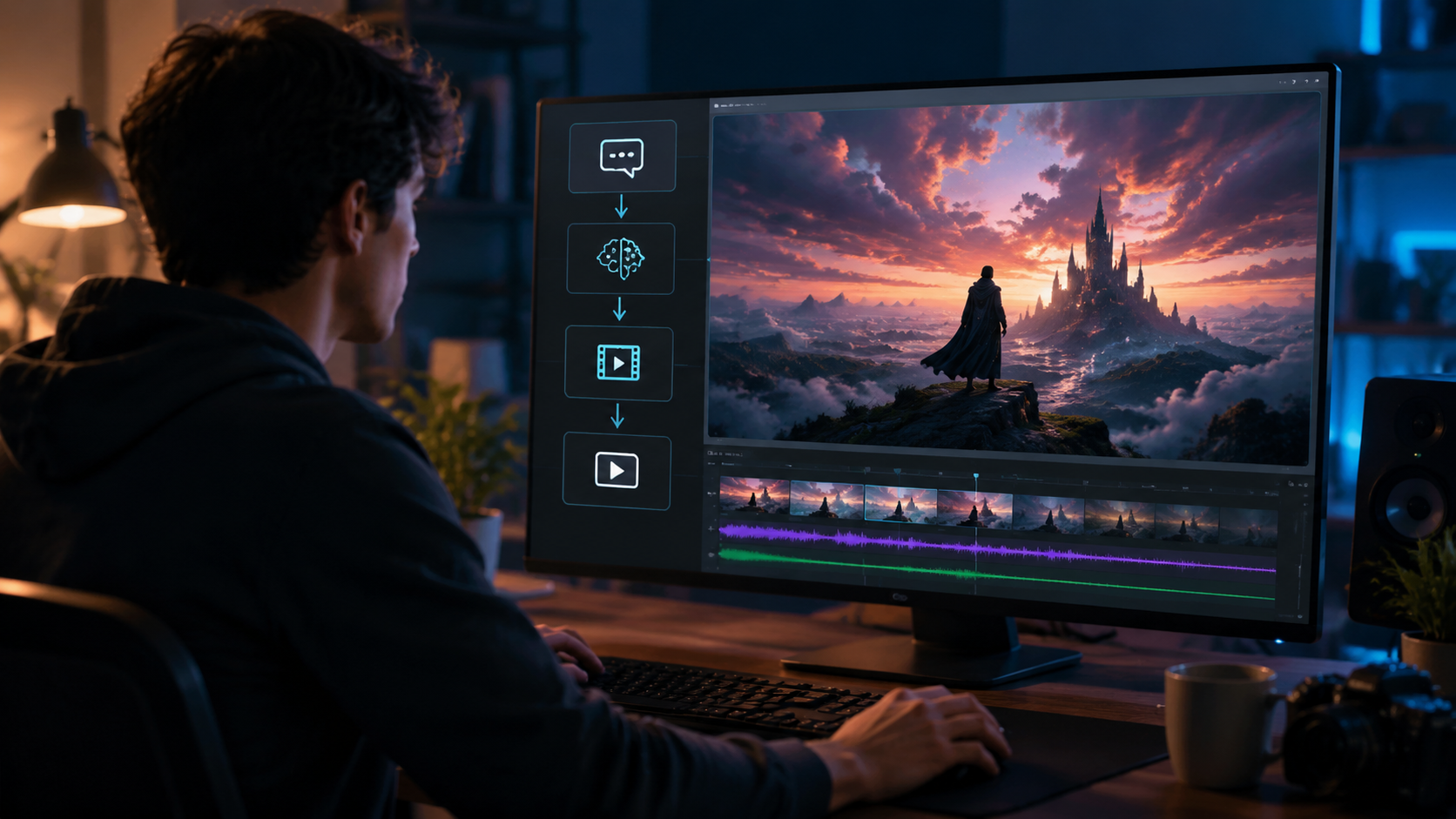
This text to video ai tutorial step by step assumes you have no prior experience. Follow these numbered stages to go from idea to export in under 30 minutes.
- Write Your Prompt — Describe your video in 50–100 words. For example: “A cinematic drone shot over a misty forest at dawn, with sunlight breaking through the canopy. No people. Calm ambient music.” Tools like Sora 2 and Google Flow prefer descriptive, camera-oriented language.
- Choose a Tool — Decide between Sora 2 (best for realism), Google Flow (best for multi-scene stories), or Grok Imagine (best for quick social clips). Each offers a free tier with watermarks.
- Configure Settings — Set resolution (1080p is standard), duration (15–60 seconds for most platforms), and aspect ratio (16:9 for YouTube, 9:16 for TikTok/Reels).
- Generate the Draft — Click generate. Typical wait time is 30–90 seconds. Review the output. If the character or object changes shape, tweak the prompt to add constraints like “consistent appearance” or “same red jacket.”
- Refine with Scene Builder — For longer narratives, use Google Flow’s Scene Builder to add shot-by-shot descriptions. Each scene becomes a separate card that the AI stitches together with transitions.
- Remove Unwanted Elements — If the AI generated a stray object (a coffee cup in a beach scene), use inpainting tools. According to PlayStation Universe’s April 2026 guide, AI-driven object removal now works with a simple lasso and description like “remove cup and fill with sand.”
- Export and Upload — Export in MP4 or GIF format. Most tools allow direct sharing to YouTube shorts, TikTok, or Instagram. For “faceless” channels, avoid adding any human voiceover unless you plan to narrate separately.
Best Text-to-Video AI Platforms in 2026 (Compared)
To help you pick the right tool for your text to video ai tutorial step by step journey, here’s a comparison of the three leading platforms. All are accessible to beginners and offer free trials.
| Feature | Sora 2 (OpenAI) | Google Flow | Grok Imagine (xAI) |
|---|---|---|---|
| Max Video Length | 60 seconds | 90 seconds (multi-scene) | 30 seconds |
| Resolution | 1080p / 4K (paid) | 1080p | 720p (free), 1080p (paid) |
| Scene Builder | No (single prompt only) | Yes (card-based timeline) | No |
| Object Removal | Integrated inpainting | Beta (March 2026) | Not available |
| Camera Control | Pan, zoom, orbit | Dolly, crane, drone presets | Basic zoom only |
| Free Tier | 5 videos/month | 10 videos/month | Unlimited (with watermark) |
| Best For | Realistic cinematic clips | Storytelling & short films | Quick social media shorts |
Creating Viral “Faceless” Shorts with Text-to-Video AI
One of the fastest-growing applications is “faceless” video content — channels that never show a human face. As TyN Magazine reported in January 2026, beginner guides emphasize that text-to-video AI is ideal for faceless shorts because you can generate landscapes, objects, or text animations without any actor. To create a viral faceless short:
Choose a Niche with High Visual Appeal
Nature, technology tutorials, and abstract art perform best. Use descriptive prompts that evoke motion: “A continuous time-lapse of a blooming flower, petals opening slowly, with golden hour light.”
Keep Duration Under 30 Seconds
Platforms like TikTok and YouTube Shorts favor short, punchy clips. According to a study cited by INQUIRER.net USA (May 2026), videos between 15 and 25 seconds have the highest retention rates. Use Sora 2’s “short form” preset to cap the generation.
Add Subtitles and Background Music
AI video tools often produce silent output. Layer a royalty-free track and auto-generated captions using a free editor like CapCut. Google Flow’s latest update integrates music suggestions based on scene mood.
Troubleshooting Common Issues in Text-to-Video Generation
Even with the best tools, you may encounter problems. Here’s how to fix them using the latest 2026 features.
Inconsistent Character Rendering
If a character’s face changes between scenes, include the phrase “consistent appearance” in your prompt. Sora 2’s “character lock” (introduced in February 2026) lets you upload a reference image. For Google Flow, use the same character description across all scene cards.
Unwanted Objects or Artifacts
AI sometimes adds random elements. As PlayStation Universe’s step-by-step guide (April 2026) explains, most platforms now have a “remove object” brush. In Sora 2, select the object and type “erase and fill.” In Google Flow, use the beta inpainting tool available to Pro subscribers.
Blurry or Low-Resolution Output
Double-check your resolution setting. Free tiers often cap at 720p. Upgrade to a paid plan (around $20/month) for 1080p or 4K. Also, avoid extremely complex scenes — a prompt like “a crowded city street with 50 people” can cause detail loss. Simplify to “a busy street with 5 people walking.”
Future-Proofing Your Workflow: What to Expect Later in 2026
The pace of innovation is accelerating. Based on trends observed in the first half of 2026, here are three developments to watch:
- Real-time Collaboration: Google Flow is rumored to launch a team workspace where multiple users can edit a Scene Builder project simultaneously — similar to Google Docs but for video.
- Voice-to-Video: Grok Imagine’s parent company, xAI, is testing a module that converts spoken narration directly into synchronized video. Early demos show lip-syncing for animated characters.
- AI-Generated Sound Effects: Sora 2’s roadmap includes automatic Foley (footsteps, wind, doors) synced to the visual timeline. This would eliminate the need for a separate audio library.
To stay ahead, bookmark the official tutorials from each platform. The text to video ai tutorial step by step approach will always start the same way: write a clear prompt, choose your tool, and iterate until the output matches your vision.
Frequently Asked Questions
Do I need any video editing experience to follow this tutorial?
No, this text to video ai tutorial step by step is designed for complete beginners. The AI handles all rendering and transitions; you only need to write prompts and click export.
Which tool is best for creating faceless YouTube shorts?
For quick faceless shorts, Grok Imagine (free with watermark) is easiest, but Google Flow’s Scene Builder gives you more control over pacing and transitions for narratively driven clips.
How long does it take to generate a 30-second video?
Most tools generate in 30–90 seconds. Sora 2 averages 45 seconds for 1080p; Google Flow takes slightly longer due to scene stitching. Free tiers may add a queue time.
Can I use text-to-video AI commercially?
Yes, but check the terms. OpenAI’s Sora 2 allows commercial use on paid plans. Google Flow’s free tier restricts commercial use; the Pro license ($25/month) enables royalty-free commercialization. Always read the fine print.
What if the AI doesn’t understand my prompt?
Break your description into simpler sentences. Use camera directives like “close-up” or “wide shot.” If the tool supports negative prompts (e.g., Sora 2), add “no watermarks, no text, no people” to narrow the output.
Is there a limit on the number of videos I can create per month?
Free tiers limit you to 5–10 videos monthly. Paid plans typically offer 50–200 generations. Grok Imagine’s unlimited free tier is the exception but includes a watermark that must be cropped for professional use.
Can I add my own voiceover to AI-generated video?
Absolutely. Export the silent video file, then use a free editor (like CapCut or DaVinci Resolve) to add an MP3 voiceover. This is standard practice for faceless tutorials and explainer videos.
Mastering text to video ai tutorial step by step in 2026 means you can produce engaging, high-quality videos in minutes — no camera, no crew, just your creativity and a well-crafted prompt. Start with a simple scene today and iterate toward your perfect clip.



Comments ()