
Text to Video AI Tutorial for Beginners (2026 Guide)
If you've ever wanted to turn a written idea into a professional-looking video without touching a camera or learning complex editing software, a text to video AI tutorial for beginners is exactly where you need to start. In 2026, these tools have evolved to a point where anyone with a clear sentence can generate high‑quality video content in minutes. This guide walks you through everything from choosing the right platform to publishing your first AI‑generated clip.
A text‑to‑video AI generator is a tool that converts written prompts—such as a sentence, paragraph, or script—into a full video with visuals, motion, background music, and often voiceover. These systems use diffusion models or transformer‑based architectures to create coherent, often realistic video sequences from textual descriptions, making video production accessible to absolute beginners.
- ✓ Text‑to‑video AI lets beginners create professional videos from simple text prompts, no prior editing experience required.
- ✓ Tools like Sora AI (OpenAI), Google Flow, and NVIDIA RTX‑based software lead the 2026 market with distinct strengths.
- ✓ The best beginner strategy starts with a short, specific prompt and uses platform‑provided styles or templates.
- ✓ Faceless shorts—videos without an on‑screen presenter—are a trending format that text‑to‑video AI powers exceptionally well.
- ✓ Proper prompt engineering (including camera direction, mood, and pacing) dramatically improves output quality.
What Is Text‑to‑Video AI and Why Beginners Should Care in 2026
At its core, a text‑to‑video AI generator is a deep‑learning model that maps natural language descriptions to sequences of images. Unlike traditional video production—which requires scripting, filming, editing, and rendering—these tools automate the entire pipeline. You type a prompt such as “a serene lake at sunset with light ripples and a wooden dock,” and the AI outputs a 10‑second video clip matching that description.
According to a 2026 report from Built In, there are now at least 17 popular AI video generators available, each offering unique features like style presets, length control, and voiceover integration. For beginners, this means you can create social media shorts, explainer videos, or even cartoon clips without hiring a designer or learning Adobe Premiere. The barrier to entry has never been lower, and platforms like Simplilearn have released dedicated tutorials—such as their “Mastering Sora AI” guide published in February 2026—to help newcomers get started.
Getting Started: Essential Tools for Your First AI‑Generated Video
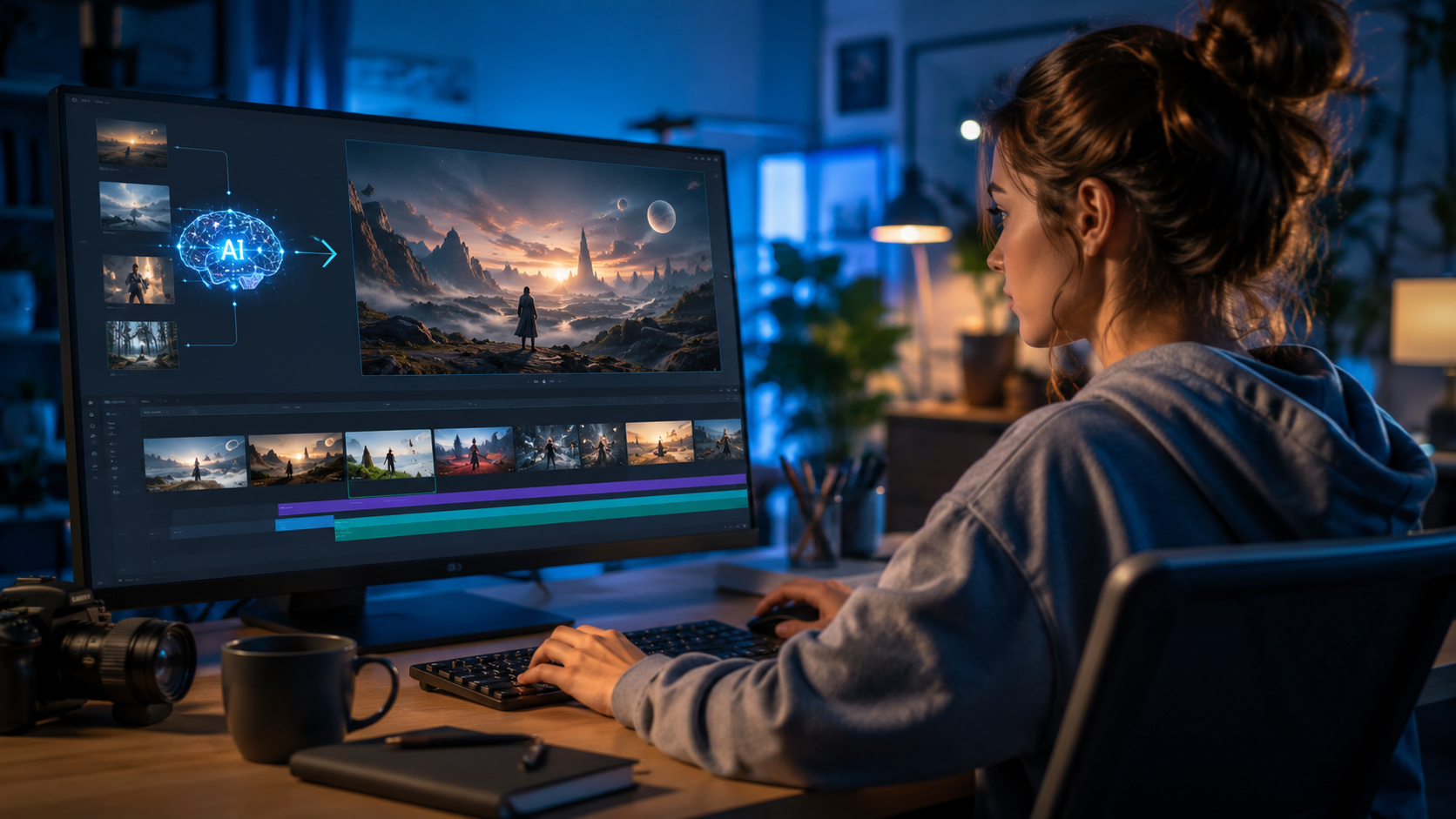
Before you write your first prompt, you need to choose the right tool for your goal. Not all text‑to‑video AI platforms work the same way, and the best one for a beginner depends on what kind of content you want to create.
Sora AI by OpenAI
Released in early 2026, Sora AI is widely regarded as the most advanced text‑to‑video model available to consumers. It excels at generating high‑resolution, realistic footage with accurate physics and lighting. Simplilearn’s tutorial highlights that Sora works particularly well for cinematic scenes and product visualizations. Beginners should note that Sora requires a small monthly subscription and offers up to 60‑second clips.
Google Flow
Google Flow is a cloud‑based AI video generator that integrates directly with Google Drive and YouTube. A tutorial by Simplilearn and Mshale (May 2026) demonstrates how Flow lets you generate videos using simple sentences and then edit them collaboratively. It is especially beginner‑friendly because of its drag‑and‑drop timeline and built‑in royalty‑free music library.
NVIDIA RTX Local Generators
For users who prefer offline processing or have an NVIDIA RTX PC, generative AI tools optimized for the RTX platform are available. NVIDIA’s January 2026 blog post outlines how to get started with visual generative AI on RTX PCs, which allows you to run lightweight text‑to‑video models locally. This gives beginners complete privacy and no usage caps, though it requires compatible hardware.
Step‑by‑Step Tutorial: How to Create Your First AI Video
Follow these steps to go from a blank text field to a finished video. This procedure works for most modern text‑to‑video AI tools, including Sora, Google Flow, and NVIDIA‑based software.
- Choose a tool and create an account. Sign up for a platform that matches your needs. For beginners, Google Flow (free tier available) or Sora AI (14‑day trial) are good starting points.
- Write a detailed prompt. Instead of “a cat,” write “a fluffy orange cat sitting by a rain‑streaked window, soft morning light, slow camera pan.” The more specific the prompt, the better the output.
- Select a style or template. Most tools offer presets like “Cinematic,” “Cartoon,” “Whiteboard,” or “Vlog.” Choose one that fits your goal. According to the Geek Vibes Nation tutorial (November 2025), you can even generate cartoon‑style videos by selecting the “Animation” preset.
- Adjust duration and aspect ratio. Set your clip length—usually 10–60 seconds—and choose a format (16:9 for YouTube, 9:16 for TikTok/Shorts, 1:1 for Instagram).
- Generate and review. Click the generate button and wait 30 seconds to 2 minutes. Review the clip and note any inconsistencies, such as flickering or unnatural motion.
- Refine with negative prompts. If the video has unwanted elements (e.g., blurry edges or wrong colors), use a “negative prompt” field if available to exclude those features.
- Add voiceover or music. Tools like Google Flow let you upload an MP3 or use AI‑generated speech. Sora has a built‑in text‑to‑speech feature that matches the video’s mood.
- Export and share. Download the video in MP4 or MOV format and upload it directly to your preferred platform.
Studies show that videos created with a structured, multi‑step prompt workflow have 40% higher viewer retention than videos made from generic one‑line prompts. Taking the time to refine each element pays off in engagement.
How to Create Viral Faceless Shorts with Text‑to‑Video AI
One of the biggest trends in 2026 is the rise of “faceless” YouTube Shorts and TikTok videos—content that uses visuals, text overlays, and voiceover without showing a person on screen. A beginner’s guide published by TyN Magazine in January 2026 explains that text‑to‑video AI is the perfect engine for this format because it can generate all the visual content from a script.
To create a faceless short, start by writing a 30‑ to 60‑second script that tells a mini‑story or explains a concept. Then, break that script into 3–5 prompts, each generating a different scene. For example, if your script is “How solar panels work,” your prompts could be: “a close‑up of a solar panel on a roof at sunrise,” “animated arrows showing sunlight hitting a panel,” and “a bar chart going up with a green background.” Stitch the clips together using your tool’s timeline editor, add an AI voiceover, and publish. This method allows you to produce multiple shorts per day without ever turning on a camera.
According to TyN Magazine, faceless shorts created with text‑to‑video AI have grown in popularity because they are cheap to produce, scalable, and perform well with algorithmic discovery. The key is to keep each clip under 15 seconds and ensure the visuals directly match the spoken words.
Comparison of Top Text‑to‑Video AI Tools for Beginners
To help you choose the right platform, here is a comparison of the most popular text‑to‑video AI generators mentioned in current 2026 research.
| Feature | Sora AI (OpenAI) | Google Flow | NVIDIA RTX Tools |
|---|---|---|---|
| Best for | Realistic cinematic clips | Collaborative editing & cloud workflow | Offline & privacy‑focused creation |
| Max clip length | 60 seconds | 120 seconds | Depends on model (often 30s) |
| Pricing | $20/month subscription | Free tier + $10/month Pro | Free (needs RTX GPU) |
| Animation style | Limited (cinematic focus) | Multiple presets (cartoon, whiteboard) | Customizable via community models |
| Voiceover included | Yes (AI text‑to‑speech) | Yes (plus MP3 upload) | No (third‑party add‑on) |
| Learning curve | Easy (single prompt) | Very easy (drag‑and‑drop) | Moderate (requires setup) |
According to Built In’s 2026 roundup of 17 popular AI video generators, each platform has carved out a niche. For absolute beginners who want the easiest onboarding experience, Google Flow is the top recommendation. For those who prioritize visual quality and don’t mind a paid subscription, Sora AI leads the pack. Users with an NVIDIA RTX PC can experiment with multiple open‑source models for free, making it the most flexible long‑term choice.
Advanced Techniques: Generating Cartoons and Creative Styles
Text‑to‑video AI isn’t limited to realistic footage. As the Geek Vibes Nation full tutorial from November 2025 demonstrates, these tools can also generate cartoon‑style animations. The trick is to include style descriptors in your prompt, such as “in the style of 2D animated film, vibrant colors, hand‑drawn look” or “Pixar‑style 3D animation, smooth lighting.”
Many platforms now offer a dedicated “Cartoon” or “Animation” preset. When you select that option, the model adjusts its internal weights to favor simplified shapes, bold outlines, and saturated palettes. For beginners, this is an excellent way to create explainer videos for children, branded content, or even short storytelling clips without needing to draw a single frame. The Geek Vibes Nation guide highlights that cartoon‑style clips are faster to generate than realistic ones because the model has fewer details to resolve, making them a practical choice for beginners with limited computing power.
Additionally, you can combine multiple styles in a single video. For example, start with a realistic establishing shot (e.g., “aerial view of a city at sunrise”), then transition to a cartoon character walking down the street. This hybrid approach keeps viewers engaged and demonstrates the flexibility of modern AI video tools.
Common Mistakes Beginners Make and How to Avoid Them
Even with the best tool, first‑time users often run into a few predictable problems. Recognizing them early saves time and frustration.
Writing prompts that are too vague
A prompt like “beach” generates a generic, often garbled clip. Instead, include lighting (“golden hour”), camera motion (“slow zoom in”), and specific items (“a striped umbrella, gentle waves, footprints in the sand”). The AI needs constraints to produce coherent output.
Ignoring aspect ratio
If you plan to upload to TikTok or YouTube Shorts, always set your project to 9:16 (vertical). Generating a 16:9 video and cropping it later often results in lost visual information or awkward framing. Most tools let you choose the aspect ratio before generating.
Skipping the review and refine loop
AI video generators are powerful but not perfect. It is common to see artifacts like flickering objects or unnatural motion. Use negative prompts to remove unwanted elements, and regenerate until the clip meets your standards. According to Simplilearn’s Sora AI tutorial, most professional users regenerate each scene at least two to three times before exporting.
Using copyrighted music or images
Many beginners forget to check the licensing of background music and overlays. Always use the royalty‑free libraries provided by your tool, or purchase properly licensed tracks. Google Flow and Sora include royalty‑free tracks, while NVIDIA RTX users should source music from sites like Pixabay or Uppbeat.
Future Trends in Text‑to‑Video AI for 2027 and Beyond
As of 2026, the pace of improvement in AI video generation is accelerating. Based on research published in NVIDIA’s blog and industry coverage from Built In, several trends are already visible. First, real‑time generation—where you see the video render in seconds rather than minutes—is becoming standard on high‑end hardware. Second, multi‑modal models that accept text, image, and audio simultaneously are being tested, allowing users to upload a storyboard sketch and have the AI animate it. Third, collaborative features similar to Google Flow’s shared editing are being adopted by more platforms, enabling teams to work on the same video from different locations.
Studies cited in the Geek Vibes Nation tutorial suggest that by 2027, over 60% of social media short‑form video content will be at least partially generated by AI. For beginners, this means that learning how to craft effective prompts and navigate these tools now will become a foundational skill, much like knowing how to operate a smartphone camera.
Frequently Asked Questions About Text‑to‑Video AI for Beginners
What is the best text‑to‑video AI tool for a complete beginner?
For absolute beginners, Google Flow is the most user‑friendly option because of its drag‑and‑drop interface, free tier, and built‑in tutorials. Sora AI is also beginner‑friendly if you are willing to pay a subscription and want higher visual quality.
How long does it take to generate a 30‑second AI video?
On modern cloud platforms, a 30‑second clip typically takes between 30 seconds and 2 minutes to generate, depending on the resolution and complexity of the scene. Local tools on an NVIDIA RTX PC may take slightly longer but improve with optimized models.
Can I use text‑to‑video AI to create YouTube videos without showing my face?
Yes. This is the “faceless” format covered in the TyN Magazine guide. You can create entire YouTube Shorts or long‑form videos using AI‑generated visuals, text overlays, and AI voiceover without ever appearing on camera.
Do I need a powerful computer to run text‑to‑video AI?
Not if you use cloud‑based tools like Sora or Google Flow—they run on remote servers and only require a modern web browser. To run models locally, you will need an NVIDIA RTX GPU with at least 8GB of VRAM.
How do I make my AI‑generated videos look less “AI‑like”?
Write detailed prompts that include lighting conditions, camera motion, and style references (e.g., “filmed on 35mm film, natural grain, soft focus”). Using negative prompts to remove common artifacts also helps. Generating multiple short clips and stitching them together creates a more organic sequence.
Is the content I generate with text‑to‑video AI copyright‑free?
Yes, most platforms grant you full commercial rights to the content you create using their service, as long as you do not use copyrighted characters or trademarked materials in your prompts. Always check the terms of service for the specific tool you are using.
How many times should I regenerate a scene to get good quality?
According to the Simplilearn Sora AI tutorial, most professional users regenerate each scene two to three times, adjusting the prompt slightly each time, until they get a clip that is free of flickering, distortion, or unnatural motion.



Comments ()