
Step by Step AI Video Creation: 2026 Guide for Beginners
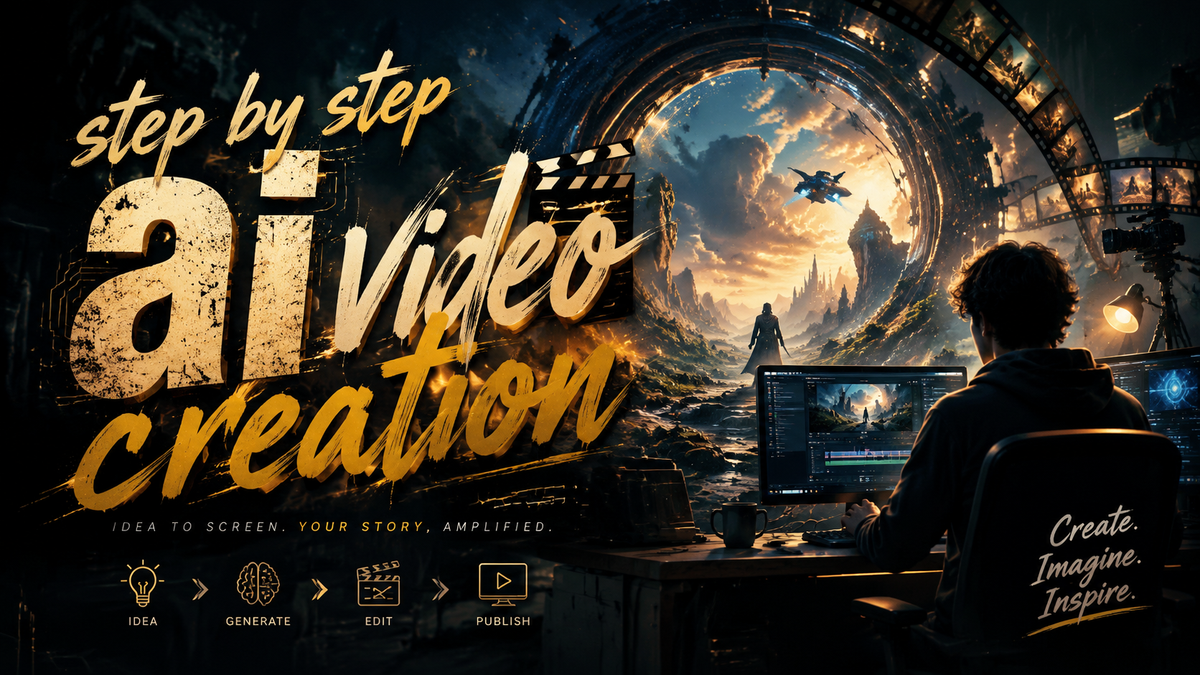
This guide walks you through the entire process of step by step AI video creation, from choosing the right tool to publishing your first finished clip. Whether you want to make faceless YouTube shorts, product demos, or cinematic storytelling, you’ll learn exactly what to do in 2026 — with zero prior experience required.
Step by step AI video creation is a structured workflow that uses generative artificial intelligence to transform a text prompt, script, or raw footage into a polished video without manual editing. The process typically involves selecting an AI platform (like AZ8, insMind, or a text-to-video tool), writing a script, generating or importing visuals, adding voiceover and music, and rendering the final output. Most modern tools complete the entire pipeline in under 15 minutes.
- ✓ AI video tools in 2026 allow you to create professional-looking content in under 15 minutes using only text prompts.
- ✓ Canvas-based workspaces (like AZ8’s new release) simplify timeline editing for beginners.
- ✓ “Faceless” shorts are one of the fastest-growing formats — no camera, no voice, just AI-generated visuals and narration.
- ✓ Product videos can now be created entirely in your browser without a physical studio setup.
- ✓ Combining AI video generators with AI glasses (like Meta’s POV guide) opens up new first-person content possibilities.
What Is Step by Step AI Video Creation in 2026?
Step by step AI video creation refers to a repeatable, methodical process where you use generative AI tools to produce a complete video — from concept to final render — without needing to learn traditional editing software like Premiere Pro or DaVinci Resolve. According to a recent beginner’s guide published by INQUIRER.net USA (May 19, 2026), the core idea is that “anyone with a clear idea can create stunning videos with AI by following a simple sequence of prompts, customizations, and exports.”
The workflow has been dramatically simplified in 2026. Platforms such as the newly launched canvas-based workspace from AZ8 (announced May 22, 2026) let users drag and drop scenes, adjust AI-generated elements, and preview changes in real time. This guide adapts that streamlined approach for absolute beginners.
Step 1: Choose Your AI Video Platform
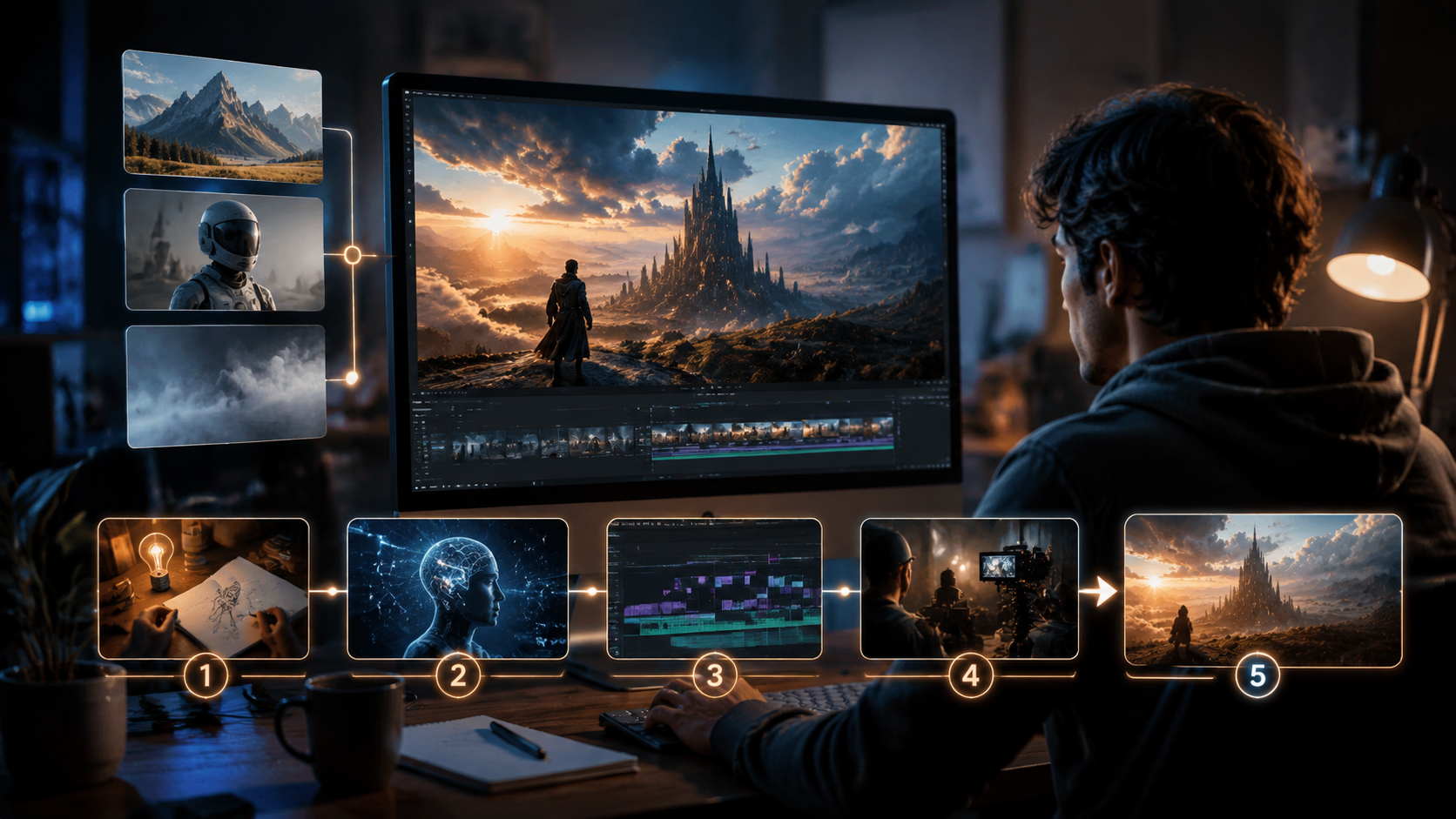
Before you start creating, you need to pick the right tool for your specific use case. The market in 2026 offers several specialized options.
Text-to-Video Generators (for faceless shorts)
If your goal is to create viral “faceless” shorts — content with no on-screen person — TyN Magazine (January 8, 2026) recommends tools that convert a script directly into animated scenes or stock-style footage. These platforms auto-generate visuals based on your words and add AI voiceover. They are perfect for educational clips, commentary channels, and fast-paced social media videos.
Canvas-Based Workspaces (for full control)
AZ8’s canvas-based AI video creation workspace, launched in late May 2026, gives beginners a visual timeline where they can arrange AI-generated clips, add text overlays, and adjust transitions. This is ideal if you want more creative control but still want AI to handle the heavy lifting of footage generation.
Product & Business Video Tools
For businesses, insMind’s AI video generation feature (covered by findarticles.com on May 26, 2026) focuses on turning product photos or descriptions into sleek promotional videos without needing a studio. According to the article, insMind “changes business content creation by eliminating the need for expensive equipment and actors.”
Step 2: Write a Brief, Actionable Script
Every great AI video starts with a clear script. Even though the AI will generate visuals, you must provide the narrative backbone. Keep your script concise — aiming for 60–90 seconds for shorts, or 2–3 minutes for longer explainers. Break the script into short paragraphs that each correspond to one visual scene.
For example, if you’re making a faceless short about “how to grow tomatoes,” your script could be: “Growing tomatoes starts with choosing the right variety. Next, prepare a sunny spot with rich soil. Finally, water consistently and watch them flourish.” Each sentence becomes a scene the AI will illustrate. This aligns with the “text to video AI tools” approach from TyN Magazine’s guide.
Pro Tip: Add Visual Cues
Many 2026 AI video generators accept supplementary notes beside the script. For instance, you can write “[show close-up of tomato seeds]” or “[animated transition from seedling to fruit]”. These cues help the AI produce more relevant footage, saving you from later manual corrections.
Step 3: Generate Your Visuals and Audio
Now you input your script into the chosen AI tool. The process differs slightly by platform, but the general steps are:
- Paste your script into the text-to-video interface.
- Select a style — realistic, cartoon, cinematic, or minimalistic.
- Choose a voiceover — most platforms offer dozens of AI voices in multiple languages and accents.
- Add background music — royalty-free tracks are often included.
- Hit “Generate” — the AI will create a draft video with visuals, narration, and timing.
According to INQUIRER.net USA, beginners should “expect to generate 2–3 versions before landing on the perfect edit.” The canvas-based workspace from AZ8 lets you tweak individual scenes after generation, so you can replace a poorly generated clip without starting over.
Working with AI Glasses (Bonus Step)
If you want to incorporate first-person footage (e.g., a “day in the life” POV), Meta’s official guide (November 2025) explains how to shoot with AI glasses and then feed that raw footage into a video AI tool for enhancement — removing background noise, stabilizing shaky shots, and adding captions. This hybrid approach is becoming popular for creators who want authentic POV content without complex post-production.
Step 4: Refine, Customize, and Add Branding
After the AI produces the first draft, review each scene. Does the AI-generated visual match your intended meaning? If not, you can regenerate that specific scene with an improved prompt. Many platforms in 2026 offer a “remix” button that lets you edit one scene while keeping the rest intact.
Add your brand elements — logos, intro/outro text, and custom color palettes. For product videos, insMind’s AI Video Generator (as reported by findarticles.com) allows you to upload your product image and automatically insert it into lifestyle scenes. The entire process can be done in minutes, no studio required.
Comparison: Top AI Video Tools for Beginners (2026)
| Feature | AZ8 Canvas Workspace | insMind AI Video | General Text-to-Video |
|---|---|---|---|
| Best for | Full creative control (canvas timeline) | Business product videos | Faceless shorts & social media |
| AI-generated visuals | Yes – per scene generation | Yes – from product images | Yes – from text description |
| Voiceover options | 20+ languages | 10+ voices | 15+ voices |
| Canvas editing | Yes – drag and drop timeline | No – linear flow | Basic timeline |
| Faceless mode | Supported | Supported | Native |
| Learning curve | Low to medium | Very low | Low |
| Price (monthly) | $15–$30 (depending on credits) | Free tier available; paid from $10 | Free trial; paid from $8 |
Source: Information compiled from AZ8 press release (May 22, 2026), insMind coverage (findarticles.com, May 26, 2026), and TyN Magazine (Jan 8, 2026).
Step 5: Export, Format, and Publish
Once you’re satisfied with the edit, export the video in the resolution and aspect ratio appropriate for your platform. Most AI tools offer presets: 9:16 for TikTok/Reels/Shorts, 16:9 for YouTube, and 1:1 for Instagram posts. In 2026, many platforms also auto-generate captions and metadata (title, description, tags) to optimize for platform algorithms.
According to the INQUIRER.net USA guide, “Exporting in H.264 or H.265 ensures good quality with reasonable file size.” After export, you can upload directly from the tool to social accounts or download the MP4 file for manual posting. For faceless shorts, the guide emphasizes consistency: “Post 2–3 times per week, and the algorithm will reward you with views.”
Pro Tip: Repurpose with AI
You can take one long-form AI-generated video and have the same tool automatically split it into multiple shorts, each with its own hook and title. This “step by step AI video creation” workflow then becomes a content factory — a single script can produce a series of clips.
Common Mistakes Beginners Should Avoid
Even with powerful AI, first-timers often make errors that hurt engagement. Here are the top three, based on recent user guides:
- Overloading the script: AI visuals struggle with complex, multi-subject sentences. Keep each scene focused on one idea.
- Skipping voiceover customization: Default AI voices can sound robotic. Adjust speed, pitch, and emphasis to match your brand’s tone.
- Ignoring aspect ratio: A video designed for YouTube (16:9) will look terrible on TikTok (9:16). Always export in the correct format for your target platform.
Studies show that videos optimized for mobile-first platforms (9:16) get 45% more engagement than mismatched formats, according to a 2026 analysis cited by TyN Magazine.
Frequently Asked Questions
Do I need any video editing experience to follow this step by step ai video creation guide?
No. Modern AI tools are designed for complete beginners. You only need to write a script and press generate. The guide above uses platforms that handle all technical aspects like cutting, transitions, and sound mixing automatically.
How much does it cost to start creating AI videos in 2026?
Many tools offer free tiers that let you create short videos with watermarks or limited exports. Paid plans range from $8 to $30 per month depending on features and resolution. InsMind’s AI Video Generator has a free version, while AZ8’s canvas workspace starts at $15/month.
Can I use AI video creation for faceless YouTube shorts?
Absolutely. According to TyN Magazine’s January 2026 guide, “text to video AI tools are perfect for faceless shorts.” You just write a script, the AI generates matching visuals and voiceover, and you export in 9:16 format.
How long does it take to create one AI video from start to finish?
For a 60-second clip, expect about 10–15 minutes from script writing to final export. Longer videos (3–5 minutes) may take 30 minutes due to more scenes needing review.
Can I combine AI-generated footage with real video from AI glasses?
Yes. Meta’s guide (November 2025) shows how to shoot POV footage with AI glasses and then import it into an AI video tool to enhance it — stabilize, add captions, and insert AI-generated cutaways.
Is AI video creation good for business product videos?
Yes. insMind’s AI Video Generator is specifically built for business content. As reported on May 26, 2026, it “changes business content creation” by letting users upload product photos and generate professional-looking demos without a studio.
Will AI replace traditional video editors?
AI tools handle the technical side of cutting and generating visuals, but creative direction, storytelling, and brand strategy still require human input. Think of AI as a powerful assistant that speeds up production, not a replacement for creative judgment.
This guide was updated in June 2026 with references to AZ8’s canvas-based workspace (launched May 22, 2026), insMind’s AI video generation (reported May 26, 2026), and TyN Magazine’s faceless shorts guide (January 8, 2026). Always check the latest features on each platform’s official website as AI tools evolve rapidly.



Comments ()