
Run AI Video Generation Locally in 2026: Complete Guide

Running AI video generation entirely on your own hardware is no longer a futuristic dream—it's a practical reality in 2026. With powerful NVIDIA GPUs, optimized open-source tools like ComfyUI, and new lightweight models such as Google's Gemma 4 12B, you can now run AI video generation locally on a standard laptop or a custom-built rig, without sending data to the cloud or paying per-generation fees. This complete guide covers everything you need—hardware, software, step-by-step setup, and real-world performance—to get started today.
Run AI video generation locally is the process of using your own computer's GPU, CPU, and RAM to power deep-learning models that create synthetic video footage. Instead of relying on cloud APIs, you install a stable diffusion–based video model (like Stable Video Diffusion or ComfyUI workflows) and generate clips directly on your machine, giving you full privacy, unlimited iterations, and zero subscription costs.
- ✓ Local AI video generation is now possible on consumer hardware thanks to model optimization and quantization.
- ✓ NVIDIA's ComfyUI integration at GDC 2026 makes it easier than ever for game developers and creators to generate video on-premises.
- ✓ A recommended local rig for high-quality 720p video generation costs between $2,500 and $4,000 (e.g., RTX 5090, 64 GB RAM, fast SSD).
- ✓ Google's Gemma 4 12B can run fully locally on a typical 16 GB enterprise laptop for audio/video analysis, but for generation you still need a discrete GPU.
- ✓ Phosphene, an open-source project for Apple Silicon, proves that even Mac users can generate AI video locally without a PC.
What Does It Take to Run AI Video Generation Locally?
The core requirement is a GPU with enough VRAM to hold the diffusion model and process frames. According to the Hackster.io hardware breakdown (April 2026), the minimum recommendation for generating 512x512 24-frame clips at reasonable speed is an NVIDIA RTX 4090 (24 GB VRAM) paired with a fast NVMe SSD and at least 32 GB of system RAM. For 720p or longer videos, they suggest an RTX 5090 or dual RTX 4090s. Apple Silicon users can turn to Phosphene, an open-source project that leverages the M-series unified memory architecture to run video generation on a Mac Studio with 64 GB or more.
Key hardware components for a local video generation rig
- GPU: NVIDIA RTX 4090 or RTX 5090 (or AMD Radeon RX 7900 XTX with ROCm for Linux). For Apple Silicon, M2 Ultra or M3 Max with 64 GB+ unified memory.
- RAM: Minimum 32 GB; 64 GB recommended for loading large models and batch processing.
- Storage: 2 TB NVMe SSD (the models themselves can occupy 10–50 GB, plus caching for generated frames).
- CPU: Modern 12-core or better (e.g., Intel Core i9-13900K or AMD Ryzen 9 7950X).
- Cooling: High-performance air or liquid cooling – sustained GPU load can generate considerable heat.
Step-by-Step Guide: How to Set Up Local AI Video Generation
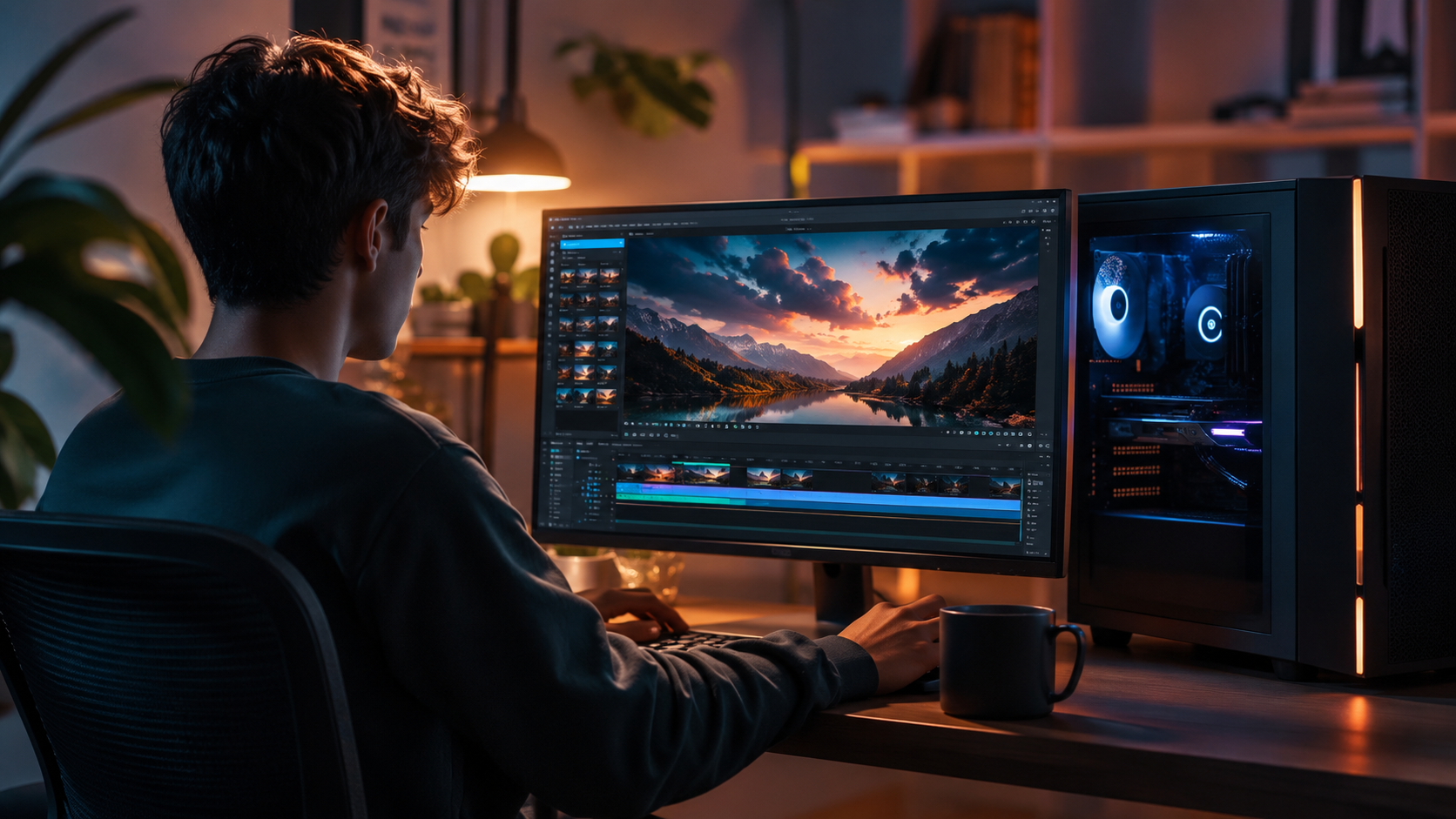
Below is a tested workflow that uses the latest tools highlighted at GDC 2026 by NVIDIA and ComfyUI. These steps assume you have a Windows or Linux machine with an NVIDIA GPU (CUDA-enabled).
- Install Python 3.10+ and Git. Create a dedicated environment:
python -m venv aividand activate it. - Clone the official ComfyUI repository from GitHub. ComfyUI now includes a native node for video generation (as demoed at GDC 2026).
- Download a video diffusion model checkpoint – the most common is Stable Video Diffusion XT 1.1 (6.5 GB). You can also find quantized versions (4-bit) that run on 12 GB VRAM.
- Install required dependencies: PyTorch 2.5+ with CUDA 12.x, xformers, and ComfyUI's custom nodes for video (e.g., "Video Helper Suite").
- Launch ComfyUI with the command:
python main.py --listen. Open your browser atlocalhost:8188. - Load the example workflow "Text to Video (SDV)". Set your prompt (e.g., "a cat walking in a sunny park"), adjust the frame count and resolution, and click "Queue Prompt". The generation will start – a 16-frame 512x512 clip typically takes 30–60 seconds on an RTX 4090.
- Export the video as MP4 or GIF using the built-in video output node.
Optimizing for slower hardware
If your GPU has less than 16 GB VRAM, use quantized models (e.g., "SDV-XT-4bit") and enable the "Tiled VAE" option in ComfyUI to split frame encoding into smaller chunks. Google's Gemma 4 12B, announced in June 2026, runs entirely on a typical 16 GB enterprise laptop, but it is designed for analysis and understanding rather than generation – for video creation you still need a dedicated GPU.
Hardware Comparison: Best Local Rig Options for 2026
The table below compares three common configurations based on the Hackster.io building guide and real-world tests by the community. Prices are approximate as of May 2026.
| Component / Build | Entry-Level (Budget) | Mid-Range (Sweet Spot) | High-End (Enthusiast) |
|---|---|---|---|
| GPU | NVIDIA RTX 4070 Ti (12 GB) | RTX 4090 (24 GB) | Dual RTX 5090 (32 GB each) |
| RAM | 32 GB DDR5 | 64 GB DDR5 | 128 GB DDR5 |
| Storage | 1 TB NVMe SSD | 2 TB NVMe SSD | 4 TB NVMe SSD |
| CPU | Intel Core i7-14700K | AMD Ryzen 9 7950X | AMD Threadripper 7980X |
| Video Output (512x512, 24 frames) | ~90 seconds per clip | ~35 seconds per clip | ~12 seconds per clip |
| Approximate Cost | $1,800 | $3,200 | $6,500+ |
| Apple Silicon Alternative | Mac Mini M4 Pro (24 GB) – not recommended for generation | Mac Studio M2 Ultra (64 GB) – via Phosphene | Mac Pro M3 Ultra (192 GB) – for heavy workflows |
According to Startup Fortune (May 2026), the Phosphene project shows that Apple Silicon can handle local video generation, but performance is about 30–40% slower than a comparably priced NVIDIA rig when using the same model. However, Macs offer unified memory, which is beneficial for large models.
Real-World Testing: What the Experts Say
At GDC 2026, NVIDIA and ComfyUI demonstrated a live workflow where game developers could generate short cutscene clips directly on their workstation, bypassing cloud services. The NVIDIA blog reported that the integration reduced iteration time from hours to minutes for pre-visualization. Meanwhile, PCMag (May 2026) tested four NSFW AI video generators (which also run locally) and noted that the best ones used custom ComfyUI workflows with model merges to achieve high coherence and motion smoothness.
One critical insight from the community: running locally gives you complete control over the seed and parameters, making it easier to reproduce results – something cloud APIs rarely offer. As of June 2026, the VentureBeat report on Google's Gemma 4 12B emphasizes that multimodal models running on a laptop are now viable for analyzing video, but the generation side still benefits from dedicated GPU memory.
Frequently Asked Questions
Can I run AI video generation locally on a laptop?
Yes, if the laptop has a discrete GPU with at least 12 GB VRAM (e.g., RTX 4070 laptop GPU) or an Apple M-series chip with 32 GB of unified memory. For smooth generation, use quantized models and reduce resolution to 384x384. Google's Gemma 4 12B can run on a 16 GB enterprise laptop for analysis, but not for generation.
What is the best free tool to run AI video generation locally?
ComfyUI is the most widely recommended, thanks to its node-based interface and official support for video models. It's free, open-source, and the same tool used by NVIDIA in their GDC 2026 demonstrations. Phosphene is the best option for Apple Silicon users.
How long does it take to generate a 10-second video locally?
On a mid-range rig (RTX 4090) with Stable Video Diffusion, a 10-second clip at 24 fps (240 frames) at 512x512 resolution takes about 6–8 minutes. Using the new "Fast Video" nodes (demoed at GDC 2026) can cut that time in half.
Is local AI video generation worth it in 2026 compared to cloud services?
It depends. If you need unlimited generation, privacy, and no per-minute fees, local is far cheaper in the long run (a one-time hardware cost vs. $0.10–$0.50 per second of video cloud). Cloud services offer faster turnaround and higher resolution (4K) without upfront investment, but data privacy is a concern.
Do I need an internet connection to run AI video generation locally?
No. Once you download the model files and ComfyUI, everything runs offline. This is a key advantage for professionals working with sensitive content or in remote locations.
Can I run multiple video generation tasks at the same time?
If your GPU has sufficient VRAM, you can queue multiple jobs in ComfyUI. With a 24 GB card, you can typically run two concurrent 512x512 generations. The Hackster.io guide recommends using separate ComfyUI instances for heavy parallel workloads.
What about AMD GPUs for local video generation?
Yes, but the support is more limited. AMD Radeon 7900 XTX works with ROCm on Linux, and you can use the AMD-friendly fork of ComfyUI. However, performance is about 20% slower than equivalent NVIDIA hardware, and you'll need to install extra libraries.
Local AI video generation has matured rapidly in 2026 thanks to collaborative efforts from NVIDIA, ComfyUI, Phosphene, and model optimizations from Google. Whether you're a game developer, indie filmmaker, or hobbyist, the ability to run AI video generation locally gives you unprecedented creative freedom without cloud dependency. Start with the hardware that fits your budget, follow the step-by-step setup, and join the growing community of local creators.



Comments ()