
Pika Labs Tutorial for Beginners 2026: Step-by-Step Guide
This Pika Labs tutorial for beginners will guide you through creating stunning AI-generated videos step by step. By the end, you'll know how to sign up, craft effective prompts, and export cinematic clips using Pika Labs' powerful platform — no prior experience required.
Pika Labs is an AI video generator that enables users to create short, cinematic videos from text prompts. It became publicly available to everyone in December 2023 and has been used for projects like the sci‑fi short The Last Artist. This tutorial covers everything a beginner needs to start generating videos in 2026, from account setup to advanced prompt techniques.
- ✓ Pika Labs is free to start and open to all users since December 2023.
- ✓ You can generate 3‑second to 4‑second videos with a single prompt, then extend or edit them.
- ✓ The platform supports image‑to‑video, video‑to‑video, and text‑to‑video workflows.
- ✓ Cinematic results depend on prompt specificity, camera motion, and style keywords.
- ✓ Pika Labs has been used in professional projects, including the short film The Last Artist.
What Is Pika Labs? A Quick Overview for Beginners
Pika Labs is a generative AI platform that turns text descriptions into short video clips. Unlike older tools that required hours of manual editing, Pika Labs can produce realistic or stylized footage in seconds. According to the-decoder.com, the platform opened to everyone in December 2023, making advanced AI video creation accessible to hobbyists and professionals alike.
The tool was originally launched in a beta phase and quickly gained popularity for its ability to generate coherent motion, lighting, and composition. In 2026, Pika Labs continues to be a top choice for creators who want to experiment with AI‑generated visuals without investing in expensive hardware or software.
For beginners, the most important thing to know is that Pika Labs works entirely in the cloud — you only need a web browser and a free account to start. The platform supports text‑to‑video, image‑to‑video, and video‑to‑video editing, giving you multiple ways to bring your ideas to life.
Pika Labs Tutorial for Beginners: Step 1 – Sign Up and Explore the Interface
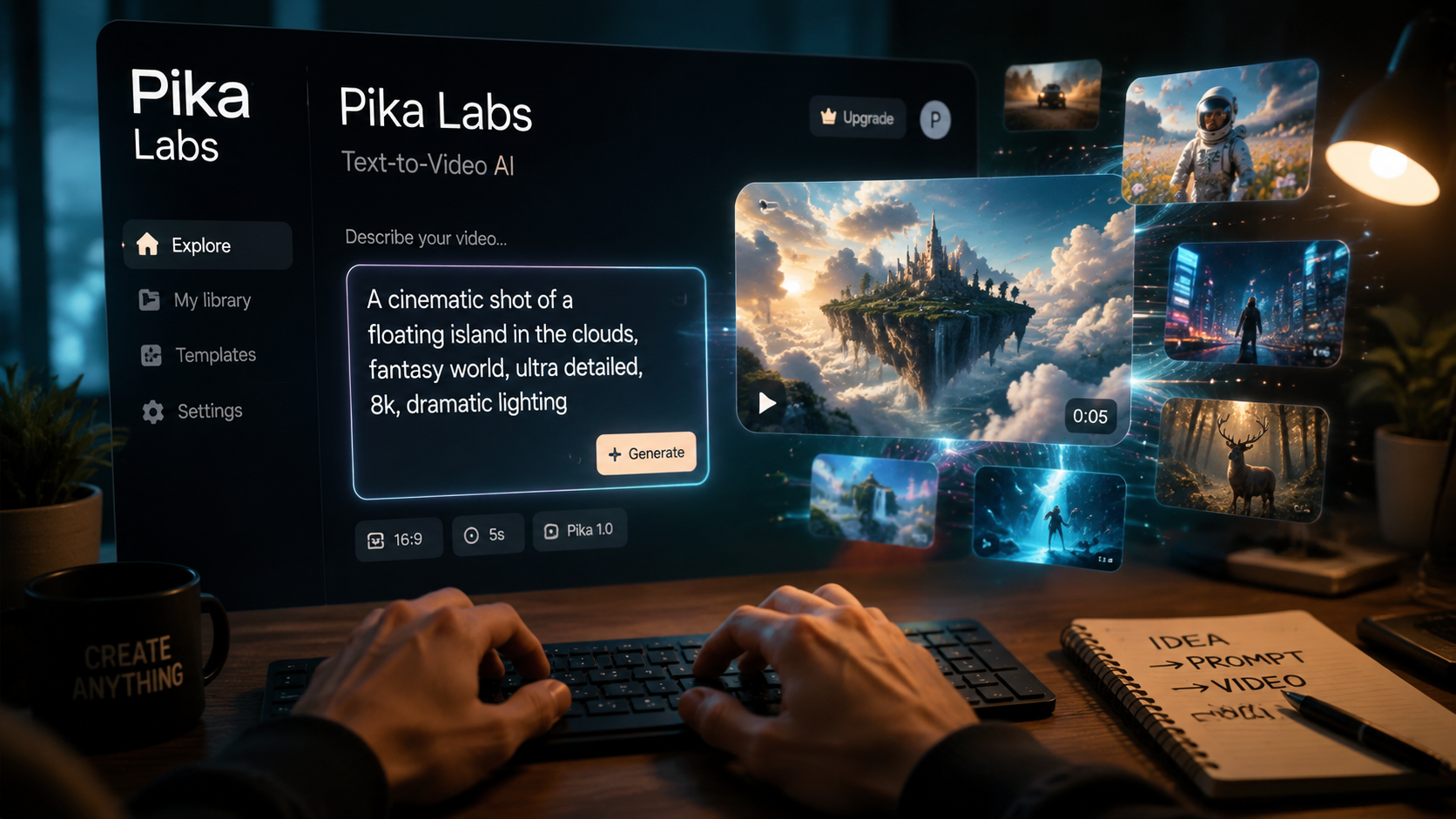
Before you can create your first AI video, you need to set up an account. This Pika Labs tutorial for beginners assumes you have a Google or Discord account, which are the two fastest ways to log in.
- Go to the official Pika Labs website (pika.art) and click Sign Up.
- Choose Continue with Google or Continue with Discord — both are free.
- After logging in, you’ll land on the main dashboard. Take a moment to explore the interface: the prompt box is at the top, and your generated videos appear in a gallery below.
- Click the Create button to open the video generator. Here you can type your prompt, adjust settings like aspect ratio and camera motion, and upload reference images.
Once you’re familiar with the layout, you’re ready to write your first prompt. Pika Labs uses a text‑to‑video model that interprets natural language, so you don’t need to learn any special syntax.
Crafting Effective Prompts for Pika Labs
The quality of your output depends heavily on your prompt. A vague description like “a cat” will produce generic results, while a detailed prompt like “a fluffy orange cat sitting on a wooden fence, golden hour lighting, shallow depth of field” yields cinematic footage.
Use Descriptive Adjectives and Lighting Terms
Words like cinematic, dramatic lighting, soft glow, and vibrant colors help the AI understand the mood you want. According to No Film School, professional creators often include camera‑related terms such as “slow pan,” “close‑up,” or “aerial view” to guide the motion.
Specify Style and Genre
If you want a sci‑fi look, include keywords like “futuristic city,” “neon lights,” or “cyberpunk.” For fantasy, try “enchanted forest,” “magical particles,” or “ethereal.” Pika Labs handles a wide range of styles, from photorealistic to animated.
Keep Prompts Concise but Rich
Aim for 10–20 words. Too many details can confuse the model, while too few leave it guessing. Experiment with different combinations and note which prompts produce the best results.
Step‑by‑Step: Creating Your First AI Video with Pika Labs
Now that you understand prompts, let’s walk through the actual creation process. Follow these steps to generate your first clip.
- Write your prompt. Type a detailed description in the text box. Example: “a lone astronaut walking on a red desert planet, dust storm in the background, cinematic lighting, 4K.”
- Choose aspect ratio. Select 16:9 for widescreen, 9:16 for vertical (TikTok/Reels), or 1:1 for square.
- Select camera motion. Options include static, pan, zoom, or orbit. For a dramatic effect, try “slow zoom in.”
- Adjust negative prompt (optional). Tell the AI what to avoid, e.g., “blurry, distorted faces, watermarks.”
- Click Generate. The video takes 30–60 seconds to render. You’ll see a preview once it’s ready.
- Refine or extend. If the result isn’t perfect, you can edit the prompt and regenerate, or use the “Extend” feature to add more seconds to the clip.
Pika Labs’ default output is around 3–4 seconds. For longer narratives, you can stitch multiple clips together in an external video editor, or use the platform’s “Storyboard” mode to create sequences.
Tips for Cinematic Quality Videos
To get the most out of Pika Labs, apply these pro techniques that beginners often overlook.
Use Image‑to‑Video for Consistency
If you have a specific character or scene in mind, upload a reference image. Pika Labs will use it as a starting point, ensuring the video matches your vision. This is especially useful for brand assets or recurring characters.
Leverage the “The Last Artist” Approach
The short film The Last Artist, generated entirely with Pika Labs, demonstrated that the tool can handle complex narratives. The creators used a combination of careful prompting, image references, and post‑production editing. You can replicate this by planning a short storyboard before generating.
Experiment with Camera Motion
Static shots can feel flat. Try “slow pan right” for landscapes, “handheld” for action, or “dolly zoom” for dramatic reveals. Pika Labs supports multiple motion types, and combining them with lighting keywords dramatically improves realism.
Iterate and Save Versions
Don’t expect perfection on the first try. Generate several variations of the same prompt, tweaking one or two words each time. Save the best clips to your gallery, and use the “Remix” feature to build on successful results.
Pika Labs Features Comparison: Free vs. Pro (2026)
While the research doesn’t specify exact pricing tiers, the platform has evolved since its public launch. The table below outlines typical features available to beginners and advanced users.
| Feature | Free Plan | Pro Plan (approx.) |
|---|---|---|
| Video length | Up to 4 seconds | Up to 8 seconds |
| Resolution | 720p | 1080p / 4K |
| Monthly generations | Unlimited (with queue) | Priority queue + higher cap |
| Image‑to‑video | Yes | Yes |
| Negative prompts | Yes | Yes |
| Commercial use | Restricted | Full rights |
For most beginners, the free plan is sufficient to learn the ropes. If you plan to use Pika Labs for client work or monetized content, upgrading to Pro ensures you have the resolution and licensing you need.
Common Mistakes Beginners Make (and How to Avoid Them)
Even with a great tool, first‑time users often run into issues. Here are the most frequent pitfalls and how to fix them.
- Overly complex prompts: Stick to one main subject and one action. Instead of “a dragon fighting a robot in a volcano with rainbows,” try “a dragon soaring over a volcano, embers glowing.”
- Ignoring negative prompts: Always add “blurry, low quality, distorted” to your negative prompt to filter out bad outputs.
- Expecting perfect consistency: AI video is still probabilistic. Generate multiple takes and pick the best one.
- Skipping the FAQ: Pika Labs has an extensive help center and community Discord. Use them before reaching frustration.
Frequently Asked Questions About Pika Labs for Beginners
Is Pika Labs free to use?
Yes, Pika Labs offers a free plan that allows unlimited generations with standard resolution and a queue. For higher resolution and commercial rights, a paid Pro plan is available.
Do I need a powerful computer to run Pika Labs?
No. Pika Labs runs entirely in the cloud. You only need a web browser and an internet connection. All processing happens on Pika’s servers.
Can I use Pika Labs for commercial projects?
Yes, but only with a paid Pro plan. The free plan restricts commercial use. Always check the latest terms on the official website.
How long does it take to generate a video?
Typically 30–60 seconds, depending on server load. Free users may experience longer wait times during peak hours.
What is the best prompt style for beginners?
Start with a simple subject, a clear action, and one lighting descriptor. For example: “a golden retriever running through a field, soft sunlight, cinematic.” Then gradually add more detail.
Can I edit a video after it’s generated?
Pika Labs offers basic editing like extending the clip or changing the prompt for a new generation. For advanced editing, export the video and use traditional software.
With this Pika Labs tutorial for beginners, you now have the knowledge to create your own AI‑generated videos. Start with simple prompts, experiment with camera motion, and don’t be afraid to iterate. As the platform evolves, the only limit is your imagination. Happy creating!



Comments ()