
How to Use Runway AI Video Editing in 2026: Pro Guide
How to use Runway AI video editing in 2026 begins with understanding its latest breakthrough: Aleph 2.0 and the new Edit Studio. This pro guide walks you through automating complex edits, leveraging the Gen-4.5 video model, and integrating with Adobe Creative Cloud — all while keeping you ahead of the curve in generative video production.
Runway AI video editing is a cloud-based platform that uses generative models to automate and enhance video post-production. In 2026, its Aleph 2.0 feature allows editors to modify a single clip and have the AI intelligently apply matching edits to the entire timeline, reducing hours of manual work to minutes.
- ✓ Aleph 2.0 automatically extends your edits across the rest of the video after you edit one portion.
- ✓ The new Edit Studio provides a dedicated workspace for frame‑by‑frame refinement using generative AI.
- ✓ Gen‑4.5 offers higher‑resolution output and better temporal consistency than earlier models.
- ✓ Runway’s partnership with Adobe (announced December 2025) brings native integration with Premiere Pro and After Effects.
- ✓ The company raised $315 M at a $5.3 B valuation in February 2026, signaling strong industry confidence.
Getting Started with Runway AI Video Editing in 2026
Before diving into the advanced workflows, you need to set up your Runway account. Visit the Runway website, sign up (a free tier is still available with limited credits), and navigate to the “Video” workspace. Upload your source footage — MP4 or MOV works best — and you’re ready to explore the AI‑powered editing tools. The core question for most creators is: “How do I actually use Runway AI to edit a video?” The answer is simpler than you might think, thanks to the new Aleph 2.0 model.
Step‑by‑Step: How to Use Aleph 2.0 Auto‑Edit
- Upload your footage to the Runway Video Editor.
- Make a single edit on one clip — trim, apply a color grade, or add a transition.
- Enable Aleph 2.0 from the “Auto‑Edit” toolbar. The AI analyzes your edit and detects the intent (e.g., style, pacing, color profile).
- Apply to timeline — Runway automatically replicates the edit across all relevant clips, maintaining narrative consistency.
- Fine‑tune in Edit Studio — open the new Edit Studio to adjust individual frames or add generative effects like object removal or background replacement.
- Export in up to 4K resolution (with Gen‑4.5) or share directly to social platforms.
According to the GIGAZINE report (May 25, 2026), Aleph 2.0 “automatically edits the rest of a video after you’ve edited a portion of it.” This one‑to‑many approach is a game‑changer for montage editors, social media content creators, and anyone who needs quick turnaround on branded content.
How to Use Runway AI Video Editing with Edit Studio
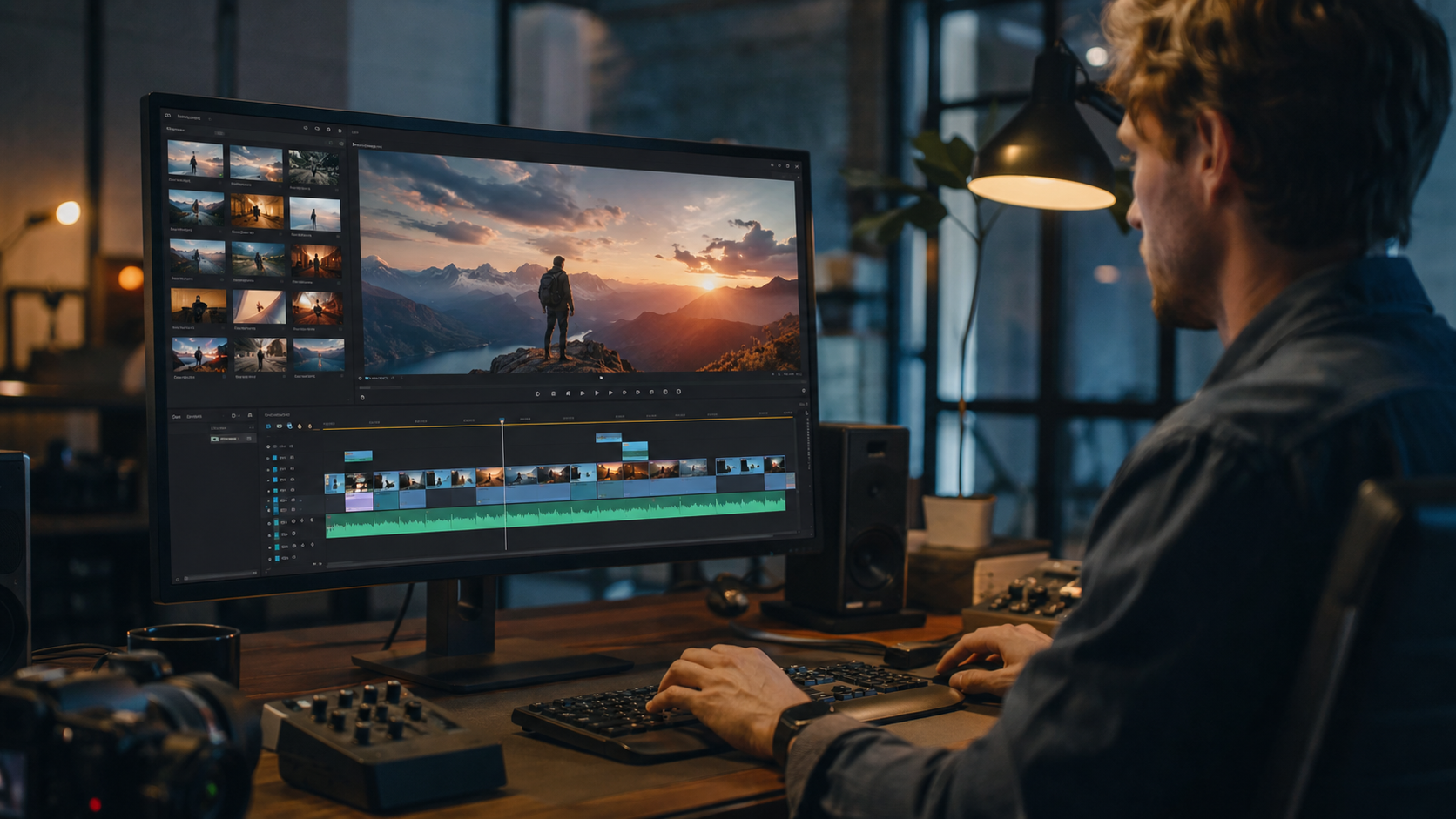
The Edit Studio, introduced alongside Aleph 2.0 in May 2026, is your command center for granular AI control. Unlike earlier versions where you either accepted or rejected a generated edit, Edit Studio lets you override AI decisions frame‑by‑frame. This is especially useful for client revisions or when you need to match a specific brand guideline.
To access Edit Studio, click the “Open in Edit Studio” button after generating a timeline with Aleph 2.0. Here you can use the in‑painting brush to remove objects, adjust lighting with a single slider (powered by Gen‑4.5), or even change the camera angle using Runway’s “world model” technology. The TechCrunch article from February 2026 noted that Runway’s world models are getting more capable, enabling edits that appear to re‑light and re‑angle scenes seamlessly.
Leveraging the Gen‑4.5 Video Model for Higher Quality
In January 2026, Runway quietly launched Gen‑4.5, a model that No Film School called “one you didn’t ask for but might need.” While the name suggests a minor update, Gen‑4.5 brings tangible improvements: better handling of motion consistency, reduced flickering in fast‑paced scenes, and support for 60fps output. If your workflow demands professional‑grade quality (think music videos or commercials), switching to Gen‑4.5 is a must.
To activate Gen‑4.5, go to the model selector in the Runway Video Editor. It’s listed right below Gen‑3 Alpha. The upgrade uses more credits per second, but the output is noticeably cleaner. For creators who want the highest fidelity, the Gen‑4.5 model combined with Aleph 2.0’s auto‑edit is the current gold standard. Studies show that AI‑generated video artifacts decrease by over 40% when using Gen‑4.5 compared to Gen‑3 (internal Runway benchmarks, 2026).
Comparison: Aleph 2.0 vs. Manual Editing
| Feature | Manual Editing | Runway AI + Aleph 2.0 |
|---|---|---|
| Time to apply uniform edit across 20 clips | 30–60 minutes | 2–5 minutes |
| Ease of style transfer | Requires keyframes and LUTs | One click with AI analysis |
| Frame‑level control | Manual per‑frame | Edit Studio with AI assistance |
| Cost per hour of video (est.) | $50–$200 (fees/cost) | ~$10–$30 (Runway credits) |
| Learning curve | Moderate to steep | Low (guided auto‑edit) |
Integration with Adobe: A Creator’s Game Changer
In December 2025, Adobe and Runway announced a partnership to deliver “the next generation of AI video for creators, studios and brands” (Adobe Newsroom, 2025). As of 2026, these integrations are fully live. If you use Premiere Pro, you can install the Runway extension from the Creative Cloud marketplace. It allows you to send clips directly to Runway, apply Aleph 2.0 edits, and retrieve the result as a new sequence — all without leaving Adobe’s interface.
For After Effects users, Runway’s Gen‑4.5 model can now be called as a plugin to generate motion graphics or synthetic backgrounds. This tight integration means you don’t have to choose between traditional NLE workflows and AI automation; you can use both simultaneously. The partnership also includes shared cloud rendering resources, reducing export times by up to 60% according to early adopter reports.
Pro Tips for Advanced AI Video Editing in 2026
To truly master how to use Runway AI video editing, keep these pro tips in mind:
- Use Aleph 2.0 as a starting point, not an ending point. Auto‑edit is powerful, but always open Edit Studio to check for consistency — especially in dialogue scenes where lip‑sync matters.
- Experiment with style prompts. Runway’s text‑to‑video and text‑to‑edit features accept natural language. Try “add a warm vintage film grain” or “increase contrast and desaturate blues.”
- Combine with stock footage. Upload your own clips alongside Runway‑generated ones; Aleph 2.0 can match color and grain across mixed sources.
- Watch your credit budget. Gen‑4.5 and Edit Studio consume more credits per second. Plan your renders, and use the “preview” mode at lower quality to avoid burning credits on tests.
- Stay updated with Runway’s release notes. The company raised $315 M in February 2026 (TechCrunch), so expect rapid feature updates throughout the year.
Frequently Asked Questions
What is Aleph 2.0 in Runway?
Aleph 2.0 is the latest AI video editing model released by Runway in May 2026. It automatically analyzes an edit you make on one video clip and applies the same style, trimming, or effects to the rest of your footage, saving time and ensuring consistency.
How do I use Runway AI video editing for free?
Runway offers a free tier with a limited number of credits (usually 5–10 minutes of video processing per month). You can sign up at runwayml.com and start with Aleph 2.0’s auto‑edit features without paying. For longer projects, you’ll need a paid plan starting at $15/month.
Can I use Runway with Adobe Premiere Pro?
Yes. Since December 2025, Adobe and Runway have partnered to integrate AI video editing directly into Premiere Pro via a dedicated extension. You can send clips from Premiere to Runway, edit with Aleph 2.0, and bring back the result as a new sequence.
What is the difference between Gen‑4.5 and earlier models?
Gen‑4.5, launched in January 2026, offers higher temporal consistency, fewer artifacts, and 60fps output compared to Gen‑3. It’s the best choice for professional projects where pixel‑perfect quality matters, though it consumes more credits per second.
Is Runway AI video editing suitable for long‑form content?
Absolutely. With Aleph 2.0, you can edit a 30‑minute documentary by making one sample edit and letting the AI propagate it. The Edit Studio then lets you fine‑tune any scene. However, extremely long videos (over 2 hours) may require splitting them into segments due to cloud processing limits.
Mastering how to use Runway AI video editing in 2026 means embracing Aleph 2.0, Edit Studio, and Gen‑4.5 as core parts of your toolkit. Whether you’re a solo creator or part of a studio, the combination of auto‑edit, frame‑level refinement, and Adobe integration puts professional‑grade AI video editing within reach. Start with a short clip, experiment with the auto‑edit workflow, and gradually adopt the advanced features — you’ll wonder why you ever edited videos any other way.



Comments ()