
How to Use Pika Labs AI in 2026: Step-by-Step Guide
To use Pika Labs AI in 2026, simply sign up for a free account at pika.art, choose between text-to-video or image-to-video modes, write a descriptive prompt, and let the AI generate a cinematic clip in seconds. This guide walks you through every step, from setting up your profile to mastering advanced features like AI Selves, so you can create professional-looking videos without any editing experience.
Pika Labs AI is a generative video platform that turns text prompts or uploaded images into high-quality, cinematic clips. In 2026, it includes groundbreaking features like AI Selves for cloning yourself and Pika.art for instant image-to-video conversion. Here’s exactly how to use Pika Labs AI to produce stunning videos in minutes.
- ✓ Sign up at pika.art – the platform is now open to all users with a free tier.
- ✓ Choose your mode: text-to-video or image-to-video (Pika.art) for maximum flexibility.
- ✓ Write detailed, cinematic prompts to guide the AI – include lighting, camera angles, and mood.
- ✓ Use AI Selves to create a digital clone and generate consistent character-driven videos.
- ✓ Refine results with negative prompts, style presets, and frame interpolation settings.
Step-by-Step Guide: How to Use Pika Labs AI in 2026
Follow these numbered steps to create your first AI video with Pika Labs. The process is intuitive, but a few best practices will help you get cinematic results every time.
- Create a Free Account – Go to pika.art and sign up using your email or Google account. According to VentureBeat (Dec 2023), Pika Labs opened its platform to all users, and as of 2026, the base tier remains free with optional paid plans for higher resolutions and longer clips.
- Select Your Input Mode – On the dashboard, choose between “Text-to-Video” (type a prompt) or “Image-to-Video” (upload a photo or artwork). The image-to-video feature, launched as Pika.art in 2025, lets you animate still images with just a few words.
- Write a Cinematic Prompt – Describe your scene in detail. For example: “A lone astronaut walks on a red desert planet, dramatic sunset lighting, slow-motion dust particles, 4K cinematic.” The more specific you are, the better the AI understands your vision.
- Adjust Advanced Settings – Use the settings panel to set video length (2–4 seconds for free, up to 10 seconds on Pro), motion strength, negative prompts (e.g., “blurry, low quality”), and style presets like “realistic” or “anime.”
- Generate and Review – Click “Generate” and wait 10–30 seconds. Pika Labs will produce a short clip. You can regenerate with the same prompt or tweak it. Use the “Frame Interpolation” option to smooth motion.
- Refine with AI Selves (Optional) – If you want a consistent character, use the AI Selves feature (announced by TrendWatching in Feb 2026). Upload a few photos of yourself (or any person), and Pika will clone the face and body. Then include “@self” in your prompt to generate videos featuring that character.
- Export and Share – Once satisfied, download the video in MP4 format or share directly to social media. Pika Labs supports 1080p resolution on paid plans and 720p on the free tier.
Getting Started with Pika Labs AI
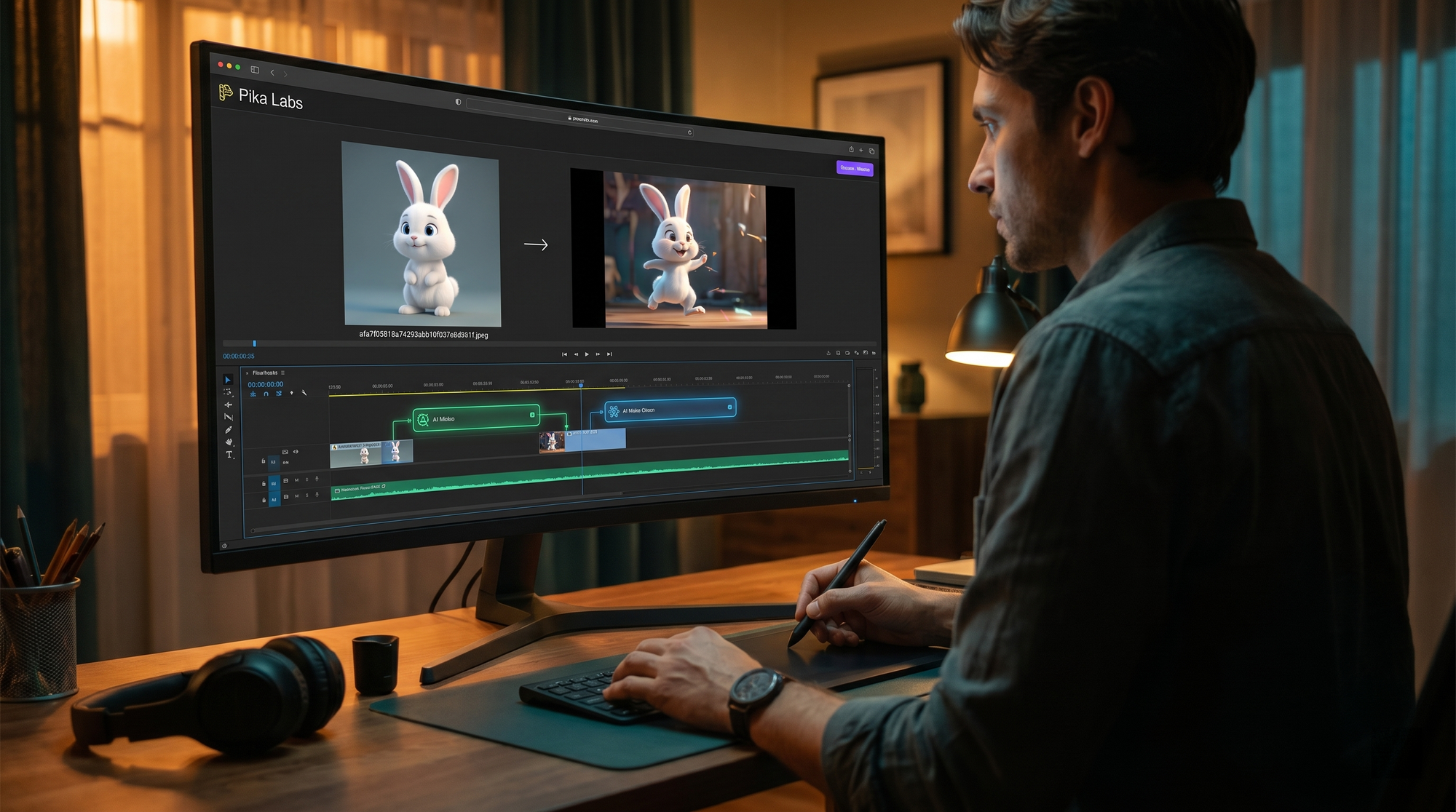
Before diving into video creation, it helps to understand the platform’s interface and account options. Pika Labs raised $80 million in funding as of June 2024 (Forbes), signaling strong investment in its generative video technology. The platform is designed for both beginners and professionals, with a clean dashboard that prioritizes speed and creativity.
Upon logging in, you’ll see a central prompt bar, a library of your previous generations, and a sidebar with tabs for “Text-to-Video,” “Pika.art,” and “AI Selves.” The free tier gives you limited daily credits (enough for roughly 20–30 generations), while the Pro plan (around $10–$15/month) unlocks higher resolution, longer clips, and priority generation. No credit card is required to start.
Understanding the Dashboard
The main workspace is intentionally minimal. At the top, you’ll find a text input box where you write your prompt. Below it, quick-action buttons let you switch between text and image modes. On the right, a settings panel appears when you click the gear icon. There you can adjust motion intensity (0–10), aspect ratio (16:9, 9:16, 1:1), and seed numbers for reproducible results. The “Style” dropdown offers presets like “Cinematic,” “Stop Motion,” and “3D Render.”
Creating Your First Video: Text-to-Video
Text-to-video is the core feature of Pika Labs AI. According to No Film School (Oct 2023), the platform excels at generating cinematic clips with smooth motion and coherent scenes. Here’s how to get the best results.
Start by writing a prompt that includes a subject, action, setting, and lighting. For example: “A golden retriever puppy running through a field of wildflowers, golden hour sunlight, shallow depth of field, 24fps cinematic.” Avoid vague terms like “nice” or “cool” – instead, use descriptive language that a film director would use. Pika Labs’ AI has been trained on millions of video clips, so it responds well to technical terms like “dolly zoom,” “low angle,” and “soft backlighting.”
After generating, you can iterate. If the motion is too fast, reduce the motion intensity slider. If the scene lacks detail, add more specific elements to your prompt. Many users find that including “4K” or “8K” in the prompt helps sharpen textures, though true resolution is capped by your plan. For best results, keep prompts under 200 characters to avoid confusion.
Advanced Features: Image-to-Video and AI Selves
Pika Labs has evolved significantly since its launch. The image-to-video feature, branded as Pika.art, was highlighted by TechRadar in March 2025 as a game-changer for animating stills. You can upload a photograph, painting, or even a screenshot, and Pika will add motion – panning, zooming, or character animation – based on a short text prompt. For example, upload a photo of a city skyline and prompt “slow pan upward, clouds moving, cinematic.”
Using Pika.art for Image-to-Video
To use Pika.art, click the “Image” tab on the dashboard. Upload your image (JPEG, PNG, or WEBP, up to 10MB). Then write a prompt describing the motion you want. The AI analyzes the image’s content and generates a 2–4 second video that respects the original composition. This is ideal for turning family photos into living memories or adding subtle movement to digital art. According to TechRadar’s review, the results are often “surprisingly coherent” and maintain the original style.
AI Selves: Clone Yourself for Consistent Characters
In February 2026, TrendWatching reported Pika’s new AI Selves feature, which lets you clone a person’s appearance from a few photos. This is perfect for storytellers who need a recurring character across multiple videos. To set it up, go to the “AI Selves” tab and upload 3–5 clear photos of the person (front, side, and smiling). Pika processes them in about a minute and creates a digital model. Then, in any prompt, include “@self” (or a custom name you assign) to generate videos featuring that clone. The system maintains consistent facial features, clothing, and even hairstyle across generations.
Note that AI Selves is currently in beta and may require a Pro subscription. The feature raises interesting questions about digital identity, but Pika Labs has implemented safeguards – you must verify ownership of the photos before cloning.
Tips for Cinematic Results
To make your videos look professional, follow these proven techniques from the Pika Labs community and early adopters.
Prompt Engineering
Treat your prompt like a director’s brief. Include camera movement (e.g., “slow zoom in,” “tracking shot”), lighting (“golden hour,” “neon glow”), and atmosphere (“foggy,” “rainy”). Avoid generic words; instead of “beautiful,” use “ethereal” or “majestic.” A well-crafted prompt can mean the difference between a blurry mess and a viral-quality clip.
Use Negative Prompts
In the advanced settings, you can add negative prompts to exclude unwanted elements. For example, if you’re generating a human face and keep getting distorted hands, add “deformed hands, extra fingers, bad anatomy” to the negative field. This helps the AI avoid common pitfalls.
Iterate and Experiment
Don’t expect perfection on the first try. Pika Labs generates variations each time (unless you lock the seed). Generate 3–5 versions of a prompt, then pick the best one. You can also use the “Remix” button to tweak an existing video’s prompt without starting over.
Combine with External Tools
For longer projects, export your Pika clips and edit them in software like DaVinci Resolve or CapCut. Add music, voiceovers, and transitions to create a complete narrative. Pika Labs excels at short clips (2–4 seconds), so stitching multiple generations together is a common workflow.
Comparing Pika Labs Features (2026)
Below is a comparison of the main video creation modes available on Pika Labs as of 2026, based on the latest research.
| Feature | Text-to-Video | Pika.art (Image-to-Video) | AI Selves |
|---|---|---|---|
| Input Type | Text prompt only | Uploaded image + text prompt | Photos for cloning + text prompt with @self |
| Best For | Original scenes from imagination | Animating existing photos or artwork | Consistent character across multiple videos |
| Maximum Length (Free) | 4 seconds | 4 seconds | 4 seconds |
| Maximum Length (Pro) | 10 seconds | 10 seconds | 10 seconds |
| Resolution (Free) | 720p | 720p | 720p |
| Resolution (Pro) | 1080p | 1080p | 1080p |
| Style Presets | Cinematic, Anime, 3D, etc. | Same as text-to-video | Same, plus character consistency |
| Availability | Since 2023 (open to all) | Launched March 2025 | Beta since February 2026 |
All three modes are accessible from the same dashboard. The choice depends on your project: use text-to-video for pure imagination, Pika.art for animating real images, and AI Selves for storytelling with a consistent protagonist.
Frequently Asked Questions
What is Pika Labs AI?
Pika Labs AI is a generative video platform that creates short, cinematic clips from text prompts or uploaded images. It uses advanced AI to interpret descriptions and produce realistic motion, lighting, and composition. The platform opened to all users in late 2023 and has since added features like image-to-video and AI Selves.
How do I use Pika Labs AI for free?
Sign up at pika.art with your email or Google account. The free tier gives you a daily credit allowance (typically 20–30 generations). You can create text-to-video and image-to-video clips up to 4 seconds at 720p resolution. No payment method is required.
Can I upload my own images to create videos?
Yes, use the Pika.art feature. Upload an image (JPG, PNG, or WEBP) and add a text prompt describing the motion you want. The AI will animate the image while preserving its original style and details. This feature was highlighted by TechRadar in March 2025.
What are AI Selves and how do they work?
AI Selves, announced in February 2026, lets you clone a person’s appearance from a few photos. Once cloned, you can include “@self” in your prompts to generate videos featuring that character consistently. It’s ideal for storytelling, vlogs, or brand mascots. The feature is in beta and may require a Pro subscription.
How do I make my Pika Labs videos look cinematic?
Write descriptive prompts that include camera angles (e.g., “dolly zoom”), lighting (“golden hour”), and mood (“mysterious”). Use negative prompts to avoid common artifacts. Adjust motion intensity and style presets. According to No Film School, starting with a clear vision and iterating on generations yields the best results.
Is Pika Labs AI safe and ethical?
Pika Labs has implemented safety measures, including content moderation and verification for AI Selves (you must own the photos). The platform is designed for creative use and prohibits deepfake misuse. As with any generative AI, users should respect copyright and privacy laws when uploading images or cloning faces.



Comments ()