
Step-by-Step Guide to Using Google Veo 3 Video Generator in 2026
Google Veo 3 is one of the most advanced AI video generators available in 2026, offering realistic video creation from simple text prompts. This guide will walk you through every step of using Google Veo 3, from setting up your account to refining your generated videos for professional results. Whether you're a marketer, content creator, or hobbyist, mastering Google Veo 3 can elevate your video production workflow.
TL;DR: Google Veo 3 is a powerful AI video generator that transforms text prompts into high-quality videos—this guide covers everything from basic setup to advanced customization techniques.
Google Veo 3 video generator is a cutting-edge AI tool that creates realistic videos from text descriptions, offering features like multi-shot consistency, enhanced realism, and cost-effective pricing with its Veo 3.1 Lite model. Launched in 2026, it competes with top-tier AI video platforms while maintaining Google's signature ease of use.
- ✓ Google Veo 3.1 introduces significant improvements in video realism and consistency compared to earlier versions.
- ✓ The platform offers both a full-featured version and a budget-friendly Veo 3.1 Lite model for different user needs.
- ✓ Advanced users can achieve professional-grade results by mastering prompt engineering and post-processing techniques.
- ✓ Google Veo 3 integrates seamlessly with other Google Cloud services for enterprise workflows.
- ✓ For creators needing longer, character-consistent videos, Digen AI Agent provides complementary autonomous video generation capabilities.
What Is Google Veo 3 Video Generator?
Google Veo 3 represents the third generation of Google's AI-powered video generation technology, building upon the success of previous versions with enhanced realism and control. According to Coursera, the 2026 update introduced significant improvements in temporal consistency and object permanence across frames. Unlike basic video generators, Veo 3 understands complex scene descriptions and maintains character consistency throughout longer sequences.
The technology behind Veo 3 combines diffusion models with transformer architectures, allowing it to generate videos at various resolutions depending on the subscription tier. PetaPixel reports that the Veo 3.1 update in January 2026 particularly improved facial expressions and natural movement patterns, making the generated videos nearly indistinguishable from filmed content in some cases.
Google offers two main versions of the platform: the full Veo 3.1 model and the more affordable Veo 3.1 Lite announced in April 2026. While the Lite version has some limitations in output resolution and generation length, CNET notes it maintains the core functionality at about 60% of the cost, making AI video generation accessible to smaller businesses and individual creators.
How to Access Google Veo 3 Video Generator
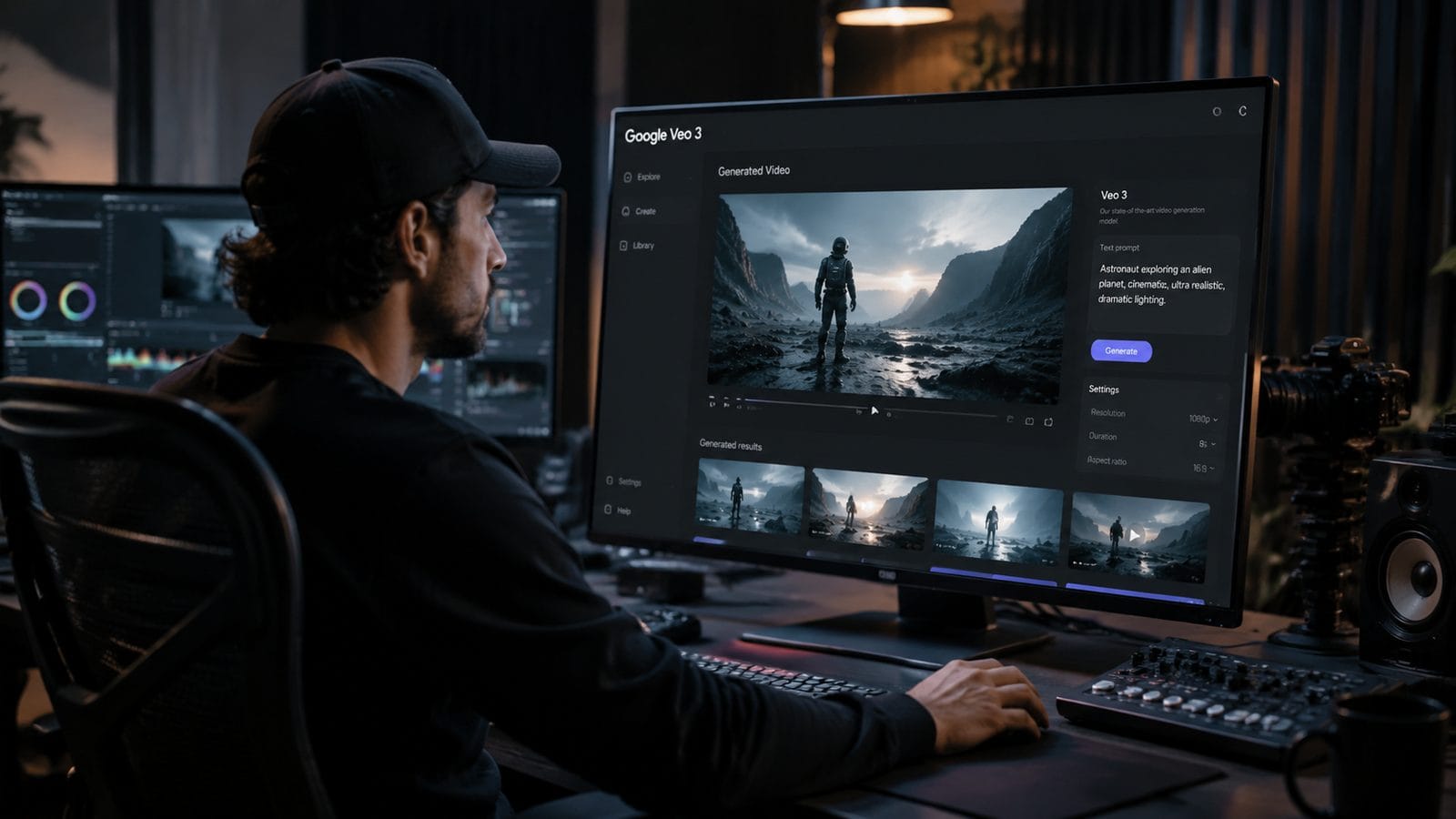
Getting started with Google Veo 3 requires a Google Cloud account with appropriate permissions. The service isn't available as a standalone app but rather as part of Google's AI suite within Google Cloud Platform. You'll need to navigate to the AI and Machine Learning section of your Cloud Console to enable the Veo API.
According to Google's documentation, there are three access tiers: Free (limited to 5 minutes of generated video per month), Pro ($29/month with 30 minutes of generation), and Enterprise (custom pricing for high-volume needs). The Free tier serves as an excellent way to test basic functionality, but serious creators will quickly need to upgrade for practical usage.
For those who prefer not to work directly with APIs, several third-party platforms like Digen AI have integrated Veo 3 into their interfaces, offering simplified workflows. These integrations often provide additional features like automatic voiceovers or multi-step generation pipelines that complement Veo's core capabilities.
Step-by-Step Guide to Using Google Veo 3
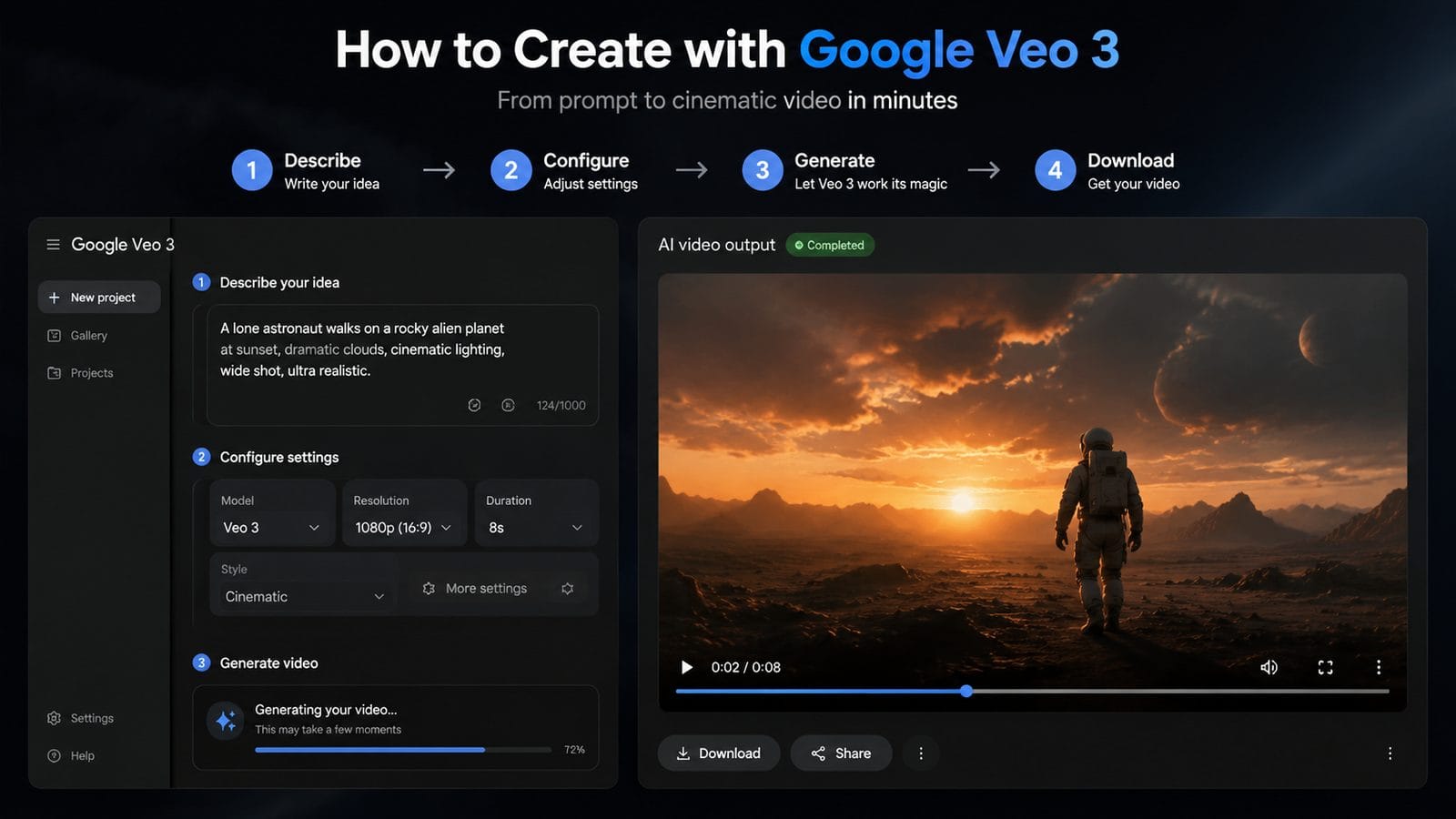
Follow this detailed process to create your first AI-generated video with Google Veo 3:
- Prepare Your Prompt: Craft a detailed text description of your desired video scene, including characters, actions, environment, and style references.
- Set Parameters: Choose video length (up to 60 seconds for standard tiers), aspect ratio (landscape, square, or vertical), and output quality.
- Generate Preview: Create a low-resolution preview to verify your concept before committing to full rendering.
- Refine Output: Use the iterative refinement tools to adjust specific elements like lighting, character positioning, or motion speed.
- Render Final Version: Generate the full-quality video once satisfied with the preview.
- Post-Process: Optionally edit the output in video software or use Veo's built-in tools for color correction and basic effects.
Advanced Prompt Engineering Techniques
Mastering prompt construction is crucial for professional results with Veo 3. Include specific details about camera angles (e.g., "close-up shot from a low angle"), lighting conditions ("soft golden hour lighting"), and character emotions ("a surprised expression followed by a warm smile"). According to PCMag, the most successful Veo 3 users employ cinematic terminology and reference specific film styles in their prompts.
Working With Multiple Shots
For complex scenes requiring multiple shots, Veo 3 allows you to generate sequences separately then combine them using the timeline editor. Maintain consistency between shots by referencing the same character descriptions and using consistent environmental details. The 2026 updates improved character consistency across shots, but subtle variations may still occur.
Optimizing Video Quality in Google Veo 3
The quality of your Veo 3 output depends heavily on your input parameters and post-processing choices. Always generate at the highest resolution your subscription allows, then downscale if needed for your distribution platform. The difference between 1080p and 4K generation is particularly noticeable in fine details like hair movement and fabric textures.
Lighting consistency remains one of the biggest challenges in AI video generation. Veo 3.1 made significant improvements here, but you may still need to manually adjust lighting in post-production for professional results. The platform includes basic color grading tools, but serious creators often export to dedicated video software for final polishing.
For longer videos beyond Veo's 60-second limit, consider using Digen AI Agent which specializes in maintaining character and style consistency across multiple generated segments. This approach works particularly well for explainer videos, product demos, and educational content requiring extended runtime.
Comparing Google Veo 3 With Other AI Video Tools
| Feature | Google Veo 3.1 | Veo 3.1 Lite | Digen AI Agent |
|---|---|---|---|
| Max Video Length | 60 seconds | 30 seconds | 10 minutes |
| Character Consistency | Good | Fair | Excellent |
| Output Resolution | Up to 4K | 1080p max | 4K with enhancement |
| Multi-Shot Editing | Basic | Limited | Advanced |
| Price Point | $$$ | $ | $$ |
While Veo 3 excels at single-scene generation, tools like Digen AI Agent offer advantages for longer-form content creation. According to tech-insider.org's 2026 comparison, Veo 3 produces slightly more realistic textures in close-up shots, while alternatives might better serve specific use cases like consistent character animation across extended sequences.
Creative Applications of Google Veo 3
Beyond basic video generation, Veo 3 enables several powerful creative workflows. Marketing teams use it to rapidly prototype ad concepts—generating multiple variations of a product demonstration to test before committing to live-action production. The ability to quickly iterate on different visual approaches saves significant time in the creative development process.
Educators and trainers leverage Veo 3 to create customized visual aids and scenario-based learning materials. Historical recreations, scientific visualizations, and safety demonstrations all benefit from AI generation when filming would be impractical or expensive. The 2026 updates made Veo particularly strong at generating accurate human movements for training simulations.
Independent filmmakers use Veo 3 as a pre-visualization tool, generating rough versions of complex scenes before principal photography. Some avant-garde creators even incorporate AI-generated segments directly into their final cuts, blending them with traditional footage for unique stylistic effects. As incrypted notes, this hybrid approach represents one of the most exciting developments in digital filmmaking.
Troubleshooting Common Google Veo 3 Issues
Many first-time users encounter similar challenges when working with Veo 3. If your generated video contains artifacts or glitches, try simplifying your prompt and removing unnecessary details. Complex scenes with multiple moving elements often require several iterations to achieve clean results. The preview function exists specifically to catch these issues before full rendering.
Character inconsistencies across frames improved significantly in Veo 3.1, but may still occur in longer generations. For critical projects, consider breaking longer videos into shorter segments and assembling them in post-production. Alternatively, tools like Digen AI Agent specialize in maintaining character consistency across extended generations.
Performance issues often relate to browser choice or hardware limitations. Google recommends using Chrome with hardware acceleration enabled for the best Veo 3 experience. If generation times seem unusually long, check your internet connection speed and consider reducing output resolution for quicker iterations.
Frequently Asked Questions
Can Google Veo 3 generate videos longer than 60 seconds?
No, the standard version of Veo 3 has a hard 60-second limit per generation. For longer content, you'll need to generate multiple segments and combine them in editing software or use a specialized tool like Digen AI Agent designed for extended video generation.
Does Google Veo 3 support voiceovers or audio generation?
Veo 3 focuses exclusively on visual generation. However, it integrates seamlessly with Google's text-to-speech services, allowing you to add voiceovers separately. Many users combine Veo output with audio from other AI tools in their video editing workflow.
How does Veo 3.1 Lite differ from the full version?
The Lite version offers reduced maximum resolution (1080p vs 4K), shorter generation limits (30 seconds vs 60), and slightly less refined details in complex scenes. However, it maintains the core generation quality at a significantly lower price point, making it ideal for budget-conscious creators.
Can I use Google Veo 3 for commercial projects?
Yes, all content generated through Veo 3 can be used commercially, provided you follow Google's acceptable use policy. This makes it popular among marketers, content agencies, and small businesses needing affordable video production.
What's the learning curve for Google Veo 3?
Basic operation is intuitive, but mastering professional-grade results requires practice in prompt engineering and post-processing. Most users report needing 10-15 generations to become comfortable, with ongoing improvement in output quality as they refine their techniques.
Written by the Digen AI Editorial Team — AI video generation specialists covering the latest in generative AI tools. Learn more about Digen AI.



Comments ()