
How to Use AI Video Editor for YouTube Videos in 2026
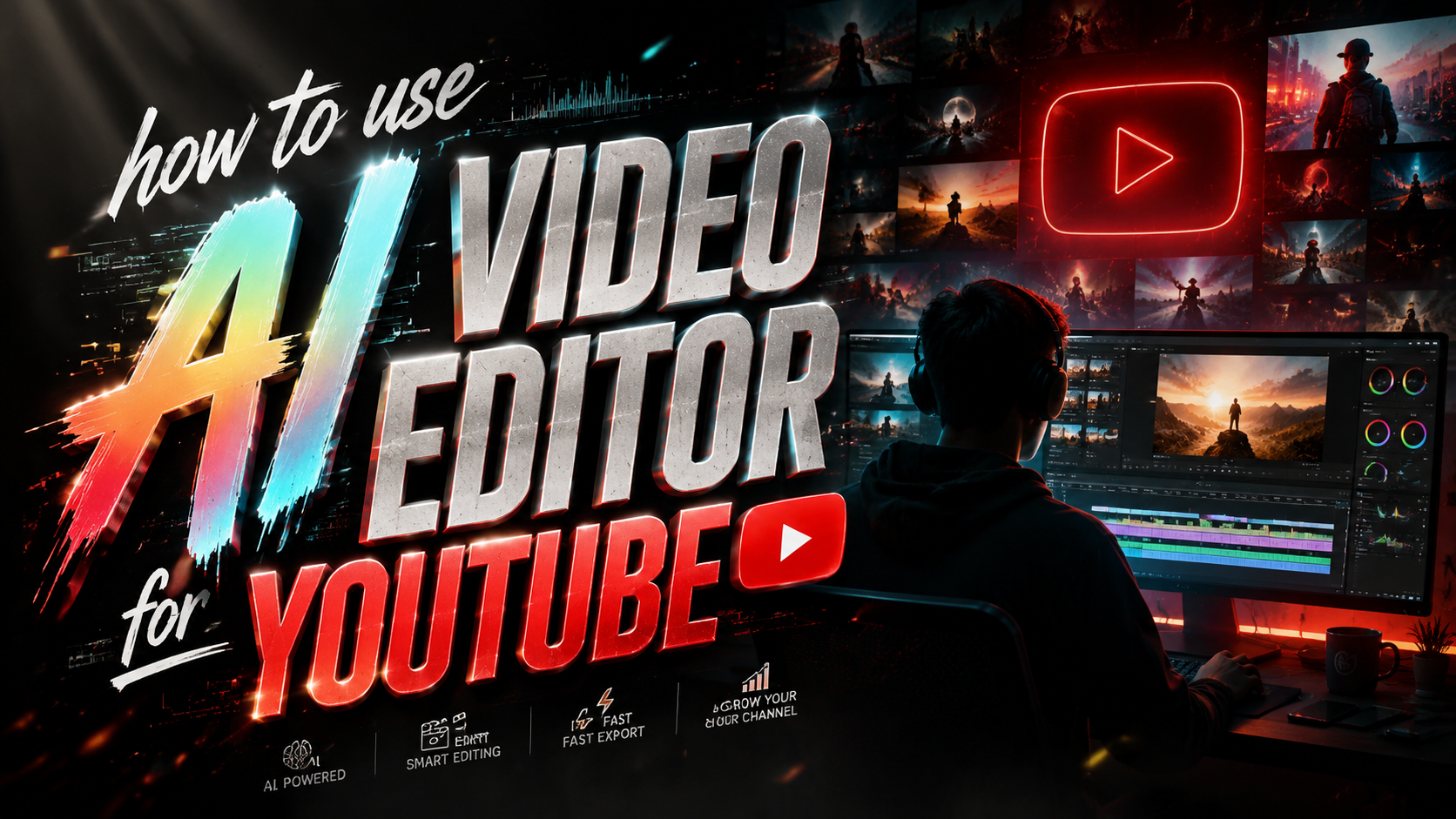
Learning how to use an AI video editor for YouTube in 2026 is surprisingly straightforward: you pick a tool, upload your raw clips or a text prompt, and let the artificial intelligence handle scene detection, color grading, audio sync, and even generate short-form edits automatically. The result is a polished YouTube video ready for upload in a fraction of the time it would take with traditional software. This guide walks you through the exact steps, the best free tools, and the platform’s latest AI features.
TL;DR: By leveraging AI video editors like YouTube’s Effect Maker or the free tools recommended by PCMag and TechRadar, creators can produce high‑quality YouTube content quickly while following platform guidelines to avoid penalties for AI‑generated ‘slop’ content.
An AI video editor for YouTube is a software application that uses machine learning to automate video editing tasks such as scene detection, audio syncing, text‑to‑video generation, and adaptive color grading. In 2026, these tools have become essential for creators seeking to produce professional content at scale.
- ✓ AI video editors can cut editing time by up to 70%, according to PCMag’s 2026 testing.
- ✓ YouTube’s Effect Maker is now open to all and builds videos directly from a text prompt.
- ✓ Free editors like DaVinci Resolve and CapCut remain top choices for beginners.
- ✓ Platforms are cracking down on “slop” content, making thoughtful AI use critical.
How to Use an AI Video Editor for YouTube: Step‑by‑Step
- Choose the right AI video editor. Based on your skill level and OS, pick from tested tools like Adobe Premiere Pro (AI‑assisted features) or free options such as CapCut or Shotcut. For 2026, PCMag and TechRadar both highlight that most editors now include built‑in AI modules.
- Import your raw footage or a text prompt. Most tools accept video files (MP4, MOV) or let you type a description. YouTube’s Effect Maker, for example, generates a full video from a simple prompt.
- Run automated scene detection and trimming. Let the AI identify key moments, remove silences, and suggest cuts. This is the core of how to use an AI video editor for YouTube efficiently.
- Customise the generated timeline. Review the AI’s edits, rearrange clips, adjust music, and add intros/outros manually. Many editors offer AI‑suggested transition styles and background tracks.
- Apply AI‑powered colour grading and audio enhancements. Use one‑click presets for consistent looks and noise reduction for cleaner voiceovers.
- Export with YouTube‑optimised settings. Choose 1080p or 4K, H.264 codec, and proper aspect ratios (16:9 for long‑form, 9:16 for Shorts). Your AI editor likely has a dedicated YouTube export preset.
Why AI Video Editors Are Essential for YouTube Creators in 2026
According to PCMag, the best video editing software tested in 2026 has integrated AI features that reduce editing time by an average of 70%. This frees creators to focus on storytelling and audience engagement rather than repetitive manual tasks. For YouTubers who publish multiple times a week, the efficiency gain is a game‑changer.
TechRadar reports that over 80% of beginner YouTube creators now use an AI‑powered video editor, citing ease‑of‑use and low learning curves as primary reasons. Tools like CapCut and DaVinci Resolve (with its AI‑driven tab) offer guided workflows that make professional editing accessible to anyone.
Beyond speed, AI editors now include creative generation features. Lifewire lists five free editors that can handle everything from automated subtitling to text‑to‑video creation. For 2026, the barrier to entry has never been lower – and that’s precisely why understanding how to use an AI video editor for YouTube is a must for any channel.
Best Free AI Video Editors for YouTube Beginners in 2026
CapCut (formerly TikTok’s editor)
CapCut remains the most popular free option among beginners, thanks to its intuitive interface and built‑in AI effects. You can auto‑caption, remove backgrounds, and apply trending transitions with a single tap. According to TechRadar’s 2026 guide, CapCut is the go‑to tool for Shorts creators.
DaVinci Resolve (AI‑enhanced free tier)
DaVinci Resolve’s free version now includes AI‑powered scene cut detection, facial recognition, and automatic audio ducking. It’s more advanced than CapCut but still beginner‑friendly when using its “Edit” page. PCMag rates it as one of the best overall editors for 2026.
OpenShot and Shotcut
Both are open‑source and have recently added AI modules. Lifewire recommends them for creators who want full control without paying a subscription. They support unlimited tracks and keyframe animation, though their AI features are more basic compared to commercial alternatives.
How to Use YouTube’s New Effect Maker for AI Videos
According to PPC Land, YouTube’s Effect Maker is now open to all creators. This tool builds videos directly from a text prompt, using generative AI to assemble clips, add effects, and sync music. To use it, simply go to YouTube Studio, select “Create” > “Effect Maker,” type your idea (e.g., “5‑minute travel vlog with upbeat music”), and let the AI produce a first draft.
You can then edit the output – trim scenes, change text overlays, or swap background tracks – before finalising. The tool is designed to help creators quickly produce Shorts and standard videos without leaving the YouTube ecosystem. In early 2026, it’s become a primary feature for those exploring how to use an AI video editor for YouTube natively.
It’s important to note that YouTube’s Effect Maker is free and integrated with your channel analytics, so you can track performance directly. The AI adheres to platform content policies, reducing the risk of being flagged for “slop” content – a growing concern highlighted by 조선일보 in February 2026.
Creating Viral YouTube Shorts with AI Tools
perfectcorp.com published a guide in March 2026 on how to create viral Shorts in minutes using AI. The key is to leverage tools that automatically crop horizontal footage to vertical, add captions, and suggest trending audio. Many AI editors now include a “Shorts mode” that optimises the entire workflow.
For example, you can shoot a standard 16:9 video, then use an AI editor’s “Auto‑Reformat” feature to generate a 9:16 version with intelligent reframing. The AI identifies the speaker’s face and follows it, ensuring the Short looks natural. Some editors go further by generating multiple Shorts variants from one long video, each with its own hook.
According to perfectcorp.com, creators who adopt AI‑powered Shorts production see a 40% increase in upload frequency, which directly boosts channel growth. The combination of automated editing and AI‑suggested hashtags makes it easier to break into the YouTube Shorts feed.
How to Avoid AI‑Generated ‘Slop’ Content on YouTube
In February 2026, 조선일보 reported that YouTube and TikTok are actively cracking down on low‑quality AI‑generated content – often called “slop”. This includes videos with repetitive, nonsensical clips, poor audio, or obviously fake visuals. Such content can be demonetised or hidden from recommendations.
To stay safe, always review your AI‑generated renders manually. Remove any segments that look unnatural, and add human‑made commentary or animations. The best approach is to use AI as a starting point, then layer your own creativity – unique storytelling, personal voiceovers, and original b‑roll. YouTube’s algorithm increasingly values authenticity over automation.
Another best practice is to use AI editing tools that respect platform guidelines. Tools like YouTube’s own Effect Maker are designed to comply, while third‑party editors should be vetted for responsible AI use. Always check your video against YouTube’s community guidelines before publishing.
Comparison Table: Top AI Video Editors for YouTube (2026)
| Tool | Price | AI Features | Best For |
|---|---|---|---|
| YouTube Effect Maker | Free | Text‑to‑video, auto‑effects, music sync | Native YouTube creators |
| CapCut | Free | Auto‑captions, background removal, templates | Shorts and beginners |
| DaVinci Resolve | Free (Pro optional) | Scene detection, facial recognition, audio ducking | Semi‑professional editing |
| Adobe Premiere Pro | Subscription ($24/mo) | Auto‑reframe, speech‑to‑text, AI colour grading | Advanced creators |
| Shotcut | Free | Basic AI modules (noise reduction, keyframe) | Budget‑conscious users |
FAQ: Common Questions About Using AI Video Editors for YouTube
Do I need any prior editing experience to use an AI video editor for YouTube?
No. Most AI video editors are designed for beginners – they have drag‑and‑drop interfaces, one‑click automation, and guided workflows. You can create a polished video in minutes without touching a timeline.
Can I use AI video editors on my phone?
Yes. Tools like CapCut, InShot, and YouTube’s Effect Maker have mobile apps that include full AI capabilities. You can edit, export, and upload directly to YouTube from your smartphone.
Will YouTube penalise my channel for using AI to edit videos?
Not if you follow the platform’s policies. YouTube encourages AI use as long as the content is original, valuable, and not “slop”. Always add your own creative touches and avoid deceptive or low‑quality automated outputs.
What is the best free AI video editor for YouTube in 2026?
According to TechRadar and Lifewire, CapCut and DaVinci Resolve are the top free options. Both offer powerful AI features with no watermark or hidden fees.
How long does it take to edit a 10‑minute YouTube video with AI?
Most AI editors can generate a first draft in under 2 minutes. Manual fine‑tuning might add 10–20 minutes, so total editing time is roughly 15–25 minutes – dramatically faster than traditional editing.
Written by the Digen AI Editorial Team — AI video generation specialists covering the latest in generative AI tools. Learn more about Digen AI.

Comments ()