
How to Use AI Video Editor for Beginners (2026 Guide)
To use an AI video editor for beginners, start by selecting a user-friendly tool like CapCut or Adobe Premiere Rush, then upload your footage and let AI handle tasks such as auto-captioning, scene detection, and color correction. As you progress, experiment with AI-powered features like text-to-video generation and smart trimming—most platforms offer guided tutorials that make the learning curve nearly flat. By 2026, these editors have become so intuitive that even absolute novices can produce polished videos in minutes.
An AI video editor is a software application that uses machine learning algorithms to automate repetitive editing tasks—such as cutting, captioning, color grading, and even generating clips from a text prompt—so beginners can create professional-looking videos without prior editing experience.
- ✓ AI video editors simplify the entire editing pipeline, reducing time spent on mundane tasks by up to 70%.
- ✓ Top beginner-friendly tools in 2026 include CapCut, Adobe Premiere Rush, LumaFusion, and InVideo—all offering free tiers or affordable subscriptions.
- ✓ Most AI editors feature drag-and-drop interfaces, one-click auto-captioning, and AI-powered scene detection.
- ✓ Generative AI now allows you to create videos from a text prompt, making content creation accessible to anyone.
- ✓ Beginners should start with a project template and gradually explore advanced AI features like smart color grading and voice cloning.
Understanding AI Video Editors: A Beginner’s Primer
AI video editors have transformed content creation by embedding intelligent automation into every step of the editing workflow. According to TechRadar’s 2026 roundup of the best video editing software for beginners, “the best tools now require almost zero manual effort for tasks that once took hours.” These systems analyze your footage, detect faces, sync audio, and even suggest transitions—allowing you to focus on storytelling rather than technical fiddling.
The core difference between a traditional editor and an AI-powered one lies in the automation of decision-making. For instance, when you import a raw clip, the AI can automatically remove silences, stabilize shaky footage, and correct lighting imbalances. This is especially valuable for beginners who lack the experience to judge timing or color accuracy. As Amateur Photographer noted in April 2026, “these programs are so accessible that literally anyone can use them.”
What Makes an AI Video Editor “Beginner-Friendly”?
Top-rated beginner editors share several characteristics: a clean, uncluttered interface; pre-built templates for social media, vlogs, or presentations; and built-in tutorials that guide you through each AI feature. Many also offer one-click auto-magic buttons—for example, “Auto Cut” or “Smart Trim”—that instantly produce a rough cut you can then fine-tune. According to a review on Creative Bloq (May 2026), the best video editing apps “are now no more complicated than using a smartphone camera app.”
Step-by-Step Guide: How to Use an AI Video Editor for Beginners
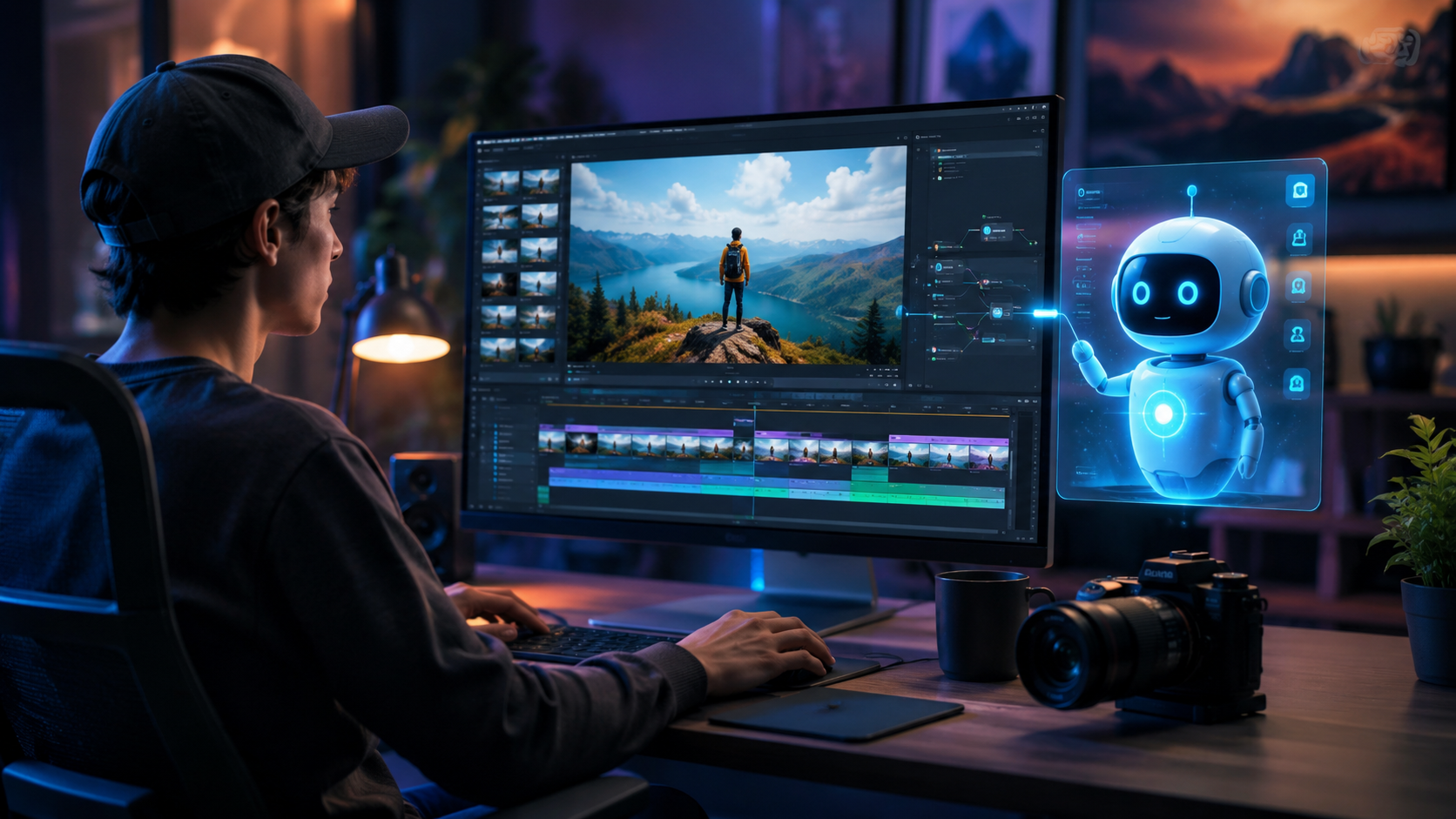
Follow this numbered list to create your first video with an AI editor. We’ll use a generic workflow that works across popular tools like CapCut, Premiere Rush, and InVideo.
- Choose and install an AI video editor. For desktop users, BBN Times’ 2026 guide recommends CapCut Desktop (free) or Adobe Premiere Rush (free trial, then $9.99/month). Mobile users can start with LumaFusion (iPad) or InVideo’s mobile app.
- Import your media. Drag video clips, images, and audio files into the project library. Most editors support drag-and-drop and will automatically analyze the content.
- Apply AI auto-edit. Look for a button labeled “Auto Cut,” “Smart Trimmer,” or “AI Edit.” The tool will scan your footage, remove fluff, and create a timeline with rough cuts.
- Refine with AI tools: Use one-click features to add captions (AI speech-to-text), apply color correction (auto-balance), or generate background music (AI beat-matching).
- Add text and effects. Choose from AI-suggested titles, transitions, and overlays. Many editors offer animated templates that adapt to your content length.
- Preview and export. Play back the timeline, make manual tweaks if needed, then click “Export.” The AI will optimize the output for your chosen platform (YouTube, TikTok, etc.).
The entire process can take as little as 15 minutes for a 60-second clip. As you gain confidence, explore advanced AI features like text-to-video generation (type a prompt and get a ready-made clip) or AI voiceover (type a script and have it narrated in a natural voice).
Choosing the Right AI Video Editor for Beginners in 2026
With dozens of options available—Cybernews listed 16 best AI video generation tools in February 2026, while perfectcorp.com tested 23 AI video generators in May 2026—it’s easy to feel overwhelmed. Below is a comparison table of the most beginner-friendly editors based on recent expert reviews.
| Tool | Platform | Key AI Features | Pricing | Best For |
|---|---|---|---|---|
| CapCut (Desktop & Mobile) | Windows, Mac, iOS, Android | Auto-captions, scene detection, AI color correction, text-to-video | Free (with optional pro subscription) | Social media creators and vloggers |
| Adobe Premiere Rush | Windows, Mac, iOS, Android | Auto-duck audio, smart trimming, AI motion graphics | Free trial, then $9.99/month | Cross-platform editing with cloud sync |
| LumaFusion | iPad, iPhone | AI magnetic timeline, auto-keyframing, smart stabilizer | $29.99 one-time purchase | Mobile-first creators and journalists |
| InVideo | Web-based | AI script-to-video, auto-scene generation, voice cloning | Free plan with watermark, paid from $20/month | Beginners creating marketing or explainer videos |
| Pictory | Web-based | AI summarization from long content, auto-captioning, scene extraction | Free trial, then $19/month | Repurposing blog posts into short videos |
When selecting a tool, consider your primary use case. According to perfectcorp.com’s May 2026 review, “the best AI video generators for beginners are those that offer templates and walkthroughs—CapCut remains the top pick for its zero learning curve.” Start with a free version to test the AI features before committing to a paid plan.
Desktop vs. Cloud-Based AI Editors
Desktop editors like CapCut for Windows store your media locally and offer faster rendering for high-resolution footage. Cloud-based editors (InVideo, Pictory) require no installation and let you collaborate in real time, though they depend on a stable internet connection. For absolute beginners, BBN Times (May 2026) recommends starting with a desktop tool because “the AI processing is more robust and you don’t have to worry about uploading large files.”
Essential AI Features Every Beginner Should Master
To get the most out of your AI video editor, focus on these five capabilities that deliver the highest impact with minimal effort.
Auto-Captioning and Subtitles
AI speech-to-text engines now achieve over 98% accuracy in multiple languages. One click turns your audio into styled subtitles, boosting accessibility and engagement. Many editors let you export captions as SRT files for further adjustment.
Smart Scene Detection
The AI identifies when a scene changes (e.g., a cut in your raw footage) and automatically creates separate clips or markers. This is invaluable for editing interviews, travel vlogs, or event videos where you want to quickly remove pause sections.
AI Color Grading and Light Correction
Uneven lighting is a common beginner mistake. AI color tools automatically balance white, exposure, and saturation to give your video a consistent, professional look. Some editors even apply a “cinematic” preset based on the mood of your footage.
Text-to-Video Generation
Typing a sentence like “a cat jumping over a fence in slow motion” and having the AI generate a matching clip is now possible with tools like InVideo and Pika Labs. This feature lets you fill gaps in your footage without needing a camera.
AI Voiceover and Voice Cloning
If you dislike recording your own voice, many editors offer natural-sounding AI narrators. Advanced tools allow voice cloning with just a 30-second sample, letting you create consistent voiceovers for multiple videos.
Common Mistakes Beginners Make (And How AI Helps You Avoid Them)
Even with AI assistance, new editors can fall into a few traps. Here’s how to sidestep them using the very features of your AI tool.
Overusing Transitions
It’s tempting to add flashy wipes and zooms, but they distract viewers. Let the AI suggest transitions only when a scene change calls for one—most editors have a “recommended” filter that limits choice to 2-3 styles. According to Cybernews (February 2026), “the best AI tools encourage minimalism by default.”
Ignoring Audio Quality
Beginner videos often have background noise or uneven volume. Use the AI audio enhancer to level loudness and reduce hiss. Tools like Premiere Rush include a “auto-duck” feature that lowers music volume when dialogue is detected.
Not Using Templates
Starting from a blank timeline can be overwhelming. AI templates give you a structured beginning—just swap in your clips and text. As Amateur Photographer (April 2026) put it, “templates are the secret weapon for beginners to produce instantly shareable videos.”
Future of AI Video Editing: What Beginners Can Expect Beyond 2026
The rapid evolution of generative AI means that tomorrow’s editors will be even more automatic. By late 2026, several trends are already emerging: real-time collaboration with AI that acts as a co-editor, voice-controlled editing commands (“trim the last three seconds”), and full video generation from a single paragraph of text. Perfectcorp.com’s May 2026 review of 23 AI video generators noted that “the line between editing and creating is blurring—soon you won’t need any source footage at all.”
For beginners, this means the barrier to entry will continue to drop. The skills you learn today—understanding pacing, story structure, and audience—will remain valuable, while the technical parts become fully automated. As TechRadar summarized in February 2026, “If you’ve been putting off video creation because it looks too hard, 2026 is the year to jump in.”
Frequently Asked Questions
Do I need any prior editing experience to use an AI video editor?
No. Most AI video editors are designed for absolute beginners, with drag-and-drop interfaces and step-by-step tutorials. You can produce a polished video in minutes without knowing anything about timelines or keyframes.
Which AI video editor is completely free for beginners?
CapCut Desktop and mobile versions are free with no watermark for basic features. InVideo offers a free plan but adds a watermark on exports. LumaFusion requires a one-time purchase but is free to try for 7 days.
Can AI video editors work on slow computers?
Cloud-based editors (InVideo, Pictory) offload processing to remote servers, so they run on any device with a modern browser. Desktop editors with AI features may require a GPU, but many offer a “lightweight” mode that uses less power.
How accurate is AI auto-captioning in 2026?
According to BBN Times (May 2026), modern AI caption engines achieve over 98% accuracy in English, and are improving rapidly for other languages. You’ll still want to review captions for specialized terms or accents.
What is the difference between an AI video editor and an AI video generator?
An AI video editor helps you edit your own footage (cut, caption, color grade), while an AI video generator creates entirely new videos from a text prompt. Many tools now combine both functions. For example, InVideo can generate a clip from scratch and then let you edit it further.



Comments ()