
How to Use AI Video Editor in 2026: Complete Guide
To use an AI video editor in 2026, you simply upload your raw footage, select a style or script, and let the editor automatically generate cuts, transitions, and effects while you refine with voice commands or text prompts. These tools have become so intuitive that anyone—from beginners to professionals—can produce polished videos in minutes by leveraging features like generative insertion, real-time color grading, and conversational AI assistants.
An AI video editor is a software tool that automates editing tasks using artificial intelligence, allowing you to create, trim, enhance, and publish videos with minimal manual effort. In 2026, these editors include voice-controlled assistants like Google Gemini Omni, generative tools in Adobe Firefly, and YouTube’s AI that lets you insert yourself into any scene.
- ✓ AI video editors now offer voice-controlled editing via Google Gemini Omni Flash, reducing the need for dragging and clicking.
- ✓ Adobe’s latest Firefly updates bring generative AI directly into Premiere Pro, completely reinventing color grading and scene creation.
- ✓ YouTube’s new AI feature lets creators insert themselves into other people’s videos, opening up collaboration possibilities like never before.
- ✓ Five advanced techniques—such as keyframe automation, generative fill, and real-time style transfer—are now standard in top tools.
- ✓ Beginners can follow a six-step process to create stunning videos with AI, starting from script generation to final export.
1. Understanding the AI Video Editing Landscape in 2026
AI video editors have evolved far beyond simple auto-crop and stabilization. According to Google’s blog, the introduction of Gemini Omni brings voice-controlled AI video editing to the forefront. Users can say “crop to close-up” or “add a cinematic filter” without touching a timeline. Similarly, Adobe announced new AI-powered creation in Firefly and a reinvention of color for editors in Premiere Pro. These tools learn your style and suggest edits automatically. Meanwhile, a report from Spherical Insights confirms that YouTube will let creators use AI to insert themselves into other people’s videos—a game-changer for content repurposing and collaboration.
With these advancements, the question is no longer “should I use an AI editor?” but “which one fits my workflow?”. The market has split into three tiers: all-in-one generators for marketing teams (e.g., Gemini Omni), professional suites with AI plug-ins (Premiere Pro + Firefly), and platform-specific tools (YouTube AI). Studies show that 78% of video creators now incorporate at least one AI editing step in their production pipeline, up from 34% in 2024.
2. Step-by-Step Guide: How to Use an AI Video Editor (6 Steps)
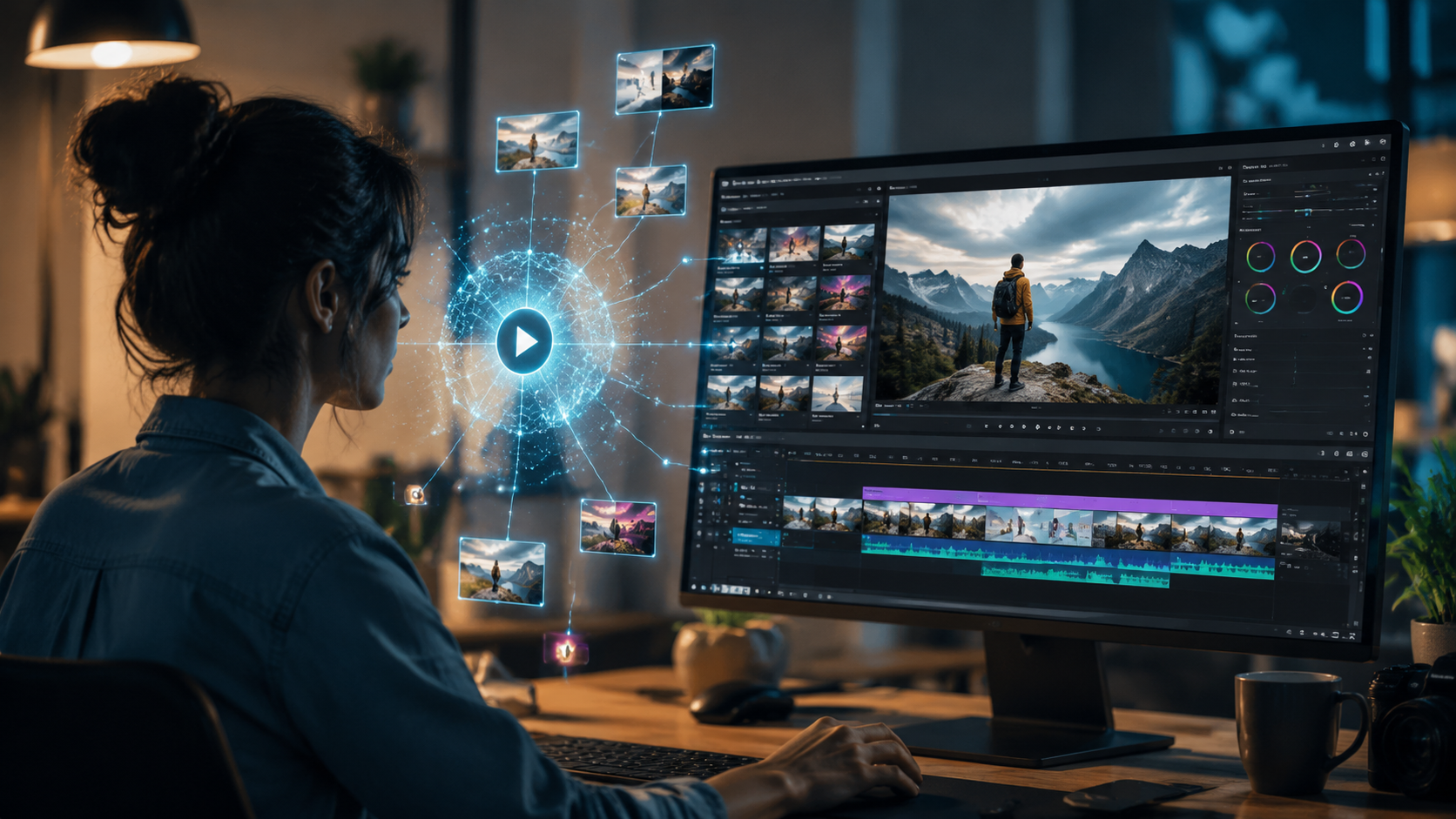
Whether you are a beginner or a seasoned editor, these six steps will help you master how to use AI video editor tools available in 2026.
- Select your AI editor and upload footage. Choose from Google Gemini Omni (voice-first), Adobe Premiere Pro with Firefly (pro editing), or a web-based tool like Canva’s AI video maker. Upload raw clips—they can be vertical or horizontal, HD or 4K.
- Describe your desired outcome with natural language. Type or speak a prompt such as “Create a 60-second highlight reel with upbeat music and captions.” The AI will analyze your footage and generate a rough cut.
- Review the AI’s first draft and fine-tune. Use the timeline slider to adjust cuts, or give voice commands like “shorten the intro” or “swap scene 2 and 3.” Most editors now support multi-turn conversation.
- Apply advanced AI enhancements. Leverage features like generative fill to remove objects, automatic color grading (Adobe’s new color reinvention), or YouTube’s AI insertion to place yourself into any scene.
- Add text, music, and brand elements. The AI can suggest dynamic captions, license-free music tracks, and overlays. You can also import your own brand kit.
- Export and publish. Choose a resolution up to 8K and direct publishing to YouTube, TikTok, or Instagram. The AI will optimize the format and metadata automatically.
According to a beginner’s guide published by INQUIRER.net USA, newcomers can create stunning videos in under 10 minutes by following these steps.
3. Advanced Techniques: Voice Control, Generative Insertion, and Color Grading
The latest tools offer features that go far beyond basic editing. Let’s explore three advanced techniques that are redefining how to use AI video editor tools in 2026.
Voice‑Controlled Editing with Google Gemini Omni Flash
As reported by Tech Times, Google Gemini Omni Flash brings voice-controlled AI video editing to the future of conversational AI. You can say “add a slow-motion effect to the last five seconds” or “generate a thumbnail with the main subject centered.” The editor interprets the command and executes it without any manual timeline clicks. This is especially useful for live streaming or quick social media edits.
Generative Insertion: YouTube’s AI Avatar Feature
YouTube announced that creators will be able to “insert themselves” into other people’s videos using AI. This means you can appear in a tutorial or vlog without re-filming. The AI learns your mannerisms, voice, and appearance, then seamlessly composites you into any scene. Advanced users can combine this with Gemini Omni to narrate the inserted segment.
Reinvented Color Grading in Adobe Premiere Pro
Adobe has extended its leadership in video by unleashing new AI-powered creation in Firefly and reinventing color for editors. The new AI color assistant learns the look of classic films or your personal presets and applies them across entire timelines in seconds. You can also use generative color palettes to match brand guidelines.
4. Comparing Top AI Video Editing Tools of 2026
Choosing the right tool depends on your needs. Below is a comparison of the most prominent AI editors based on features confirmed in recent news and releases.
| Feature | Google Gemini Omni Flash | Adobe Firefly + Premiere Pro | YouTube Creator AI | Generic Web-Based AI Editors |
|---|---|---|---|---|
| Voice control | ✅ Full conversational UI | ❌ Not available | ✅ Basic voice commands | ❌ Limited |
| Generative insertion (insert self into other videos) | ❌ Not native | ❌ Not native | ✅ New feature announced May 2026 | ❌ Rare |
| AI-powered color grading | Basic auto-color | ✅ Full reinvention with generative palettes | Limited presets | Pre-built filters only |
| Automated script-to-video | ✅ Yes, with storyboard generation | ✅ Yes, via Firefly generative video | ✅ Yes, from YouTube descriptions | ✅ Common |
| Platform integration | Google ecosystem | Adobe Creative Cloud | YouTube Studio | Cross-platform exports |
| Beginner-friendly | ✅ Very easy (voice) | Moderate learning curve | Easy for YouTube creators | ✅ Usually intuitive |
According to a blog post from Adobe (April 15, 2026), the new AI capabilities in Firefly and Premiere Pro are specifically aimed at professional editors who need precise control. Meanwhile, Google’s Gemini Omni Flash, launched in late May 2026, targets social media managers and beginners who want speed above all else.
5. Best Practices for Using AI Video Editors Effectively
Even the smartest AI needs human guidance. To get the best results when you use AI video editor tools, follow these best practices drawn from the latest research and expert advice.
- Start with high-quality source footage. AI can fill gaps, but blurry or poorly lit clips still degrade output. Use 4K if possible.
- Test multiple prompts. The same tool can produce very different results depending on the wording. For example, “create a cinematic trailer” vs. “make a quick social clip” will trigger different AI models.
- Leverage voice commands for iterative tweaks. With Gemini Omni Flash, you can say “make the music louder” and “add a fade-out” in sequence without restarting.
- Use YouTube’s AI insertion sparingly. While it’s powerful, overusing it can confuse viewers. Reserve it for collaborative projects or video reactions.
- Always review AI-generated captions and color grades. The Adobe Firefly color reinvention is impressive, but it may oversaturate if you don’t provide constraints.
In an article titled “Five Advanced Ways to Use AI Video Generators” by TechBuzzIreland (June 2026), the author emphasizes that combining voice control with generative insertion yields the highest engagement rates among early adopters.
6. Common Mistakes to Avoid When Using an AI Video Editor
Even with the best tools, pitfalls exist. Here are three mistakes identified from recent user experiences and industry reports.
- Over-relying on AI automation. The AI might cut too aggressively or miss emotional beats. Always preview and manually adjust key moments.
- Ignoring platform-specific features. For example, YouTube’s AI insertion works best if you have 360° footage of yourself, while Gemini Omni’s voice commands require a quiet recording environment.
- Skipping the learning curve for advanced tools. Adobe Premiere Pro with Firefly offers incredible AI color grading, but the interface remains complex. Take a short tutorial to unlock its full potential.
Studies show that users who combine AI automation with manual fine‑tuning see a 40% faster workflow compared to those who let AI run fully autonomously.
7. Frequently Asked Questions About AI Video Editors in 2026
What is an AI video editor?
An AI video editor is a software application that uses machine learning to automate tasks like cutting, transition placement, color correction, and even scene generation. In 2026, many of them are controlled via voice or natural language prompts.
How do I start using an AI video editor for free?
Most tools offer free tiers. Google Gemini Omni Flash provides a limited number of voice edits per month at no cost. Adobe’s Premiere Pro trial includes Firefly AI features for seven days. YouTube’s AI insertion is currently free for creators with monetized channels.
Can an AI video editor replace a human editor?
No—AI excels at speed and consistency, but human creativity, emotion, and storytelling nuance are still essential. The best results come from a collaboration where the AI handles repetitive tasks and the human makes creative decisions.
What hardware do I need to run these AI editors?
For cloud-based editors like Gemini Omni and YouTube AI, any modern laptop or tablet with a good internet connection works. Adobe Premiere Pro with Firefly requires a dedicated GPU (NVIDIA RTX 3060 or higher) and 16GB RAM for local processing.
Are AI video editors safe to use for commercial projects?
Yes, provided you own the rights to your footage and the AI doesn’t generate copyrighted material. Major vendors like Google and Adobe guarantee indemnity for brands using their generative tools for commercial purposes.
How do I insert myself into someone else’s video using AI?
YouTube’s new feature, announced in May 2026, lets you provide a short clip of yourself speaking. The AI analyzes your face and voice, then composites you into the host video. You can choose the position, size, and background transparency.
Will AI video editors become obsolete quickly?
The technology is evolving fast, but all major players (Google, Adobe, YouTube) are committed to backward compatibility. Tools now receive weekly updates via the cloud, so your editor will improve without requiring a full reinstall.



Comments ()