
How to Use Adobe Firefly: 2026 Master Guide for AI Art
To learn how to use Adobe Firefly, you must navigate to the official Adobe Firefly web portal or open integrated Creative Cloud applications like Photoshop or Illustrator. Once inside, you select a specific module—such as Text to Image, Generative Fill, or the new Firefly AI Assistant—and enter a descriptive text prompt to generate high-quality, commercially safe visual assets. The process involves refining your results using the sidebar settings to adjust aspect ratios, styles, and lighting to achieve professional-grade AI art in seconds.
Adobe Firefly is a family of generative AI models designed by Adobe to empower creators with commercially safe tools for image, video, and vector generation. As of May 2026, the platform features a revolutionary AI Assistant (currently in public beta) that acts as a creative agent, allowing users to execute complex design workflows through conversational natural language commands.
- ✓ Master the "Text to Image" and "Generative Fill" workflows for instant asset creation.
- ✓ Utilize the new Firefly AI Assistant beta to automate repetitive design tasks.
- ✓ Leverage unlimited generations for video creation introduced in the latest 2026 updates.
- ✓ Ensure commercial safety by using models trained exclusively on Adobe Stock and public domain content.
Step-by-Step: How to Use Adobe Firefly for Beginners
Getting started with generative AI can feel overwhelming, but Adobe has streamlined the interface to be intuitive for both hobbyists and professional designers. The primary gateway is the Firefly web application, which serves as a testing ground for the newest models before they are fully integrated into the Creative Cloud suite. In 2026, the platform has expanded beyond simple static images to include comprehensive video and 3D generation capabilities.
- Access the Platform: Visit the Adobe Firefly website and sign in with your Adobe ID. If you are using Photoshop or Illustrator, ensure your software is updated to the latest 2026 version to access the integrated Firefly panels.
- Select a Module: Choose from "Text to Image," "Generative Fill," "Text Effects," or the "Firefly AI Assistant (Beta)."
- Enter Your Prompt: Type a detailed description into the prompt bar. For example, "A futuristic cyberpunk cityscape in 2026 with neon lights and rain-slicked streets, cinematic lighting."
- Adjust Settings: Use the right-hand sidebar to select the aspect ratio (1:1, 4:3, 16:9), content type (Photo or Art), and specific style filters like "Macro Photography" or "Synthwave."
- Generate and Refine: Click "Generate." View the four variations provided. You can use the "Edit" button to apply Generative Fill to specific areas or the "Similar" button to iterate on a specific version.
- Download or Save: Once satisfied, click the "Download" button. Adobe will automatically apply Content Credentials to the metadata, indicating the image was created using AI.
The Evolution of Firefly: New Features in 2026
The landscape of AI art has shifted dramatically since the initial release of generative models. According to Adobe, the introduction of the Firefly AI Assistant in April 2026 represents a shift from "generative tools" to "creative agents." This assistant, which entered public beta on April 27, 2026, allows users to speak or type requests like "Make this image look more like a sunset" or "Remove the background and resize this for an Instagram Story," and the AI executes the multi-step process automatically.
Advanced AI Video Creation
One of the most significant updates arriving in late 2025 and maturing in 2026 is the enhanced video model. As reported by Beebom in May 2026, users can now create stunning AI videos by simply describing a scene. Adobe has removed previous constraints, now offering unlimited generations for video creation under specific subscription tiers. This allows filmmakers to storyboard and produce B-roll footage without the fear of exhausting "credits" during the creative experimentation phase.
Commercial Safety and Ethics
A core differentiator for Firefly remains its ethical training data. Unlike other models that scrape the open web, Firefly is trained on Adobe Stock images, openly licensed content, and public domain content where the copyright has expired. This ensures that any art you create is legally backed for commercial use, a critical factor for agencies and corporate design teams in 2026.
| Feature | Text to Image | Generative Fill | AI Assistant (Beta) | AI Video |
|---|---|---|---|---|
| Primary Use | Creating new visuals from scratch | Adding/Removing objects in photos | Conversational workflow automation | Generating cinematic clips |
| Input Type | Text Prompt | Selection + Text | Natural Language / Voice | Text or Image-to-Video |
| Commercial Use | Safe (Adobe Stock Trained) | Safe (Adobe Stock Trained) | Safe (Workflow Based) | Safe (Adobe Stock Trained) |
| Availability | Web, Photoshop, Express | Photoshop, Web | Public Beta (April 2026) | Web, Premiere Pro |
Mastering the Firefly AI Assistant for Advanced Workflows
The Firefly AI Assistant is the "best-kept secret" in generative AI, as noted by WIRED in late 2025. By 2026, it has become the central hub for the Adobe ecosystem. Learning how to use Adobe Firefly effectively now requires understanding how to communicate with this assistant. Instead of manually clicking through menus, you can treat the software as a collaborator. For instance, you can ask the assistant to "Sync the color palette of this image with my brand guidelines," and it will analyze your uploaded brand kit and apply the changes across the canvas.
However, the transition hasn't been without its critics. According to a review by AppleInsider in April 2026, some users found the AI Assistant's initial beta performance to be inconsistent when handling highly complex, multi-layered PSD files. This highlights the importance of using clear, concise language when prompting the assistant. To get the best results, break down your requests into logical steps rather than one massive paragraph of instructions.
Interactive Prompting Techniques
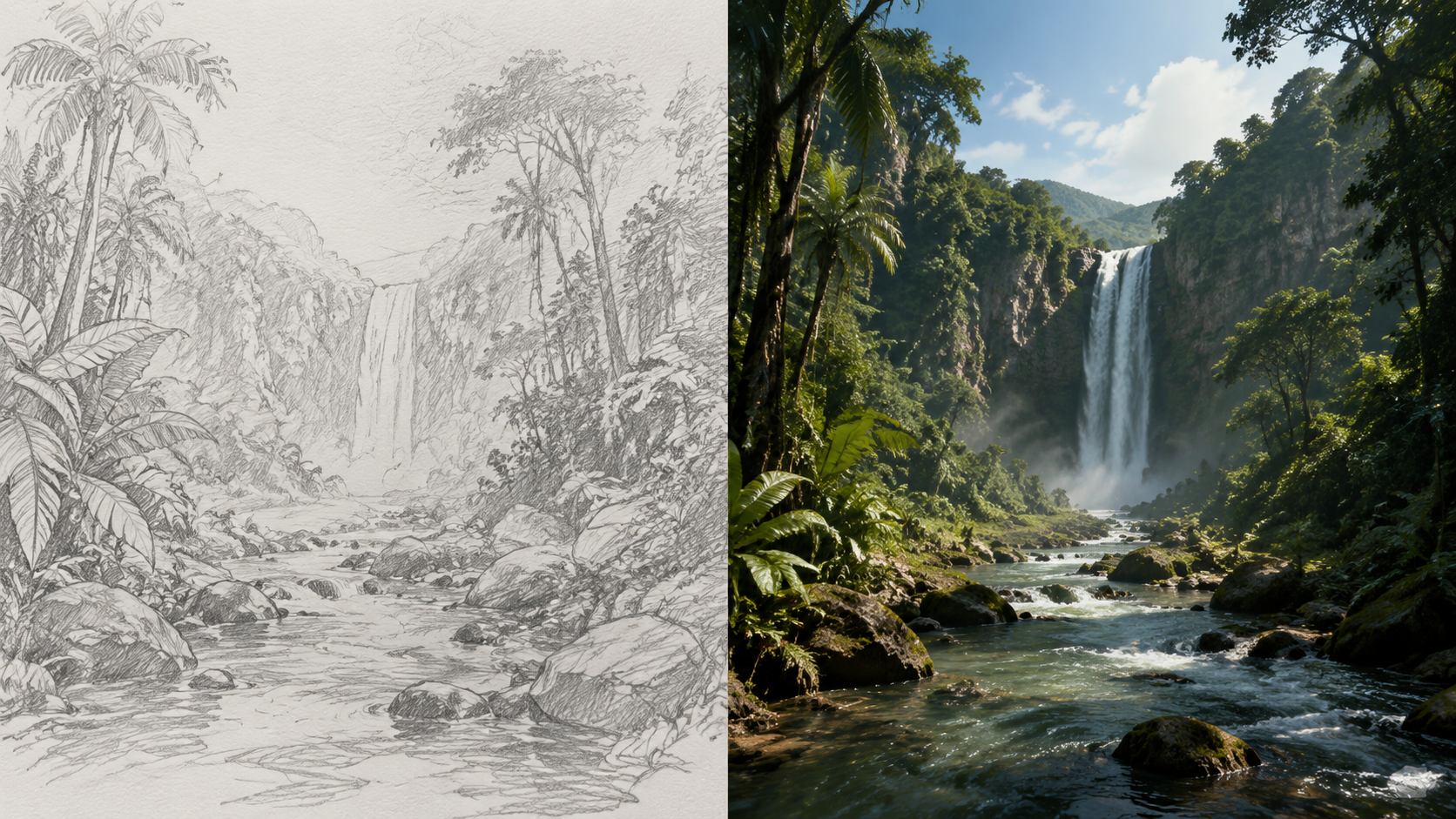
In 2026, Firefly supports "Structure Reference" and "Style Reference" tools. These allow you to upload an existing image to guide the AI. If you have a sketch of a building, you can use it as a Structure Reference, and Firefly will generate a photorealistic version of that exact shape. This bridges the gap between random generation and intentional design, making it an essential skill for professional architects and illustrators.
Using Generative Fill and Expand in Photoshop
While the web portal is great for ideation, the real power of how to use Adobe Firefly is found within Photoshop. Generative Fill has been updated in 2026 to support higher resolution outputs and better texture matching. When you select an area of an image and leave the prompt box empty, the AI uses "Contextual Awareness" to fill the space based on the surrounding pixels. This is perfect for removing unwanted tourists from travel photos or extending a landscape to fit a wider aspect ratio.
Generative Expand for Social Media
If you have a vertical photo that needs to be a horizontal banner, the "Generative Expand" tool is your best friend. By using the Crop Tool to pull the edges of the canvas outward, Firefly automatically generates the missing parts of the image. Studies show that using AI-assisted expansion can reduce the time spent on manual "cloning" and "healing" by up to 80%, allowing designers to focus on the creative direction rather than pixel-pushing.
Text Effects and Vector Stylization
Adobe Firefly also excels in typography and vector art. The "Text Effects" module allows you to apply intricate textures—like "molten gold" or "green moss"—to any font. In Adobe Illustrator, the "Text to Vector Graphic" feature (powered by Firefly) creates fully editable SVG paths. This is a game-changer for logo designers who need to brainstorm icons quickly without starting from a blank vector canvas.
Best Practices for Prompt Engineering in 2026
To truly master how to use Adobe Firefly, you must refine your prompt engineering skills. The 2026 models are more sensitive to descriptive adjectives and technical photography terms. According to Adobe's latest documentation, including specifications like focal length (e.g., "85mm lens"), lighting conditions ("Golden hour"), and composition ("Rule of thirds") significantly improves the aesthetic quality of the output.
Avoiding Common Pitfalls
One common mistake is using "negative prompts" in the main text box. While some AI tools require you to type "no blur," Firefly prefers positive reinforcement. Use the "Exclude from image" setting in the advanced sidebar if you want to ensure certain elements do not appear. Additionally, always check the "Content Type" toggle. Setting it to "Photo" ensures the AI uses the latest photorealistic rendering engine, while "Art" is better for illustrations and paintings.
The Role of Content Credentials
As AI-generated content becomes ubiquitous, transparency is vital. Every asset created with Firefly in 2026 includes Content Credentials. This is a digital "nutrition label" that stays with the image, proving it was made with AI and citing the tool used. This is not just a feature but a standard Adobe is pushing to ensure trust in digital media, especially for journalists and commercial photographers.
Frequently Asked Questions about Adobe Firefly
Is Adobe Firefly free to use in 2026?
Adobe offers a "Freemium" model where users get a set amount of monthly Generative Credits for free. To access unlimited generations and remove watermarks on certain features, a paid Creative Cloud subscription or a standalone Firefly premium plan is required.
Can I use Firefly-generated images for my business?
Yes, images generated with Adobe Firefly are designed to be commercially safe. Because the models are trained on Adobe Stock and public domain content, Adobe provides a level of legal indemnity for enterprise users that many other AI platforms do not offer.
What is the Firefly AI Assistant?
The Firefly AI Assistant is a new creative agent released in public beta in April 2026. it allows users to perform complex editing tasks across Adobe apps using conversational commands, effectively acting as a co-pilot for the creative process.
Does Firefly work with video?
Yes, as of the 2026 updates, Firefly includes robust AI video tools. Users can generate video clips from text prompts or transform existing footage styles, and certain plans now include unlimited video generations to support high-volume production.
How do I access Firefly in Photoshop?
To use Firefly in Photoshop, simply make a selection using any selection tool (like the Lasso or Marquee tool). A "Generative Fill" taskbar will appear automatically, allowing you to enter a prompt and generate AI content directly onto a new layer.

Comments ()