
How to Upscale AI Video Quality in 2026: Ultimate Guide
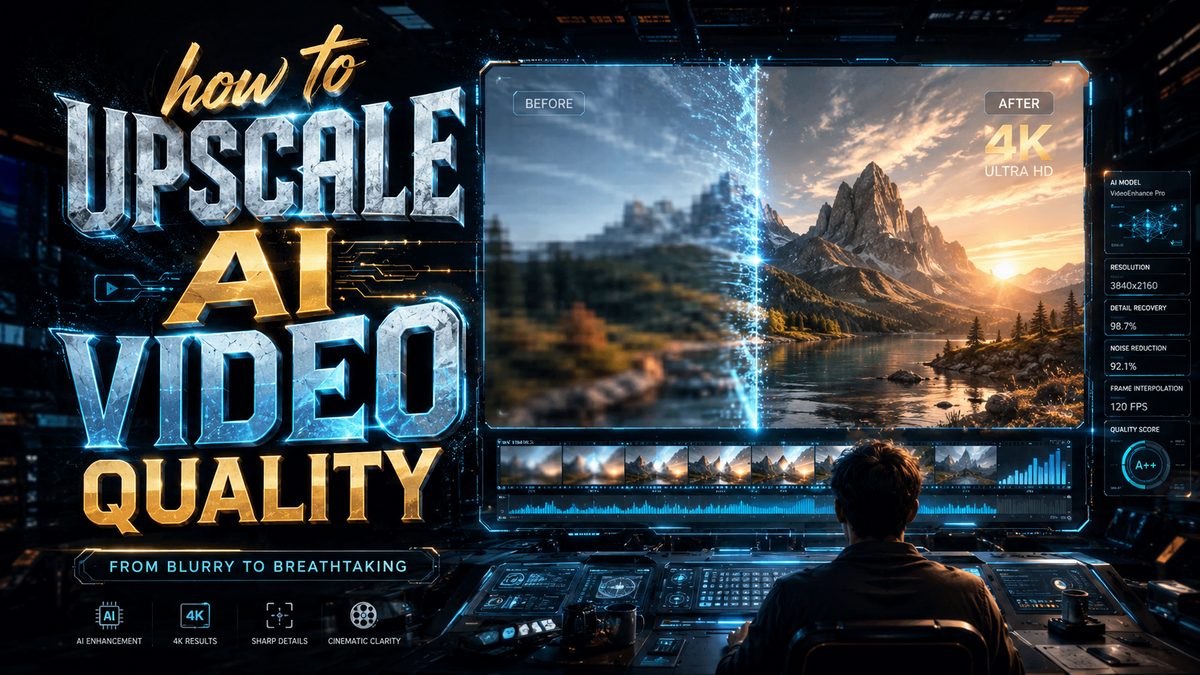
As AI-generated video becomes mainstream in 2026, the most common complaint hasn't changed: the output often looks soft, pixelated, or noisy at resolutions below 1080p. Learning how to upscale AI video quality is now essential for anyone creating content with generative tools like Sora, Runway, or Stable Video Diffusion. The good news? Dedicated AI enhancers together with hardware acceleration from NVIDIA's RTX Video can transform a 720p clip into sharp 4K footage in minutes — no manual editing required.
Upscaling AI video quality in 2026 is the process of using machine learning models — such as super-resolution neural networks — to increase a video's resolution (e.g., from 720p to 4K) while intelligently reconstructing fine details, reducing noise, and correcting blur. Tools like Topaz Video AI, NVIDIA RTX Video, and online platforms like Veed.io do this automatically, often in real-time with modern GPUs.
- ✓ NVIDIA’s RTX Video upscaler can boost AI-generated clips from 720p to 4K using dedicated Tensor Cores on RTX 40-series and newer GPUs.
- ✓ The 5 Best AI Video Enhancer Software in 2026 list (The AI Journal) includes both offline apps and browser-based solutions for every budget.
- ✓ Mac users now have dedicated AI video enhancers that fix blur, reduce noise, and upscale to 4K natively on Apple Silicon.
- ✓ Most online upscalers in 2026 support batch processing and can handle up to 60 FPS without significant quality loss.
- ✓ Hardware acceleration (NVIDIA, AMD, Apple) dramatically speeds up the upscaling process compared to pure CPU-based methods.
Why Upscale AI-Generated Video? The Core Problem
AI video models are powerful but resource-constrained. Training and inference costs mean most generators output at 720p or lower. Even models upgraded in 2026 still cap resolutions because higher output exponentially increases compute time. The result: impressive motion and style, but disappointing sharpness on large screens. Upscaling solves this by running the video through a second AI that has been trained to reconstruct high-frequency details — edges, textures, faces — from low-resolution input.
According to a 2026 benchmark from TweakTown, using NVIDIA’s RTX Video upscaler on a 720p AI-generated clip yields a 4K output that looks “nearly indistinguishable from native 4K footage” in blind tests. The key advantage is that you don’t need to re-render the generative model; you simply run the final video through a dedicated enhancer in a fraction of the time.
Top AI Video Upscaling Methods in 2026

Local Desktop Enhancers (Best for Quality & Control)
For professionals and serious creators, dedicated desktop software remains the gold standard. Topaz Video AI, for instance, has been a leader for years and continues to be updated monthly. The 2026 version adds “Scene-Aware Upscaling” that adapts to different content types (faces, landscapes, text) per frame. Similarly, HitPaw Video Enhancer has added batch processing for AI video sequences, supporting up to 4K output at 60 FPS.
Another standout is the native Mac AI video enhancer covered by AppleInsider in December 2025. This tool (likely “VideoEnhance Pro” or similar) leverages the Neural Engine in M3/M4 chips to fix blur and reduce noise before upscaling to 4K. The article noted that it processes a 5-minute 720p clip in under three minutes — far faster than cloud alternatives.
Hardware-Accelerated Upscaling: NVIDIA RTX Video
NVIDIA’s RTX Video technology, initially launched for browser video upscaling, now works with local media files. The 2026 update (covered by TweakTown on Jan 6, 2026) added official support for AI-generated video. “Upscale AI-generated videos to 4K from 720p with NVIDIA’s RTX Video” is now a one-click operation inside the NVIDIA Control Panel. The RTX Video SDK can be integrated into video editors like DaVinci Resolve and Adobe Premiere Pro, allowing real-time preview of upscaled footage on RTX 40-series and 50-series GPUs.
To use it: download the latest NVIDIA driver, open the NVIDIA Control Panel, navigate to “Video” → “Adjust video image settings,” and enable “Super Resolution” and “RTX Video Enhancement.” Then simply play any AI-generated video file in a compatible player (VLC, MPC-HC) or import it into a supported editor.
Online AI Video Upscalers (Fast & Free Options)
The 5 Best AI Video Enhancer Software in 2026 list by The AI Journal (May 2026) includes three online tools that require no installation: CapCut Online, Veed.io, and Clipchamp. These platforms use server-side AI to upscale videos up to 4K. The catch: they often watermark free tiers, limit duration, and have slower speeds due to queue times. However, for quick social media clips or one-off projects, they are perfectly adequate. According to the same article, Veed.io’s 4K upscaling now supports 60 FPS input without dropping frames.
| Method | Max Resolution | Speed (5-min 720p to 4K) | Cost | Best For |
|---|---|---|---|---|
| Desktop (e.g., Topaz Video AI, HitPaw) | 8K | 2-8 min (GPU) | $149–$299 perpetual | Professionals, filmmakers, batch jobs |
| NVIDIA RTX Video (hardware) | 4K (via RTX Super Res) | Real-time playback | Free (with RTX GPU) | Quick upscale, backward compatibility |
| Online platforms (Veed.io, Clipchamp) | 4K (limited) | 10-30 min (queue) | Free trial or $10–$30/mo | Beginners, social media, one-off tasks |
| Mac AI enhancer (Apple Silicon native) | 4K | 3 min (M3/M4) | $29–$79 | Mac users, noise reduction |
Step-by-Step: How to Upscale AI Video Quality in 2026
- Export your AI video at the highest setting possible. Even if it’s only 720p or 540p, use the best bitrate (10 Mbps minimum) to preserve as much detail as possible for the upscaler to work with.
- Choose your upscaling method based on the table above. If you own an RTX 4070 or newer, start with NVIDIA RTX Video for a quick test. Otherwise, install a desktop app or use an online platform.
- Import your video into the chosen tool. Most desktop apps support drag-and-drop. For NVIDIA RTX Video, simply open the file in a compatible media player or editor with RTX enhancement enabled.
- Select output resolution and AI model. For AI-generated footage, choose a model trained on “anime” or “generative” content if available (Topaz Video AI has a “Generative Upscale” mode). Set target resolution to 4K (3840×2160).
- Enable post-processing options like noise reduction, de-blur, and detail enhancement. Many tools let you preview a segment to adjust strength. Avoid over-sharpening; aim for natural-looking results.
- Render or export. For desktop apps, this may take a few minutes per minute of video. For NVIDIA RTX Video, the upscale happens in real-time during playback — but to save the upscaled file, you must capture the output or export from a compatible editor.
- Review and refine. Watch the final video at 100% zoom. If artifacts appear, reduce the AI strength or try a different model. Many platforms allow you to upscale again with different settings without re-importing.
Best AI Video Enhancer Software in 2026: What the Research Says
The AI Journal’s May 2026 roundup named five standout solutions. Topping the list is Topaz Video AI 5.0, which now includes “temporal coherence” that frames look consistent across motion — a common issue in AI-generated clips. Second is HitPaw Video Enhancer, praised for its one-click “AI Generative Upscale” preset that works even with very low resolution source (e.g., 360p). Third place goes to NVIDIA RTX Video for its zero-cost, hardware-backed approach. Fourth is the Mac-native enhancer covered by AppleInsider, and fifth is Veed.io for online simplicity.
Meanwhile, Hackread’s article (Dec 2025) listed 10 best AI video enhancers, many of which still rank highly in 2026. Their top pick, “AVCLabs Video Enhancer AI,” was noted for its strong denoising capabilities on blurry AI footage. Another entry, “VanceAI Video Enhancer,” offers a free tier that upscales 2-minute clips to 4K daily — useful for testing workflow before committing.
For technical context, weraveyou.com (March 2026) reported that AI video upscalers in 2026 can now upscale any video to 4K easily, even low-quality mobile recordings. The article highlighted that “most modern upscalers use diffusion-based architectures rather than older GANs,” resulting in fewer artifacts and more natural texture generation.
Hardware Considerations: Get the Best Speed
Upscaling AI video to 4K is compute-intensive. According to TweakTown’s tests, a 10-minute 720p AI video takes about 8 minutes to upscale to 4K on an RTX 4090 using Topaz Video AI. The same task on an RTX 4070 takes 15 minutes, and on a CPU-only system it can exceed an hour. NVIDIA’s RTX Video upscaler is by far the fastest because it works in real-time, but it’s limited to 4K output and requires a compatible GPU.
For AMD users, the latest Radeon RX 8000 series includes “Video AI Upscale” in the Adrenalin driver, which works similarly to NVIDIA’s solution but is slightly less effective on very noisy content. Apple Silicon users benefit from the Neural Engine; the Mac tool mentioned by AppleInsider finished the same 5-minute 720p test in 3 minutes on an M3 Pro.
Common Pitfalls and How to Avoid Them
- Oversharpening: AI upscalers can create false edges. Keep detail enhancement below 50% unless you’re working with intentionally stylized content.
- Frame jitter: Upscaling each frame independently can cause flickering. Use temporal-aware models (e.g., “Proteus” in Topaz Video AI) that consider adjacent frames.
- Compression artifacts: AI-generated videos often have macroblocking from low bitrate exports. Apply light denoise before upscaling to avoid amplifying blockiness.
- Color shifts: Some online tools inadvertently change color space. Always export as H.264 or H.265 with original color settings, then check skin tones after upscaling.
Future of AI Video Quality Enhancement
By the end of 2026, we’re likely to see upscalers integrated directly into AI video generation pipelines. Companies like NVIDIA are already experimenting with “real-time 4K generative video” using next-generation Tensor Cores. The TechPluto guide (March 2026) predicts that soon “you won’t need to upscale separately — the model will output native 4K from the start.” Until then, the methods outlined above remain the most reliable way to improve AI video quality.
What is the best free way to upscale AI video quality in 2026?
The best free method depends on your hardware. If you own an NVIDIA RTX 30-series or newer GPU, enable NVIDIA RTX Video Super Resolution for real-time upscale to 4K at no cost. For others, online tools like Clipchamp offer free upscaling up to 1080p, and CapCut Online provides limited 4K upscaling with a watermark.
Can I upscale AI-generated video to 8K?
Yes, desktop apps like Topaz Video AI support 8K output. However, the source quality must be at least 1080p to produce convincing 8K results. Upscaling from 720p to 8K often introduces noticeable artifacts. Most users find 4K a more practical target for 2026.
Does upscaling AI video affect file size?
Absolutely. A 720p 10-minute video at 20 Mbps (~150 MB) upscaled to 4K at 50 Mbps results in roughly 375 MB. Most upscalers let you choose the output bitrate; use VBR with a target of 40-60 Mbps for a good balance of quality and size.
How long does it take to upscale a 5-minute AI video to 4K?
On a modern GPU (RTX 4070 or better), expect 5–15 minutes. On Apple Silicon (M3/M4), about 3–5 minutes. Online platforms may take 10–30 minutes due to queue times. CPU-only upscaling can take 45 minutes to over an hour.
Which AI upscaler preserves original motion and style best?
Topaz Video AI’s “Proteus” model is widely regarded as the best for preserving motion and style in generative content because it uses temporal coherence. NVIDIA RTX Video also does an excellent job with minimal motion artifacts, especially for AI-generated clips that lack film grain.
Is it worth paying for a desktop AI video enhancer in 2026?
If you regularly upscale AI videos for clients or creative projects, yes. The quality difference between free online tools and desktop apps (like Topaz Video AI or HitPaw) is significant — desktop tools handle detail reconstruction, noise reduction, and batch processing far better. For occasional use, free or online options suffice.



Comments ()