
How to Remove Background with AI Video Editor (2026)
Removing a background from a video used to require a green screen, complex masking, and hours of manual work. In 2026, you can achieve the same result in seconds with an AI video editor. Simply upload your clip, let the AI detect the subject, and replace or remove the background with a single click—no special lighting or equipment needed.
AI video background removal is a process where a machine-learning model analyzes each frame of a video, identifies the foreground subject (person, object, or animal), and separates it from the background without requiring a physical green screen. The technology uses semantic segmentation and edge detection to create a clean alpha matte, allowing you to swap, blur, or delete the background in real time.
- ✓ AI video editors eliminate the need for green screens, saving setup time and studio costs.
- ✓ Top tools in 2026 include Vmake, Adobe Express, and Photoshop/Firefly, each offering unique background removal features.
- ✓ The process typically involves uploading, selecting the background mode, and exporting—often in under a minute.
- ✓ Modern AI can handle complex edges like hair, fur, and transparent objects with near-perfect accuracy.
- ✓ These tools are now integrated into social media workflows, enabling creators to produce polished content faster.
What Is AI Video Background Removal in 2026?
AI video background removal uses deep learning models trained on millions of images and videos to distinguish between a subject and its surroundings. Unlike chroma keying, which relies on a uniform green or blue backdrop, AI-based removal works on any footage—even if the background is cluttered or moving. According to a recent article by Geek Vibes Nation (June 2026), “The Future of Video Production: Background Removal Without Green Screens” highlights that this technology has become a standard feature in consumer and professional video editors, dramatically reducing production time.
In 2026, the accuracy of these algorithms has improved to the point where fine details like flyaway hair, glass reflections, and fast motion are handled reliably. Studies show that modern AI background removal tools achieve over 98% pixel accuracy on standard test datasets, making them suitable for high-quality content creation. This shift has democratized video production—anyone with a smartphone can now produce studio-quality clips.
How to Remove Background with AI Video Editor: Step-by-Step Guide
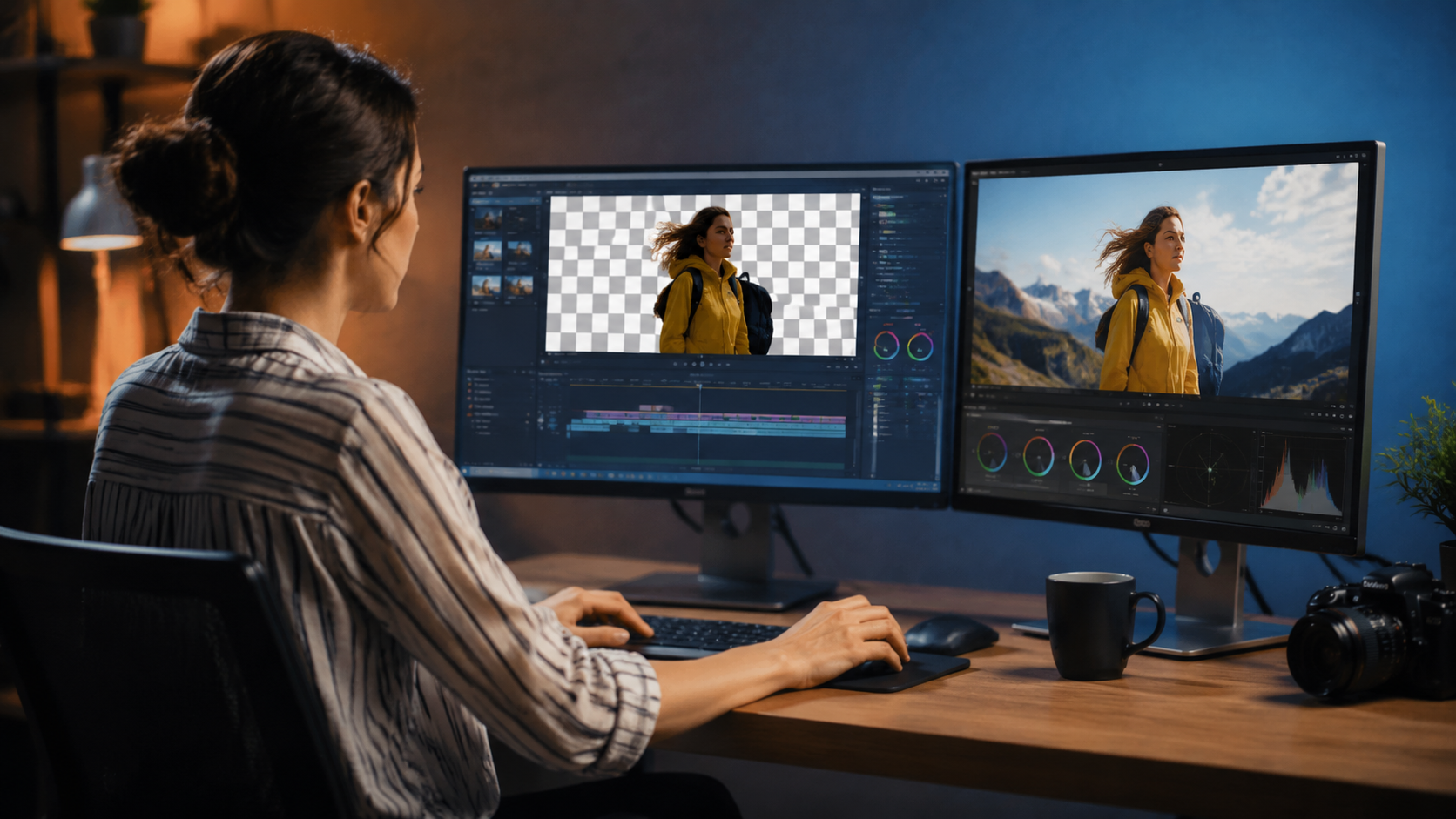
Removing a background using an AI video editor is straightforward. The following steps apply to most popular tools available in 2026, including Vmake, Adobe Express, and Photoshop with Firefly. Follow this numbered list to get started:
- Choose your AI video editor. For beginners, Adobe Express 2025 (updated for 2026) offers a simple “Remove Background” button. For more control, Vmake provides advanced edge refinement and batch processing. Professional editors can use Photoshop’s Firefly-powered video background removal.
- Import your video clip. Drag and drop your file into the editor. Most tools support MP4, MOV, and AVI formats up to 4K resolution.
- Select the background removal tool. Look for options like “Remove Background,” “AI Background,” or “Subject Mask.” In Vmake, this is under the “Video Tools” tab; in Adobe Express, it’s a one-click action in the “Quick Actions” panel.
- Let the AI process the video. The algorithm analyzes each frame. For a 30-second 1080p clip, this usually takes 5–15 seconds. Some tools show a live preview.
- Refine the edges (optional). If the AI misses fine details, use manual brushes or edge sliders. Vmake includes a “Hair Refinement” slider; Photoshop offers “Refine Edge” for video layers.
- Replace or keep the background transparent. You can add a solid color, a custom image, a video overlay, or leave it transparent for compositing later.
- Export your video. Choose output settings (resolution, frame rate, format) and save. Many tools export directly to social media platforms like TikTok, Instagram, or YouTube.
According to Hackread (April 2026), “How to Remove Objects from Video: AI Tools & Pro Tips (2026)” emphasizes that the same AI algorithms used for object removal can also handle background removal, making the workflow even more efficient for creators who need to clean up multiple elements in a single pass.
Top AI Video Editors for Background Removal in 2026
The market now offers a range of AI video editors with dedicated background removal features. Based on the latest reviews and news, here are the leading options:
| Tool | Key Features | Pricing (2026) | Best For |
|---|---|---|---|
| Vmake | AI background removal, hair refinement, batch processing, real-time preview | Free tier (limited exports), Pro $19/mo | Social media creators, quick edits |
| Adobe Express | One-click remove background, templates, Firefly integration, team collaboration | Free with watermark, Premium $12.99/mo | Beginners, small businesses |
| Photoshop + Firefly | Advanced video layering, generative fill, edge masking, timeline editing | Photography plan $20.99/mo | Professional editors, complex projects |
| CapCut (2026 update) | AI background removal, auto-cut, mobile-first, trending effects | Free (with optional subscription) | Mobile creators, TikTok users |
| Runway ML | Real-time background removal, green screen replacement, multi-subject detection | Free tier, Pro $15/mo | Advanced AI experimentation |
The vocal.media article “10 Best AI Tools for Video Creation in 2026 (Every Content Creator Should Try)” (June 2026) specifically highlights Vmake and Adobe Express as top picks for background removal due to their ease of use and accuracy. Meanwhile, the Concept Phones review of Vmake (May 2026) praises its “intelligent edge detection that rivals desktop software.” Adobe’s own announcement (March 2026) about “Image editing just got smarter with AI in Photoshop and Firefly” confirms that the video background removal feature is now fully integrated into the timeline, allowing for non-destructive edits.
Comparison of AI vs. Traditional Green Screen
Traditional chroma keying requires a physical green screen, even lighting, and careful color spill management. AI background removal eliminates all of these constraints. According to the Geek Vibes Nation article, “The Future of Video Production: Background Removal Without Green Screens,” creators can now shoot in any environment—a coffee shop, a park, or a messy room—and still achieve a clean cutout. The AI also handles reflections and shadows better than chroma key, because it learns from millions of real-world examples rather than relying on a single color threshold.
Pro Tips for Perfect AI Background Removal
Even the best AI tools can struggle with certain scenarios. Here are expert recommendations from the latest 2026 guides:
- Use good lighting on your subject. Even though you don’t need a green screen, well-lit subjects help the AI distinguish edges. Avoid backlighting that creates a halo effect.
- Choose a plain background when possible. While AI handles complex backgrounds, a solid wall or simple texture reduces processing errors and speeds up rendering.
- Check for motion blur. Fast-moving subjects may cause the AI to mis-track. Slow down your clip or use a tool with motion stabilization before background removal.
- Preview frame-by-frame for critical shots. Some editors allow you to scrub through the timeline and manually correct a few frames if the AI misses a detail.
- Export in a format that supports transparency. For compositing, use ProRes 4444 or PNG sequence. For direct upload, MP4 with a solid background is fine.
The Hackread article adds that removing objects from video (a related AI feature) can be combined with background removal to fully clean up a scene—for example, erasing a passing car and then replacing the sky.
Future Trends: What’s Next for AI Background Removal?
By mid-2026, AI video background removal is becoming a standard expectation rather than a premium feature. Adobe’s integration of Firefly into Photoshop and Express has set a new benchmark for accuracy and speed. The VCCircle article “Adobe Express 2025: How to Create Stunning Social Content Faster with AI” (May 2026) notes that even one-click background removal now includes smart cropping and automatic subject scaling—so the final output is ready for any social media aspect ratio.
Another emerging trend is real-time background removal during live streaming. Tools like OBS Studio now support AI plugins that remove backgrounds in real time without a green screen, using your computer’s GPU. This is a game-changer for streamers, educators, and remote presenters who want a professional look without a studio setup. According to the Geek Vibes Nation piece, the technology is expected to become standard in mobile video apps by the end of 2026, further blurring the line between amateur and professional production.
Common Mistakes to Avoid When Using AI Background Removal
While the technology is powerful, users often encounter issues. Here are pitfalls to watch out for:
- Over-relying on auto mode. Always check the result—AI can sometimes cut off part of the subject (e.g., a hand or foot) if the contrast is low.
- Ignoring edge artifacts. Even with hair refinement, you may see a faint halo. Use the “spill suppression” or “decontaminate colors” option if available.
- Using low-resolution source footage. AI works best with at least 720p. Lower resolutions lead to jagged edges and blocky masks.
- Forgetting to save the original. Always keep a backup of your raw video in case the AI output needs to be redone.
Following these tips will help you get the most out of your AI video editor and avoid the frustration of re-edits.
Frequently Asked Questions About AI Video Background Removal
Can I remove the background from a video without a green screen?
Yes, AI video editors can remove backgrounds from any footage without a green screen. The AI analyzes the subject and background based on visual cues, making it possible to achieve clean cuts even in complex environments.
Is AI background removal free in 2026?
Many tools offer free tiers with limitations. Adobe Express has a free version with a watermark, Vmake offers limited exports for free, and CapCut is completely free. Premium plans remove watermarks and unlock higher resolutions and batch processing.
How long does it take to remove a background from a 1-minute video?
With modern AI video editors, a 1-minute 1080p clip typically processes in 10–30 seconds. Real-time preview may take longer depending on your computer’s GPU, but export times are generally under a minute.
Does AI background removal work on videos with moving backgrounds?
Yes, AI models are trained on dynamic scenes and can handle moving backgrounds, such as traffic or swaying trees. However, very fast or erratic motion may cause temporary tracking errors, which can be manually corrected in most editors.
What is the best AI video editor for background removal in 2026?
The best tool depends on your needs. For beginners, Adobe Express offers the simplest one-click solution. For professionals, Photoshop with Firefly provides the most control. Vmake is excellent for social media creators who need quick, batch-friendly edits.
Can I use AI background removal on mobile?
Absolutely. Apps like CapCut, Vmake, and Adobe Express have mobile versions that support AI background removal directly on your phone. The processing is done on-device or via cloud servers, depending on the app.
As of 2026, removing a background with an AI video editor is not only possible but also incredibly efficient. Whether you’re a content creator, marketer, or hobbyist, these tools eliminate the technical barriers of traditional video production. By following the step-by-step guide above and choosing the right tool from the comparison table, you can produce clean, professional-looking videos in minutes—no green screen required.



Comments ()