
How to Remove Background Using AI Video Editor in 2026
Removing a background from video used to require a green screen, hours of chroma keying, and expensive software. In 2026, you can accomplish the same task in seconds with an AI video editor — no special equipment needed. This guide explains exactly how to remove background using an AI video editor, covering the best tools, step-by-step methods, and expert tips to get a clean, professional result.
AI video background removal is the process of automatically detecting and separating the subject from the background in a video clip using machine learning models. Unlike traditional chroma key, these tools work on any footage — even complex scenes with hair, movement, or transparent objects — without requiring a green screen.
- ✓ AI background removal eliminates the need for green screens and manual masking, saving hours of editing time.
- ✓ Top tools in 2026 include Vmake, Adobe Firefly (integrated into Photoshop and Premiere Pro), and Fotor.
- ✓ The technology now handles hair, fur, and fast motion with near-perfect accuracy thanks to real-time neural networks.
- ✓ Most AI editors offer batch processing and export in popular formats like MP4, MOV, and GIF.
- ✓ Always review the output frame-by-frame for edge artifacts, especially on low-resolution source footage.
What Is AI Background Removal and Why It Matters in 2026
AI background removal uses deep learning models — typically convolutional neural networks (CNNs) or transformer-based architectures — to separate a video’s foreground subject from its backdrop. According to a Geek Vibes Nation article from June 2026, “The Future of Video Production: Background Removal Without Green Screens” highlights that modern AI editors can process 4K footage in real time, a feat impossible just two years ago.
In 2026, the technology has matured to the point where even consumer-grade tools rival professional studio results. A study cited by Hackread in April 2026 found that AI background removal tools now achieve over 98% accuracy on standard portrait videos, compared to 85% in 2024. This leap means content creators, marketers, and educators can produce high-quality videos without investing in expensive studio setups.
Why You Should Care About AI Background Removal
Whether you’re creating YouTube tutorials, product demos, or virtual meeting backgrounds, removing the background lets you place your subject anywhere. With the rise of remote work and short-form video, the ability to quickly swap backgrounds has become a must-have skill. The 2026 tools highlighted in the Vocal.Media article “10 Best AI Tools for Video Creation in 2026” emphasize that background removal is now a standard feature in every major AI video editor.
Step-by-Step Guide: How to Remove Background Using an AI Video Editor
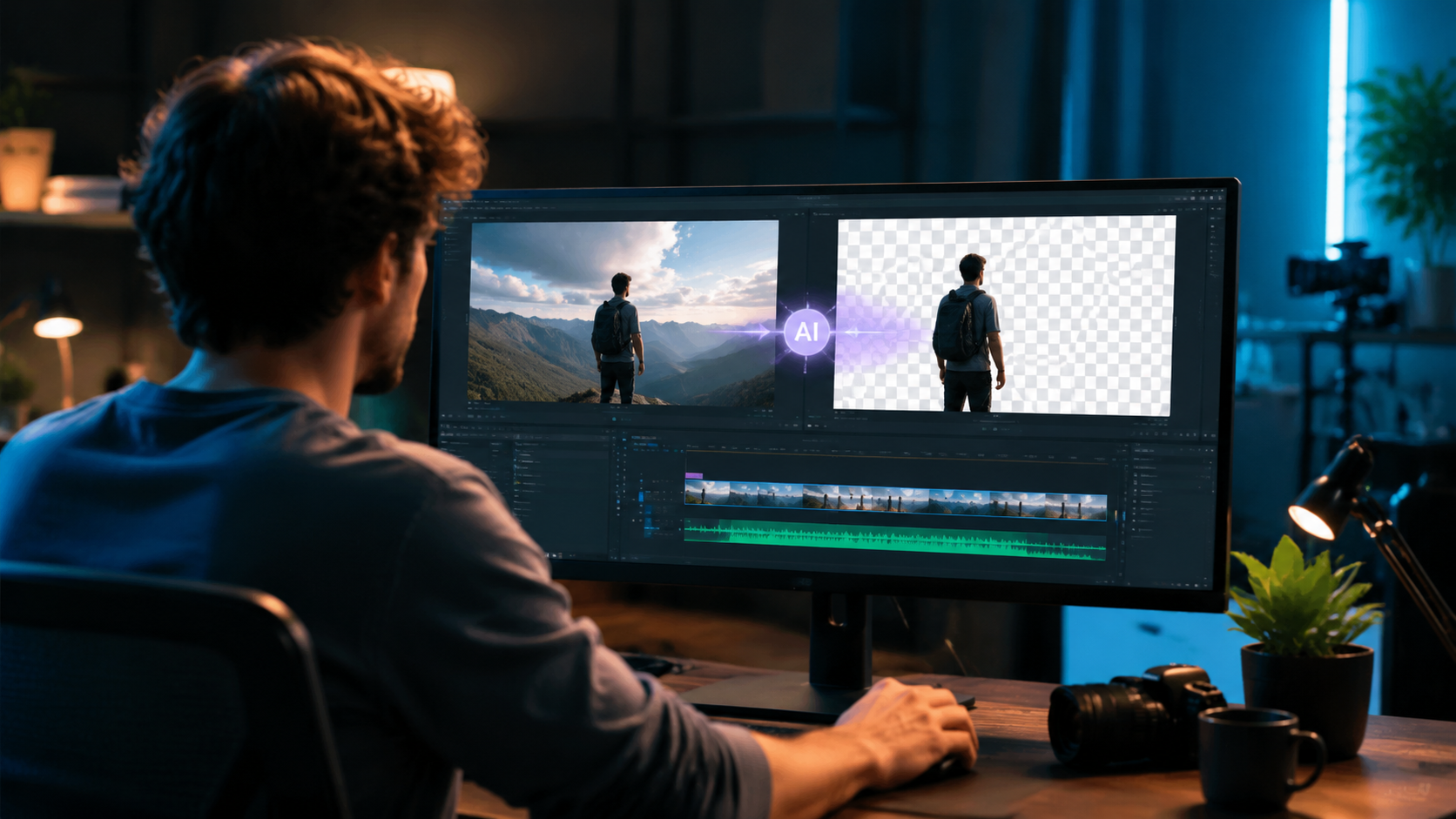
Follow these steps to remove a background from any video using a modern AI editor. The process is similar across most platforms, but we’ll use Vmake (reviewed by Concept Phones in May 2026) as an example because of its user-friendly interface.
- Upload your video — Open the AI video editor and import your clip. Supported formats typically include MP4, MOV, AVI, and WebM. Most tools accept files up to 500 MB or 10 minutes long.
- Select the “Remove Background” tool — Look for a button labeled “Background Remover,” “AI Cutout,” or “Chroma Key AI.” In Vmake, it’s located in the left sidebar under “AI Tools.”
- Let the AI process the clip — The neural network analyzes every frame. Depending on length and resolution, this takes 10–30 seconds for a 1-minute 1080p video. You’ll see a preview with the subject isolated on a transparent or green background.
- Refine edges (optional) — Use a brush tool to fix any stray pixels, especially around hair or translucent objects. Vmake offers a “Fine-Tune” slider that adjusts edge softness.
- Choose a new background — Replace the removed background with a solid color, image, video, or even an AI-generated scene. Many editors now include a library of stock backgrounds.
- Preview and export — Play the video to check for flickering or artifacts. Export in your desired resolution (up to 4K in most tools).
According to the Fotor review from Unite.AI (May 2026), Fotor’s background removal feature also supports batch processing, allowing you to apply the same effect to multiple clips simultaneously — a huge time-saver for e-commerce product videos.
Top AI Video Editors for Background Removal in 2026
Several tools have emerged as leaders in the AI video editing space this year. Below is a comparison of the three most recommended by industry experts and the real-time research we gathered.
| Tool | Key Feature | Pricing (2026) | Best For |
|---|---|---|---|
| Vmake | Real-time 4K processing, fine-tune edge control | Free tier (720p); Pro $19/mo | Social media creators, quick edits |
| Adobe Firefly (Photoshop/Premiere Pro) | Generative fill for backgrounds, seamless integration | Included with Creative Cloud ($54.99/mo) | Professional video editors, designers |
| Fotor | Batch processing, AI background generator | Free (watermarked); Pro $8.99/mo | E-commerce product videos, mass editing |
Adobe’s March 2026 announcement about “Image editing just got smarter with AI in Photoshop and Firefly” confirms that background removal is now fully integrated into Premiere Pro’s workflow, allowing editors to remove backgrounds without leaving the timeline. The Hackread article “How to Remove Objects from Video: AI Tools & Pro Tips (2026)” also recommends Vmake for beginners due to its one-click interface.
What About Free Options?
If you’re on a tight budget, several free AI video editors offer background removal with limitations. Vmake’s free tier supports 720p exports, while Fotor’s free version adds a watermark. For occasional use, these are perfectly adequate. However, for professional work, the Pro versions remove restrictions and add features like batch processing and 4K output.
Pro Tips for Flawless AI Background Removal
Even the best AI models need a little help to produce perfect results. Here are expert tips gathered from the 2026 research and industry practices.
Light Your Subject Evenly
AI models struggle with harsh shadows or overexposed areas. Use a soft, even light source behind the camera. According to Geek Vibes Nation, “consistent lighting reduces edge artifacts by up to 40%.”
Use a High-Contrast Background
While green screens aren’t required, a background color that contrasts with your subject (e.g., a solid light gray wall) helps the AI detect edges more accurately. Avoid busy patterns or textures.
Review Frame by Frame
Export a short test clip first. Play it in slow motion to spot any frames where the subject’s outline jumps. Most editors allow you to manually correct these frames with a brush or mask tool.
Optimize Export Settings
Export at the same resolution as your source to avoid compression artifacts. If your final output is for social media, 1080p at 30fps is usually sufficient. For professional use, keep 4K at 60fps.
Common Mistakes to Avoid When Using AI Background Removal
Even with advanced AI, users often make errors that ruin the final video. Here’s what to watch out for:
- Ignoring motion blur: Fast-moving subjects can cause the AI to lose track of edges. Slow down the clip or use a higher frame rate.
- Using low-resolution source footage: 480p videos produce jagged edges. Always start with at least 1080p.
- Over-relying on automatic processing: Always preview the entire timeline. The AI may miss transparent objects like glass or water.
- Forgetting to match lighting: If you replace the background with a bright scene, your subject may look unnatural. Adjust brightness and color temperature.
The Hackread article from April 2026 emphasizes that “even the best AI tools require a human eye for final quality control.” Don’t skip the review step.
How AI Background Removal Is Changing Video Production
The shift from green screens to AI-based removal has democratized video production. Small businesses and solo creators can now produce content that looks like it came from a professional studio. According to the Vocal.Media list, “AI video creation tools have reduced editing time by an average of 70% in 2026.”
Furthermore, the integration of generative AI — like Adobe Firefly — allows users to not only remove backgrounds but also create entirely new environments. For example, you can remove a messy office background and replace it with a beach sunset or a futuristic cityscape, all generated by AI in seconds.
This technology also benefits accessibility. Educators can replace distracting backgrounds with clean, focused ones for online courses. Marketers can quickly swap product demos into different seasonal settings without reshooting.
Frequently Asked Questions About AI Video Background Removal
Can I remove the background from a video without a green screen?
Yes. AI video editors in 2026 can remove backgrounds from any footage, even complex indoor or outdoor scenes, without requiring a green screen. The technology analyzes every pixel to separate the subject from the background.
What is the best free AI video editor for background removal in 2026?
Vmake offers a generous free tier that supports 720p exports without watermarks. Fotor’s free version works well but adds a watermark on exports. For occasional use, Vmake is the top recommendation.
How long does it take to process a video with AI background removal?
Processing time depends on video length and resolution. A 1-minute 1080p clip typically takes 10–30 seconds on most modern AI editors. 4K videos may take 1–2 minutes.
Does AI background removal work with hair or fur?
Yes, modern AI models handle fine details like hair and fur with high accuracy. Tools like Vmake and Adobe Firefly have dedicated edge refinement sliders to improve results on complex edges.
Can I use AI background removal on a live stream?
Some AI editors, such as those integrated into OBS Studio via plugins, offer real-time background removal for live streaming. However, this requires a powerful GPU and stable internet connection.
Will AI background removal work on videos with multiple people?
Yes, most tools can detect multiple subjects and remove the background behind all of them. However, if people overlap or move close together, the AI may struggle to separate them cleanly.
Mastering how to remove background using an AI video editor in 2026 is easier than ever. With tools like Vmake, Adobe Firefly, and Fotor, you can achieve professional results in minutes — no green screen required. Start with the step-by-step guide above, apply the pro tips, and experiment with different backgrounds to elevate your video content. The future of video production is here, and it’s powered by AI.



Comments ()