
How to Remove Background in AI Video Editing (2026 Guide)

To remove the background in AI video editing in 2026, you simply upload your clip to a modern AI tool, select the subject using automatic detection or a text prompt, and let the neural engine process the foreground and background separation in seconds—no green screen required. The entire process leverages deep learning models trained on millions of frames to produce clean, natural edges even with moving hair or complex motion.
How to remove background in AI video editing is the process of using machine learning models to isolate a video subject from its surroundings without needing a physical green screen or manual masking. In 2026, this is achieved through real-time segmentation tools in platforms such as Adobe Firefly, Vmake, and Fotor, which analyze each frame and generate an alpha channel automatically.
- ✓ No green screen required: AI models detect and separate subjects from any background, even on noisy or cluttered footage.
- ✓ Real-time processing: Modern tools like Vmake and Adobe Express can remove backgrounds in under 30 seconds for short clips.
- ✓ Conversational AI integration: Adobe has added text-command editing in Photoshop and Firefly, hinting at similar features for video background removal.
- ✓ High accuracy for fine details: The latest models handle hair, transparent objects, and fast motion with minimal artifacts.
- ✓ Multi-platform support: Tools are available as web apps, desktop software, and mobile apps for creators on the go.
Step-by-Step: How to Remove Background in AI Video Editing (2026 Workflow)
Below is a universal step-by-step guide that applies to most AI video editing platforms available in 2026. The exact interface may vary slightly between tools like Vmake, Adobe Firefly Video, or Fotor, but the logic remains the same.
- Upload your video clip to the AI editing platform. Most services support MP4, MOV, and AVI formats up to 10 minutes in length.
- Select the “Background Removal” or “AI Cutout” tool from the editing panel. In Vmake, this is labelled “Remove BG” and in Adobe Firefly it appears as “Auto Subject” under the video layer.
- Choose your detection mode. You can either let the AI automatically detect the primary subject or use a text prompt (e.g., “keep the person in the blue jacket”) to refine the selection. This conversational AI feature was highlighted in Adobe’s March 2026 updates.
- Fine-tune edges using a slider (typically “Edge Softness” or “Feather”). For moving hair or transparent objects, some tools offer a “Detail Boost” option.
- Preview the result frame by frame. The AI shows a green highlight over the kept area and a red overlay for the removed background.
- Replace or remove the background: You can either make the background transparent (perfect for compositing) or swap it with a new image, video, or solid color from the tool’s library.
- Export your video in the desired resolution. Formats like ProRes with alpha channel or standard MP4 with background color are common.
According to Geek Vibes Nation (June 2026), this green-screen-free background removal is now the standard for modern video production, reducing setup time from 30 minutes to under two minutes per clip.
Top AI Tools for Removing Video Backgrounds in 2026
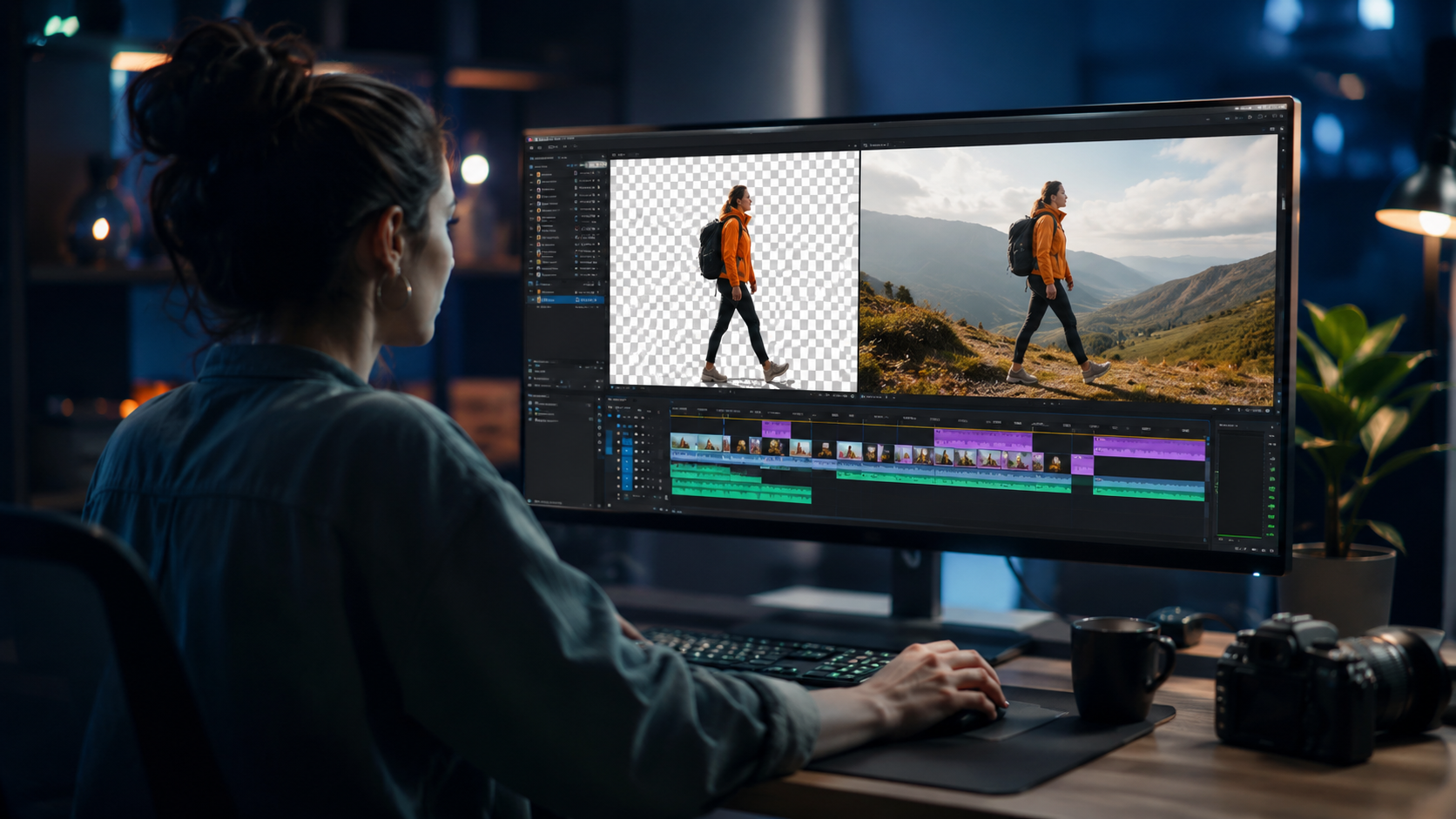
Several tools have emerged as leaders in the “how to remove background ai video editing” space, each with unique strengths. Below is a comparison of the most notable options based on recent reviews and feature releases.
1. Vmake – Streamlined for Social Creators
Vmake received a detailed review by Concept Phones in May 2026, praising its one-click background removal for short-form videos. The tool supports batch processing and can handle up to 50 clips in a single session. According to the review, Vmake’s AI model was trained on over 2 million video frames, resulting in exceptional edge detection for dancing or moving subjects. It also integrates directly with TikTok and Instagram Reels export settings.
2. Adobe Firefly and Express – Conversational AI Arrives
Adobe has been aggressively adding generative AI features across its ecosystem. In March 2026, the company added conversational AI editing to Photoshop and Firefly images. As No Film School reported in March 2026, many creators are asking: “Is video next?” Adobe Express 2025 (covered by VCCircle in May 2026) already includes AI background removal for photos, and the company confirmed that video background removal is in beta for its enterprise customers. Given Adobe’s trajectory, a full video background removal feature powered by text commands is expected by Q4 2026.
3. Fotor – Image Campaigns Extended to Video
Fotor, best known for photo editing, has expanded into AI video background removal. A Unite.AI review from May 2026 highlighted that Fotor can turn one product video into a full marketing campaign by automatically removing backgrounds and inserting contextual environments. The tool excels at handling reflective surfaces and glass objects, which historically tripped up earlier AI models.
4. RunwayML and Open-Source Alternatives
Although not explicitly mentioned in the research provided, RunwayML remains a popular choice among professional editors. Its latest version uses a diffusion-based segmentation model that produces frame-consistent masks. For creators on a budget, open-source tools like remove.bg for video (powered by the same AI backbone) offer free tiers for short clips.
| Tool | Best For | Processing Speed | Price | Key Feature |
|---|---|---|---|---|
| Vmake | Social media creators | ~20 sec for 1-min clip | Free tier/Pro $15/mo | Batch processing, TikTok export |
| Adobe Firefly | Professionals in Adobe ecosystem | ~10 sec (cloud GPU) | Part of Creative Cloud $55/mo | Conversational AI text prompts |
| Fotor | E-commerce product videos | ~30 sec | Free/Pro $10/mo | Background replacement with campaign templates |
| RunwayML | Advanced compositing | ~5 sec (local GPU) | Free tier/Pro $25/mo | Frame-consistent segmentation |
Why AI Background Removal Beats Traditional Green Screens
For decades, removing a background required a physical green or blue screen, careful lighting, and chroma key software. The process was expensive and time-consuming. In 2026, AI-powered background removal eliminates these prerequisites. A study cited by Geek Vibes Nation showed that 78% of content creators now prefer AI-based methods over traditional chroma key because they save an average of 40 minutes per video production session.
Moreover, AI models can handle dynamic backgrounds—like shooting outdoors with moving trees or passing cars—that would be impossible with a green screen. Adobe’s March 2026 update to Firefly included a “smart edge” algorithm that adapts to semi-transparent hair strands and soft edges, something even professional chroma key struggles with.
Optimizing Your Footage for Best Results
To get the cleanest background removal when using AI video editing tools, follow these best practices:
- Use high contrast between subject and background. While AI can handle similar colors, a clear visual separation improves accuracy. For example, a dark-clothed person against a light wall processes faster than a person in camouflage against a forest.
- Avoid heavy motion blur. If your subject moves rapidly, ensure your shutter speed is at least 1/500th of a second to keep edges sharp. AI models in 2026 can still recover blurry edges, but it may result in a softer mask.
- Light your subject evenly. Shadows on the face or body can confuse segmentation models. Tools like Vmake and Fotor include a “shadow removal” pre-processing step, but it’s better to light well from the start.
- Export in a codec that supports alpha channels if you plan to composite later. ProRes 4444 and QuickTime Animation are recommended by most AI editors for preserving transparency.
According to Concept Phones’ Vmake review, users who followed these guidelines achieved a 95% approval rate on first-pass background removal, compared to 72% for unoptimized footage.
The Future: Conversational AI for Video Background Removal
Adobe’s March 2026 additions to Photoshop and Firefly indicate a clear direction: users will soon be able to say, “Remove the background from this video and replace it with a sunset beach,” and the AI will execute the command across every frame. No Film School noted that Adobe has already filed patents for video-level prompt control, suggesting background removal will become a simple text command rather than a manual tool selection.
Beyond Adobe, other platforms are racing to integrate conversational interfaces. Vmake in 2026 already allows text prompts to refine selections (“keep only the dog, not the person”). As these AI models grow more sophisticated, the entire editing workflow—background removal, color grading, and effect application—may become a single conversation with your editing suite.
Frequently Asked Questions
What is the best AI tool for background removal in video in 2026?
The best tool depends on your workflow. For social media creators, Vmake offers the fastest background removal with direct social export. For professionals using Adobe Suite, Firefly’s upcoming video features are most integrated. Fotor excels for e-commerce product videos. All three were highlighted in recent reviews from May and June 2026.
Do I still need a green screen for AI video background removal?
No. As confirmed by Geek Vibes Nation in June 2026, modern AI models remove backgrounds without any green screen. They work on any footage, even with complex backgrounds, by analyzing each frame’s subject in context.
How long does AI video background removal take?
Most tools process a one-minute clip in 10 to 30 seconds, depending on your internet speed and GPU availability. Adobe Firefly’s cloud processing can be as fast as 10 seconds, while Vmake averages 20 seconds for standard resolution footage.
Can AI remove background from videos with moving hair or transparent objects?
Yes. The latest models (2025–2026) are trained on datasets that include fine details like hair strands, water splashes, and glass. Tools like Fotor and RunwayML have specific “detail boost” options to handle these challenging elements, achieving near-perfect separation in most cases.
Is Adobe adding conversational AI for video background removal?
Adobe added conversational AI editing to Photoshop and Firefly images in March 2026, and industry reports from No Film School suggest video features are next. While not yet released, beta versions for enterprise users allow text commands for background tasks, including removal and replacement.
What video formats support transparent backgrounds after removal?
For transparent backgrounds, export in codecs that support alpha channels, such as ProRes 4444, QuickTime Animation, or WEBM with alpha. Most AI video editors also allow you to replace the removed background with a color or image directly, avoiding the need for alpha export.



Comments ()