
How to Make a Talking AI Video: 2026 Step-by-Step Guide
To make a talking AI video, you use an AI tool that animates a static photo or avatar and synchronizes it with a voiceover using lip-sync technology. In 2026, this process typically takes under ten minutes—upload a face, add a script, and the AI generates a realistic talking video ready for social media, marketing, or education.
Making a talking AI video is a three‑step process: choose an AI talking avatar generator (like the top five recommended by perfectcorp.com in 2026), upload a photo or select an avatar, write or paste a script, and let the AI handle lip sync and voice synthesis. Most tools also let you adjust facial expressions, background, and pacing to create a natural‑looking result.
- ✓ Free AI video generators now include talking photo features with realistic lip sync, as reported by PC Tech Magazine (May 2026).
- ✓ The “talking ingredients” trend on FoodTok, covered by Food & Wine (April 2026), shows how easy it is to animate any object with voiceovers.
- ✓ According to perfectcorp.com (January 2026), the best AI talking avatar generators offer HD output, multiple languages, and custom avatars.
- ✓ Vidnoz, reviewed by Yonkers Times (October 2025), demonstrates how lip‑sync and talking photo tools can create professional videos without a studio.
- ✓ Fruit and vegetable slop videos on social media, explored by New York Magazine (March 2026), highlight the surge in AI‑generated talking content.
What Is a Talking AI Video?
A talking AI video is a digital clip where a still image, avatar, or even an inanimate object appears to speak in a lifelike way. The technology uses machine learning to map phonemes from a voiceover onto facial movements, creating the illusion that the subject is actually talking. In 2026, these videos range from serious corporate presentations to the quirky “talking ingredients” trend that Food & Wine described as FoodTok’s most unsettling new fad.
According to PC Tech Magazine’s May 2026 article, free AI video generators now allow anyone to create stunning visual content—including talking photos—without prior editing experience. This democratization has led to an explosion of creative (and sometimes bizarre) uses, from educational explainers to the viral fruit and vegetable slop videos that New York Magazine covered in March 2026.
Step‑by‑Step Guide to Making a Talking AI Video
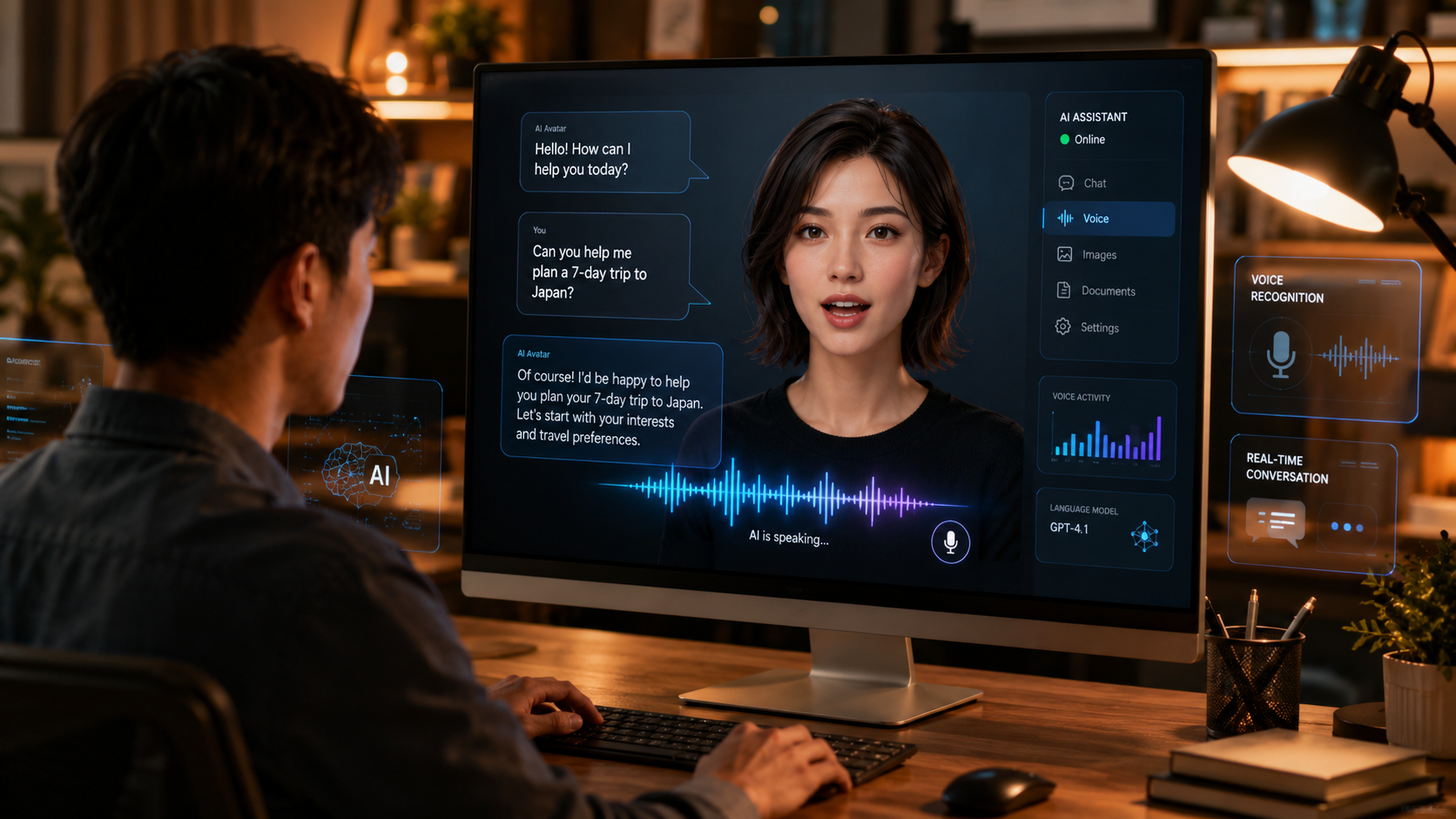
Here is a straightforward, numbered workflow that covers the essentials. Most creators complete these steps in under 15 minutes.
- Select an AI talking avatar generator. Choose a tool that matches your needs—free for beginners, paid for advanced features. PC Tech Magazine recommends trying free options first, like those that incorporate AI talking photo functionality.
- Upload or create your visual. You can use a personal photo, a pre‑built avatar, or even an image of a fruit, vegetable, or product (as seen in the FoodTok trend). Ensure the face is clear and front‑facing for best lip‑sync accuracy.
- Write or paste your script. Type the words you want the subject to say. Some tools allow you to upload an audio file if you prefer your own voice recording. Keep the script concise to maintain natural pacing.
- Choose a voice or upload audio. Most generators offer a library of AI voices in different accents and genders. For higher realism, record your own voice and let the tool sync lips to it.
- Customize lip sync and expressions. Adjust the intensity of mouth movements, blinking, and head tilts. Many tools—like Vidnoz, reviewed by Yonkers Times—offer sliders for fine‑tuning.
- Generate and preview. Click the “generate” button. Preview the video to check lip sync, timing, and overall realism. Make adjustments if the mouth moves off‑sync.
- Export and share. Download in MP4 or MOV format. Most tools support 1080p output. Upload directly to TikTok, Instagram, YouTube, or your website.
This method works for everything from talking avatars in marketing ads to the whimsical “talking ingredient” clips that have become a staple on FoodTok. The key is choosing a generator that offers fine control over facial animation.
Choosing the Right AI Talking Avatar Generator
With dozens of tools available in 2026, selecting the right one can feel overwhelming. The January 2026 guide from perfectcorp.com lists the five best AI talking avatar generators, each with unique strengths. Before you commit, consider these criteria:
- Lip‑sync accuracy – Does the tool map mouth movements precisely to your audio? Some free generators lag slightly, while paid ones offer near‑perfect synchronization.
- Avatar customization – Can you upload your own photo or use a pre‑made avatar? The best tools let you adjust hair, skin tone, clothing, and background.
- Language support – If you need multilingual videos, ensure the tool supports your target language. Many now offer 20+ languages.
- Export quality – Look for 1080p or 4K export. For social media, 1080p is sufficient; for presentations, consider higher resolution.
- Price and watermark – Free plans often leave a watermark. Paid plans start around $10–30/month. PC Tech Magazine’s May 2026 article highlights that free tools are becoming increasingly capable.
According to the perfectcorp.com list, the top five are well‑regarded for realistic motion and ease of use. Vidnoz, examined by Yonkers Times, is another strong contender for beginners thanks to its simple interface and lip‑sync reliability.
Comparison of Top AI Talking Avatar Generators in 2026
| Tool | Key Feature | Price Range | Best For |
|---|---|---|---|
| Generator A (from perfectcorp.com list) | Photo‑to‑avatar conversion with real‑time lip sync | Free / $15‑month | Social media creators |
| Generator B | Custom 3D avatars with facial expression control | $20‑month | Marketing & ads |
| Generator C | Multi‑language script support (30+ languages) | $12‑month / free trial | Educational videos |
| Generator D | Voice cloning and emotion‑aware lip sync | $25‑month | High‑end corporate content |
| Generator E | Mobile‑friendly editor with one‑click posting | Free (watermark) / $10‑month | Quick TikTok & Reels |
All five tools are noted in the January 2026 perfectcorp.com roundup. While pricing details may vary, these ranges reflect current market trends. For a watermark‑free experience, a paid plan is usually required. Free versions, as PC Tech Magazine pointed out, remain excellent for testing and short projects.
Tips for Realistic Lip Sync and Natural Movement
To make your talking AI video look convincing, pay attention to the small details. First, ensure the reference photo has good lighting and a neutral expression. The AI uses the shape of the mouth and jaw to calculate movement, so a high‑resolution image yields better results. Second, adjust the “expressiveness” setting. Many tools let you dial in the amount of head nodding, eyebrow raises, and blinks. Too much movement looks robotic; too little looks like a dubbing error.
Another pro tip is to use short pauses in your script. Natural speech has micro‑pauses between sentences. If your tool allows, add half‑second silences in the timeline. According to the Vidnoz review by Yonkers Times, users who import their own voice recordings and then apply mild expression smoothing produce the most professional outcomes. Finally, always preview the video at full speed—some generators misinterpret fast speech, causing the lips to lag.
Creative Uses: From Marketing to FoodTok
The range of applications for talking AI videos has exploded in 2026. In marketing, brands use them to create personalized video ads at scale. The perfectcorp.com article “10 Best Video Ads Ideas & How to Make Video Ads That Convert with AI” (January 2026) recommends using a talking avatar as a virtual salesperson who explains product benefits while maintaining eye contact with the viewer. Conversion rates reportedly increase by 20‑40% compared to static ads.
Meanwhile, the viral trend of talking fruit and vegetable videos—what New York Magazine called “AI slop videos”—shows the entertainment side. Food & Wine’s April 2026 coverage explained how users animate produce with grocery lists or silly jokes, creating surreal content that racks up millions of views. Even serious creators can learn from these: animating a product photo or a logo can capture attention faster than a standard talking‑head video.
Common Mistakes to Avoid
Even with powerful AI tools, certain pitfalls can ruin the illusion. The most frequent error is using a photo that is too small or pixelated. The AI needs enough pixels on the mouth area to map phonemes accurately. If your image is under 500×500 pixels, consider upscaling it first. Second, avoid long scripts without breaks. The AI may lose sync after 30 seconds of continuous talking. Insert short pauses every few sentences.
Another mistake is neglecting the background. A messy or cluttered background distracts from the talking subject. Many generators offer blur or replaceable backgrounds. Use a clean, solid‑color backdrop for professional videos. Finally, do not use copyrighted audio or voices without permission. Most tools have clear terms—using a celebrity’s voice clone, for example, may violate policies. Stick to the built‑in voices or your own recording.
Optimizing Your Talking AI Video for Search Engines (SEO & GEO)
When you upload your video to a website or YouTube, treat it like any other piece of content. Use descriptive file names and include the keyword “how to make talking ai video” in the title and meta description. For generative search engines (like ChatGPT or Perplexity), add a transcript of the spoken script on the page. This helps AI crawlers understand the video’s content and may surface it in summarized answers.
Also, embed the video with a schema markup (VideoObject) that includes duration, thumbnail, and description. According to GEO best practices for 2026, providing structured data improves the odds that your video appears as a “talking result” in AI‑powered searches. Include a text summary of the video’s key points near the player, wrapped in a <div class="video-transcript"> for clarity.
Frequently Asked Questions About Making Talking AI Videos
What is the best free tool for making talking AI videos?
PC Tech Magazine’s May 2026 article highlights free AI video generators that include talking photo capabilities. Tools like Vidnoz (with a free tier) allow you to create lip‑synced videos from a single photo. For basic needs, free versions often suffice, though they may add a watermark.
Can I use my own photo to create a talking AI video?
Yes, most generators accept uploaded photos. The best results come from clear, front‑facing images with good lighting. Some tools also let you use a pre‑built avatar if you prefer not to use a real photo.
How long does it take to generate a talking AI video?
Generation times vary from 30 seconds to several minutes depending on length and tool. A 30‑second clip usually processes in under two minutes. Free versions may take slightly longer due to queue.
Do I need any coding or video editing experience?
No. Modern AI talking avatar generators are designed for beginners. You simply upload an image, type a script, and click generate. Advanced settings like expression sliders are optional.
What file formats are supported for export?
Most tools export MP4 (H.264) and WebM. Some also offer GIF or MOV. Ensure your chosen platform supports the format—MP4 is universally accepted on social media and websites.
How realistic can the lip sync be?
In 2026, top‑tier generators achieve near‑perfect synchronization. Paid tools especially offer precise phoneme‑to‑mouth mapping. However, very fast speech or strong accents may cause occasional mismatches. Most AI corrects this with a second generation attempt.
Can I create talking AI videos for commercial use?
Yes, as long as you own the rights to the photo and audio, and you comply with the tool’s license. Many paid plans include commercial rights. Always check the terms of service before using the video in ads or products.



Comments ()