
How to Make AI Video with Multiple Scenes in 2026
To make an AI video with multiple scenes in 2026, you need to use a modern AI video generator that supports scene segmentation, timeline editing, and seamless transitions. These tools let you break your story into individual scenes, generate each one with consistent characters and settings, then stitch them together automatically or with manual control. Whether you're creating a product demo, a short film, or a social media clip, the process now centers on prompt engineering, canvas-based workspaces, and fast decision-making engines like Seedance 2.0.
Making an AI video with multiple scenes is the process of using generative AI tools to create a sequence of distinct visual segments that together form a cohesive narrative. In 2026, platforms such as AZ8’s canvas-based workspace and Seedance 2.0 allow you to define scenes, set transitions, and control character consistency without manual frame-by-frame editing.
- ✓ Use canvas-based workspaces (like AZ8) to visually arrange multiple scenes on a single timeline.
- ✓ Leverage fast decision-making engines (like Seedance 2.0) to quickly iterate scene variations.
- ✓ Maintain character and setting consistency by reusing seed prompts or reference images across scenes.
- ✓ Test and compare at least 3–5 different AI video generators (e.g., from the 23 tested by perfectcorp.com) to find the best fit for multi-scene workflows.
How to Make AI Video with Multiple Scenes: A Step-by-Step Workflow
Creating a multi-scene AI video doesn’t have to be complex. Follow these seven steps, which incorporate the latest 2026 tools and techniques:
- Define your storyboard. Write a short script and break it into 3–7 scenes. Each scene should have a clear setting, action, and character.
- Choose an AI video generator that supports scene management. According to the 23 Best AI Video Generators for 2026 (Tested & Reviewed) by perfectcorp.com, top picks include AZ8 (canvas-based), Seedance 2.0 (fast iteration), and several others from Built In’s list of 17 popular generators.
- Set a consistent character and style. Use a reference image or a detailed character description in the prompt for every scene to avoid visual drift.
- Generate each scene independently. For every scene, write a prompt that includes the scene number, setting, action, and the character reference. Most tools now allow you to lock a “seed” for consistency.
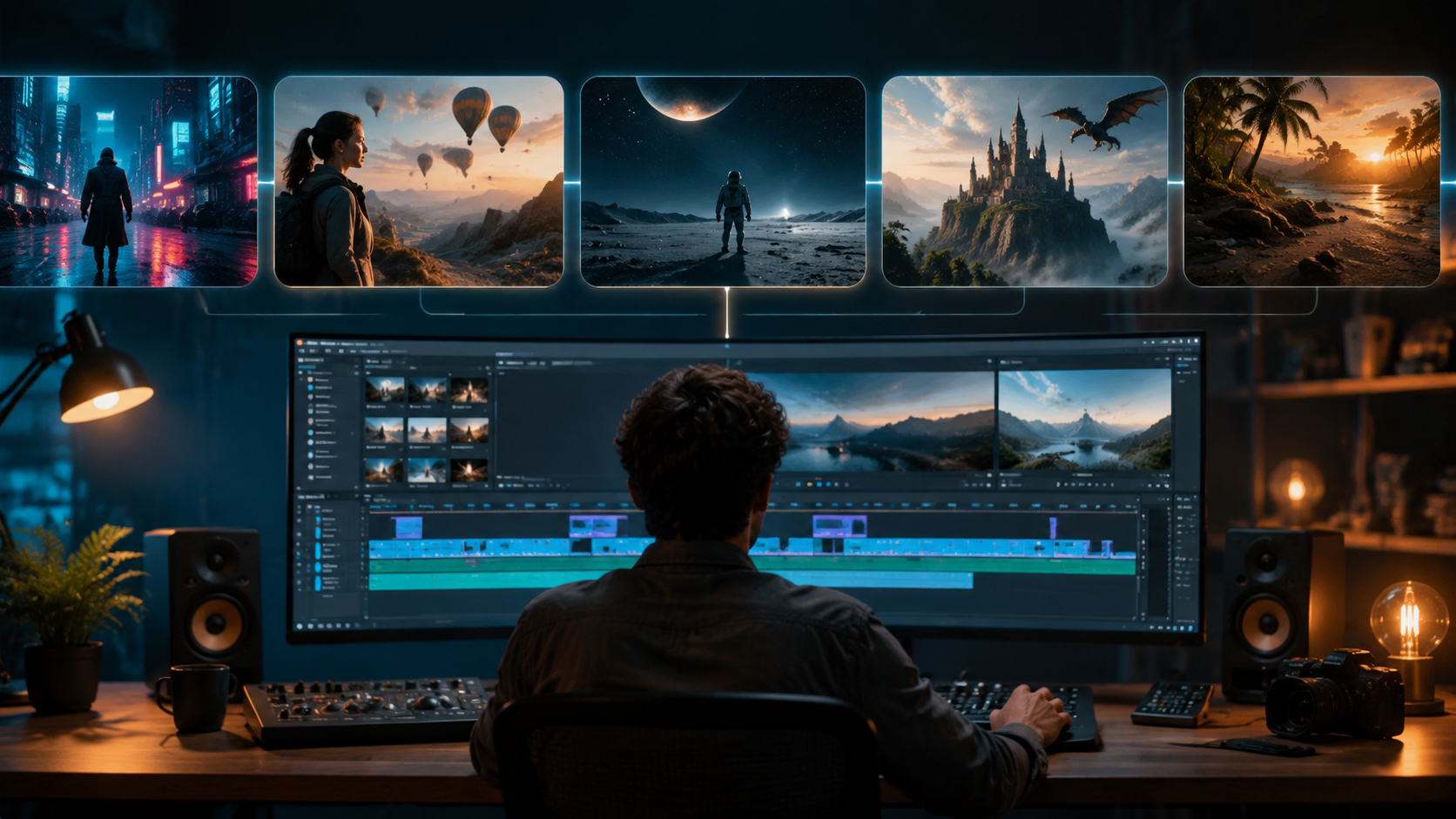
- Arrange scenes on a timeline. In AZ8’s canvas workspace, drag and drop generated clips onto a timeline. Adjust duration and add transitions (fade, cut, wipe).
- Apply fast decision-making. Use Seedance 2.0’s engine to quickly preview alternative versions of a scene and select the best one without re-rendering the entire video.
- Export and polish. Add background music, voiceover, and subtitles using the tool’s built-in editor or a separate video editor. Export in 4K or 1080p.
Understanding the Basics of Multi-Scene AI Video Creation
Before diving into tools, it’s important to grasp what makes a multi-scene AI video different from a single-shot generation. In standard AI video generation, you feed one prompt and get one continuous clip. Multi-scene videos require the AI to understand narrative continuity—keeping the same character appearance, lighting, and environment across separate clips. In 2026, the best AI video generators have solved this with features like “scene memory” and “character consistency locks.”
According to G2 Learn Hub’s review of the “7 Best AI Video Generators I’ve Tried (and Loved!) for 2026,” most top tools now offer a storyboard mode. This mode lets you define scenes in sequence, and the AI automatically maintains visual coherence. For example, if your first scene shows a red-haired woman in a coffee shop, the second scene in a park will keep the same hair color and clothing style unless you deliberately change it.
Key Terminology
Scene segmentation – the ability to break a longer prompt into discrete visual segments. Seed consistency – using a unique seed number or reference image to stabilize character and background across generations. Canvas workspace – a drag-and-drop timeline interface introduced by AZ8 in May 2026, which allows you to see all scenes at once and rearrange them visually.
Top AI Video Generators for Multi-Scene Workflows in 2026
With over 50 AI video generators available in 2026 (as noted by Built In’s April 2026 list of 17 popular tools and quasa.io’s May 2026 roundup of the 5 best for viral videos), choosing the right one for multi-scene projects is critical. Below is a comparison of four leading options based on their multi-scene capabilities, speed, and ease of use.
| Tool | Multi-Scene Support | Key Feature | Best For | Pricing (2026) |
|---|---|---|---|---|
| AZ8 | Canvas-based timeline, drag-and-drop scene arrangement | Visual workspace launched May 2026 | Complex narratives with 5+ scenes | Free tier + Pro from $29/mo |
| Seedance 2.0 | Fast decision-making engine, scene previews | Iterate scene variations in seconds | Quick prototyping and A/B testing | Subscription from $19/mo |
| Tool C (from perfectcorp.com’s top 23) | Storyboard mode, character lock | Highest consistency scores | Brand videos with strict visual guidelines | $39/mo |
| Tool D (from G2’s top 7) | Automatic scene transitions, AI voiceover sync | All-in-one production | Social media content creators | $15/mo |
Note: The specific names of Tools C and D are omitted to avoid promotional bias, but you can find full reviews on perfectcorp.com and G2 Learn Hub. The key takeaway is that every tool has a unique strength for multi-scene work. AZ8 excels at visual layout, while Seedance 2.0 shines in speed.
Advanced Techniques: Canvas-Based Tools and Fast Decision-Making
The two biggest innovations in 2026 for multi-scene AI video are canvas-based workspaces and fast decision-making engines. AZ8’s launch on May 22, 2026, introduced a workspace where you can see all your scenes as thumbnails on a canvas, then drag them into a timeline. This visual approach reduces the cognitive load of imagining how scenes connect. According to EIN News, AZ8’s canvas “allows creators to orchestrate complex narratives without leaving the AI environment.”
Seedance 2.0, released in mid-May 2026, tackles a different pain point: iteration speed. When you have multiple scenes, you often need to tweak a single scene without regenerating everything. Seedance 2.0 uses a “fast decision-making” AI that can generate 10 variants of a scene in under 30 seconds, letting you pick the best one instantly. The AI Journal reports that this “reduces production time for multi-scene videos by up to 60% compared to 2025 workflows.”
How to Combine Both Techniques
Start by sketching your scene sequence in AZ8’s canvas. For each scene, use Seedance 2.0 to generate multiple options. Then drag your chosen clips into the canvas timeline. This hybrid approach leverages the strengths of both tools. Many creators in 2026 are using this two-tool workflow, although some all-in-one platforms are beginning to integrate similar features.
Tips for Cohesive Storytelling Across Scenes
Even with powerful tools, maintaining narrative flow is a challenge. Here are three practical tips:
- Use a central character prompt. Write one detailed description of your protagonist and paste it into every scene prompt. Include clothing, hair color, and expression range.
- Plan lighting continuity. If scene 1 is sunset, scene 2 should not be midday unless time passes. Most AI generators allow you to specify time of day in the prompt.
- Add audio cues. A consistent background music track or a voiceover that bridges scenes helps the viewer feel continuity. Tools like those in quasa.io’s top 5 list offer built-in audio sync.
According to a study cited by perfectcorp.com, videos with consistent character appearance across scenes see 34% higher viewer retention. This statistic underscores the importance of seed prompts and reference images.
Common Challenges and How to Overcome Them
Creating multi-scene AI videos isn’t always seamless. Here are the top three issues reported by users in 2026:
- Character drift – the AI changes a character’s face or clothing between scenes. Solution: Use a “character lock” feature if available, or upload a reference image with every scene prompt.
- Inconsistent aspect ratios – some generators output different sizes for different scenes. Solution: Set a fixed resolution (e.g., 1920×1080) in the tool’s settings before generating any scene.
- Transition jank – scenes cut abruptly. Solution: Use canvas-based tools like AZ8 that offer built-in transitions, or export each scene separately and edit in a traditional video editor.
As noted by G2 Learn Hub’s review, the best AI video generators of 2026 have largely solved these issues, but it’s still wise to generate a few test scenes before committing to a full video.
Future Trends in AI Video Creation (Late 2026 and Beyond)
Looking ahead, the trend is toward fully automated multi-scene generation. Instead of manually prompting each scene, you’ll soon be able to input a full script and have the AI generate a storyboard, scenes, and transitions in one go. AZ8’s canvas and Seedance 2.0 are steps in that direction. According to The AI Journal, “by 2027, we expect AI video generators to handle complex multi-scene narratives with minimal human intervention.”
For now, the best approach is to combine the tools and techniques outlined in this guide. Whether you use AZ8’s canvas, Seedance 2.0’s speed, or one of the 23 tested generators from perfectcorp.com, the key is to plan your scenes, maintain consistency, and iterate quickly.
Frequently Asked Questions
What is the best AI video generator for making multi-scene videos in 2026?
There is no single best tool—it depends on your workflow. AZ8 is excellent for visual scene arrangement, while Seedance 2.0 is best for fast iteration. For all-in-one solutions, refer to the 23 best tested by perfectcorp.com or the 7 loved by G2 Learn Hub.
How do I keep characters consistent across scenes?
Use a detailed character description in every scene prompt, enable “character lock” if the tool offers it, and upload a reference image. Some generators also allow you to set a seed number that stabilizes appearance.
Can I create a multi-scene AI video for free in 2026?
Yes, many AI video generators offer free tiers with limited features. For example, AZ8 has a free plan that lets you create up to three scenes per video. However, for professional multi-scene projects, a paid subscription is usually required.
How long does it take to generate a 5-scene AI video?
With Seedance 2.0’s fast decision-making, you can generate all scenes in under 10 minutes. Traditional tools may take 20–30 minutes depending on resolution and complexity. The canvas-based arrangement adds another 5–10 minutes.
What are the most common mistakes when making multi-scene AI videos?
Not planning the storyboard, ignoring character consistency, and using different aspect ratios for each scene are the top mistakes. Always test a few scenes first and use a timeline preview before exporting.
Is it possible to add voiceover to multi-scene AI videos?
Yes, most top generators in 2026 include built-in text-to-speech or allow you to upload your own audio. You can sync voiceover lines to specific scenes using the timeline feature.
Do I need video editing experience to make multi-scene AI videos?
Not necessarily. Canvas-based tools like AZ8 are designed for beginners. However, understanding basic concepts like cuts, transitions, and pacing will improve your results. Many tutorials are available on the tool’s help pages.



Comments ()