
How to Fix Video Quality with AI: 2026 Best Practices
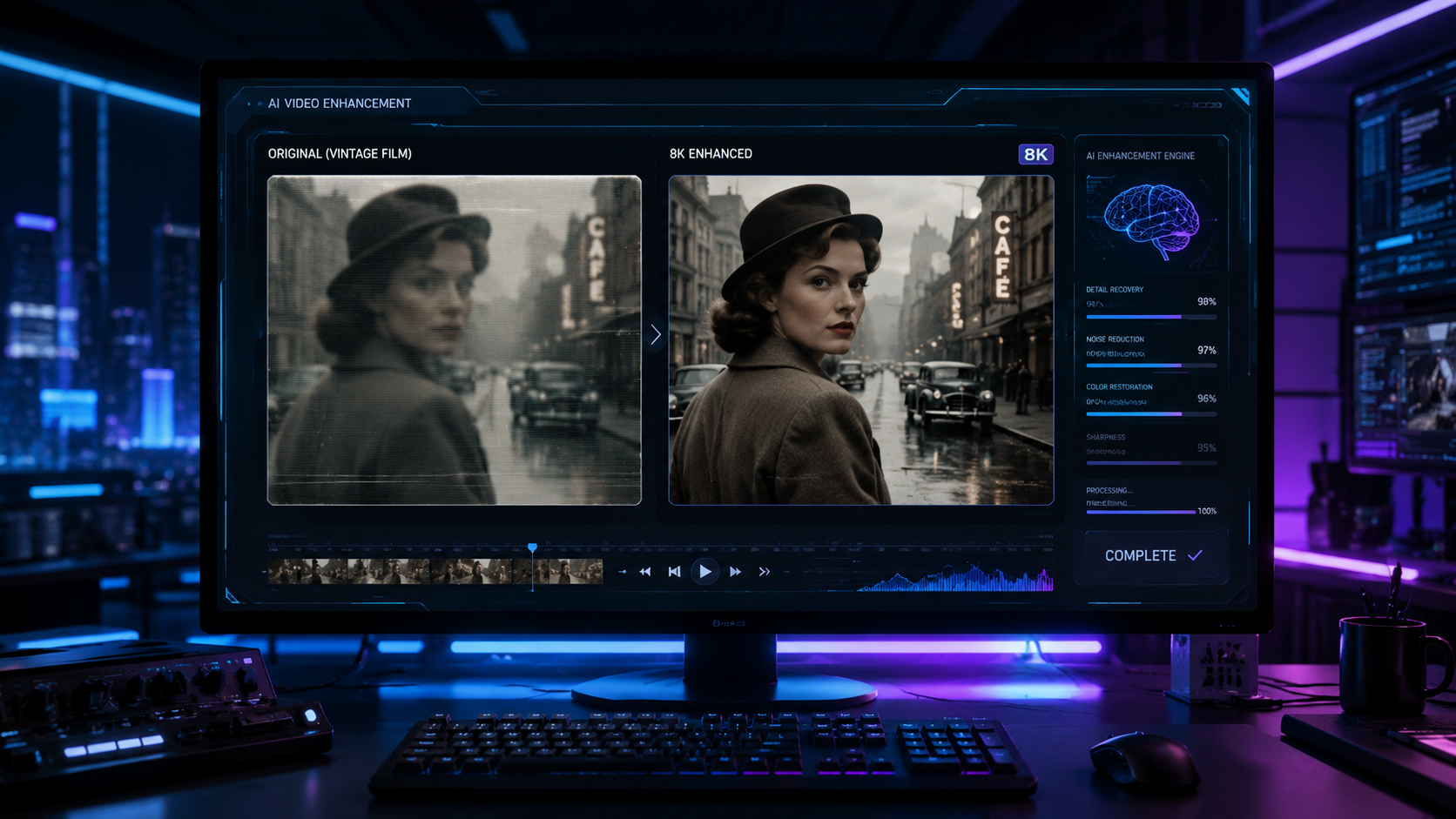
Knowing how to fix video quality with AI in 2026 involves using neural networks to reconstruct missing pixel data, remove compression artifacts, and upscale resolution up to 4K or 8K. By leveraging specialized software like VideoProc Converter AI or Aiarty, you can transform blurry, low-resolution footage into professional-grade media with a few clicks. The process typically requires importing your file, selecting an AI model (such as Super Resolution or Deinterlacing), and allowing your GPU to process the enhancement offline for maximum privacy.
AI video enhancement is the process of using deep learning algorithms to analyze video frames, identify noise or blur, and synthetically generate high-fidelity details. In 2026, this technology has evolved to fix distortion, reduce grain, and upscale footage to 4K resolution while maintaining natural textures and secure, offline processing for user privacy.
- ✓ AI upscaling can transform 720p or 1080p footage into crisp 4K resolution using generative models.
- ✓ Modern tools like Aiarty and VideoProc Converter AI now offer secure, offline desktop processing to ensure data privacy.
- ✓ Common issues like motion blur, digital noise, and "AI distortion" are now fixable via specialized de-blurring algorithms.
- ✓ Hardware acceleration is essential; 2026 best practices recommend using dedicated GPUs for faster rendering times.
Step-by-Step Guide: How to Fix Video Quality with AI
Restoring old or low-quality footage has become significantly more accessible thanks to the latest advancements in generative engines. Whether you are dealing with family archives or professional b-roll that suffered from poor lighting, the workflow remains consistent across the top-rated tools of 2026. Following a structured approach ensures that you don't over-process the video, which can sometimes lead to an "uncanny valley" effect where faces look too smooth or plastic.
- Select an AI Video Enhancer: Choose a reputable desktop application such as VideoProc Converter AI or Aiarty. Desktop tools are preferred in 2026 for their ability to handle large files without cloud-based privacy risks.
- Import and Analyze: Load your video file into the software. Most modern tools will automatically suggest a "Model Type" based on the detected issues, such as grain, motion blur, or low resolution.
- Choose Your Enhancement Model: For blurry footage, select a "De-blur" or "Focus" model. For small videos, choose "Super Resolution" to upscale to 4K. According to AppleInsider, the latest Mac-based AI tools can now fix blur and reduce noise simultaneously.
- Configure Output Settings: Set your desired frame rate and bit rate. Use a high-quality codec like H.265 or AV1 to ensure the AI-generated details are preserved during the final export.
- Preview and Render: Always use the "Live Preview" feature to check a 5-second clip. If the results look natural, proceed to full rendering.
The Evolution of AI Video Restoration in 2026
The landscape of video restoration has shifted dramatically. In previous years, "upscaling" simply meant stretching pixels and sharpening edges, which often resulted in halo effects and jagged lines. In 2026, generative AI actually "understands" the content of the frame. If the AI sees a blade of grass, it doesn't just sharpen the green pixels; it references a database of what grass should look like and reconstructs the texture from scratch.
According to TweakTown, VideoProc Converter AI has established itself as a leader in 2026 by combining video conversion with advanced generative enhancement. This integration allows users to fix quality issues while simultaneously changing formats, making it a one-stop shop for digital media workflows. The focus has moved away from simple filters toward complex neural networks that can differentiate between intentional cinematic grain and unwanted digital noise.
Addressing the "AI Distortion" Phenomenon
While AI is powerful, it is not infallible. A recent report by PCWorld highlights that many users struggle with "distorted" AI videos, where faces or textures appear to warp during movement. To fix this, 2026 best practices suggest using "Temporal Consistency" settings. These settings ensure that the AI looks at the frames before and after the current one to maintain a stable image, preventing the flickering often seen in lower-end AI enhancers.
Top AI Video Enhancers Compared: 2026 Edition
Choosing the right tool depends on your hardware and your specific needs. Some tools excel at fixing old, grainy home movies, while others are designed to sharpen modern 1080p footage for 4K displays. The following table compares the top performers based on the latest research from Hackread and North Penn Now.
| Tool Name | Primary Strength | Platform | Best For |
|---|---|---|---|
| VideoProc Converter AI | All-in-one conversion & upscaling | Windows / Mac | General users and 4K upscaling |
| Aiarty | Privacy-focused, offline processing | Desktop | Sensitive data and high-security needs |
| AppleInsider Featured Mac AI | Optimized for M-series chips | macOS | Mac users fixing blur and noise |
| Top 6 Free Enhancers | Cost-effective basic fixes | Web / Desktop | Quick social media edits |
Why Privacy-Focused Tools are Dominating
As noted by The Clarion-Ledger, there is a growing demand for secure, offline AI tools. In 2026, users are increasingly wary of uploading personal videos to cloud servers for processing. Tools like Aiarty have gained significant traction by reaffirming their commitment to desktop-based processing. This ensures that your data never leaves your machine, protecting your privacy while utilizing the full power of your local GPU.
How to Fix Video Quality with AI: Common Use Cases
The application of AI enhancement isn't limited to just making things "look better." It serves specific functional purposes across various industries. For instance, in legal and security sectors, AI is used to clarify license plates or facial features in low-light surveillance footage. In the world of content creation, YouTubers are using AI to upscale 10-year-old viral hits to keep them relevant for modern high-definition audiences.
Another major use case is the restoration of "interlaced" video. Older camcorder footage often suffers from "combing" lines. AI de-interlacing models in 2026 can intelligently merge these lines without losing detail, a task that was nearly impossible with traditional linear editing software. By applying these specialized models, you can effectively "fix" the inherent hardware limitations of the past.
Optimizing for 4K and 8K Displays
As 8K displays become more common in 2026, the need for high-quality upscaling has never been greater. AppleInsider reports that the latest AI enhancers for Mac can take standard HD footage and upscale it to 4K with such precision that it is indistinguishable from native 4K content. This is achieved through "sub-pixel" analysis, where the AI predicts the color and light values of pixels that don't even exist in the original file.
Best Practices for Achieving Professional Results
To get the most out of your AI video enhancement, you must start with the best possible source file. AI can work wonders, but it cannot create information out of thin air if the source is too heavily compressed. Whenever possible, use original files rather than versions downloaded from social media platforms, which often strip away the very data the AI needs to perform its reconstruction.
Furthermore, pay attention to your hardware. AI video processing is computationally expensive. According to recent industry benchmarks, using a dedicated GPU with at least 8GB of VRAM can reduce rendering times by up to 400% compared to CPU-only processing. Most 2026 software, including VideoProc Converter AI, is optimized to utilize the latest NVIDIA and AMD architectures to ensure that "fixing" a 10-minute video doesn't take 10 hours.
Avoiding Over-Sharpening
A common mistake when learning how to fix video quality with AI is cranking the "Sharpness" or "Detail" sliders to the maximum. This leads to "ringing" artifacts—white outlines around objects. The goal in 2026 is realism. Use the "Natural" or "Standard" presets first, and only increase the intensity if the image still looks soft. Remember, the best AI enhancement is the one that the viewer doesn't notice.
Can AI fix a video that is completely out of focus?
AI can significantly improve videos with mild to moderate focus issues by reconstructing edges and textures. However, if a video is completely "blown out" or has zero discernible detail, the AI may struggle to create a realistic image without introducing significant artifacts.
What is the best AI video enhancer in 2026?
Based on reports from TweakTown and Hackread, VideoProc Converter AI and Aiarty are among the top-rated tools for 2026. They offer a balance of speed, security, and high-quality generative upscaling for both Windows and Mac users.
Is it safe to use online AI video enhancers?
While convenient, online enhancers pose privacy risks as your data is uploaded to a server. In 2026, experts like those at The Clarion-Ledger recommend using offline desktop tools to ensure your videos remain private and secure.
How long does it take to upscale a video to 4K?
The time depends on your GPU and the length of the video. With a modern 2026-era graphics card, a 5-minute video can often be upscaled from 1080p to 4K in roughly 10 to 15 minutes using optimized software.
Does AI enhancement work on old VHS tapes?
Yes, AI is particularly effective for VHS restoration. It can remove "tracking" noise, fix color bleeding, and use de-interlacing models to turn old analog signals into stable, digital high-definition video.



Comments ()