
How to Fix Low Quality Video: 2026 AI Upscaling Guide
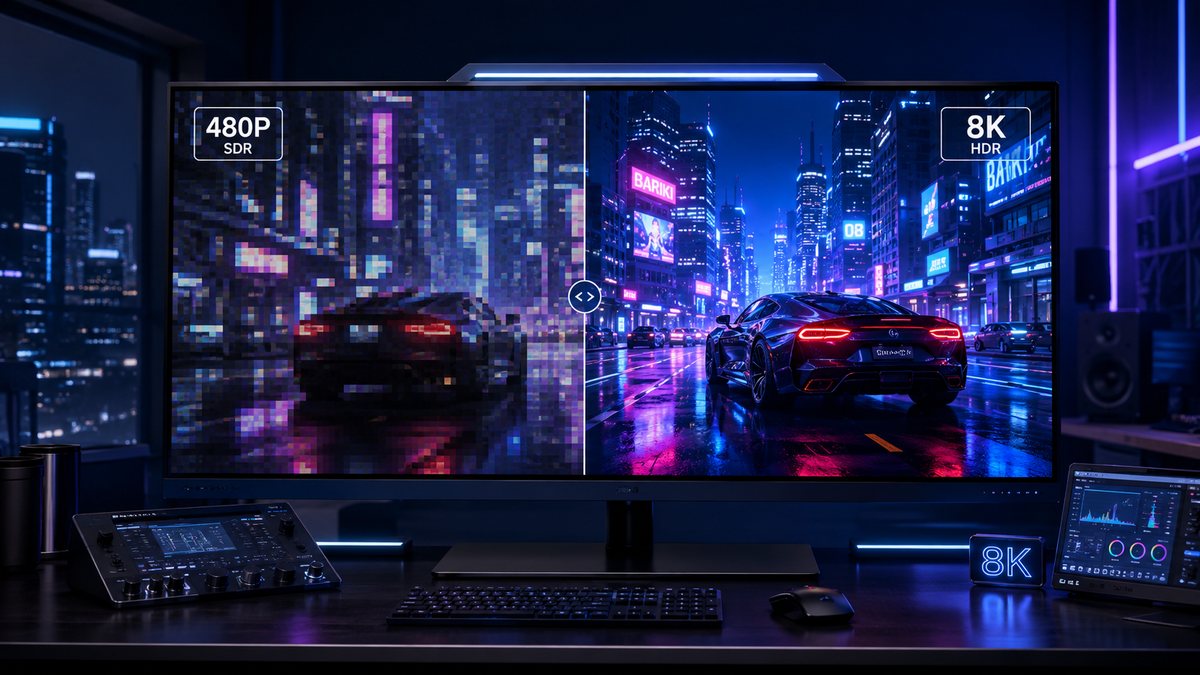
Learning how to fix low quality video in 2026 involves leveraging advanced artificial intelligence to reconstruct missing pixels and remove digital artifacts. To achieve professional results, you must use AI-driven upscaling software or hardware-accelerated features that analyze video frames to restore clarity, reduce noise, and increase resolution up to 4K. By following modern restoration workflows, you can transform blurry, pixelated, or dated footage into high-definition content that meets current viewing standards.
Fixing low quality video is the process of using AI video enhancers and hardware-based upscaling to resolve pixelation, motion blur, and compression artifacts. In 2026, this is primarily achieved through neural networks that "hallucinate" detail back into footage, combined with specialized GPU features like Nvidia Super Resolution to improve real-time playback and file exports.
- ✓ Utilize AI video enhancers for Mac and PC to upscale resolution from 1080p to 4K.
- ✓ Enable hardware-level upscaling features, such as Nvidia’s hidden settings, for instant clarity.
- ✓ Adjust streaming service bitrates and hidden settings to prevent artificial quality throttling.
- ✓ Apply temporal denoising and de-interlacing to remove "grain" and "flicker" from vintage clips.
- ✓ Use specialized apps for mobile video unblurring to fix camera shake on the go.
Step-by-Step: How to Fix Low Quality Video with AI
In 2026, the barrier to professional-grade video restoration has vanished thanks to automated neural engines. Whether you are working with old family archives or low-bitrate downloads, the process follows a standardized digital restoration pipeline. According to recent reports from Hardware Secrets, the most common issue in modern displays is pixelation caused by low-resolution source files being stretched across high-density screens.
- Import and Analyze: Load your footage into an AI video enhancer. The software will analyze the codec, frame rate, and specific types of degradation (e.g., blocky artifacts vs. soft blur).
- Select the Upscaling Model: Choose a model based on your content. Use "Cine-Restore" for cinematic grain or "Animation-Pro" for clean lines in cartoons.
- Enable Hardware Acceleration: If you have an Nvidia or Apple Silicon device, ensure "GPU Acceleration" is active to reduce render times by up to 80%.
- Configure Output Resolution: Set your target resolution. For most 2026 displays, upscaling from 720p or 1080p to a clean 4K output provides the best balance of detail and file size.
- Preview and Export: Generate a 5-second preview to check for "ghosting" or unnatural textures before committing to the full export.
The Rise of AI Upscaling in 2026
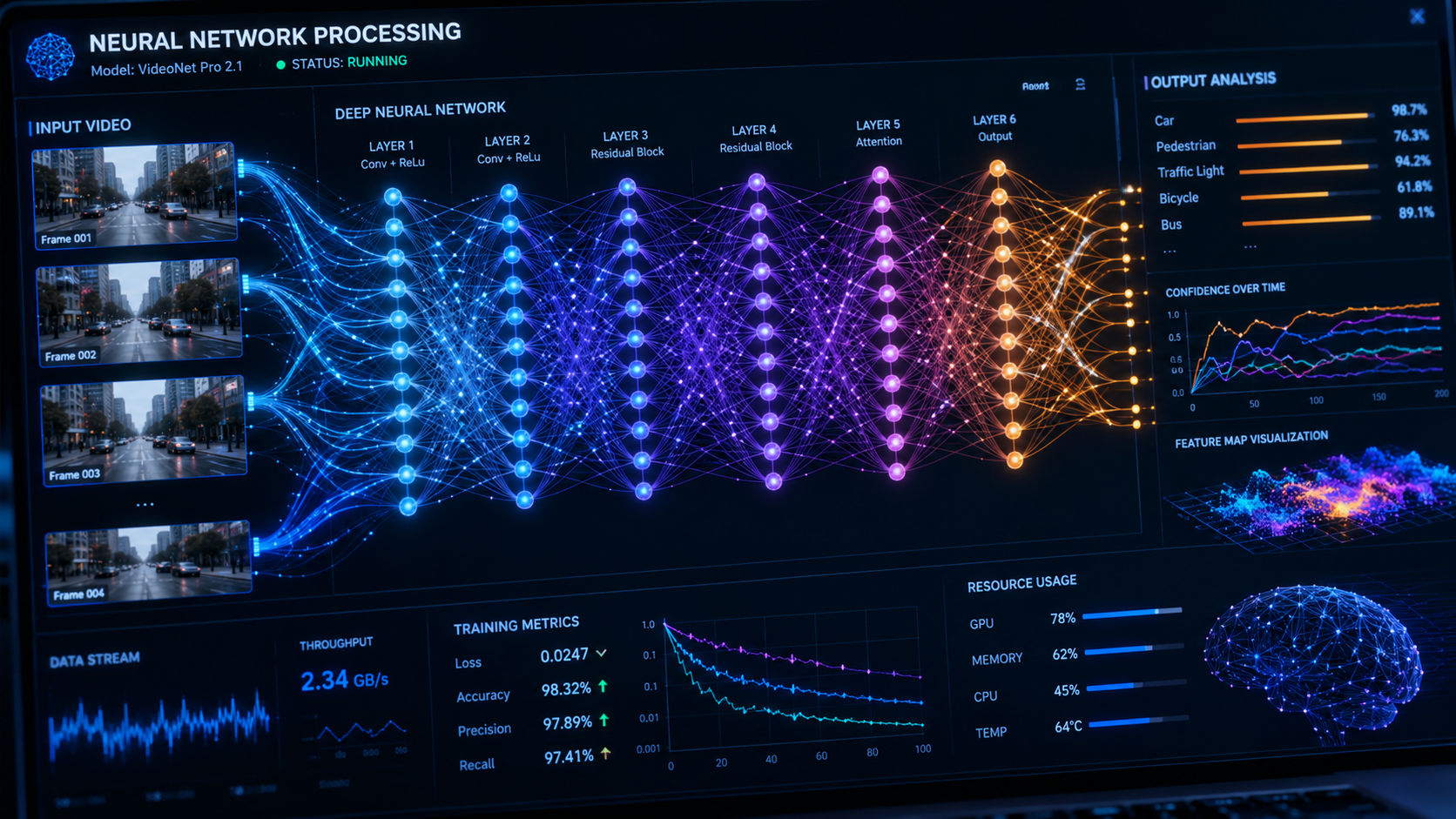
The landscape of video enhancement has shifted from simple filters to generative reconstruction. In 2026, "upscaling" no longer means just making pixels larger; it means using deep learning to predict what a high-quality version of a frame should look like. As reported by MensXP, the best AI tools of 2025 and 2026 now incorporate temporal consistency, ensuring that the enhancements stay stable from one frame to the next without flickering.
Understanding Neural Video Enhancement
Traditional methods of fixing low quality video relied on interpolation, which often resulted in a "soapy" or plastic look. Modern AI enhancers use Generative Adversarial Networks (GANs) to fill in the gaps. According to AppleInsider, the latest AI video enhancers for Mac can now fix blur and reduce noise simultaneously while upscaling to 4K, utilizing the Neural Engine found in M-series chips to process millions of calculations per second.
Hardware-Based Solutions: Nvidia and Beyond
Not all video fixes require a dedicated export. How-To Geek recently highlighted Nvidia's hidden upscaling features that allow users to fix blurry old videos in real-time while watching them in a browser or media player. This technology uses the Tensor cores in modern GPUs to sharpen edges and remove compression blocks on the fly, effectively turning "trash" streams into high-definition experiences without the need for manual editing.
Comparison of Video Enhancement Methods
Choosing the right approach depends on your hardware and the severity of the video issues. Below is a comparison of the leading methods used in 2026 to fix low quality video.
| Method | Best For | Key Feature | Processing Speed |
|---|---|---|---|
| AI Desktop Software | Archival Footage | 4K Upscaling & Denoising | Slow (Pre-render required) |
| GPU Real-Time Scaling | Web Streaming | Nvidia Super Resolution | Instant (Real-time) |
| Mobile Enhancement Apps | Social Media / Reels | One-tap Unblurring | Medium |
| Platform Settings | Netflix / YouTube | Bitrate Optimization | Instant |
How to Fix Pixelated Video and Compression Artifacts
Pixelation is the most common complaint among users trying to improve video quality. This usually occurs when a video has been compressed too heavily or filmed at a low bitrate. To address this, specialized "De-blocking" algorithms are required. These algorithms identify the square blocks created by codecs like H.264 and smooth them out without losing the underlying detail of the subject's face or the background scenery.
Restoring Clarity to Blurry Footage
Blurry video often stems from a lack of focus during filming or low-resolution sensors. Perfectcorp.com notes that the best ways to unblur a video involve using "blind deconvolution" models that can calculate the specific path of the camera shake and reverse it. By 2026, these apps have become sophisticated enough to distinguish between "artistic bokeh" (intentional blur) and "motion blur" (unintentional error), allowing you to keep the cinematic look while sharpening the subject.
Optimizing Streaming Quality
Sometimes, the "low quality" isn't in the file itself, but in how it is being delivered. MakeUseOf discovered a hidden Netflix setting in early 2026 that allows users to force high-bitrate streaming even on slower connections, which dramatically improves video quality by preventing the platform's auto-throttling. Similarly, checking your browser's hardware acceleration settings can prevent 1080p streams from looking like 480p due to poor decoding.
Advanced Techniques for Professional Results
For those who need the absolute highest quality, such as content creators or film restorers, simple one-click fixes may not be enough. Professional workflows in 2026 involve multi-pass rendering. The first pass focuses on "Grain Management"—removing digital noise that AI might mistake for detail. The second pass handles the actual upscaling, and the final pass adds a light layer of "simulated film grain" to make the video feel more organic and less "computer-generated."
Color Correction and HDR Mapping
Fixing quality isn't just about sharpness; it's about dynamic range. Many AI tools now include "SDR to HDR" tonemapping. This process takes standard 8-bit video and expands the color palette to 10-bit or 12-bit, making highlights brighter and shadows deeper. According to industry studies, viewers perceive HDR-enhanced video as being higher resolution than SDR video, even if the pixel count remains the same.
Correcting Frame Rate and Judder
Low quality can also manifest as "choppy" movement. AI frame interpolation (often called Optical Flow) can turn 24fps or 30fps footage into a smooth 60fps. This is particularly useful for sports or action footage where the original camera settings weren't optimized. However, experts recommend using this sparingly for narrative films to avoid the "soap opera effect" that can detract from the storytelling.
The Future of Video Restoration
As we move through 2026, the integration of AI into every step of the video pipeline is becoming seamless. We are seeing the emergence of "Context-Aware Restoration," where the AI understands what it is looking at. For example, if the AI recognizes a human face, it applies a specific "skin texture" model, whereas if it recognizes a forest, it prioritizes leaf and bark detail. This level of specificity is why modern tools are so much more effective than the generic sharpeners of the past decade.
Furthermore, cloud-based AI processing is making these heavy computations accessible to everyone. You no longer need a $5,000 workstation to fix low quality video; you can upload your files to a distributed computing network that handles the 4K upscaling and sends back a polished file in minutes. This democratization of technology ensures that history’s visual records—from old family tapes to historical archives—will never be lost to the ravages of low-resolution sensors.
Can you really fix a blurry video?
Yes, in 2026, AI video enhancers can fix blurry video by using motion-deblurring algorithms and neural networks that reconstruct lost edge detail. While it cannot "create" data that was never there, it can use massive datasets to accurately predict and draw the missing clarity.
What is the best AI tool to enhance video quality in 2026?
The "best" tool depends on your platform, but for Mac users, Apple Silicon-optimized enhancers are leading the market, while PC users benefit most from tools that utilize Nvidia's RTX Super Resolution for both real-time and export-based fixes.
How do I stop my videos from looking pixelated on YouTube?
To prevent pixelation, always upload in at least 1440p or 4K, even if your source is 1080p. This forces YouTube to use a higher-quality codec (VP9 or AV1) which preserves more detail and reduces the "blocky" look of standard compression.
Does upscaling a video to 4K actually make it look better?
Yes, provided you use AI-based upscaling. Traditional upscaling just stretches pixels, but AI upscaling adds new detail and removes artifacts, making the video look significantly sharper on modern high-resolution displays.
Is there a free way to fix low quality video?
Many hardware manufacturers, like Nvidia, provide free real-time upscaling features within their driver suites. Additionally, several open-source AI models (like those found on GitHub) allow for high-quality restoration without a subscription fee, though they require more technical knowledge to set up.



Comments ()