
How to Fix AI Video Artifacts: 2026 Pro Restoration Guide
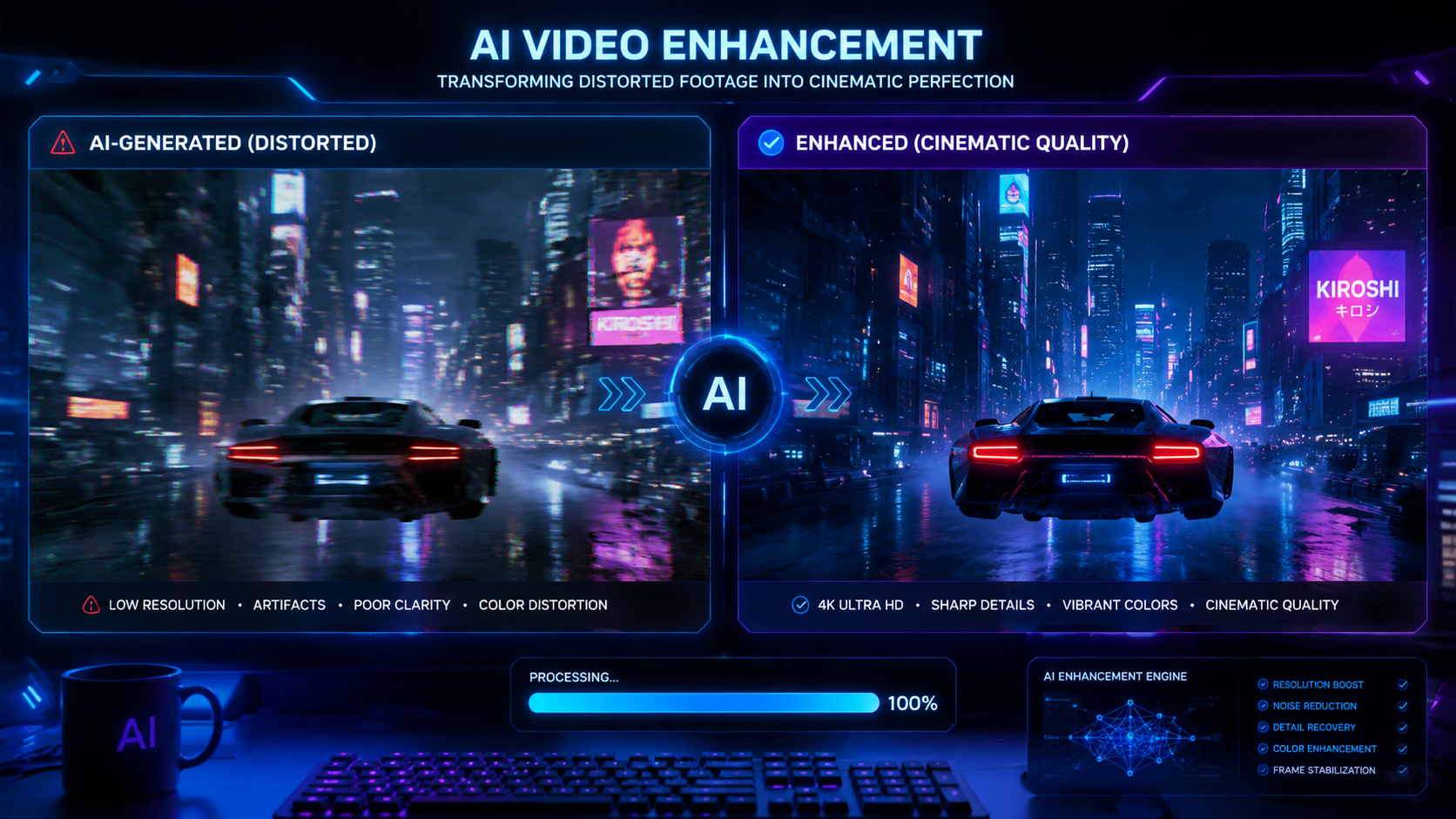
To learn how to fix AI video artifacts in 2026, you must utilize specialized AI video enhancers that employ temporal stabilization and generative fill to address pixelation, ghosting, and "boiling" textures. The most effective method involves a multi-pass restoration workflow where noise is reduced first, followed by a frame-interpolation pass to smooth out temporal inconsistencies. By leveraging tools like VideoProc Converter AI or 3D Gaussian Reconstruction techniques, creators can restore clarity to even the most distorted generative outputs.
AI video artifacting is the presence of visual distortions—such as blur, pixelation, or flickering—caused by neural network processing errors. Fixing these issues in 2026 requires utilizing AI-driven upscalers that support 4K resolution, temporal denoising, and color space conversion from RGB to Lab to eliminate chromatic aberrations and restore structural integrity to the footage.
- ✓ Use temporal stabilization to eliminate the "boiling" effect common in generative AI video.
- ✓ Transitioning from RGB to Lab color spaces helps isolate and fix specific color artifacts.
- ✓ High-end restoration in 2026 relies on 3D Gaussian Reconstruction for simulation-grade quality.
- ✓ Always perform noise reduction before upscaling to prevent the amplification of existing errors.
- ✓ Multi-pass rendering is essential for achieving professional-grade 4K clarity.
Step-by-Step: How to Fix AI Video Artifacts
As of 2026, the process of cleaning up AI-generated content has become more streamlined, yet it requires a precise order of operations to ensure the best results. Whether you are dealing with flickering backgrounds or distorted facial features, following a structured workflow prevents the introduction of new errors during the rendering process. The following steps outline the industry-standard approach to professional video restoration.
- Analyze the Artifact Type: Identify if the issue is spatial (pixelation, blur) or temporal (flickering, warping). According to the Global Investigative Journalism Network (GIJN), detecting these specific markers is the first step in both verification and restoration.
- Initial Noise Reduction: Use an AI-driven denoiser to remove grain and "salt-and-pepper" artifacts. This creates a clean slate for the upscaling algorithms to work with.
- Temporal Stabilization: Apply a temporal filter to ensure consistency between frames. This is crucial for fixing the "hallucination" effect where objects change shape slightly from one frame to the next.
- Upscaling and Detail Recovery: Utilize a tool like VideoProc Converter AI—noted by TweakTown as a top enhancer in 2026—to upscale the footage to 4K while regenerating lost textures.
- Color Correction in Lab Space: If the video has "rainbow" artifacts or color bleeding, convert the footage to the Lab color space. This allows you to adjust luminance and chrominance independently, a technique highlighted by Towards Data Science for superior compositing.
- Final Export and Bitrate Management: Export the video using a high-bitrate codec (like AV1 or ProRes) to ensure that compression does not re-introduce the artifacts you just removed.
Understanding Common AI Video Distortions in 2026
Before you can master how to fix AI video artifacts, you must understand why they occur. Generative AI models often struggle with "temporal coherence," which is the ability to keep an object consistent across multiple frames. In 2026, even the most advanced models can produce "floaters" or "ghosting" where parts of the background seem to move independently of the foreground. These issues are often exacerbated by low-bitrate training data or insufficient sampling during the generation phase.
Another common issue is pixelation and blur. As Hardware Secrets noted in their May 2026 guide, restoring clarity to pixelated video requires more than just sharpening; it requires a deep understanding of how the pixels were originally interpolated. AI artifacts are unique because they aren't just "noise"—they are mathematically logical but visually incorrect interpretations of data. Fixing them requires a "generative" approach to restoration, where the software fills in the gaps based on surrounding healthy frames.
Temporal vs. Spatial Artifacts
Spatial artifacts are those contained within a single frame, such as "blockiness" or blurred edges. These are typically the easiest to fix using standard AI upscaling. Temporal artifacts, however, are the "flicker" or "shimmer" seen when the video is in motion. These require advanced motion-vector analysis to correct. In 2026, tools have evolved to use 3D Gaussian Reconstruction, a technique NVIDIA has championed for enhancing simulation quality, which treats the video as a three-dimensional volume rather than a series of flat images.
Advanced Tools for AI Video Restoration
The landscape of restoration software has shifted significantly by 2026. While basic editors still exist, professional workflows now rely on dedicated AI enhancers. For Mac users, AppleInsider recently highlighted a new breed of enhancers that leverage the latest M-series chips to fix blur and reduce noise in real-time, allowing for 4K upscaling without the massive render times seen in previous years. These tools are specifically designed to recognize the "signature" of AI-generated artifacts and apply targeted fixes.
For those working in high-end simulation or cinematic production, NVIDIA’s technical research into 3D Gaussian Reconstruction offers a glimpse into the future of restoration. This method allows for the reconstruction of scenes with high fidelity, effectively "re-simulating" the video to remove artifacts that traditional filters would miss. This is particularly useful for fixing complex lighting artifacts and reflections that often plague AI-generated environments.
| Feature | Standard Enhancers | 2026 AI Pro Tools |
|---|---|---|
| Resolution Support | Up to 1080p | Native 4K/8K Upscaling |
| Temporal Fixes | Basic Frame Blending | Motion-Vector Stabilization |
| Color Correction | RGB Only | Lab Color Space Processing |
| Artifact Detection | Manual Selection | Auto-Neural Detection |
How to Fix AI Video Artifacts Using Color Space Conversion
One of the most overlooked techniques in 2026 for fixing AI video artifacts is the transition from RGB to Lab color space. Standard RGB (Red, Green, Blue) processing often struggles with AI-generated "color bleeds" because the color data is tied directly to the brightness data. When you try to fix a color artifact in RGB, you often end up changing the lighting of the scene, which can create a "flat" or "plastic" look.
By moving to the Lab color space (L for Lightness, a and b for color dimensions), you can isolate the visual distortions. Towards Data Science notes that addressing color artifacts in this manner allows editors to sharpen the "L" channel (detail) while smoothing the "a" and "b" channels (color). This effectively removes the "rainbow" noise often found in the shadows of AI-generated clips without losing the crisp edges of the subject. This method is now a standard feature in high-end restoration suites like VideoProc Converter AI.
Eliminating "Boiling" and Edge Distortions
Edge distortion occurs when the AI model cannot decide where an object ends and the background begins. This results in a shimmering effect known as "boiling." To fix this, pros use a combination of edge-aware masking and 3D reconstruction. According to NVIDIA Developer blogs, enhancing the quality of these reconstructions involves using simulation-grade algorithms that treat edges as physical boundaries. By applying these filters, you can lock the edges in place, preventing them from shifting between frames and creating a much more stable viewing experience.
The Role of Hardware in Video Restoration
The hardware you use in 2026 is just as important as the software when learning how to fix AI video artifacts. High-resolution restoration is computationally expensive. For example, upscaling a 10-second AI clip to 4K with full temporal stabilization can take significant processing power. AppleInsider’s review of the latest Mac-based AI enhancers suggests that specialized Neural Engines are now mandatory for handling the billions of calculations required per second to fix blur and reduce noise effectively.
Similarly, TweakTown’s analysis of VideoProc Converter AI emphasizes that GPU acceleration is the "best" way to handle these tasks in 2026. Without dedicated hardware acceleration, the software cannot perform the multi-pass analysis needed to identify and correct artifacts in real-time. If you are serious about video restoration, ensuring your hardware supports the latest AI instruction sets (like those found in NVIDIA’s 2026 Blackwell or newer architectures) is essential for a smooth workflow.
Future-Proofing Your AI Video Content
Fixing artifacts is a reactive process, but as we move further into 2026, proactive measures are becoming more common. One way to minimize the need for restoration is to use higher-quality "seeds" and more descriptive prompts during the initial generation. However, even with the best prompts, artifacts are currently a byproduct of the technology's limitations. Understanding the tools and techniques mentioned above ensures that your content remains professional and broadcast-ready.
As AI continues to evolve, the "Reporter’s Guide to Detecting AI-Generated Content" suggests that the line between "real" and "enhanced" video will continue to blur. By mastering the art of artifact removal, you aren't just fixing mistakes; you are refining a new medium of digital art. The goal of restoration in 2026 isn't just to hide the AI's tracks, but to elevate the output to a level that matches or exceeds traditional cinematography.
What is the most common AI video artifact in 2026?
The most common artifact is "temporal flickering" or "boiling," where textures and edges shift inconsistently between frames. This is typically fixed using temporal stabilization and motion-vector analysis in modern AI enhancers.
Can I fix pixelated AI video without losing detail?
Yes, by using AI upscalers like VideoProc Converter AI, you can regenerate lost detail rather than just blurring the pixels. These tools use trained models to "guess" what the high-resolution texture should look like based on the surrounding data.
How does the Lab color space help in fixing artifacts?
The Lab color space separates lightness (L) from color (a, b). This allows you to remove color-specific artifacts like "rainbow noise" without affecting the sharpness or contrast of the video, leading to a much cleaner restoration.
Is 4K upscaling necessary for fixing AI artifacts?
While not strictly necessary, upscaling to 4K often helps the AI restoration algorithms better identify small-scale artifacts. The higher pixel density provides more data for the neural network to analyze and correct.
What hardware is recommended for AI video restoration in 2026?
Hardware with dedicated AI accelerators, such as Apple's M-series chips or NVIDIA's latest GPUs, is highly recommended. These components are designed to handle the complex mathematical models required for noise reduction and 3D Gaussian Reconstruction.



Comments ()