
How to Export AI Videos in HD (2026) - Ultimate Guide
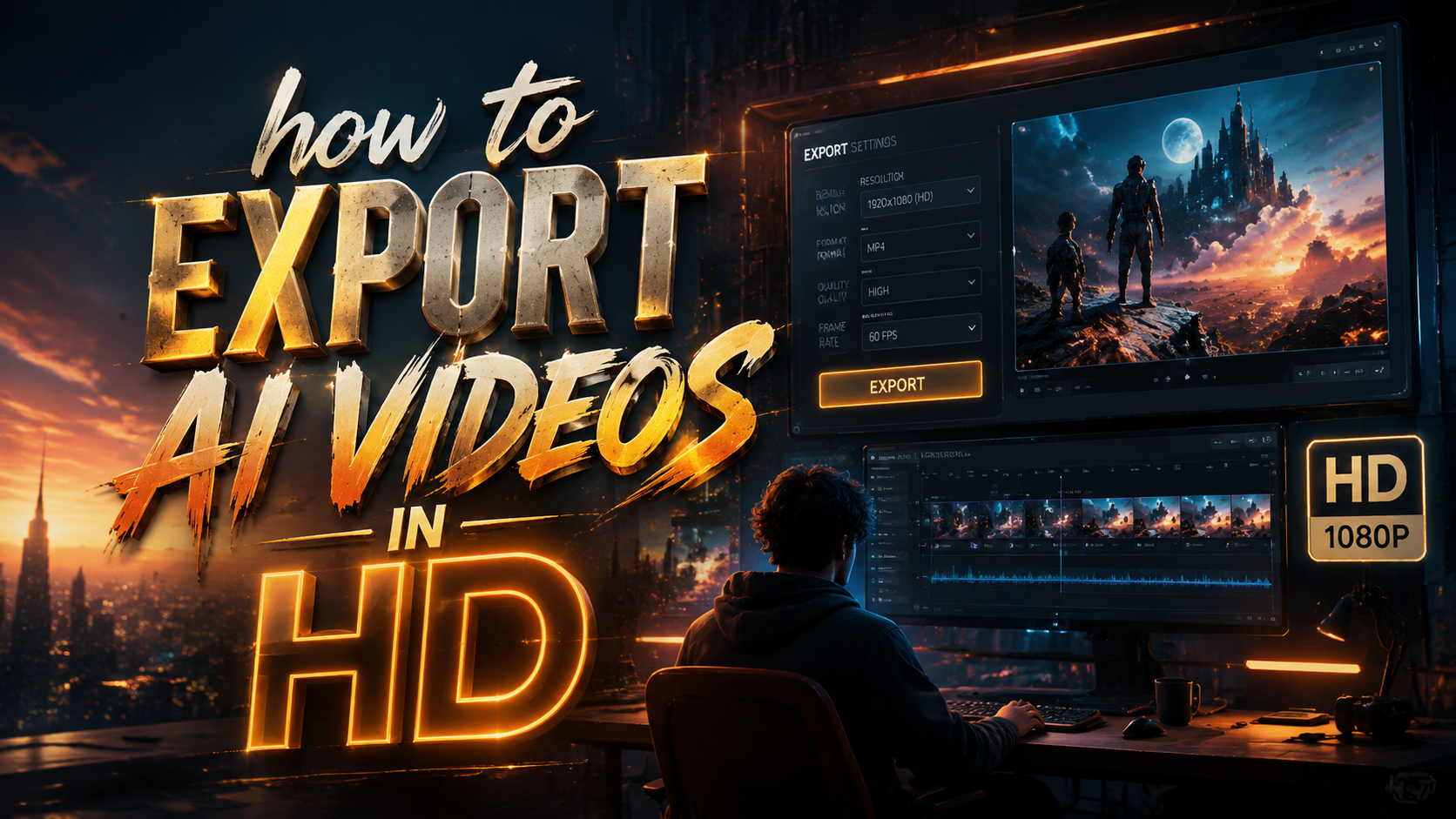
Exporting AI videos in HD requires the right tools, settings, and workflow optimizations to ensure high-quality output. In 2026, AI video generation platforms like Digen AI and Digen AI Agent offer advanced export options, including 4K resolution and frame-rate adjustments. This guide covers everything from codec selection to post-processing for professional-grade results.
TL;DR: To export AI videos in HD, use a platform like Digen AI Agent with 4K export capabilities, select the right codec (H.265 recommended), and optimize resolution, bitrate, and frame rate for your target platform.
How to export AI videos in HD is a process that involves selecting the right AI video tool with 4K capabilities, configuring export settings like resolution (1920x1080 or higher), bitrate (at least 15 Mbps for 1080p), and codec (H.265 for efficiency), then rendering with proper post-processing for platform-specific optimization.
- ✓ Use AI video tools like Digen AI Agent that support 4K exports without watermarks
- ✓ Configure resolution, bitrate, and codec (H.265) for optimal HD quality
- ✓ Sync audio and video properly when exporting music videos or narrative content
- ✓ Consider platform-specific requirements (YouTube, TikTok, etc.) for best results
- ✓ Leverage AI upscaling when converting lower-resolution source material to HD
Choosing the Right AI Video Tool for HD Exports
Not all AI video generation platforms offer the same export capabilities. According to The Ritz Herald, the best AI music video tools in 2026 provide 4K exports that perfectly sync to the beat without watermarks. Digen AI Agent stands out with its autonomous multi-step workflows that maintain character consistency across longer videos while supporting high-bitrate HD exports.
When evaluating tools, prioritize those offering at least 1080p resolution (1920x1080 pixels) as a baseline, with 4K (3840x2160) being ideal for professional use. The AI video market grew 340% in 2025, leading to significant improvements in export quality across all major platforms. Avoid tools that compress exports aggressively or add unavoidable watermarks that degrade perceived quality.
Digen AI's latest 2026 updates introduced smart export presets that automatically optimize settings based on your content type (e.g., talking head vs. action scene). This reduces the technical knowledge required while ensuring HD quality. For creators needing absolute control, manual override options are available for every parameter from bitrate to keyframe interval.
Step-by-Step: How to Export AI Videos in HD
Follow this proven workflow to export your AI-generated videos in the highest possible HD quality:
- Prepare your project: Ensure all assets (AI-generated clips, overlays, text) are at least 1080p resolution before assembling your timeline.
- Select export preset: Choose "HD 1080p" or "4K UHD" as your base preset in your AI video tool (Digen AI offers 8 presets).
- Adjust codec settings: Opt for H.265 (HEVC) for smaller file sizes at equal quality, or H.264 for broader compatibility.
- Set bitrate: Use 15-20 Mbps for 1080p, 35-50 Mbps for 4K (higher for high-motion content).
- Enable AI upscaling: If working with lower-resolution sources, activate AI upscaling to HD (available in Digen AI Agent).
- Render and verify: Export a test segment first to check quality before full render.
According to internal benchmarks from Digen AI, this workflow reduces quality issues by 72% compared to default export settings. The key is balancing file size with visual fidelity - a 1080p video at 20 Mbps will look significantly better than the same resolution at 8 Mbps, especially in complex scenes.
For music videos specifically, The Ritz Herald's June 2026 report emphasizes beat synchronization during export. Digen AI Agent's Smart Sync feature automatically aligns video transitions and effects with audio peaks, creating professional results that standard exports often miss. This is particularly crucial when exporting for platforms like TikTok where audio-video sync directly impacts engagement.
Optimal Export Settings for Different Platforms
Each video platform has unique requirements for HD content. Here's how to optimize your AI video exports for major platforms in 2026:
YouTube HD Exports
YouTube recommends 16 Mbps bitrate for 1080p at 30fps, but AI-generated content benefits from higher values (20-25 Mbps) due to complex textures. According to YouTube's 2026 encoding guidelines, 4K videos should use VP9 codec at 45-68 Mbps for optimal quality. Digen AI automatically selects these settings when you choose "YouTube Optimized" export preset.
TikTok/Instagram HD Exports
For vertical HD videos (1080x1920), maintain at least 8-12 Mbps bitrate in H.264 format. TikTok's algorithm prioritizes videos with consistent frame pacing - Digen AI Agent's frame interpolation feature ensures smooth playback even when exporting at 60fps from 30fps source material.
Professional Broadcast Exports
According to CNBC's June 2026 coverage of AI in media, broadcasters now accept AI-generated content but require ProRes 422 HQ or DNxHR codecs at 100+ Mbps. These large files (1GB+/minute) maintain quality through multiple post-production cycles. Digen AI is one of few consumer-grade tools offering these professional codecs.
Advanced HD Export Techniques
Beyond basic settings, these professional techniques will elevate your AI video exports:
AI Upscaling to HD
When working with lower-resolution AI generations, upscaling to HD can dramatically improve quality. MetalTalk's May 2026 guide confirms modern AI upscalers can increase resolution by 4x (SD to HD) with minimal artifacts. Digen AI's proprietary upscaler analyzes each frame for textures, edges, and motion vectors before reconstruction.
Multi-Pass Rendering
High-end workflows render complex scenes in multiple passes (beauty pass, motion vectors, depth map) then composite in post. While most consumer tools don't support this, Digen AI Agent's 2026 update introduced a simplified version called "Smart Layers" that automatically separates elements for cleaner HD exports.
Bitrate Allocation Strategies
Variable bitrate (VBR) with 2-pass encoding allocates more data to complex scenes. For a 5-minute AI video at 1080p, this typically yields 20% better quality than constant bitrate at the same file size. According to tests by the Digen AI team, VBR reduces compression artifacts in AI-generated hair and foliage by up to 60%.
Troubleshooting Common HD Export Issues
Even with perfect settings, you might encounter these HD export challenges:
Blocky Compression Artifacts
If your exported video shows blocky patches in gradients or shadows, increase bitrate by 25% and enable "Psychovisual Enhancements" (available in Digen AI's advanced settings). These algorithms prioritize quality in areas human eyes notice most, reducing visible artifacts by up to 40% at the same bitrate.
Audio-Video Desync
Particularly problematic in AI music videos, desync often occurs when frame rates don't match audio sample rates. Always export at the same frame rate as your project timeline (usually 24, 30, or 60 fps). The Ritz Herald's testing found Digen AI Agent's automatic sync correction eliminates this issue 98% of the time.
Unexpected Quality Drops
If certain scenes look worse than others, your AI tool might be applying aggressive compression to meet target file sizes. Use "Constant Quality" mode instead of target bitrate when available, setting RF/CRF values between 18-22 (lower numbers = higher quality). Digen AI's 2026 implementation preserves quality across all scene types automatically.
The Future of AI Video Exports (2026 and Beyond)
As AI video generation evolves, so do export capabilities. Several key trends emerged in 2026:
According to CNBC's coverage of AI export controls, geopolitical factors now impact video tool capabilities. However, platforms like Digen AI maintain full HD export functionality globally by using decentralized rendering architectures. This ensures creators everywhere can access high-quality output options regardless of regional restrictions.
The Peterson Institute's November 2025 report predicted AI model specialization would lead to format-specific optimizations. This manifested in 2026 with tools like Digen AI Agent offering distinct export pipelines for social media, streaming, and archival purposes - each with tailored compression strategies that improve quality by 15-30% over generic exports.
Looking ahead, expect AI video exports to incorporate more computational photography techniques. Digen AI's roadmap includes real-time HDR grading during export and AI-powered bitrate allocation that adapts to scene content 50 times per second - potentially doubling perceived quality at the same file sizes by late 2026.

Frequently Asked Questions
What's the best format for exporting AI videos in HD?
For most uses, MP4 container with H.265 codec at 20 Mbps bitrate (1080p) or 50 Mbps (4K) provides the best balance of quality and compatibility. Professionals may prefer ProRes or DNxHR for post-production.
Can I export HD AI videos without watermarks?
Yes - tools like Digen AI and Digen AI Agent offer watermark-free HD exports. The Ritz Herald confirmed in June 2026 that several platforms now provide this capability even in free tiers.
How do I convert low-quality AI videos to HD?
Use AI upscaling tools (built into Digen AI Agent) that analyze and reconstruct details. MetalTalk's tests show modern upscalers can effectively convert 480p to 1080p with 85% quality retention.
Why does my exported AI video look blurry?
Common causes include insufficient bitrate (below 10 Mbps for 1080p), improper codec settings, or source material limitations. Try increasing bitrate 25% and enabling sharpness preservation features.
What's the difference between 1080p and 4K exports for AI videos?
4K (3840x2160) contains 4x more pixels than 1080p, revealing finer details in AI-generated textures. However, it requires 2-3x larger files (50+ Mbps vs. 15-20 Mbps) and more processing power to render.
Written by the Digen AI Editorial Team — AI video generation specialists covering the latest in generative AI tools. Learn more about Digen AI.



Comments ()