
How to Edit AI Generated Footage in 2026: Pro Guide
Editing AI-generated footage in 2026 is a blend of creative intuition and technical precision. To edit AI-generated footage effectively, you must first understand the unique quirks of text-to-video outputs—such as temporal inconsistencies, hallucinated objects, and resolution limitations—then apply a structured workflow using tools like Adobe Premiere Pro (with Firefly AI), Google Vids, or emerging Chinese AI video platforms to polish the raw generation into a coherent, professional final cut.
How to edit AI generated footage in 2026 is a process that involves importing raw text-to-video clips, identifying and removing artifacts, re-timing scenes for narrative flow, applying color grading with AI-assisted tools, and adding sound design or voiceover. The goal is to transform an imperfect AI output into a seamless, engaging video that meets broadcast or social media standards.
- ✓ AI video generators have matured rapidly in 2026, with Chinese AI groups pulling ahead of US rivals in the race, according to the Financial Times.
- ✓ Adobe has extended its leadership in video by unleashing new AI-powered creation in Firefly and reinventing color for editors in Premiere Pro (April 2026).
- ✓ Google Vids now allows you to create, edit, and share videos at no cost, making professional-grade AI editing accessible to everyone (April 2026).
- ✓ YouTube’s new creative tools (announced September 2025) integrate directly with AI-generated content, offering magic-style enhancements.
- ✓ The rise of AI video generators is fundamentally changing content creation in 2026, as reported by Cybernews (June 2026).
Understanding the 2026 AI Video Landscape
Before you dive into editing, it’s critical to grasp where AI video generation stands today. According to a Financial Times report from May 2026, Chinese AI groups have pulled ahead of US rivals in the video generation race. This means many of the most advanced text-to-video models—capable of producing high-resolution, coherent clips—are now coming from companies like Kuaishou, ByteDance, and others. At the same time, Adobe has strengthened its position by integrating Firefly AI directly into Premiere Pro, offering editors AI-powered creation and a reinvented color workflow (announced April 2026).
Meanwhile, Google Vids launched a free, browser-based editing platform in April 2026, allowing anyone to create, edit, and share videos without a subscription. And YouTube rolled out new creative tools in September 2025 that “unpack the magic” of AI-assisted editing. This ecosystem means editors have more options than ever—but also more complexity in choosing the right workflow for “how to edit AI generated footage” efficiently.
Step-by-Step: How to Edit AI Generated Footage in 2026
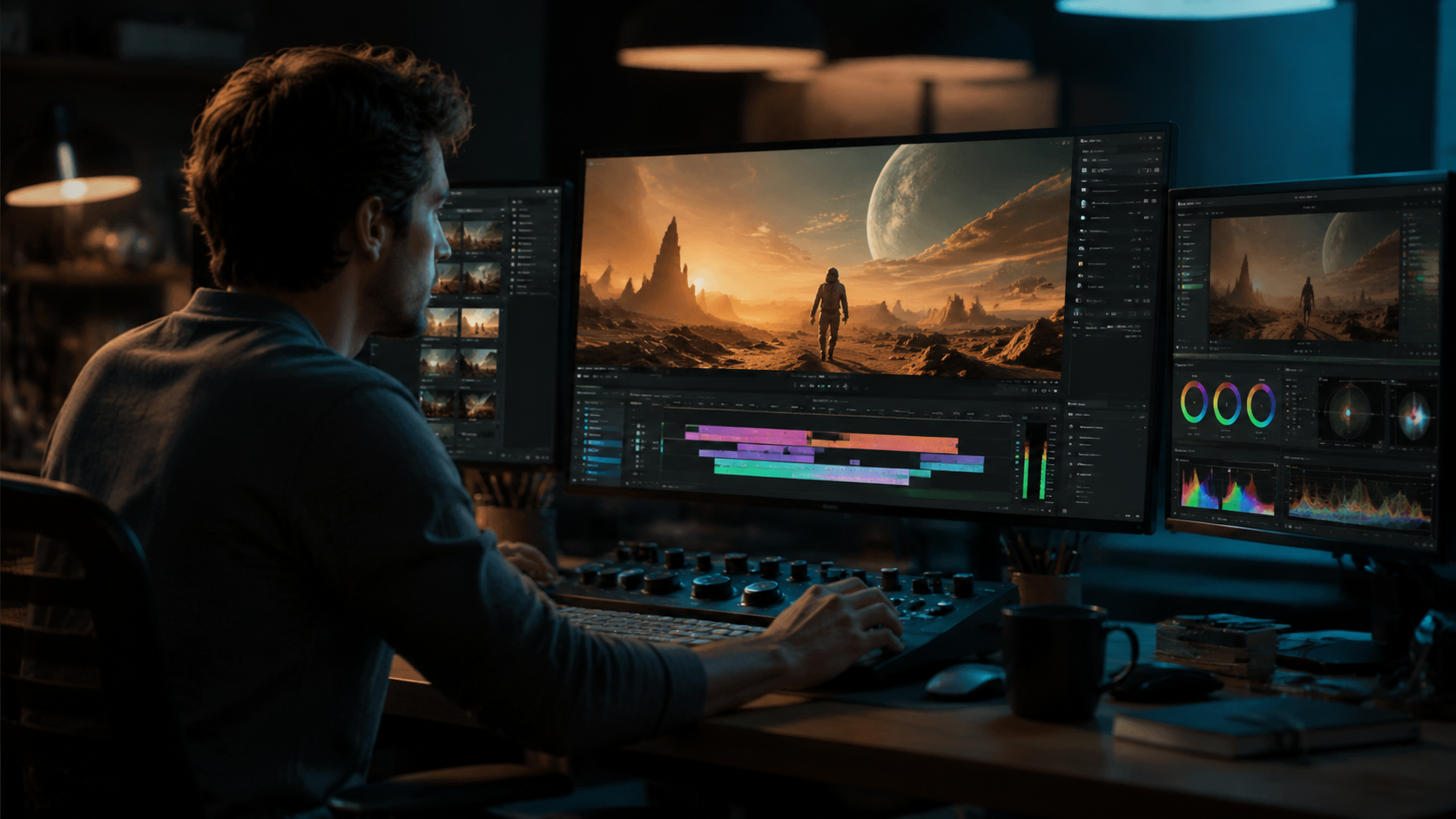
Follow this numbered workflow to turn raw AI clips into polished videos. These steps incorporate the latest tools and best practices.
- Import and Inspect the Raw AI Output
Start by loading your AI-generated clips into your editing timeline—whether in Premiere Pro, Google Vids, or a Chinese AI platform like Kling or Runway (though Runway is US-based). Look for common artifacts: flickering textures, objects that morph unnaturally, or background inconsistencies. Mark these with timeline notes. - Stabilize and Retime
AI footage often has micro-jitters or unnatural motion. Use the Warp Stabilizer in Premiere Pro or Google Vids’ built-in stabilization. Then adjust speed ramps to smooth out pacing—AI models often produce uniform motion that feels robotic. Add speed changes to mimic human camera work. - Remove Unwanted Elements with AI-Powered Inpainting
Use Adobe Firefly’s generative fill for video (available in Premiere Pro 2026) to remove stray objects or fix artifacts. For example, if an AI-generated character has an extra finger, draw a mask and let Firefly reconstruct the area. For free alternatives, Google Vids offers a similar “magic erase” feature. - Color Grade with AI Assist
Adobe Premiere Pro’s 2026 update reinvented color for editors with AI-driven auto-color matching. Apply a LUT that matches your desired mood, then use the “Color Harmony” tool to adjust skin tones and shadows automatically. For Google Vids, use the “Smart Color” preset that analyzes scene content. - Add Sound Design and Voiceover
AI-generated video rarely includes synchronized audio. Record or generate a voiceover using tools like ElevenLabs (integrated into YouTube’s creative suite). Add ambient sound effects from libraries like Epidemic Sound. Ensure the audio matches the visual pacing—AI clips often have mismatched timing. - Export and Optimize for Platform
Finally, export at the highest resolution your source supports. For social media, use Google Vids’ one-click export presets for TikTok, YouTube Shorts, or Instagram. For long-form, use Premiere Pro’s “Match Source” settings. Always run a final quality check: play the video at 1.5x speed to catch remaining artifacts.
Essential Tools for Editing AI Footage in 2026
With so many options, a comparison helps you choose the right tool for your workflow. Below is a table comparing the key features of the major platforms mentioned in our research.
| Tool | Key AI Editing Features | Cost | Best For |
|---|---|---|---|
| Adobe Premiere Pro + Firefly (2026) | Generative fill for video, AI color grading, auto-captioning, motion tracking with AI | Subscription ($22.99/month) | Professional editors who need deep control and high-quality output |
| Google Vids (2026) | Free browser-based editing, magic erase, smart color, AI scene generation, real-time collaboration | Free (with Google account) | Beginners, social media creators, and teams on a budget |
| YouTube Creative Tools (2025) | AI-powered “magic” enhancements, automatic music sync, thumbnail generation, video trimming with AI suggestions | Free (with YouTube account) | YouTube creators who want seamless integration with the platform |
| Chinese AI Video Platforms (e.g., Kling, Vidu) | Advanced text-to-video generation with fewer artifacts, built-in editing, style transfer | Varies (often per-credit or subscription) | Users who want the highest-quality AI generation before editing |
According to Cybernews (June 2026), the rise of AI video generators is changing content creation, so choosing the right editing tool is as important as the generation tool itself. For most editors, a hybrid workflow works best: generate with a Chinese AI platform for superior quality, then polish in Premiere Pro or Google Vids.
Common Challenges and Solutions When Editing AI Generated Footage
Inconsistent Character Appearance
AI models often struggle to maintain consistent character faces across multiple shots. To fix this, use Premiere Pro’s “Face Match” AI (part of Firefly) to align facial features across clips. Alternatively, in Google Vids, you can apply a consistent color grade to reduce visible differences.
Temporal Artifacts and Glitching
Flickering or “boiling” textures are common in AI video. Apply a temporal denoising filter in your NLE. Premiere Pro’s “Reduce Noise” effect (with AI enhancement) works well. For free users, Google Vids offers a “Smooth Motion” toggle that interpolates frames.
Resolution Mismatches
AI generators often output at lower resolutions (e.g., 1080p) while editors need 4K. Use AI upscaling tools like Topaz Video AI (external) or the built-in upscaler in Premiere Pro 2026. Google Vids does not yet support upscaling, so plan your output resolution before generating.
Narrative Disjointedness
AI footage may lack a logical story flow. Reorder clips manually, add B-roll from stock libraries, and insert title cards. Use YouTube’s “Magic Cut” tool (2025) to automatically trim awkward pauses.
Future-Proofing Your AI Video Workflow
As Adobe continues to extend its leadership in video (April 2026), expect more AI-powered features to become standard. The key to staying ahead is to embrace a modular workflow: generate, inspect, edit, and enhance. With Google Vids now free, there’s no barrier to entry for testing new techniques. Additionally, the Financial Times notes that Chinese AI groups are pulling ahead, so keep an eye on cross-platform compatibility—exporting footage from Chinese tools into Western editing suites may require format conversions.
Another trend: real-time collaboration. Both Google Vids and Adobe Premiere Pro now support cloud-based teamwork. When editing AI-generated footage, multiple editors can review and fix artifacts simultaneously. Finally, always verify authenticity. As Poynter reported (June 2026), AI-generated videos can be mistaken for real footage (e.g., the Kennedy Center hoax). Use metadata tools to watermark your AI clips and maintain transparency.
Frequently Asked Questions About Editing AI Generated Footage
What is the best software to edit AI generated footage in 2026?
Adobe Premiere Pro with Firefly AI offers the most advanced editing features, including generative fill and AI color grading. For a free alternative, Google Vids provides robust editing tools without cost. The choice depends on your budget and need for professional control.
Can I edit AI generated footage on a mobile device?
Yes, Google Vids is fully browser-based and works on mobile, though desktop is recommended for complex edits. Adobe also offers a mobile version of Premiere Rush, but it lacks the full Firefly AI integration.
How do I remove AI artifacts from video clips?
Use Adobe Firefly’s generative fill to mask and replace artifacts, or apply temporal denoising filters. For free, Google Vids’ magic erase tool can remove small unwanted objects. For severe artifacts, regenerate the clip with a different prompt.
Is it legal to edit and publish AI generated footage?
Yes, but you must ensure you have the rights to the generated content. Most AI platforms grant you ownership of the output, but always check the terms of service. Additionally, label AI-generated content clearly to avoid misleading viewers, as highlighted by the Poynter report on deepfakes.
What are the system requirements for editing AI footage in 2026?
For Adobe Premiere Pro, a modern GPU (NVIDIA RTX 4060 or higher) and at least 32GB RAM are recommended. Google Vids runs on any device with a modern browser. Chinese AI platforms may require a dedicated GPU for generation, but editing can be done on lower-end hardware.
How do I add voiceover to AI generated video?
Record a voiceover using a microphone and sync it manually, or use AI voice generation tools like ElevenLabs integrated into YouTube’s creative suite. Then align the audio track with the video timeline in your editor.



Comments ()