
How to Edit AI Generated Clips in 2026: Pro Guide
Editing AI-generated clips in 2026 is no longer a manual, timeline-heavy process—it’s a conversational, voice-controlled, and intelligent experience. To edit AI generated clips effectively, you now leverage tools like Google Gemini Omni Flash, which lets you trim, rearrange, and add effects simply by speaking, or Adobe’s Firefly-powered Premiere Pro, which automates color grading and transitions. This pro guide covers the exact workflows, top tools, and expert tips to turn raw AI footage into polished, platform-ready videos.
Editing AI generated clips in 2026 is the process of refining automatically produced video content using voice commands, conversational AI assistants, and intelligent editing suites. The latest tools—such as Google Gemini Omni and Adobe Firefly—allow you to cut, color-correct, add transitions, and adjust pacing through natural language prompts or one-click automation, dramatically reducing editing time.
- ✓ Voice-controlled editing is now mainstream: Google Gemini Omni Flash enables hands-free trims, cuts, and transitions.
- ✓ Adobe’s Quick Cut (February 2026) lets creators focus on ideas by automatically structuring raw AI clips into a rough cut.
- ✓ AI-powered color grading and audio enhancement are built into Premiere Pro via Firefly, saving hours of manual work.
- ✓ Conversational editing with Gemini Omni (May 2026) means you can chat with your editor to refine every scene.
- ✓ The best results come from combining AI automation with human oversight—especially for pacing, storytelling, and brand consistency.
Understanding the AI Video Editing Landscape in 2026
The past year has seen an explosion of AI-powered editing capabilities that fundamentally change how you approach post-production. According to Tech Times (May 28, 2026), Google Gemini Omni Flash “brings voice-controlled AI video editing to the future of conversational AI,” allowing you to say commands like “cut the last ten seconds” or “add a fade-in at the beginning” without touching a mouse. Meanwhile, Storyboard18 (May 20, 2026) reported that Gemini Omni “brings AI video generation and conversational editing,” meaning you can generate a clip from a text prompt and then immediately edit it using natural language.
Adobe has also pushed boundaries. In April 2026, the company announced new AI-powered creation tools in Firefly, along with a reinvention of color for editors in Premiere Pro. Earlier, in February 2026, Adobe introduced Quick Cut, a feature that “lets creators focus on ideas” by automatically identifying the best moments from AI-generated footage and assembling a rough cut. HP’s January 2026 report, “From Script to Screen: How AI Is Changing the Way Videos Are Made,” confirms that AI is now an integral part of every stage—from ideation to final export.
For anyone asking how to edit AI generated clips in this landscape, the answer lies in adopting a hybrid approach: use conversational AI for speed and automation, but apply human judgment for narrative flow and creative polish.
Step-by-Step Guide: How to Edit AI Generated Clips
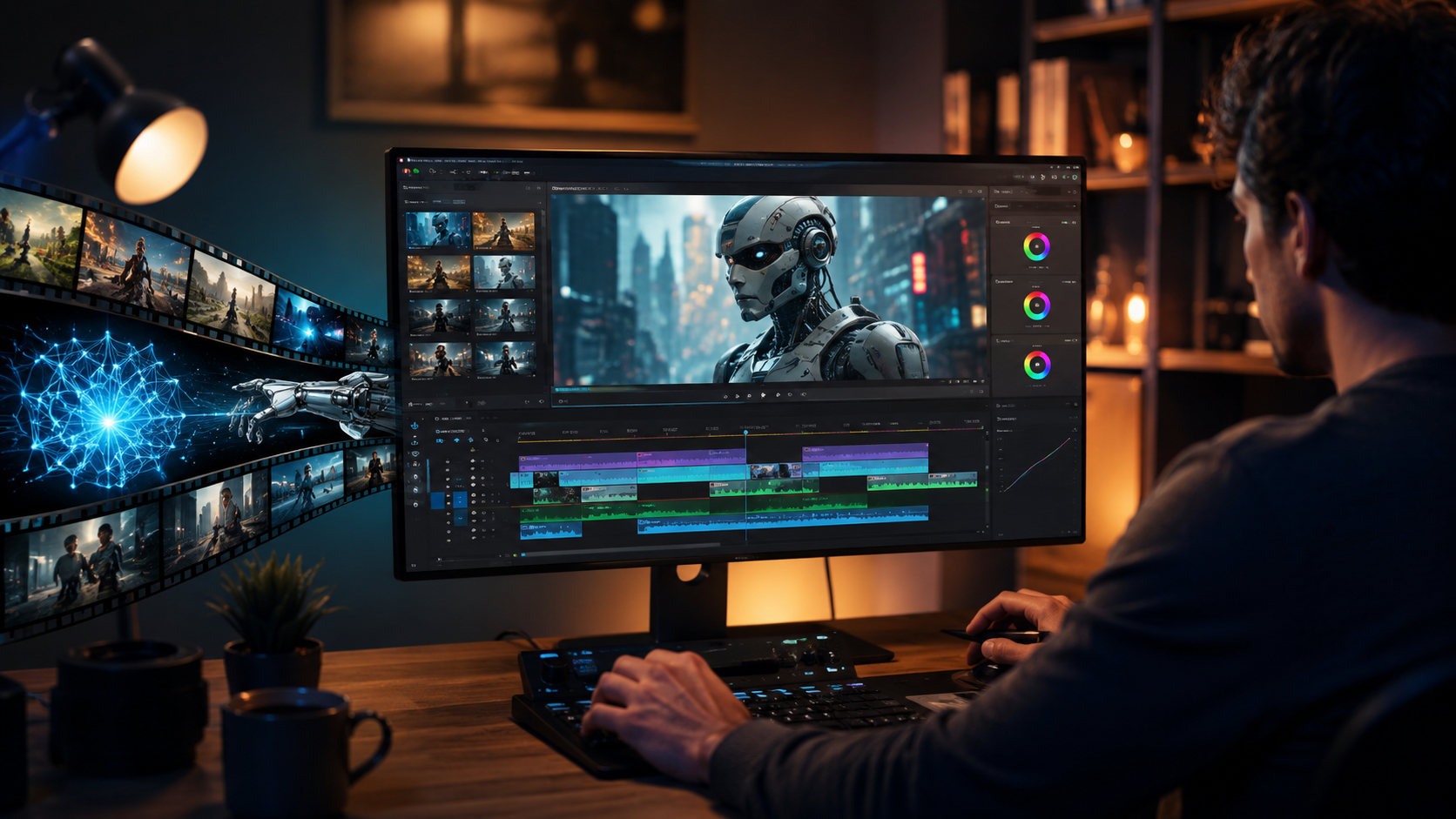
Below is a numbered, actionable workflow that incorporates the latest 2026 tools. Follow these steps to transform raw AI footage into a professional final product.
- Generate Your AI Clips with a Clear Prompt. Start by using a text-to-video generator (like Gemini Omni or another model) to produce your initial footage. Be specific about style, length, and visual elements—a well-crafted prompt reduces editing needs later.
- Import into Your Editing Suite. Load the AI-generated clips into a tool like Adobe Premiere Pro with Firefly extensions, or into Google Gemini Omni Flash’s editing interface. Many platforms now accept direct drag-and-drop from AI generation tools.
- Use Conversational Editing for Trimming and Arrangement. With Gemini Omni (launched May 2026), open the chat panel and type or speak commands. For example: “Remove the first three seconds and move the beach scene after the city scene.” The AI automatically adjusts the timeline.
- Apply AI-Powered Enhancements via Firefly or Quick Cut. In Premiere, activate Quick Cut (February 2026) to auto-detect the best takes and create a rough edit. Then use Firefly’s generative fill to add transitions, match color grades across clips, or even regenerate a specific frame that didn’t turn out well.
- Fine-Tune with Voice Commands and Manual Adjustments. Use Gemini Omni Flash’s voice control (Tech Times, May 2026) to say “Slow down this clip by 20%” or “Add a subtle blur to the background.” Then manually review the timeline for pacing, jump cuts, or audio syncing issues.
- Polish Audio and Color. Adobe’s April 2026 update to Premiere reinvented color for editors—use AI-driven color wheels that suggest palettes based on your scene’s mood. For audio, many tools now include AI voice leveling and noise reduction with a single click.
- Export in Platform-Optimized Formats. Finally, use AI presets to export directly for YouTube, TikTok, Instagram Reels, or your own site. Tools like Gemini Omni can even generate thumbnail suggestions based on the edited clip.
Top Tools for Editing AI Generated Clips in 2026
Choosing the right toolset is critical. The table below compares the leading options based on the latest research.
| Tool | Key Feature | Best For | Availability / Pricing |
|---|---|---|---|
| Google Gemini Omni Flash | Voice-controlled AI video editing; conversational timeline manipulation | Quick, hands-free edits on the go; generative and editing in one interface | Free tier available; premium subscription reported ~$19.99/month (as of May 2026) |
| Adobe Premiere Pro + Firefly | AI-powered Quick Cut; generative color and transitions; full NLE power | Professional editors who need deep control with AI assistance | Part of Creative Cloud ($54.99/month; Firefly included with subscription) |
| Adobe Quick Cut (standalone mode) | One-click rough cut assembly from your AI clips; focus on ideas not mechanics | Content creators who want speed without learning a full timeline | Available within Premiere Pro; future standalone app rumored |
According to Memeburn (May 24, 2026), “New Gemini Omni from Google: Edit Videos AI With Just a Chat” emphasizes that the tool’s strength is its natural-language interface. Meanwhile, Adobe’s April 2026 announcement reaffirms their commitment to “unleashing new AI-powered creation in Firefly.” For most pros, a combination of Gemini Omni for initial rough cuts and Premiere Pro for final polish yields the best results.
Pro Tips for Polishing AI-Generated Footage
Leverage Voice-Controlled Editing
The biggest productivity leap in 2026 is voice control. When editing AI clips, try using Gemini Omni Flash’s “undo” command to revert mistakes instantly, or say “loop this section three times” to create a montage. Voice commands reduce cognitive load and let you focus on the story rather than the interface. Always speak clearly and use specific timestamps (e.g., “from 0:12 to 0:18”) for best accuracy.
Optimize for Platform-Specific Formats
AI-generated clips often come in a generic 16:9 ratio. Use your editor’s AI cropping tool to automatically reframe for vertical (TikTok, Reels) or square (LinkedIn) formats. Adobe’s Firefly can detect the main subject in each frame and keep it centered during a crop. Gemini Omni Flash even suggests a “format switch” when it detects the clip’s intended purpose.
Review and Override AI Suggestions
While tools like Quick Cut are excellent for first drafts, they sometimes miss narrative nuance. Watch the rough cut at least twice: once for technical quality (audio sync, color consistency) and once for emotional impact. Manually adjust any cut that feels jarring or doesn’t match your brand’s voice. According to HP’s January 2026 report, “AI is changing the way videos are made,” but “human creativity remains the crucial differentiator.”
Common Challenges and How to Overcome Them
Timing and Pacing Issues
AI-generated clips often have uneven pacing—scenes may linger too long or cut too abruptly. To fix this, use Gemini Omni’s conversational command “Speed ramp this clip from normal to slow over 2 seconds” or manually adjust the timeline in Premiere. Adobe’s Quick Cut can auto-detect dead air and suggest trims.
Inconsistent Visual Style
When you generate clips from different prompts or models, colors and lighting might not match. Apply Adobe Firefly’s “Match Color Across Scene” feature, which analyzes a reference clip and propagates its grade to all other clips. Alternatively, use Gemini Omni’s “Unify style” voice command to apply a preset LUT to the entire project.
Audio Desync and Glitches
AI-generated video can sometimes have delayed audio or synthetic voice artifacts. In Premiere, use the “Auto-Sync Audio” tool that aligns waveform peaks. For voiceover glitches, Gemini Omni Flash can regenerate a short segment when you say “Replace this section of narration with a clearer version.” Always preview audio on headphones before final export.
The Future of AI Video Editing
As of mid-2026, the trend is clearly toward fully conversational editing. Google’s Gemini Omni and Gemini Omni Flash are pioneering “just a chat” interactions, while Adobe continues to embed AI deeply into its professional ecosystem. We can expect even tighter integration between generation and editing—perhaps a single tool that creates your clip, edits it to your spoken specifications, and exports it in one fluid process. The key takeaway for anyone learning how to edit AI generated clips is to stay adaptable: learn the voice commands, experiment with auto-assembly features, and always keep a human touch on the final render.
Frequently Asked Questions About Editing AI Generated Clips
What is the easiest way to edit AI generated clips in 2026?
The easiest method is using a conversational AI editor like Google Gemini Omni Flash. You can simply say “trim the end” or “add a transition here,” and the tool makes the change instantly—no timeline skills required.
Can I edit AI clips with just my voice?
Yes. Thanks to Google Gemini Omni Flash, which Tech Times (May 2026) describes as “voice-controlled AI video editing,” you can perform cuts, speed changes, and effect additions entirely by speaking. Most commands work in real time.
Do I still need Adobe Premiere Pro for professional edits?
For complex projects involving multi-track audio, custom keyframing, or brand-specific color grading, Premiere Pro with Firefly remains the gold standard. However, for quick edits and social media clips, Gemini Omni alone is sufficient.
How does Adobe Quick Cut work?
Announced in February 2026, Quick Cut analyzes your AI-generated clips to identify the best parts—based on motion, audio clarity, and visual composition—and automatically assembles a rough cut. You can then refine it with AI tools or manual tweaks.
What are the best settings for exporting AI-edited videos?
Most AI editors offer presets. For YouTube, use 1080p at 30fps with H.264 codec. For TikTok, vertical 9:16 at 1080x1920. Gemini Omni Flash can suggest optimal settings based on your platform. Always preview before export to catch compression artifacts.
Is AI editing expensive?
Google Gemini Omni Flash has a free tier with basic editing; premium voice control starts around $19.99/month. Adobe Creative Cloud with Premiere Pro and Firefly is $54.99/month. Freelancers can save by using Gemini for rough work and only subscribing to Premiere for final delivery.



Comments ()