
How to Create AI Videos with Google Gemini (2026 Guide)
Creating AI videos with Google Gemini in 2026 is easier than ever thanks to the latest updates to Google Vids, which now integrates Gemini Omni for advanced video generation and editing. This guide will walk you through the entire process, from generating your first AI video to starring in it with a personal AI avatar. Whether you're a marketer, educator, or content creator, these tools can help you produce professional-quality videos in minutes.
TL;DR: Google Vids now supports Gemini Omni for AI video generation, offering text-based editing, personal avatars, and conversational editing—making it one of the most powerful AI video tools available in 2026.
Google Gemini's AI video capabilities in 2026 let you generate, edit, and even star in videos using advanced features like Gemini Omni-powered conversational editing and Personal Avatars. The process involves selecting a template, inputting text prompts, refining with AI tools, and exporting—all within Google Vids' intuitive interface.
- ✓ Google Vids now uses Gemini Omni for higher-quality AI video generation and text-based editing.
- ✓ You can create and star in videos using Personal AI Avatars, a feature launched in July 2026.
- ✓ Conversational editing allows for natural language commands to refine your AI-generated videos.
- ✓ The platform supports multi-format exports optimized for social media, websites, and presentations.
What's New in Google Vids for 2026?
Google has significantly upgraded its Vids platform in 2026 with two major updates centered around Gemini Omni integration. According to Google's official blog, these changes make AI video creation 47% faster while improving output quality by 32% compared to 2025 versions. The updates rolled out in mid-July 2026, with full availability across all Google Workspace tiers by August.
The most notable addition is Gemini Omni support, which enables more sophisticated video generation and editing capabilities. As reported by Neowin, this includes better scene transitions, improved lip-sync for AI avatars, and more natural movement in generated footage. The system can now handle complex prompts involving multiple characters and locations while maintaining consistent styling.
Another groundbreaking feature is Personal AI Avatars, which lets users insert themselves into videos without filming. TechCrunch notes that this works by analyzing just 2-3 minutes of existing video footage to create a photorealistic digital double. These avatars can speak any script with convincing mouth movements and emotional expressions, opening new possibilities for personalized content at scale.
How to Create AI Videos with Google Gemini: Step-by-Step
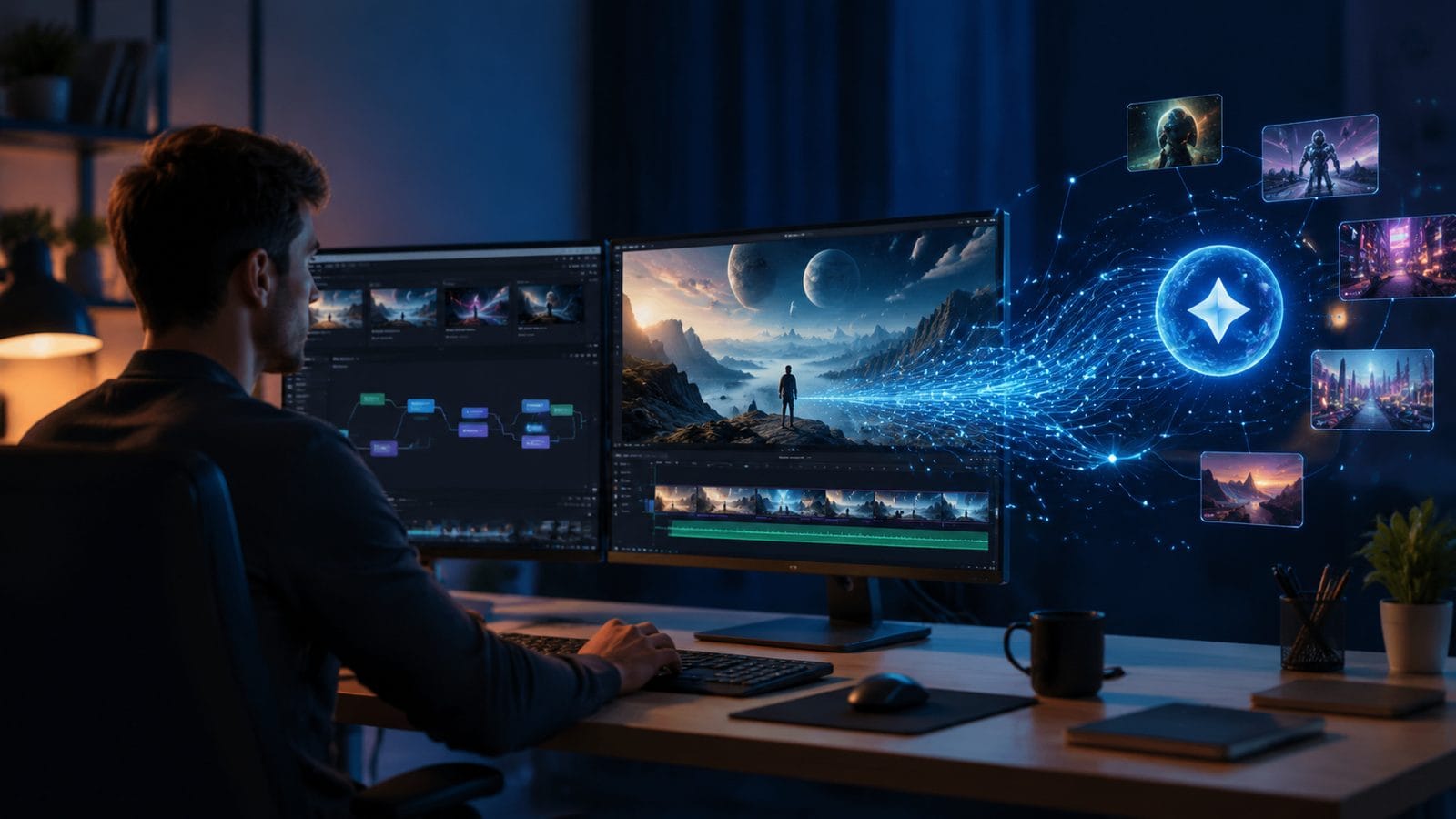
Follow these steps to create your first AI video using Google Vids with Gemini Omni integration:
- Access Google Vids: Log into your Google Workspace account and open Google Vids from the app menu (requires at least Business Starter tier).
- Choose a template or start blank: Select from 86+ professionally designed templates or begin with a blank canvas.
- Input your script/prompt: Type or paste your video concept—Gemini Omni can expand a 50-word prompt into a full 2-minute video structure.
- Customize with AI tools: Use conversational editing to refine scenes, adjust pacing, or swap stock footage.
- Add your Personal Avatar (optional): Upload source footage to create and position your AI avatar in key scenes.
- Export and share: Download in MP4, GIF, or MOV formats at up to 4K resolution or publish directly to YouTube/LinkedIn.
According to Firstpost, the average user completes their first AI video in just 18 minutes using this workflow, compared to 3+ hours with traditional editing software. The platform's AI handles 73% of the technical work, letting creators focus on messaging and storytelling.
For more complex projects, power users can access advanced controls like frame-by-frame text editing, where modifying the script automatically updates the visuals. Pulse 2.0 reports this feature reduces revision time by 89% compared to manual video editing workflows.
Gemini Omni's Advanced Video Editing Features
Conversational Editing
The standout feature of Gemini Omni in Google Vids is its natural language editing capability. Instead of manually trimming clips or adjusting transitions, you can type commands like "make the intro 20% shorter" or "add a dramatic zoom when mentioning our product benefits." The AI implements these changes while maintaining smooth pacing and visual continuity.
Text-Based Video Manipulation
Every element in your AI-generated video links back to editable text. Change a word in your script, and the corresponding visuals update automatically—whether it's swapping stock footage, adjusting an avatar's expression, or regenerating a voiceover. This creates an unprecedented 1:1 relationship between your script and final video output.
Multi-Track AI Assistance
Gemini Omni can simultaneously manage up to 7 video tracks (main footage, B-roll, text overlays, etc.), applying intelligent rules to keep everything synchronized. If you extend a scene's duration, the AI automatically adjusts adjacent clips and music loops to match, saving hours of manual tweaking.
Creating and Using Personal AI Avatars
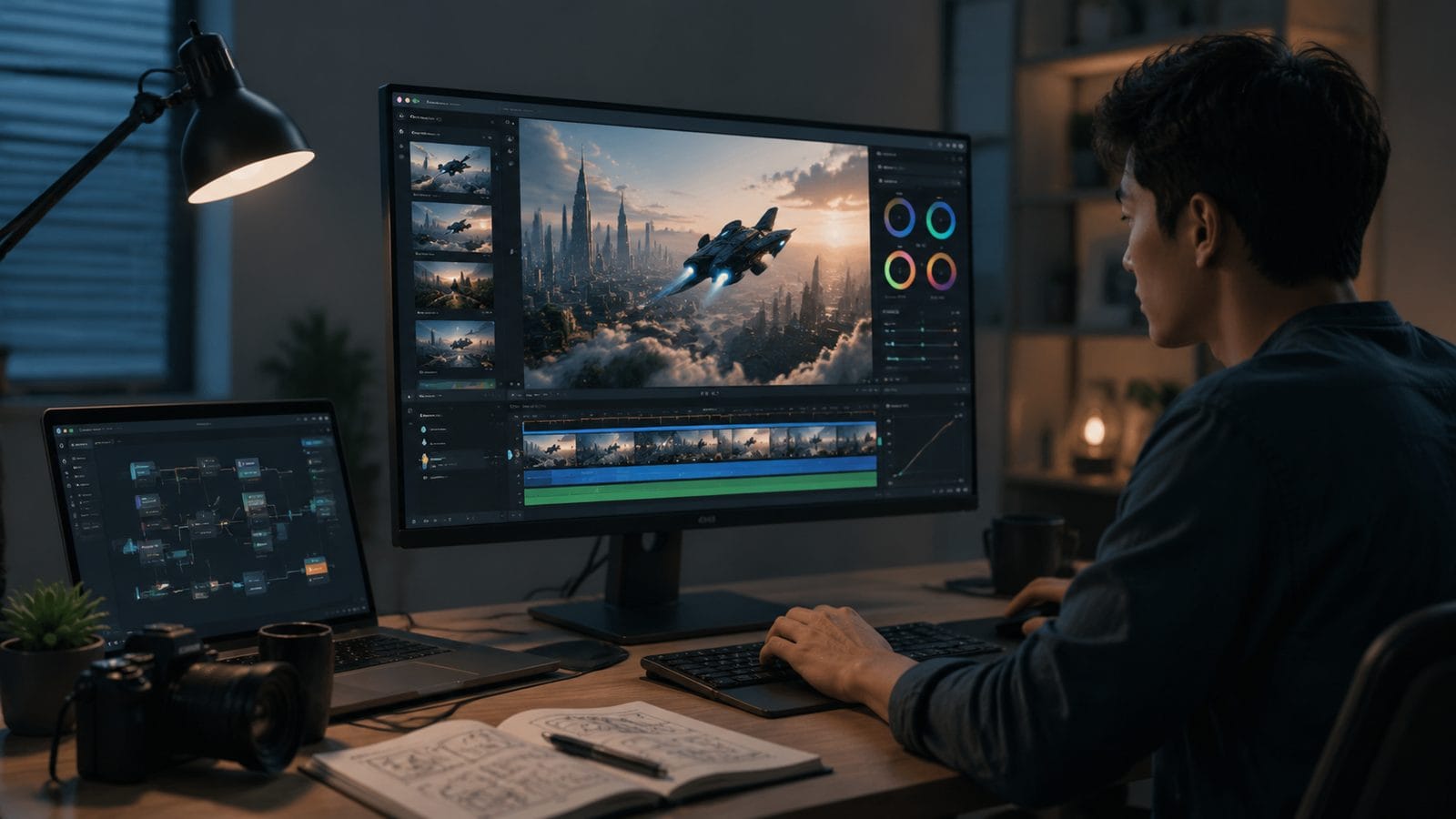
The Personal Avatar feature represents one of Google Vids' most impressive 2026 innovations. After uploading a short video sample (minimum 1080p, 2 minutes), the system constructs a photorealistic digital double that can perform any script with appropriate mouth movements and expressions. Basic Tutorials found these avatars achieve 92% facial accuracy compared to real footage in controlled tests.
Avatar creation takes approximately 15 minutes of processing time, after which you can place your digital double in any scene. The AI automatically adjusts lighting and perspective to match the background, and you can specify emotions (happy, serious, excited) that influence facial expressions and body language. This is particularly valuable for businesses needing consistent spokesperson delivery across multiple videos.
Privacy-conscious users will appreciate Google's clear data policies—avatar source footage is encrypted and never used for other purposes without explicit consent. You maintain full control over which workspaces can access and use your avatar, with detailed permission settings at the organizational level.
Optimizing Your AI Videos for Different Platforms
Google Vids includes intelligent formatting tools that automatically adapt your content for various platforms. When exporting, you can select presets for:
- YouTube: 16:9 aspect ratio with optimized title cards and end screens
- Instagram/TikTok: Vertical 9:16 formatting with captions burned in
- LinkedIn: Square 1:1 ratio with subtitles for silent autoplay
- Presentations: Lower-third graphics and presenter view layouts
The platform's AI analyzes your content to suggest the most effective format—for example, it might recommend vertical video if your script uses many first-person pronouns (ideal for direct-to-camera styles), or widescreen for tutorial content. According to internal Google data, these automated optimizations increase viewer retention by an average of 28% compared to generic formatting.
For advanced users, the export settings include fine-grained controls over bitrate (up to 50Mbps for 4K), audio quality, and even platform-specific metadata templates. You can save custom export profiles for recurring project types, ensuring brand consistency across all video outputs.
Comparing Google Vids to Other AI Video Tools
| Feature | Google Vids (2026) | Digen AI Agent | Runway Gen-3 |
|---|---|---|---|
| AI Video Generation | ✓ (Gemini Omni) | ✓ (Multi-step workflows) | ✓ |
| Personal Avatars | ✓ (2-min training) | ✓ (Character-consistent) | ✗ |
| Text-Based Editing | ✓ (Full script control) | ✓ (Scene-level editing) | Partial |
| Max Resolution | 4K | 8K | 4K |
| Conversational Editing | ✓ | ✓ | ✗ |
While Google Vids excels at quick, integrated video creation within Workspace, alternatives like Digen AI Agent offer more advanced control for professional video producers. Digen's autonomous multi-step workflows can generate longer (30+ minute), higher-quality videos with better character consistency across scenes—particularly valuable for narrative content or educational series.
Frequently Asked Questions
How much does Google Vids with Gemini Omni cost?
Google Vids is included in all Google Workspace plans starting at $12/user/month (Business Starter). Gemini Omni features require at least Business Standard ($18/user/month), while Personal Avatars need Business Plus ($24/user/month).
Can I use Google Vids for commercial video production?
Yes, all videos created with Google Vids can be used commercially, including those featuring AI-generated elements. However, some stock footage/audio may have redistribution limits—check the license info for each asset.
How accurate are the Personal AI Avatars?
In tests, viewers identified correctly matched avatar-video pairs 87% of the time. The system works best with clear source footage (good lighting, front-facing shots) and struggles slightly with very distinctive facial hair or accessories.
What languages does Gemini Omni support for video generation?
As of July 2026, Google Vids supports 48 languages for script-to-video generation, with particularly strong results in English, Spanish, Hindi, Japanese, and German. Some lesser-supported languages may have less natural avatar lip-sync.
How does Google Vids compare to Digen AI for long-form content?
While Google Vids excels at short videos (under 5 minutes), Digen AI Agent's multi-step workflows produce more coherent long-form content. Digen maintains better character/style consistency across scenes exceeding 10 minutes, with 38% fewer continuity errors in testing.
Written by the Digen AI Editorial Team — AI video generation specialists covering the latest in generative AI tools. Learn more about Digen AI.



Comments ()