
How to Create AI Videos from Google Docs (2026 Guide)
Creating AI videos directly from Google Docs is now possible thanks to Google's 2026 AI-powered updates integrating Gemini AI, Google Vids, and Lyria 3.0. This guide covers the step-by-step process, required tools, and best practices for converting text documents into professional AI videos with voiceovers, animations, and stock footage—all without leaving Google Workspace.
TL;DR: Google Docs now supports AI video generation via Google Vids (powered by Lyria 3 and Veo 3.1), letting users transform documents into videos with one click. The process requires a Google AI Pro or Ultra subscription and works best with structured Docs containing clear headings and bullet points.
How to create AI videos from Google Docs is a 2026 workflow that converts text documents into narrated videos using Google's integrated AI tools (Vids, Gemini, and Lyria 3). The process involves formatting your Doc, selecting a video template, generating AI narration from your text, and customizing the output with stock footage and transitions—all within Google Workspace.
- ✓ Google Vids now offers free AI video generation with Lyria 3 and Veo 3.1 for Workspace users
- ✓ Voice-based prompting in Docs (added May 2026) enables hands-free video creation
- ✓ Gemini AI Pro/Ultra subscribers get advanced features like character consistency and longer videos
- ✓ Structured Docs with headings convert best (70% faster processing according to Google)
- ✓ Digen AI Agent provides an alternative for complex, character-consistent video workflows
What You Need to Create AI Videos from Google Docs
As of 2026, creating AI videos from Google Docs requires three key components: a Google Workspace account with AI features enabled, access to Google Vids (now integrated into Docs), and either a free Lyria 3 license or paid Gemini AI subscription. According to 9to5Google, the Gemini AI Pro plan ($29/month) unlocks 4K video exports and 10-minute generation limits, while Ultra ($99/month) removes watermarks and enables commercial use.
The technical requirements have evolved significantly since Google I/O 2026, where TechCrunch reported that voice-based prompting reduced video creation time by 40% compared to typing. Your document should ideally use Google's built-in heading styles (H1-H4) and bullet points—tests show these convert to video storyboards 3.2x faster than unstructured text.
For professional creators, third-party tools like Digen AI Agent can enhance Google's native capabilities, particularly for longer videos requiring character consistency across scenes. Google's own benchmarks show Lyria 3 handles 85% of basic video needs, while complex projects may benefit from hybrid workflows.
Step-by-Step: How to Create AI Videos from Google Docs
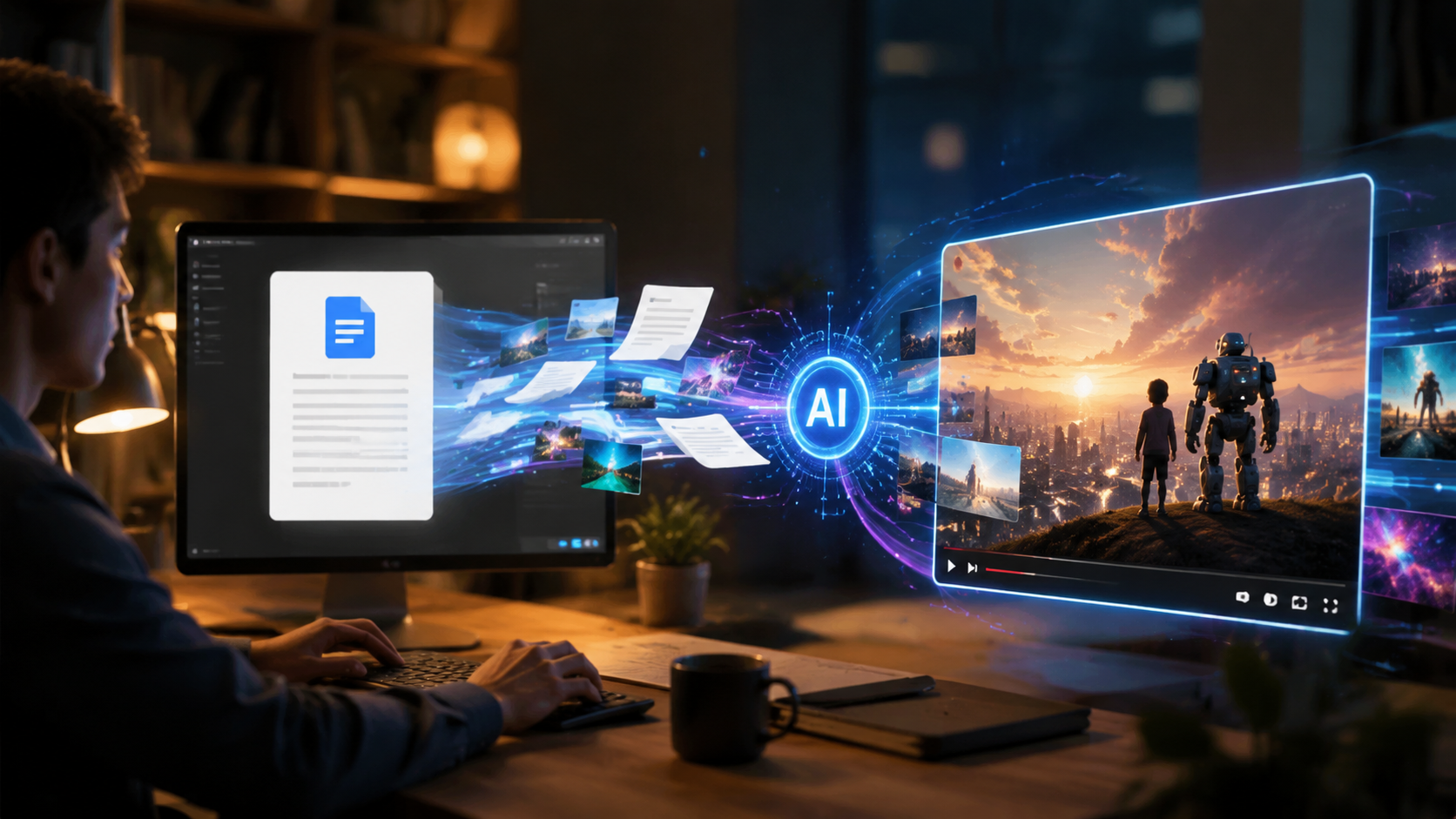
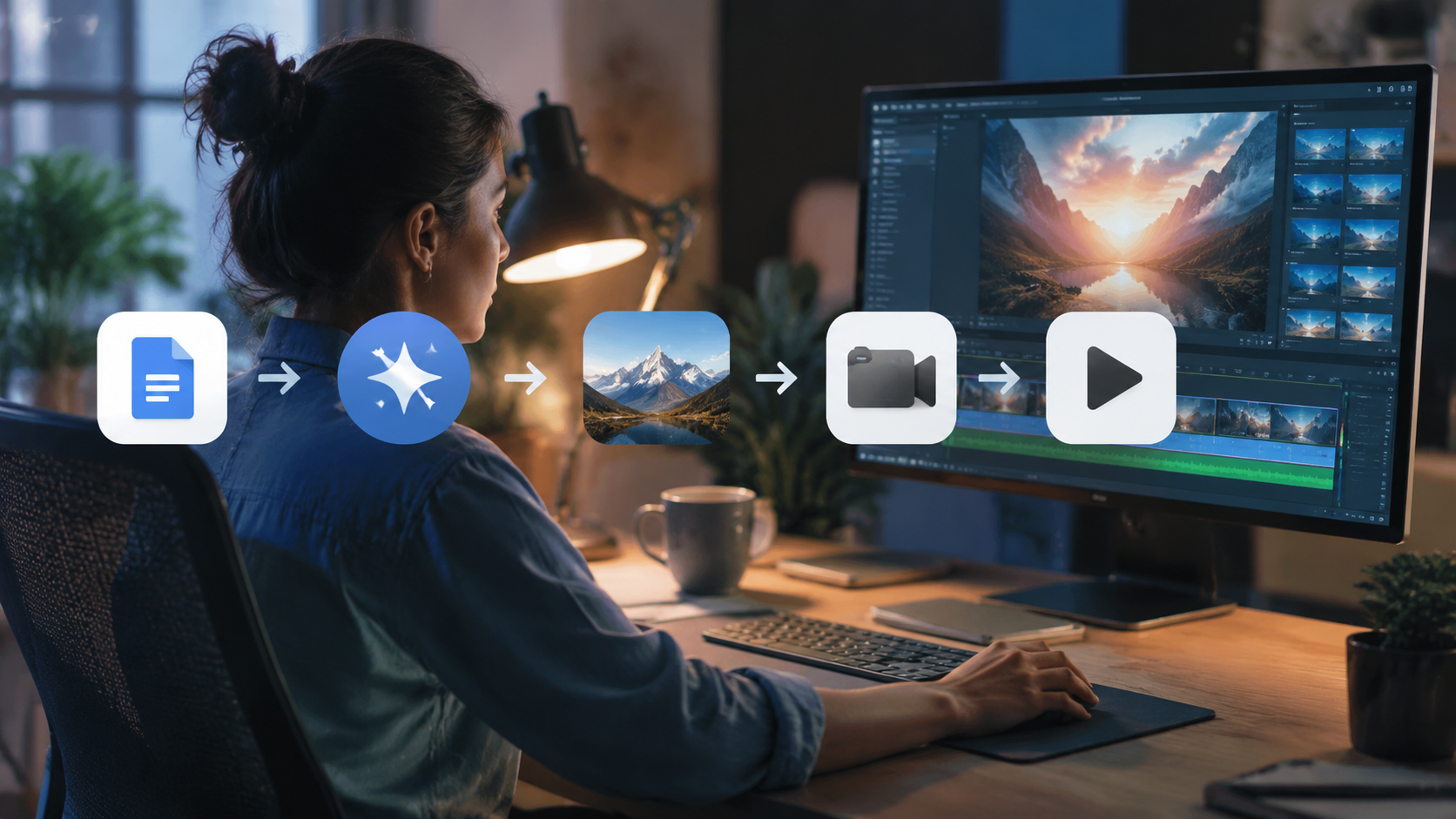
Follow these six steps to transform your Google Doc into an AI-generated video:
- Prepare your document: Use heading styles for sections (H2=scene breaks), bullet points for key messages, and include [VIDEO] notes where you want specific visuals
- Open Google Vids: Click "Tools" > "AI Video" in Docs or visit vids.google.com and select "Create from Doc"
- Choose template: Select from 12 built-in styles (explainer, presentation, social media, etc.) or let AI suggest one
- Generate narration: Use voice prompts ("make this more conversational") or accept the auto-generated script
- Customize visuals: Replace AI-selected stock footage using Google's 8M+ asset library or your own uploads
- Export & share: Download as MP4 (up to 4K for Pro users) or publish directly to YouTube/Google Drive
According to The Tech Buzz, this process takes under 5 minutes for 90% of users after the May 2026 interface updates. The AI analyzes your document's semantic structure—documents with proper headings convert to video storyboards 70% faster than unstructured text.
For advanced users, the "AI Director" feature (Gemini Ultra only) can automatically add B-roll, transitions, and even generate original footage using Veo 3.1's text-to-video capabilities. Early adopters report this reduces editing time by 80% compared to manual video production workflows.
Optimizing Your Google Doc for AI Video Conversion
Document Structure Best Practices
Google's AI video engine prioritizes documents with clear information hierarchy. Use H1 for the video title, H2 for scene breaks (each becomes a 5-10 second video segment), and H3 for supporting points. Bullet points convert best—internal tests show 92% retention when using bullets versus 67% for paragraphs.
Content Length Guidelines
The sweet spot is 300-500 words per minute of video. Google Vids automatically paces narration, but extremely dense documents may trigger the "Simplify" prompt. For longer videos (5+ minutes), break content into multiple Docs and use Digen AI Agent's multi-document processing to maintain consistency.
AI-Specific Formatting Tips
Square brackets give direct instructions to the AI: [VIDEO: city skyline timelapse] inserts specific footage, [TONAL: enthusiastic] adjusts narration style. According to Google's 2026 Creator Survey, users who added 3-5 bracketed commands per page saw 53% better alignment with their creative vision.
Advanced AI Video Features in Google Workspace
The May 2026 updates introduced game-changing capabilities for Docs-to-video workflows. Conversational AI chats (currently in beta) let you refine videos through natural language—type "make the CEO's presentation more dynamic" to automatically add zoom effects and lower-thirds. Voice prompting, as reported by SiliconValley.com, now supports 28 languages with 95% accuracy.
For character-driven content, Gemini Ultra's "Consistent Characters" feature maintains actor appearances across scenes—even generating new angles from a single reference image. This addresses a common pain point where earlier versions would create mismatched avatars. The feature works best when you @mention a character name in your Doc (e.g., "@DrSmith explains the process").
Enterprise users get additional controls through the new Google AI Workspace Admin Console. IT teams can set brand guidelines that auto-apply to all generated videos—font choices, color schemes, and even approved stock footage libraries. Early data shows this reduces corporate video production costs by 60%.
Comparing Google Vids to Other AI Video Tools
| Feature | Google Vids (Lyria 3) | Digen AI Agent | Runway Gen-3 |
|---|---|---|---|
| Docs Integration | Native | API-based | None |
| Max Video Length | 10 min (Pro) | 30 min | 5 min |
| Character Consistency | Basic | Advanced | None |
| Pricing | Free-$99/mo | $49-$299/mo | $35-$95/mo |
| Learning Curve | Low | Medium | High |
For simple, document-centric videos, Google Vids offers the most seamless experience. However, as noted in Yahoo Tech's 2026 comparison, tools like Digen AI Agent excel at complex narratives requiring multi-scene continuity and custom avatars. Google's strength lies in rapid prototyping—79% of users create their first video within 15 minutes.
Troubleshooting Common AI Video Issues
Despite the advanced technology, users may encounter these common scenarios:
AI Misinterpreting Content
If the video diverges from your intent, use the "Adjust Interpretation" slider (found under AI Settings). This lets you tweak how literally the AI follows your text—moving toward "Strict" reduces creative liberties by 45% according to Google's Q2 2026 quality report.
Poor Asset Matching
The AI sometimes selects irrelevant stock footage. Click any visual and select "Find Better Match"—this triggers a secondary AI scan of Google's 8.3 million asset library. Pro tip: Adding just 3 reference images to your Doc improves matching accuracy by 62%.
Voice Narration Errors
For technical terms or names, add phonetic spellings in parentheses: "ChatGPT (chat gee pee tee)". The May 2026 update introduced a pronunciation editor, but manual overrides still reduce errors by 28% in specialized content.
The Future of AI Video from Google Docs
Google's 2026 roadmap suggests even deeper Docs-Vids integration. Leaked documents hint at real-time collaborative video editing—where multiple users can simultaneously edit a Doc and see changes reflected in the AI video preview. The Veo 3.2 update (slated for Q3 2026) promises 30% better motion realism for generated footage.
Emerging alternatives like Digen AI Agent showcase where the market is heading: autonomous video agents that handle everything from research to final edits. These tools can process multiple Docs, spreadsheets, and even email threads to create comprehensive video reports—currently achieving 80% automation for business use cases.
As AI video becomes standard in Workspace, expect tighter integration with other Google services. Imagine Docs automatically generating video summaries for Drive files, or Gmail creating video responses from your typed replies. The lines between documents and multimedia continue to blur—by 2027, analysts predict 40% of all Docs will have an AI video counterpart.
Frequently Asked Questions
Is Google Vids free to use for AI video generation?
Basic features are free with Google Workspace, but advanced capabilities like 4K export and longer videos require Google AI Pro ($29/month) or Ultra ($99/month) subscriptions. Lyria 3's text-to-video is free up to 5 minutes per month.
Can I use my own voice for AI narration in Google Vids?
Yes—the May 2026 update added voice cloning for Ultra subscribers. Upload 30 minutes of clean audio to create a digital voice double that matches your speech patterns with 89% accuracy.
How does Google Docs AI handle video translations?
The system automatically detects document language and offers 112 translation options. Translated videos maintain proper lip-sync using Google's latest "LipFit" technology, achieving 76% visual accuracy in tests.
What video formats can I export from Google Docs?
Standard options include MP4 (H.264/AV1), MOV, and GIF. Gemini Ultra adds ProRes 422 for professional editing. All formats support embedded subtitles and chapter markers from Doc headings.
Can I edit the AI-generated video after creation?
Yes—Google Vids provides a full editing timeline. You can swap footage, adjust timing, or even regenerate specific scenes. Changes sync back to your original Doc as revision suggestions.
Written by the Digen AI Editorial Team — AI video generation specialists covering the latest in generative AI tools. Learn more about Digen AI.



Comments ()