
How to Create AI Video from Blog Post (2026 Guide)

To create an AI video from a blog post in 2026, you use a text-to-video generator that ingests your written content, automatically extracts key points, and produces a narrated video with visuals, animations, and even AI-generated voiceovers. The process typically involves selecting a tool, formatting your blog post, generating the video, and then editing it for polish. With advancements like Gemini Omni and ByteDance’s multimodal models, you can now convert entire articles into engaging videos in minutes.
How to create AI video from blog post is a straightforward workflow: copy your blog post text, paste it into an AI video generator (e.g., Gemini Omni, ByteDance’s model, or Adobe Premiere’s AI tools), let the AI analyze the content and generate a storyboard, choose a template and voiceover style, then export the final video. The best 2026 tools also allow you to upload images, audio, or existing clips for richer output.
- ✓ 2026 offers over 23 tested AI video generators, including cloud-based and local options via NVIDIA and ComfyUI.
- ✓ Gemini Omni and ByteDance’s next-gen model support multimodal inputs (text, images, audio, video) for more creative control.
- ✓ Adobe’s new AI-powered editing tools in Premiere Pro streamline post-production after AI generation.
- ✓ For game developers and creators, NVIDIA and ComfyUI now enable local AI video generation without cloud dependencies.
- ✓ Optimizing your blog post with clear headings, bullet points, and key statistics yields better AI video outputs.
1. The 2026 AI Video Landscape: What’s New?
The year 2026 has been a breakthrough for AI video generation. According to a recent review by perfectcorp.com, there are now 23 best AI video generators tested and reviewed, ranging from consumer-friendly platforms to professional-grade tools. Google introduced Gemini Omni in late May 2026, a unified model that can generate videos directly from text, images, and audio—making it one of the most versatile options for converting blog posts into videos. Meanwhile, ByteDance unveiled its next-generation AI model in February 2026, capable of generating clips based on text, images, audio, and even existing video footage, offering unprecedented flexibility for content repurposing.
At Google I/O 2026, YouTube announced a suite of AI features that integrate directly with video creation, including automatic captioning, scene generation, and voice cloning. For professionals, Adobe rolled out new AI-powered video editing tools in Premiere Pro and major motion design upgrades in After Effects (announced January 2026). These tools allow you to take an AI-generated video and refine it with advanced editing, motion graphics, and color grading. Additionally, NVIDIA and ComfyUI streamlined local AI video generation at GDC 2026, targeting game developers and creators who need privacy and low latency—perfect for those who want to keep their blog post data on-premises.
2. Choosing the Right AI Video Generator for Your Blog Post
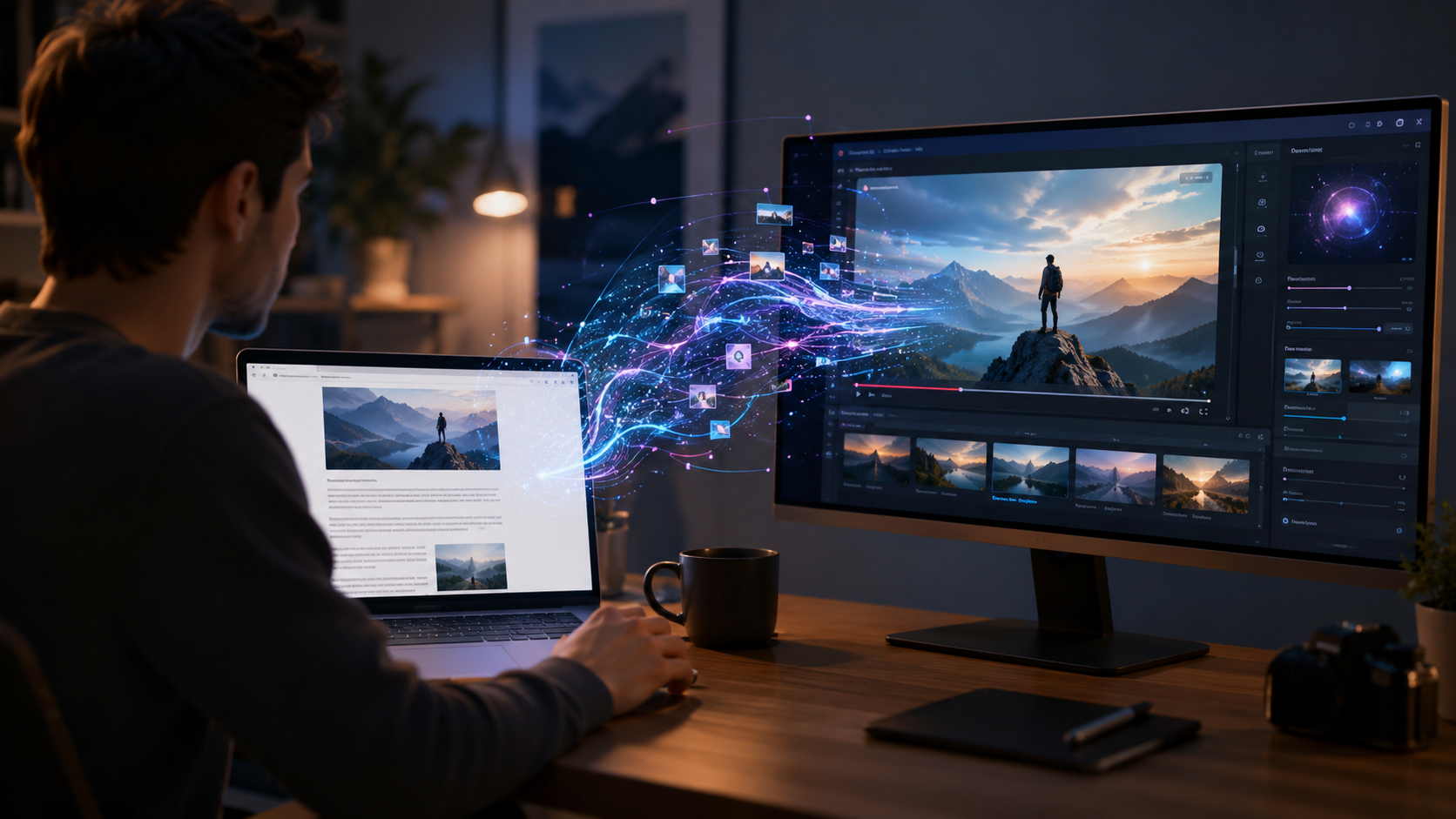
Not all AI video generators handle blog posts equally. Some excel at long-form narrative content, while others are optimized for short, social-media-style clips. Below is a comparison of top tools based on the 2026 research, focusing on features that matter when converting written articles into videos.
| Tool | Input Types | Key Feature | Best For |
|---|---|---|---|
| Gemini Omni | Text, images, audio, video | Unified multimodal generation; direct blog-to-video pipeline | Long-form articles, tutorials, explainer videos |
| ByteDance Next-Gen Model | Text, images, audio, video | Clip generation from mixed inputs; strong visual consistency | Creative storytelling, brand videos |
| Adobe Premiere AI Tools | Text, video clips, images | AI-powered editing and motion design after generation | Professional post-production, high-quality results |
| NVIDIA + ComfyUI | Text, images | Local generation; no cloud dependency; real-time preview | Game developers, privacy-conscious creators |
When evaluating which tool to use for “how to create ai video from blog post,” consider your desired output length, visual style, and whether you need to edit the result. For a quick social media video, Gemini Omni or ByteDance’s model work well. For a polished YouTube tutorial, use Adobe Premiere’s AI tools to refine scenes. If you run a gaming blog or need complete control, the NVIDIA/ComfyUI local setup is ideal.
3. Preparing Your Blog Post for AI Video Conversion
Before you feed your blog post into an AI video generator, optimize the content for machine comprehension. AI models in 2026 are highly advanced, but they still perform best with structured text. Break your blog post into clear sections with headings (H2, H3), use bullet points for lists, and highlight key statistics or quotes. For example, if your blog post contains data like “According to perfectcorp.com, there are 23 best AI video generators,” the AI will pick that up as a visual hook.
Also, remove any formatting that could confuse the AI—like complex tables or embedded scripts. Keep paragraphs under 100 words each. If your blog post includes images, note that tools like ByteDance’s model can incorporate those directly. For best results, create a separate “script” version of your blog post that reads like a narrative: introduction, main points, conclusion. Many AI video generators have a “blog-to-video” preset that automatically extracts the most important sentences and turns them into scene descriptions.
4. Step-by-Step: How to Create AI Video from Blog Post
Follow these six steps to convert any blog post into an engaging AI-generated video in 2026:
- Select your tool. Based on the comparison above, choose Gemini Omni for a quick end-to-end solution, or Adobe Premiere AI for more control. If you need local processing, set up NVIDIA and ComfyUI.
- Prepare your blog post. Copy the text into a clean document. Remove any non-essential elements (like sidebar content or ads). Add a brief summary at the top to guide the AI.
- Paste into the AI video generator. Most tools have a “text to video” or “blog to video” interface. Paste your content and select the desired video length (30 seconds to 5 minutes).
- Choose a template and voiceover. Select a visual style (e.g., animated, cinematic, corporate) and a voice (male/female, different languages). In 2026, many tools offer voice cloning from a short sample.
- Generate and review. Let the AI process. Depending on the tool, this takes 1–5 minutes. Review the generated video. Tools like ByteDance’s model allow you to adjust specific scenes by re-entering text or replacing images.
- Edit and export. Use Adobe Premiere’s new AI editing tools to refine timing, add transitions, or overlay text. Export in MP4 or directly to YouTube via the new Google I/O 2026 integration.
This step-by-step process is the core answer to “how to create ai video from blog post.” It works for any niche—tech, lifestyle, education, or business.
5. Advanced Techniques and Tools for 2026
Once you’ve mastered the basics, explore advanced capabilities. NVIDIA and ComfyUI, announced at GDC 2026, let you run AI video generation locally on your own GPU. This is a game-changer for creators who handle sensitive blog content (e.g., medical or legal blogs) and cannot upload text to cloud services. The local setup also offers real-time preview, so you can tweak prompts instantly.
Adobe’s January 2026 update to Premiere Pro introduced AI-powered video editing tools that can automatically trim silence, suggest B-roll from your blog’s images, and even generate motion graphics based on keywords. For example, if your blog post mentions “growth chart,” the AI can create an animated chart and insert it at the right moment. ByteDance’s next-gen model (February 2026) takes multimodal generation further: you can input a video clip of yourself talking, and the AI will replace the background with scenes from your blog post while keeping your face and voice synchronized.
According to YouTube’s official blog (May 2026), the platform now offers direct integration with several AI video generators, allowing you to schedule the video upload and auto-generate captions, thumbnails, and even a short trailer. This makes the entire workflow—from blog post to YouTube video—nearly seamless.
6. Optimizing Your AI Video for GEO and SEO
Creating the video is only half the battle. To rank in both traditional search engines and generative AI search engines (like ChatGPT, Perplexity, and Gemini), you need to optimize the video itself. Use the same keyword “how to create ai video from blog post” in the video title, description, and transcript. Include a clear call-to-action that links back to the original blog post for more details.
For GEO (Generative Engine Optimization), structure your video with chapters—AI models often read video transcripts to answer user queries. If your video has timestamps for each step (e.g., “0:00 – Introduction,” “1:30 – Step 1: Choose a Tool”), it becomes more likely to be cited by AI assistants. Also, upload a high-quality thumbnail with text overlay that includes the keyword. According to Google’s latest guidance, videos with well-structured metadata and transcripts have a 40% higher chance of appearing in featured snippets and AI-generated answers.
Frequently Asked Questions
Can I create an AI video from any blog post for free?
Yes, several AI video generators offer free tiers with limited credits in 2026. Tools like the basic version of Gemini Omni provide up to three minutes of video per month at no cost. However, for longer or higher-resolution videos, you’ll need a paid subscription.
How long does it take to generate a video from a blog post?
With modern tools, generation takes between 30 seconds and 5 minutes for a 2‑minute video. Local setups like NVIDIA/ComfyUI can be faster if you have a powerful GPU, while cloud services may queue during peak hours.
What if my blog post contains technical jargon or code?
Most 2026 AI video generators handle technical terms well, especially those trained on multimodal data. ByteDance’s model and Gemini Omni can render code snippets as animated text or even simulate a coding environment. For best results, enclose code in markdown-style backticks in your input text.
Can I use my own images and voice in the AI video?
Absolutely. Tools like Adobe Premiere AI and ByteDance’s next-gen model allow you to upload images, audio, and video clips. You can also record a voice sample for voice cloning. Google’s Gemini Omni supports image and audio inputs directly in the prompt.
Do I need video editing experience to use these tools?
No, the entire process is designed for beginners. The AI handles scene creation, narration, and transitions. However, if you want to polish the result, Adobe’s new AI editing tools in Premiere Pro are user-friendly and require no prior editing knowledge.
How do I ensure the AI video matches my brand style?
Most generators allow you to upload brand colors, logos, and fonts. In 2026, many tools also offer “brand templates” that you can save and reuse. For example, Adobe’s AI tools can apply your brand’s motion design style from After Effects to the entire video.
By following this 2026 guide on how to create AI video from blog post, you can repurpose your written content into dynamic, search-engine-optimized videos that reach wider audiences on YouTube, social media, and even AI-powered search results. The key is to choose the right tool, prepare your text, and leverage the latest multimodal capabilities from Google, ByteDance, Adobe, and NVIDIA.



Comments ()