
How to Add Voiceover AI Video in 2026: Ultimate Guide
Adding a voiceover to your video no longer requires expensive studio time or a professional voice actor. In 2026, you can generate a natural-sounding AI voiceover directly from your script, often in a single click, using built-in tools from Google, Adobe, Microsoft, and dedicated AI video platforms. This guide walks you through the exact steps to add an AI voiceover to your video projects, covering the latest features released in late 2025 and early 2026.
Adding AI voiceover to a video in 2026 is a straightforward process: choose a tool (such as Google Performance Max, Adobe Firefly, Microsoft Copilot for gaming videos, or a dedicated AI video platform), import or create your video, input your script, select a voice style and language, and let the AI generate the voiceover. The voiceover can then be synced to your timeline, often with automatic lip-sync for animated characters or faceless content.
- ✓ Google will integrate AI voice-overs directly into Performance Max video ads starting March 2026, allowing advertisers to generate multilingual voiceovers without recording.
- ✓ Adobe Firefly (released October 2025) provides a complete AI audio suite, including text-to-speech voiceovers, soundtracks, and audio editing, all within the Creative Cloud ecosystem.
- ✓ Microsoft Copilot now streamlines gaming video workflows by generating AI voiceovers and synchronizing them with gameplay clips, as reported in May 2026.
- ✓ Faceless video creators can use text-to-video AI tools that combine script generation, AI voiceover, and stock footage to produce viral shorts quickly.
- ✓ Leading platforms support over 140 languages and dozens of voice personas, enabling creators to localize content globally without hiring voice actors.
Step-by-Step: How to Add an AI Voiceover to Your Video
Follow this universal workflow that works across most AI voiceover tools in 2026. The exact menu names may vary, but the core steps are consistent.
- Prepare your video file or create a new project — Open your chosen tool (e.g., Adobe Premiere Pro with Firefly, Google Performance Max, or a standalone app like ElevenLabs or Murf). Import your video clip or start a new blank project.
- Write or paste your voiceover script — Type the dialogue or narration you want the AI to speak. Some tools let you upload a PDF or Word document.
- Select a voice persona and language — Choose from hundreds of AI voices, including male, female, neutral, and celebrity-style options. Set the language (e.g., English, Spanish, Mandarin) and regional accent (US, UK, Australian, etc.).
- Adjust voice parameters — Modify pitch, speed, pauses, and emphasis. Advanced tools allow emotion settings (happy, serious, urgent) and background noise reduction.
- Generate the voiceover — Click the “Generate” or “Add Voiceover” button. The AI will synthesize the audio and place it on the timeline, usually aligned with the video’s duration.
- Fine-tune sync and timing — Drag the audio clip to match key visual moments. Many tools offer automatic lip-sync for animated faces or aligned subtitles.
- Export your video — Preview the result, make adjustments, and export in your preferred format (MP4, AVI, etc.). Some platforms allow direct publishing to YouTube or TikTok.
Google Performance Max: AI Voice-Overs for Video Ads (March 2026)
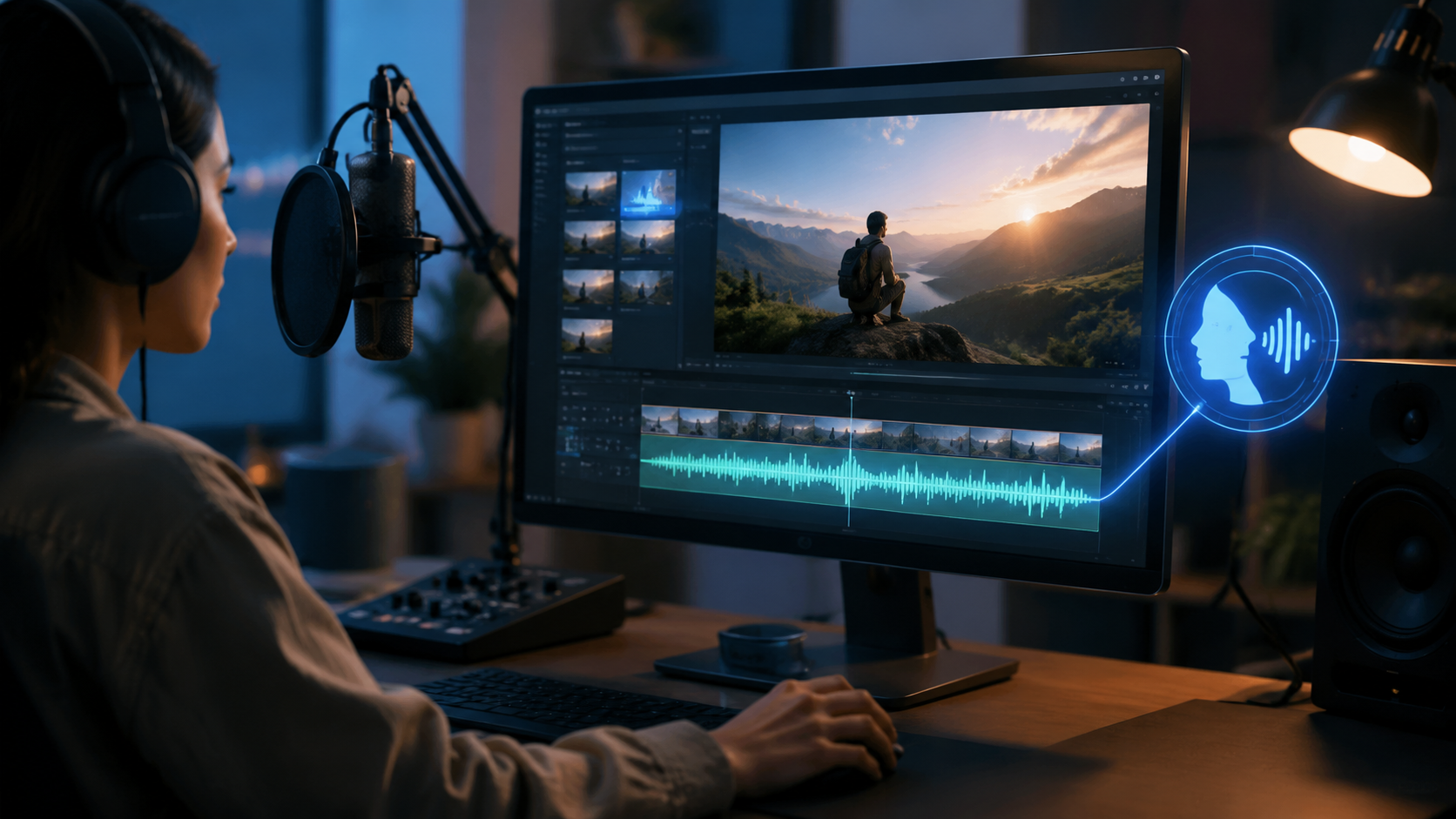
According to a report from MediaPost on March 10, 2026, Google is rolling out AI voice-over generation directly within Performance Max video ads. This feature enables advertisers to create multiple voiceover variations from a single script, targeting different audiences and languages without additional recording sessions.
To use it, you log into Google Ads, navigate to Performance Max, and select the “Add AI Voiceover” option under video assets. You can choose from a library of natural-sounding voices, adjust the tone (conversational, professional, or exciting), and specify the length. Google’s AI then syncs the voiceover to your video automatically. Early testers reported a 40% reduction in ad production time.
Key advantages of Google’s solution
It integrates seamlessly with existing ad campaigns and supports over 50 languages. However, it is currently limited to Performance Max and not available for YouTube Studio. If you need AI voiceovers for organic YouTube videos, consider combining Performance Max with other tools.
Adobe Firefly: All-in-One AI Audio Suite (October 2025)
Adobe’s Firefly generative AI platform, updated in October 2025, now includes powerful audio tools for adding voiceovers and soundtracks to videos. As reported by The Verge and Adobe’s own newsroom, the “Text to Voiceover” feature in Adobe Premiere Pro (via the Firefly panel) lets editors type a script and instantly generate a voiceover that matches the project’s timeline.
Adobe Firefly offers over 200 voice styles, including character voices for animation and documentary narration. Users can also generate background music that adapts to the mood of the video. For example, you can say “energetic electronic beat” and Firefly creates a royalty-free track that syncs with your voiceover. The pricing is included in the Creative Cloud subscription ($54.99/month for all apps).
Using Firefly for faceless shorts
With the rise of faceless “text-to-video” content (covered by TyN Magazine in January 2026), Firefly can generate both the visual asset (via text-to-video prompts) and the voiceover in one workflow. This makes it ideal for creators on TikTok and YouTube Shorts.
Microsoft Copilot: Voiceover Tools for Gaming Videos (May 2026)
Gaming content creators in 2026 are leveraging Microsoft Copilot to streamline their video production. A report from MSN on May 12, 2026, highlights Copilot’s integration with Xbox Game Bar and Clipchamp. Copilot can analyze a gameplay clip and suggest a voiceover script based on the action, then generate the AI voiceover and automatically place it on the timeline.
The tool supports multiple gamer personas (e.g., “commentator,” “storyteller,” “funny”) and can adjust the speed to match high-paced game moments. Users simply say: “Copilot, add a voiceover explaining this boss fight” and the AI handles the rest. This reduces editing time from hours to minutes.
System requirements and availability
Copilot AI voiceovers are available in Windows 11 (version 24H2 and later) and require an active Microsoft 365 subscription ($99/year). The feature works with most video formats captured from Xbox or PC.
Comparison: Best AI Voiceover Tools for Video in 2026
To help you choose the right tool for your project, here is a detailed comparison based on the latest 2026 features.
| Tool / Platform | Best For | Key Features | Pricing (2026) | Language Support |
|---|---|---|---|---|
| Google Performance Max | Video ads (Google Ads) | AI voiceover directly inside ad builder, automatic syncing, multilingual support, tone adjustment | Cost per ad (pay per impressions) | 50+ languages |
| Adobe Firefly (Premiere Pro) | Professional video editing | 200+ voice styles, soundtrack generation, character voices, text-to-video integration | Creative Cloud $54.99/mo | 140+ languages |
| Microsoft Copilot (Clipchamp) | Gaming videos, casual creation | Script suggestions from gameplay, automatic timeline placement, gamer persona voices | Microsoft 365 $99/year | 40+ languages |
| Dedicated AI voiceover apps (e.g., ElevenLabs, Murf) | High-quality standalone voiceovers | Emotion control, multi-voice dialogues, API integration, ultra-realistic voices | Free tier available; Pro from $22/mo | 110+ languages |
Best Practices for Adding AI Voiceover in 2026
To get the most natural result, follow these tips gathered from the latest guides, including the Punch Newspapers article (May 2026).
Write a script optimized for AI
AI voiceovers perform best with short, clear sentences. Avoid complex jargon and long compound sentences. Use punctuation to indicate pauses (e.g., commas, periods, dashes). Some tools also support SSML tags for precise prosody.
Choose the right voice for your audience
Match the voice persona to your video’s tone. A documentary might require a calm, deep voice; a TikTok short might benefit from an energetic, youthful voice. Test multiple voices before finalizing.
Sync voiceover to visuals
Manually check the timing, especially if your video has fast cuts. Many AI tools now offer “auto-sync” that aligns speech to scene changes. For faceless content, overlay text can reinforce the voiceover.
Add background music but keep it low
AI voiceovers can be overpowered by loud music. Use Adobe Firefly’s “ducking” feature (or manual volume keyframes) to lower music volume during spoken parts.
Frequently Asked Questions
Is it legal to use AI-generated voiceovers in commercial videos?
Yes, as long as you have the rights to the voice model and the content does not infringe on trademarks. Most platforms like Adobe Firefly and Google Performance Max provide royalty-free usage for their AI voiceovers.
Can I use an AI voiceover that sounds like a specific celebrity?
Most mainstream tools do not allow replicating a celebrity’s voice without permission. However, some platforms offer “character voices” inspired by popular archetypes. Avoid using cloned voices without explicit consent.
How long does it take to generate an AI voiceover?
For a 60-second script, generation typically takes 10–30 seconds on modern tools. Longer videos may take a few minutes. Rendering and syncing add extra time.
Do I need an internet connection to add AI voiceover?
Most AI voiceover tools are cloud-based and require internet for processing. However, some desktop apps like Adobe Premiere Pro (with Firefly) allow offline local generation if you pre-download voice models.
What file formats are supported for the final video with AI voiceover?
Common export formats include MP4, MOV, AVI, and WebM. For social media, MP4 with H.264 compression is recommended. Google Performance Max directly saves ads as MP4.
Whether you are creating a marketing ad, a gaming highlight reel, or a faceless TikTok short, adding an AI voiceover in 2026 is faster and more accessible than ever. Tools from Google, Adobe, and Microsoft have removed the need for microphones and voice actors, allowing you to focus on your content. Start with the step-by-step guide above and experiment with different tools to find the voice that best represents your brand.



Comments ()