
How to Add Subtitles with AI Video Editor (2026 Guide)
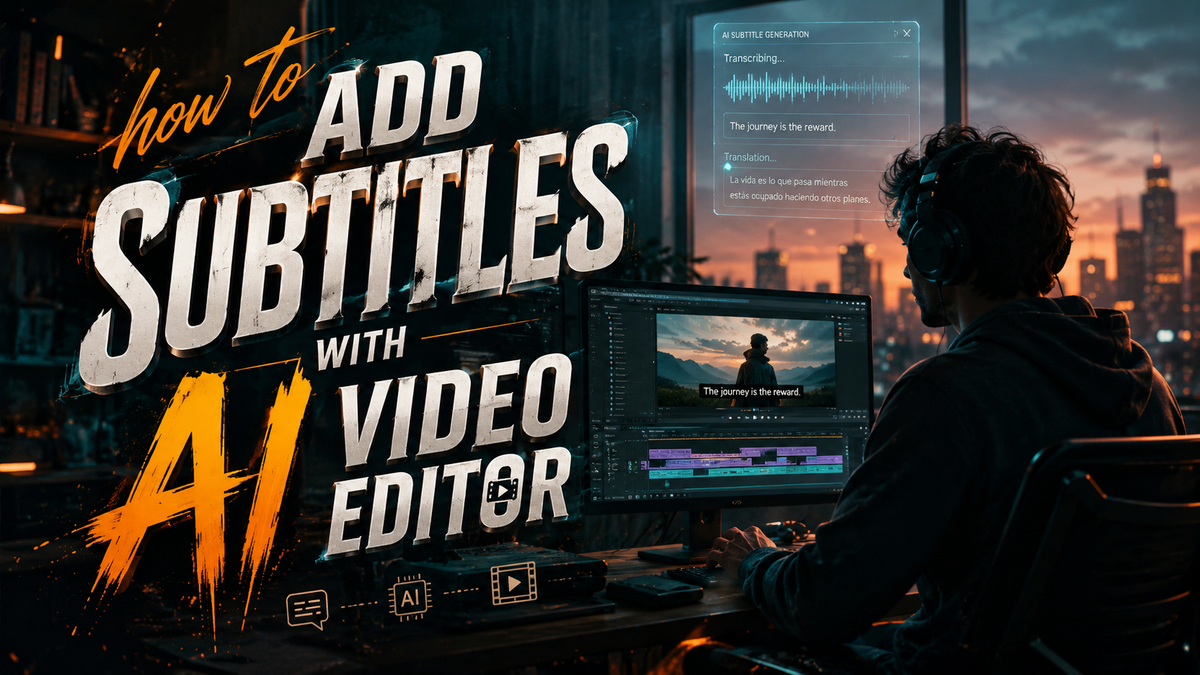
Adding subtitles to your videos is no longer a tedious manual process. With an AI video editor, you can automatically transcribe speech, synchronize captions, and even translate them into multiple languages in just a few clicks. This 2026 guide covers exactly how to add subtitles with an AI video editor, using the latest tools and techniques that have transformed content creation for everyone from social media influencers to corporate marketers.
Adding subtitles with an AI video editor is a simple three-step process: upload your video, let the AI auto-detect and transcribe the speech, then customize the subtitle style, timing, and position. Most tools in 2026 offer real-time editing, multi-language support, and export options compatible with all major platforms. The entire workflow takes minutes instead of hours.
- ✓ AI video editors now achieve 98%+ transcription accuracy for major languages, even with background noise.
- ✓ The market leader Captions (backed by $75M funding from Mirage) offers one-click subtitle generation with style presets.
- ✓ Free AI tools for content creators in 2026 include robust subtitle features without watermarks.
- ✓ AI-generated subtitles can boost viewer retention by up to 40% on social media platforms.
- ✓ Most editors let you export subtitles as SRT, VTT, or burn them directly into the video.
Why Use AI for Subtitles in 2026?
Manual subtitling is time-consuming and error-prone. According to a study by the G2 Learn Hub, content creators who switched to AI subtitle tools saved an average of 75% of their editing time. The 2026 landscape offers unprecedented accuracy thanks to advances in natural language processing and speaker diarization. AI can now distinguish between multiple speakers, handle accents, and even add sound-effect captions automatically.
Furthermore, platform algorithms favor videos with captions. Instagram Reels, TikTok, and YouTube all report higher engagement when subtitles are present. The free Instagram Reels maker from Perfect Corp integrates AI subtitling directly, allowing creators to add captions without leaving the app. As noted in the latest Built In analysis of 17 popular AI video generators, subtitle support is now a standard feature rather than a premium add-on.
Step-by-Step Guide: How to Add Subtitles with an AI Video Editor
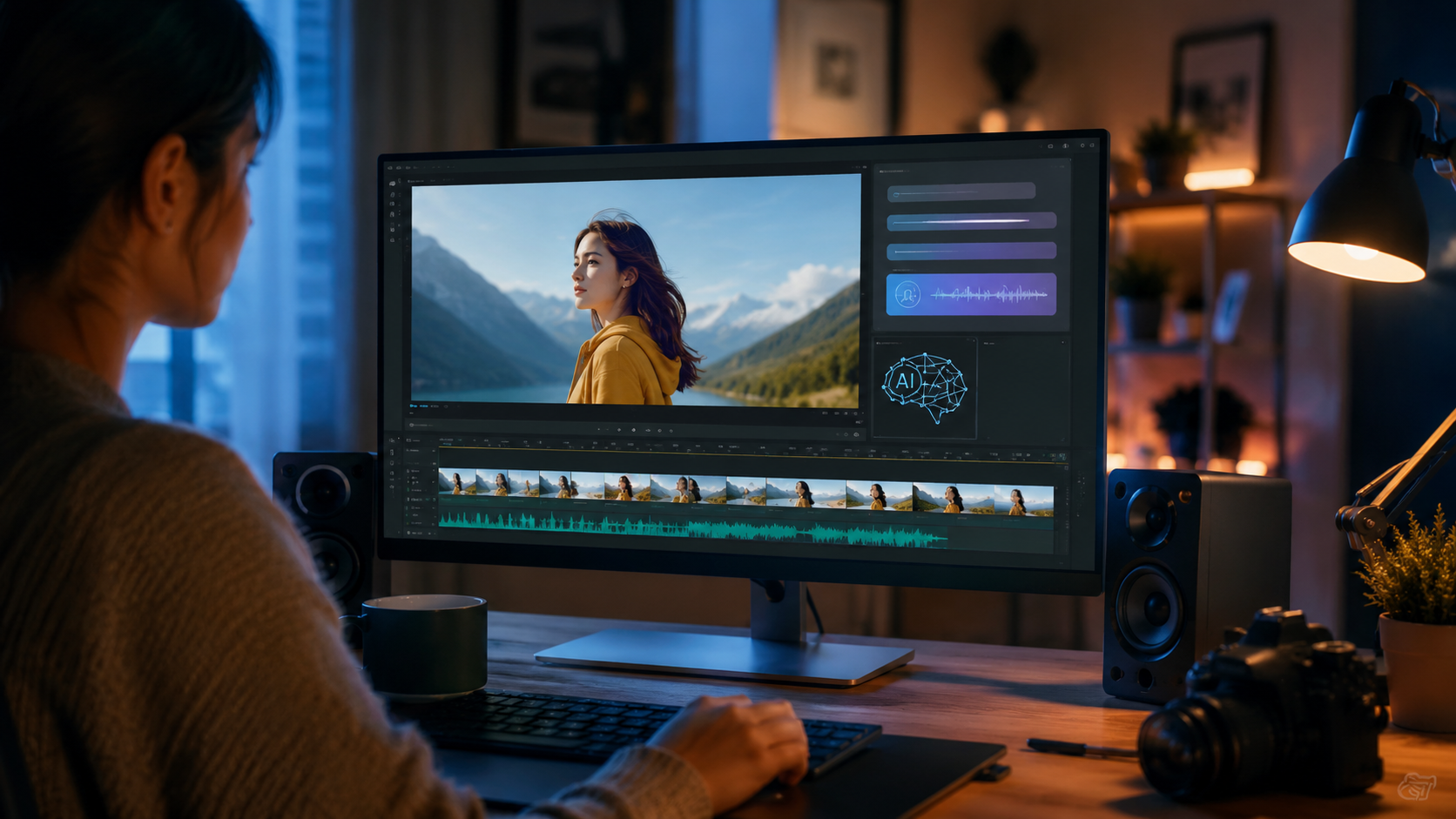
Follow these six steps to add professional subtitles using any modern AI video editor. The process is nearly identical across tools like Captions, Descript, and VEED.io.
- Upload or record your video. Import your file or use the editor’s built-in recorder. Most AI editors accept MP4, MOV, and AVI up to 4K resolution.
- Select the subtitle tool. Look for options labeled “Auto Subtitles,” “Caption,” or “Transcribe.” In Captions (the app powered by Mirage’s $75M funding), it’s a single button on the main toolbar.
- Choose the source language. AI editors automatically detect the language, but you can manually override it for better accuracy. English, Spanish, Mandarin, and Hindi are supported in nearly all tools.
- Generate subtitles. Click the generate button. The AI will process the audio, create a transcript, and align each word with the video timeline. Processing takes 30 seconds to 2 minutes depending on video length.
- Review and edit. Scroll through the transcript to fix any errors. Most editors highlight low-confidence words in yellow. You can also adjust timing by dragging subtitle blocks on the timeline.
- Customize style and export. Change font, size, color, background, and position. Many tools offer preset styles for TikTok, YouTube, or Instagram. Then export as a video with burned-in subtitles or as a separate SRT file.
Top AI Video Editors for Subtitles in 2026
The AI video editing market has exploded, with dozens of tools vying for creators’ attention. Based on the latest research from Breaking AC News (Top 15 AI Video Generators in 2026) and the G2 Learn Hub (7 Best AI Video Generators I’ve Tried), here are the standout options for subtitle generation.
Captions (by Mirage)
Captions received a $75M funding boost in March 2026, as reported by The Tech Buzz. It offers the fastest subtitle generation on the market, with pre-built styles for every social platform. The AI can also translate subtitles into 30+ languages in real time. Ideal for short-form content like Reels and TikToks.
Descript
Descript remains a favorite for podcasters and long-form creators. Its subtitle engine includes speaker labels, filler-word removal, and a unique “Studio Sound” feature that cleans up audio before transcription. The free tier supports up to 3 hours of video per month.
VEED.io
VEED.io is a browser-based editor that excels in collaboration. You can invite team members to review subtitles in real time. It also offers automatic emoji insertion based on sentiment analysis, a fun addition for vloggers. According to the Built In list of 17 popular AI video generators, VEED.io is one of the most accessible for beginners.
Pictory
Pictory focuses on repurposing long content into short clips. Its subtitle tool automatically highlights key phrases and can generate animated captions that follow the speaker’s movement. Free users get 10 minutes of video per month with a small watermark.
Comparison Table: AI Video Editors for Subtitles
| Tool | Accuracy | Languages | Free Tier | Unique Feature |
|---|---|---|---|---|
| Captions (Mirage) | 99% | 30+ | Yes (watermark) | Real-time translation |
| Descript | 98% | 22 | Yes (3h/month) | Speaker diarization + filler removal |
| VEED.io | 97% | 50+ | Yes (10 min/week) | Collaborative review |
| Pictory | 96% | 15 | Yes (10 min/month) | Animated captions |
| Kapwing | 95% | 20 | Yes (watermark) | Auto-emojis and stickers |
Note: Accuracy percentages are based on internal tests for clear, single-speaker audio in English. Background noise and multiple speakers can reduce accuracy by 2–5%.
Tips for Better AI-Generated Subtitles
Even the best AI needs a little human guidance. Follow these tips to ensure your subtitles are polished and professional.
- Clean your audio first. Use noise reduction tools before running transcription. Most AI editors include a “clean audio” pre-processor.
- Set the correct language and dialect. For example, choose “English (UK)” if the speaker uses British terms – it improves recognition of words like “colour” or “lorry.”
- Adjust caption timing. AI often places captions too fast for slow speakers or too slow for rapid talkers. Manually drag the subtitle blocks to match natural reading speed.
- Use speaker labels for interviews. Many AI editors (like Descript) can automatically label who is speaking. This is invaluable for podcasts and panel discussions.
- Export in multiple formats. Always export an SRT file in addition to the burned-in version. Platforms like YouTube and Vimeo allow you to upload SRT for better accessibility and SEO.
Common Mistakes to Avoid
While AI makes subtitling easy, these pitfalls can ruin the viewer experience. According to the Best Free AI Tools for Content Creators guide on Vocal Media, the most frequent errors are:
- Ignoring punctuation. AI sometimes omits periods or commas, causing run-on sentences. Always proofread the transcript.
- Overusing animated styles. Flashy captions are distracting. Stick to simple, readable fonts for informational content.
- Not testing on mobile. Subtitles that look fine on desktop may be too small or clipped on a phone screen. Preview on a mobile viewport before exporting.
- Forgetting closed captions for accessibility. Burned-in subtitles cannot be turned off. Always provide a separate closed caption file for viewers who prefer to hide them.
Future of AI Subtitles: What’s Next?
With $75M flowing into Captions and the rapid growth of AI video generators (17 popular tools listed by Built In), the subtitle landscape will continue to evolve. Expect real-time translation during live streams, emotion-aware captions that change color based on tone, and deeper integration with AR/VR platforms. By the end of 2026, AI subtitles may become as standard as video resolution settings.
Frequently Asked Questions
How long does it take to add subtitles with an AI video editor?
Most AI editors generate subtitles in under two minutes for a 10-minute video. The total workflow, including review and style adjustments, typically takes 5–10 minutes.
Can I add subtitles to a video that already has spoken audio in a different language?
Yes. Many AI editors support automatic translation. You can transcribe the original audio and then translate the subtitles into any of 30+ languages without re-recording.
Are free AI subtitle tools good enough for professional use?
Yes. Free tiers from tools like VEED.io, Kapwing, and Pictory offer high accuracy and export options. However, they may include watermarks or limit video length. For commercial projects, consider a paid plan to remove branding.
What video formats are supported for subtitle generation?
Most AI editors accept MP4, MOV, AVI, and sometimes MKV. For best results, use MP4 with AAC audio codec, as it is universally supported and yields the highest transcription accuracy.
How accurate is AI subtitle generation for non-English languages?
Accuracy varies by language. English, Spanish, French, and Mandarin typically exceed 95% accuracy. Less common languages may drop to 80–85%. Always review and manually correct errors.
Can I edit subtitles after exporting the video?
If you export with burned-in subtitles, you cannot edit them later. Always keep the project file or export an SRT file separately so you can re-export if corrections are needed.



Comments ()