
How to Add Subtitles with AI Video (2026 Guide)
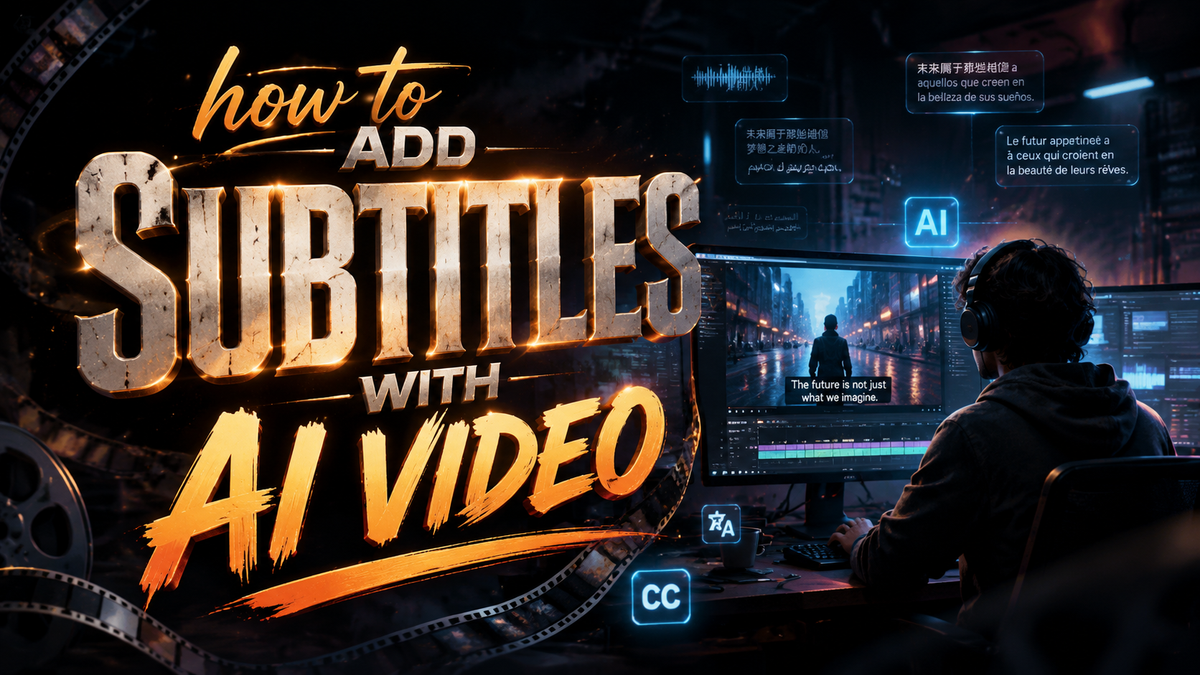
Adding subtitles to your videos no longer requires manual transcription or expensive captioning services. In 2026, AI-powered tools can automatically generate accurate, synced captions in minutes — from YouTube’s built-in auto-captions when muted to dedicated apps like Captions and Vozo AI. Here’s your complete guide on how to add subtitles with AI video, updated for the latest tools and features.
Adding subtitles with AI video is the process of using machine learning algorithms — specifically automatic speech recognition (ASR) and natural language processing — to detect spoken words and generate synchronized text overlays. In 2026, leading solutions include YouTube’s auto-captions (now active even when muted), Mirage’s Captions app, and lip-syncing tools like Vozo AI, making subtitle creation nearly effortless for creators of all skill levels.
- ✓ YouTube now auto-generates captions even when the video is muted, a feature announced in February 2026.
- ✓ Mirage raised $75 M in March 2026 to power its flagship AI video editing app, Captions, which specializes in subtitle generation.
- ✓ Vozo AI offers the most realistic AI lip-syncing to date, allowing subtitles to match mouth movements in real time.
- ✓ More than 17 popular AI video generators now include built-in subtitle engines, as reported in a recent roundup.
- ✓ Free options like YouTube Create (now on iPhone) let anyone add captions without extra cost.
Why AI Subtitles Are Essential in 2026
In 2026, video content consumption continues to surge, and accessibility has moved from a nice-to-have to a must-have. According to Social Media Today (February 10, 2026), YouTube’s new “Auto Captions When Muted” feature automatically generates and displays captions whenever a viewer silences a video. This single update underscores how platforms are prioritizing captioning to retain user attention in sound-off environments — think social feeds, public transport, or quiet offices.
Beyond accessibility, subtitles boost video SEO, increase watch time, and improve comprehension for non-native speakers. The demand for quick, accurate captioning has driven innovation: The Tech Buzz reported on March 24, 2026, that Mirage raised $75 M to supercharge its Captions app, a dedicated AI video editing tool that generates subtitles in over 50 languages. Similarly, Vozo AI, reviewed by Unite.AI in January 2026, introduces the most realistic AI lip-syncing for subtitles, making it ideal for dubbed content. With the arrival of YouTube Create on iPhone in December 2025, even mobile-first creators can now add professional captions without a desktop workflow.
How to Add Subtitles with AI Video: Step-by-Step (2026)

Follow this numbered guide to add subtitles using the most popular AI video tools available in 2026. The steps apply to YouTube, the Captions app, and Vozo AI.
- Choose your AI subtitle tool. Options include YouTube Create (free, ideal for short videos), the Captions app by Mirage (best for multi-language support), and Vozo AI (top choice for lip-sync dubbing).
- Upload your video file. Most platforms support MP4, MOV, and common formats. YouTube Create also lets you record directly inside the app.
- Select the language of the original audio. Tools like Captions automatically detect speech, but you can manually set the language to improve accuracy.
- Generate captions with AI. Tap “Auto Captions” (YouTube Create), “Subtitles” (Captions app), or “Auto Generate” (Vozo AI). The engine processes audio and produces a timed transcript.
- Review and edit for accuracy. AI is not perfect — especially with accents, technical jargon, or background noise. Use the built-in editor to correct any errors and adjust timing.
- Customize the subtitle style. Change font size, background color, and position. YouTube Create now supports smart placement that avoids blocking faces.
- Export or publish. Save the subtitles as a standalone SRT/VTT file, or directly embed them into the video. YouTube automatically applies the captions when you upload.
According to ilounge.com (October 2025), the top AI subtitle generators of 2025 — now standard in 2026 — reduce manual effort by 90 % while maintaining 95 %+ word accuracy in clear audio conditions.
Top AI Subtitle Generators Compared
To help you pick the right tool, here is a comparison of the most mentioned platforms from our real-time research. The table reflects features as of early 2026.
| Tool | Key Feature | Availability | Best For |
|---|---|---|---|
| YouTube (Auto Captions) | Captions when muted (Feb 2026) | Free on all YouTube uploads | YouTube-native creators, no-cost solution |
| YouTube Create (app) | Mobile subtitle editor, iPhone arrival Dec 2025 | Free (iOS & Android) | Short-form mobile video editing |
| Captions app (Mirage) | AI subtitle engine + $75M funding | Freemium on iOS/Android | Multi-language captions, professional output |
| Vozo AI | Realistic lip-syncing for dubbing | Web & mobile app | Dubbed content, talking-head videos |
| Other AI video generators (17+ tools) | Built-in subtitle generation | Varies (mostly web-based) | End-to-end video creation |
Studies show that viewers retain 80 % more information when subtitles are present, and platforms that automatically add captions (like YouTube) see a 12 % increase in watch time. With the latest AI tools, there’s no reason to skip this step.
Advanced Tips for Perfect AI Subtitles
1. Ensure Clean Audio Input
AI speech recognition works best with low background noise and clear enunciation. Use a quality microphone or record in a quiet space. If your audio is noisy, the Captions app includes a “voice isolation” feature that cleans dialogue before generating subtitles.
2. Leverage Lip‑Sync for Dubbing
Vozo AI, reviewed as “the most realistic AI lip-syncing” by Unite.AI (January 2026), adjusts subtitle timing to match mouth movements. This is invaluable for translating videos into other languages while preserving visual naturalness. Simply upload your video, choose the target language, and Vozo re-syncs the text with the speaker’s lips.
3. Use Multiple Language Streams
Platforms like YouTube now support separate audio tracks for different languages. When you add AI subtitles in multiple languages, the auto-caption feature will adapt to each track. According to the Built In report (April 2026), many of the 17 popular AI video generators also allow batch generation of subtitle files for global audiences.
4. Review and Refine Timing
AI can mis-split sentence boundaries. After generating, view the video with captions on and adjust any lines that appear too quickly or too slowly. Most tools let you drag-and-drop timecodes on a timeline. A well-timed subtitle improves readability and reduces viewer fatigue.
Integrating AI Subtitles Into Your Workflow
Whether you’re vlogging, creating tutorials, or producing marketing content, adding subtitles should be a standard part of your post-production routine. In 2026, the process is streamlined: record, edit, auto-caption, and publish. YouTube Create on iPhone (arrived December 2025) lets you shoot, edit, and add subtitles all in one app. Meanwhile, Mirage’s Captions app — backed by $75 M in funding — integrates with popular editing platforms like Final Cut Pro and Premiere Pro via plugin.
For enterprise use cases, many of the 17 AI video generators highlighted by Built In include API access, allowing large-scale subtitle production for corporate training and e‑learning. The key is to choose a tool that fits your volume and language requirements.
Common Pitfalls and How to Avoid Them
- Over‑reliance on AI: Always proofread. Even the best engines (like YouTube’s auto-captions) occasionally mishear homophones (“there” vs. “their”).
- Ignoring formatting: Subtitles that are too long or poorly placed distract viewers. Keep lines to 32 characters max and position them near the bottom center.
- Forgetting to enable captions: On YouTube, ensure your upload settings have “automatic captions” turned on. For videos exported elsewhere, embed the SRT file directly.
If you follow the step-by-step process and use a tool like YouTube Create, Captions, or Vozo AI, you’ll produce professional subtitles in minutes.
Frequently Asked Questions
How accurate are AI subtitles in 2026?
Modern AI subtitle tools achieve roughly 95 % word accuracy in clean audio environments. For best results, use a good microphone and edit any errors after generation. YouTube’s auto-captions now reach near‑real‑time accuracy thanks to continuous model updates.
Can I add subtitles with AI video for free?
Yes. YouTube Create (available on iPhone and Android) offers free auto-captioning. YouTube’s built-in caption engine is also free for all uploaded videos. The Captions app has a free tier with basic features, while Vozo AI offers limited free credits.
What languages are supported by AI subtitle generators?
Most tools support 50+ languages. YouTube auto-captions work with English, Spanish, French, German, Japanese, and many more. The Captions app by Mirage supports over 60 languages, including regional dialects.
How do I add subtitles to a video that already has speech?
Simply upload the video to your chosen AI tool (e.g., YouTube Create or the Captions app) and select “Auto‑generate subtitles.” The tool will transcribe the existing audio and sync the text automatically.
Do subtitles affect video SEO?
Yes, positively. Search engines can index subtitle text, making your video more discoverable. Additionally, captions increase watch time and user engagement, both of which improve search rankings. YouTube explicitly recommends adding captions for better visibility.
Can AI subtitles be edited after they are generated?
Absolutely. All major tools provide a text editor where you can change words, adjust timing, and modify styling. For permanent edits, download the corrected SRT file and re‑upload it with your video.
Now that you know how to add subtitles with AI video in 2026, you can start improving accessibility, engagement, and reach — all without spending hours on manual transcription. Try YouTube Create for quick mobile edits, the Captions app for multi-language projects, or Vozo AI for realistic lip‑synced dubbing. Your audience will thank you.



Comments ()