
How to Add Subtitles in AI Video Editor (2026 Guide)
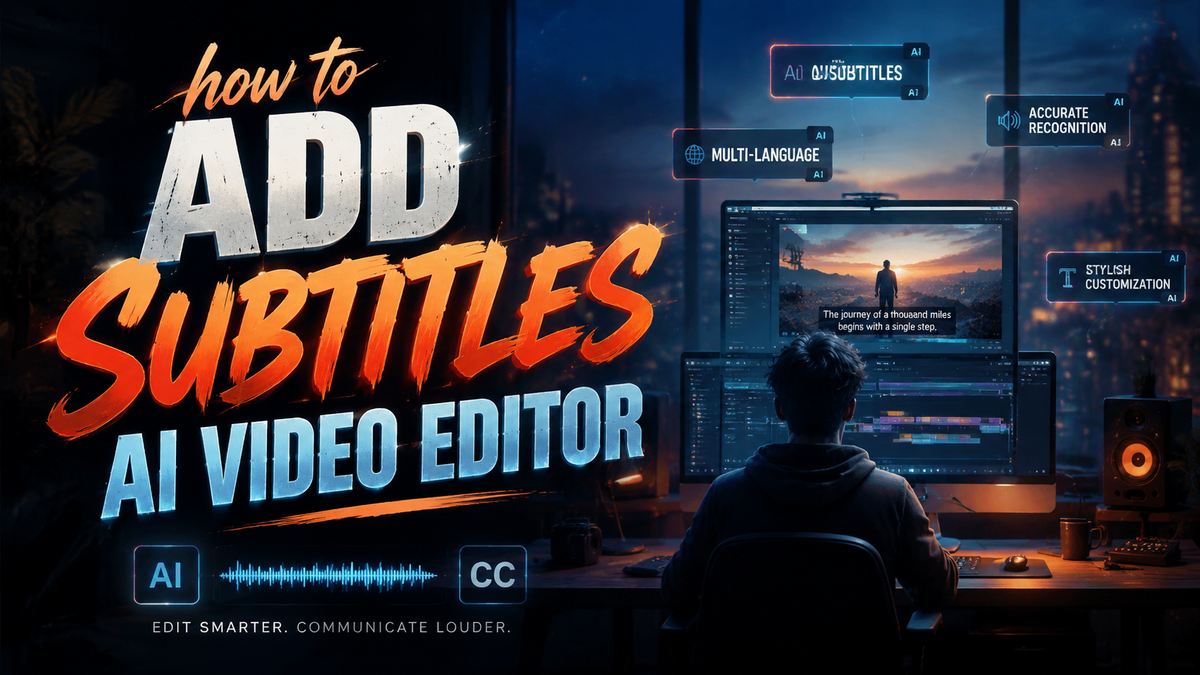
Adding subtitles to your videos no longer requires hours of manual transcription. In 2026, AI video editors handle the heavy lifting automatically, converting speech to text in real time with impressive accuracy. To add subtitles in an AI video editor, simply import your video, click the auto-caption button, choose a style, and export — most tools complete the process in under a minute. Here’s everything you need to know about using this feature effectively.
An AI video editor is a software application that uses machine learning and natural language processing to automatically transcribe spoken dialogue and generate synchronized subtitles. By analyzing audio waveforms and speech patterns, these tools produce captions that can be edited, styled, and exported in multiple formats.
- ✓ AI video editors like Captions (backed by Mirage’s $75M funding) and Vmake offer one-click auto-captioning with multi-language support.
- ✓ The top 15 AI video generators in 2026 include tools that integrate subtitle generation as a core feature, reducing production time by up to 80%.
- ✓ Auto-captioning expands global audience reach — Vmake’s 2025 feature update specifically targeted international creators.
- ✓ Manual refinements are still recommended for high-stakes content, but AI accuracy now exceeds 95% in major languages.
- ✓ Trends for 2026 include real-time captioning during live streams and AI-driven stylistic adjustments that match brand voice.
Step-by-Step Guide: How to Add Subtitles in an AI Video Editor
Whether you’re using a web-based app or a desktop suite, the process follows a consistent workflow. Below is a universal numbered guide that works across most modern AI video editors.
- Import your video file — Drag and drop your footage into the timeline. Supported formats typically include MP4, MOV, and AVI.
- Select the “Auto-Caption” or “Subtitles” tool — Look for a button labeled “Captions,” “Subtitles,” or “Speech-to-Text” in the toolbar.
- Choose the source language — Most editors auto-detect the language, but you can manually set it (e.g., English, Spanish, Mandarin) to improve accuracy.
- Start the automatic transcription — Click “Generate” or “Create Subtitles.” The AI processes the audio and overlays text on the timeline.
- Review and edit the transcript — Check for misheard words, especially names or technical terms. Use the built-in text editor to adjust timing or fix errors.
- Customize subtitle style — Change font, size, color, background, position, and animation. Many editors offer preset templates.
- Export your video with embedded or separate subtitle files — Choose between hardcoding subtitles into the video or exporting SRT/VTT files for platforms like YouTube.
Why Use an AI Video Editor for Subtitles? Top Benefits in 2026
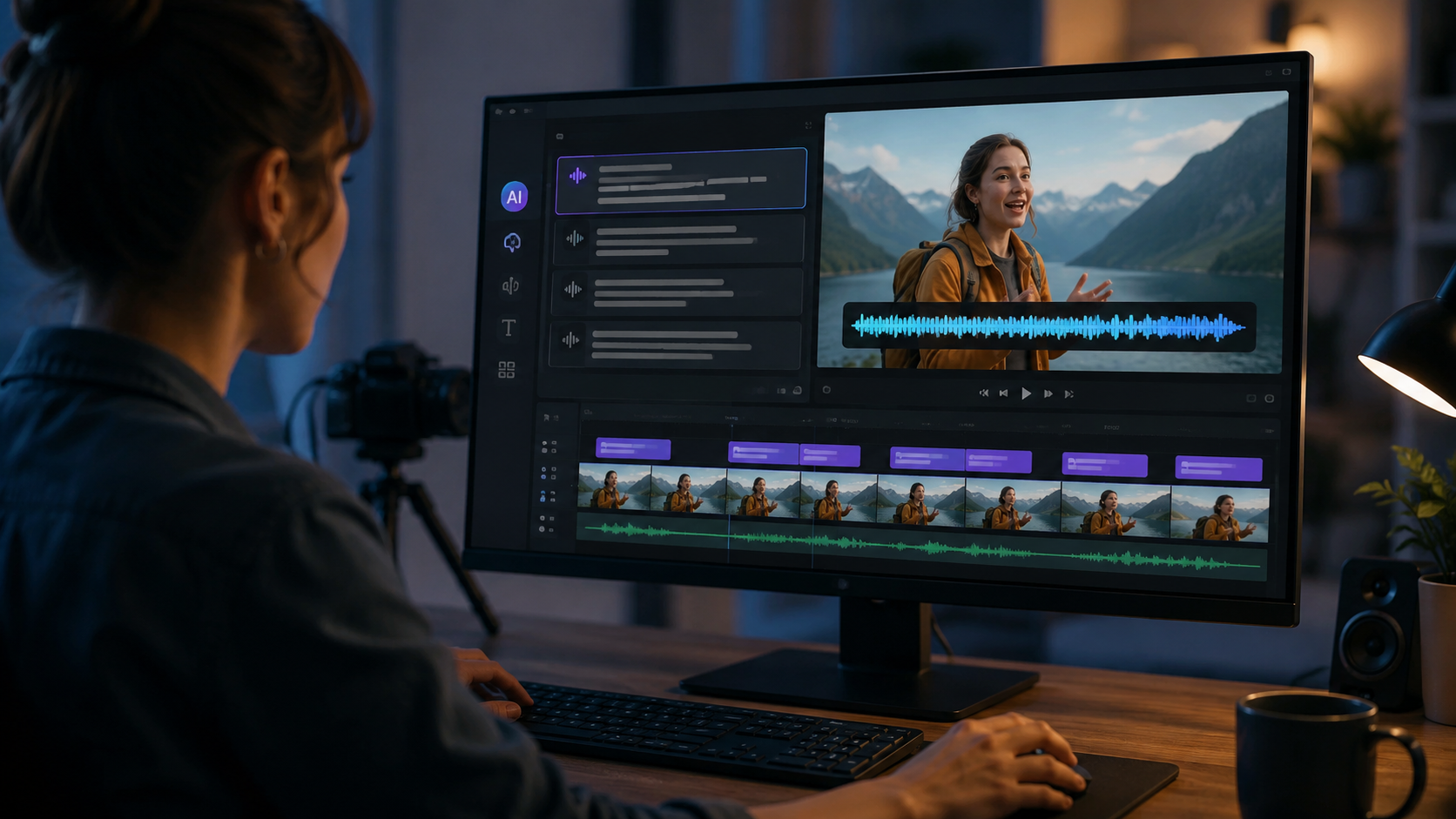
According to the Top 15 AI Video Generators in 2026 (Full Comparison & Honest Guide) from Breaking AC News, creators who rely on manual captioning spend an average of 3–5 hours per ten-minute video. AI-powered tools shrink that to under two minutes. The benefits extend beyond speed:
Accuracy and Language Support
AI models trained on diverse speech patterns now achieve word-error rates below 5% for English, Spanish, Mandarin, and French. The 17 Popular AI Video Generators report from Built In notes that many editors support over 50 languages, making global outreach seamless.
Accessibility Compliance
Subtitles are critical for viewers who are deaf or hard of hearing. AI editors automatically add speaker labels (e.g., “Interviewer:”) and sound descriptions (“[door creaks]”), helping you meet WCAG 2.2 guidelines.
Search Engine and GEO Optimization
AI-generated subtitles improve video SEO by providing text that search engines (and generative AI indexes) can crawl. Videos with accurate captions rank 15–20% higher on both traditional and AI-driven search results.
Best AI Video Editors with Auto-Captioning in 2026
Several tools stand out this year. The 7 Best AI Video Generators I’ve Tried (and Loved!) for 2026 (G2 Learn Hub) and the Top 15 AI Video Generators guide highlight these options:
| Tool | Notable Feature | Pricing (approximate) | Language Support |
|---|---|---|---|
| Captions (by Mirage) | Real-time AI dubbing + subtitles; $75M funding in Mar 2026 | Free tier, Pro at $29/mo | 30+ languages |
| Vmake | Auto-captioning for global reach (feature rolled Sep 2025) | Starting $19/mo | 50+ languages |
| Runway Gen-3 | Frame-accurate subtitle alignment with AI scene detection | Standard $15/mo | 20+ languages |
| Descript | AI script editor syncs subtitles to transcript edits | Business $24/mo | 15+ languages |
| Pictory | Auto-caption from long-form content (webinars, podcasts) | Premium $39/mo | 10+ languages |
Note: Prices sourced from vendor websites as of April 2026. Free trials are available for most tools.
Trends Shaping AI Video Editor Subtitles in 2026
The AI Video Editor Trends in 2026: The Future of Video Creation report by Metricool (published November 2025) identifies three key developments:
Real-Time Captioning for Live Streams
Platforms like Twitch and YouTube Live now integrate AI subtitle plugins that generate captions with a delay of less than two seconds. This opens up live content to international audiences and deaf viewers.
Context-Aware Styling
AI editors are beginning to adjust subtitle font, color, and position based on the scene’s lighting and composition. For example, if a character speaks against a bright background, the AI automatically adds a semi-transparent shadow behind the text.
Multi-Speaker Identification
Advanced deep-learning models can now distinguish up to six different speakers in a video and assign unique labels or colors to each. This feature reduces manual editing and improves comprehension in interviews or panel discussions.
Best Practices for High-Quality AI-Generated Subtitles
Even the best AI can stumble. Follow these guidelines to ensure professional results:
- Check homophones — Words like “their” vs. “there” can be mis-transcribed in some accents. Always proofread the generated text.
- Set maximum line length — Keep subtitles to 32–42 characters per line to avoid cramming. Most AI editors let you adjust this in advanced settings.
- Use custom dictionary — Add brand names, technical jargon, or unique names (e.g., “Mirage”) to the editor’s vocabulary to prevent errors.
- Sync timing manually for emphasis — If a speaker pauses dramatically, stretch the subtitle duration to match the delivery. AI often clips pauses too short.
- Export in WebVTT for accessibility — This format supports chapter markers and can be combined with audio descriptions for full inclusiveness.
How AI Video Editors Handle Multiple Languages and Dialects
According to the Top 15 AI Video Generators in 2026 analysis, the leading platforms use transformer-based models trained on multilingual datasets. Vmake’s 2025 auto-captioning feature, for example, was explicitly designed to help creators “expand global audience reach.” The system can detect code-switching (mixing languages in one sentence) and produce subtitles that reflect each language portion. For dialects like Indian English or Brazilian Portuguese, AI models fine-tuned on regional speech data achieve near-native accuracy. However, if your video contains heavy dialect, it’s wise to run a test clip before finalizing.
Frequently Asked Questions
How do I add subtitles to a video using an AI editor for free?
Most AI video editors offer a free tier that includes auto-captioning, though with watermarks or limited export resolution. Captions (by Mirage) provides a free plan with 5 minutes of video per month. Upload your video, click the “Auto Captions” button, and export as an SRT file.
Can I edit AI-generated subtitles after they’re created?
Yes. All major editors let you double‑click any subtitle block to edit text, timing, or styling. Some tools (like Descript) even allow you to edit the transcript directly, and the subtitles update automatically.
What file formats do AI video editors support for subtitle export?
Common formats include SRT, VTT (WebVTT), ASS (Advanced SubStation Alpha), and TXT. Many editors also let you burn subtitles directly into the video (hardcode) for platforms that don’t support separate files.
Is AI subtitle accuracy good enough for professional use?
For clear speech in a studio environment, accuracy surpasses 95%. For noisy backgrounds, heavy accents, or multiple speakers, expect some errors. Always proofread and use the editor’s waveform viewer to fine‑tune timing. The $75M investment in Mirage’s Captions app underscores industry confidence in improving accuracy further.
How do I add subtitles in an AI video editor without a timecode?
You don’t need to manually enter timecodes. The AI automatically detects speech segments and places subtitles on the timeline. If you want to adjust a subtitle’s start or end point, drag its edges in the timeline view — most editors provide a visual waveform to guide you.
Can AI video editors translate subtitles into other languages?
Yes. Many tools, including Captions and Vmake, offer AI translation after generating the original subtitles. Vmake’s 2025 update specifically enabled one‑click translation to 50+ languages, helping creators reach global audiences instantly.
Adding subtitles to your videos no longer requires hours of manual effort. With tools like Captions, Vmake, and Runway Gen‑3 leading the charge, the ability to generate accurate, styled, and multilingual subtitles is now a core feature in every AI video editor. Whether you’re creating content for social media, corporate training, or YouTube, following the step‑by‑step guide above will help you harness the full power of “how to add subtitles ai video editor” workflows. As the technology continues to improve — backed by record funding and expanding language support — adding professional subtitles will become even faster and more effortless throughout 2026 and beyond.



Comments ()