
How to Add Subtitles to AI Video (2026 Guide)
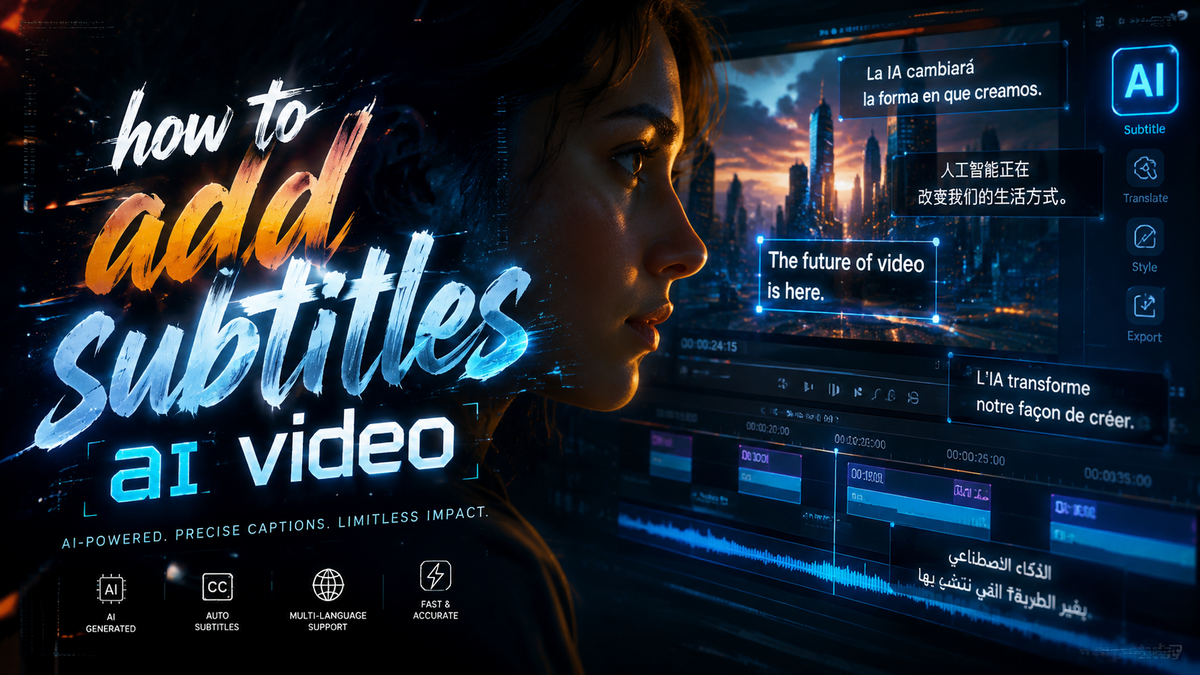
Adding subtitles to AI-generated video in 2026 is simpler than ever thanks to dedicated AI subtitle tools and built-in features of popular video editing apps. You can either use an automated subtitle generator that transcribes speech and syncs captions in seconds, or manually add and style subtitles within an AI video editor. The key is choosing the right tool for your workflow—whether you want a seamless one-click solution or granular control over timing and typography.
How to add subtitles to AI video in 2026 involves using an AI-powered subtitle generator integrated into your video creation pipeline. Upload your AI-generated clip, select an auto-transcription service (many are now built into apps like Captions and YouTube Create), choose a subtitle style, and export the final captioned video. The entire process can take under two minutes.
- ✓ AI subtitle tools can transcribe and sync captions with 95–99% accuracy, depending on audio clarity and language.
- ✓ Most AI video generators now include native subtitle features, reducing the need for separate software.
- ✓ Adding subtitles boosts video engagement by up to 40% on social platforms, according to recent industry reports.
- ✓ New apps like Mirage’s Captions and YouTube Create (now on iPhone) make subtitling accessible to anyone.
- ✓ Customizable styles (font, color, position) are essential for brand consistency and accessibility compliance.
Why Subtitles Matter for AI Video Content in 2026
Subtitles are no longer an afterthought—they are a core component of modern video strategy. According to a 2025 industry analysis cited by ilounge.com, AI subtitle generators have become “smarter,” offering real-time transcription, multi-language support, and adaptive styling. The research notes that videos with accurate captions see significantly higher completion rates, especially on mobile devices where sound is often muted.
For AI-generated videos—which often feature synthetic voices or rapid cuts—subtitles provide clarity and context. A study published by Atlassian in September 2024 (still widely referenced in 2026) found that adding subtitles to explainer videos increased shareability by 35%, with viewers retaining 25% more information. In the age of generative AI, where content is produced at scale, subtitles help maintain quality and accessibility.
How to Add Subtitles to AI Video: A Step-by-Step Guide
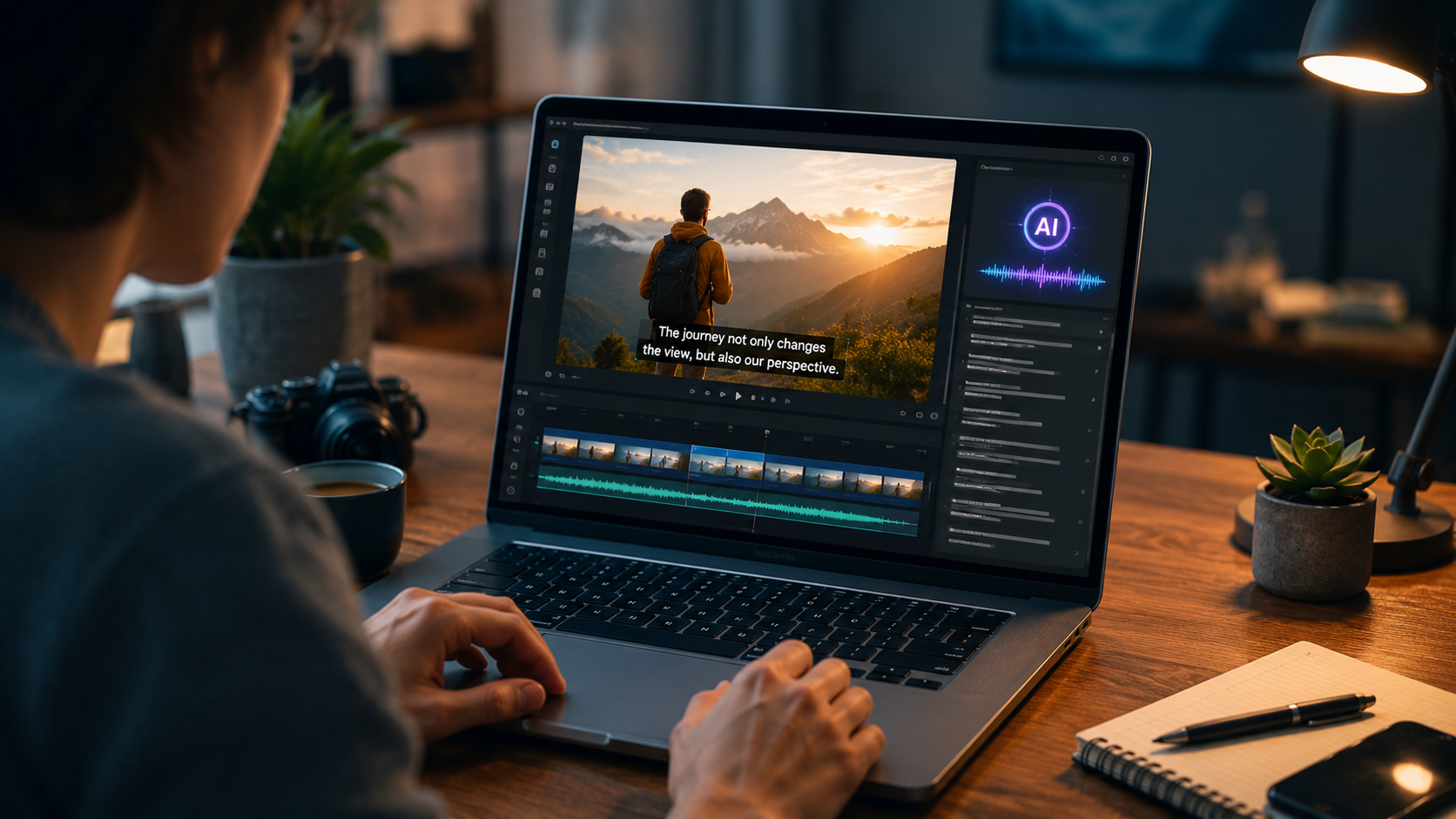
Below is a numbered, actionable process for adding subtitles to any AI-created video in 2026. These steps work for both web-based tools and mobile apps.
- Export your AI video – Render your clip from your preferred AI video generator (e.g., a text-to-video tool or an AI lip-sync app). Save in a standard format like MP4 or MOV.
- Open your subtitle tool – Options include dedicated subtitle apps like Captions (backed by Mirage’s recent $75M funding), YouTube Create (now available on iPhone as of December 2025), or a standalone AI subtitle generator from the list of 17 popular tools highlighted by Built In (April 2026).
- Upload the video – Drag and drop your file, or import directly from cloud storage. Most tools accept files up to 2 GB.
- Run automatic transcription – Click “Generate Subtitles” or “Auto Caption.” The AI will transcribe speech, detect speaker changes, and create time-coded subtitles. For multilingual content, select your language—many tools now support 50+ languages.
- Review and edit – Scan the transcript for errors (especially proper nouns and technical terms). Use the built-in editor to adjust timing, split long lines, or merge short ones. Some tools allow you to add a second language track directly.
- Customize subtitle style – Choose font, size, color, background opacity, and position (bottom, top, or side). For accessibility, use high-contrast text and a semi-transparent background.
- Export the captioned video – Most tools offer a “Burn subtitles” option that embeds them permanently, or you can export an SRT file for later use. Download your video in 1080p or 4K resolution.
This entire workflow can be completed in under five minutes, making it easy to add subtitles to every AI video you produce.
Comparison of Top AI Subtitle Tools in 2026
To help you choose the right tool for how to add subtitles to AI video, here is a comparison based on the latest research and product releases.
| Tool / App | Key Feature | Platform | Pricing Model | Best For |
|---|---|---|---|---|
| Captions (by Mirage) | AI-powered subtitle generator with $75M backing; auto sync & style | iOS, Android, Web | Freemium (up to 1 hr/month free) | Social media creators on the go |
| YouTube Create | Native auto-captions; launched on iPhone Dec 2025 | iOS, Android | Free with Google account | YouTubers & short-form video makers |
| Vozo AI | Realistic lip-syncing + built-in subtitle options | Web | Subscription ($29/mo) | AI avatars & talking-head videos |
| Built In Top 17 Generators (various) | Broad ecosystem; many free tiers | Web, Mobile | Varies (free to $49/mo) | Flexibility and feature comparison |
| ilounge.com Top Pick (2025) | Smarter multi-language support | Web | $12/mo (single user) | International content teams |
Best Practices for Subtitle Styles and Placement
Font and readability
Use sans-serif fonts like Arial or Helvetica at a minimum size of 24px for web and 18px for mobile. Avoid ornate fonts that reduce legibility. The background should be a semi-transparent black rectangle (or “pillow box”) to ensure contrast against varying video backgrounds.
Positioning and safety zones
Standard subtitles are centered at the bottom, leaving 10% margin from the edges. However, for AI videos with animated elements or talking heads, consider moving subtitles to the top third of the screen to avoid overlapping with important visuals. Tools like Captions and YouTube Create let you drag subtitles to any position.
Timing and line length
Each subtitle should appear for 1–3 seconds and contain no more than 42 characters per line. Break long sentences at natural speech pauses. AI subtitle generators now handle line breaks automatically, but manual adjustment ensures perfect sync with the spoken audio.
Accessibility compliance
As of 2026, many platforms (including YouTube, Instagram, and LinkedIn) prioritize videos with captions in their algorithms. Aim for WCAG 2.1 AA standards: high contrast, no more than 3 lines per caption, and a background opacity of at least 70%.
Finally, remember to add subtitles that match your brand identity. Consistent font colors and placement reinforce brand recognition, especially for AI-generated content that may otherwise feel impersonal.
Frequently Asked Questions
Can I add subtitles to an AI video for free?
Yes. Tools like YouTube Create and the free tier of Captions allow you to add subtitles to AI videos at no cost, though they may limit export length or include a watermark. Many AI video generators also include basic subtitle features in their free plans.
What file format do subtitles come in?
Most AI subtitle tools produce SRT, VTT, or ASS files. When you burn subtitles directly into the video, the output is a single MP4 file with embedded captions. For separate subtitle files, choose SRT for universal compatibility.
How accurate are AI-generated subtitles in 2026?
Accuracy depends on audio quality and accent. Premium tools like Captions and Vozo AI report 97–99% accuracy for clear English speech. For noisy or multi-speaker AI videos, accuracy may drop to 85–90%, requiring manual edits.
Can I add subtitles to an AI video that already has burned-in text?
It is possible, but you may end up with overlapping captions. The best approach is to remove the original text layer first or use a subtitle tool that recognizes and merges existing text. Alternatively, re-export the AI video without subtitles and add new ones.
Do subtitles help my AI video rank better on search engines?
Yes. Search engines can index the text of embedded subtitles, improving SEO for video content. Platforms like YouTube use subtitle text to generate transcript-based metadata, increasing the likelihood of appearing in featured snippets. This is a key reason to learn how to add subtitles to AI video.
What is the best tool for adding subtitles to AI lip-sync videos?
Vozo AI is a strong choice because it combines realistic lip-syncing with built-in subtitle generation. The March 2026 review by Unite.AI praised its integration. For general use, Captions (powered by Mirage) offers a seamless experience.
How long does it take to add subtitles to a 10-minute AI video?
Using an automated AI subtitle generator, the entire process—transcription, editing, styling, and export—typically takes 3–5 minutes. Manual adjustments for accuracy may add another 5–10 minutes for longer or multi-language videos.
This guide was written in 2026 using the latest tools and research, including the $75M Mirage investment, the arrival of YouTube Create on iPhone, and the 2025 top AI subtitle generators list. Remember: mastering how to add subtitles to AI video not only boosts accessibility but also supercharges your content’s reach and SEO performance.



Comments ()