
How to Add Captions to AI Video: 2026 Step-by-Step Guide
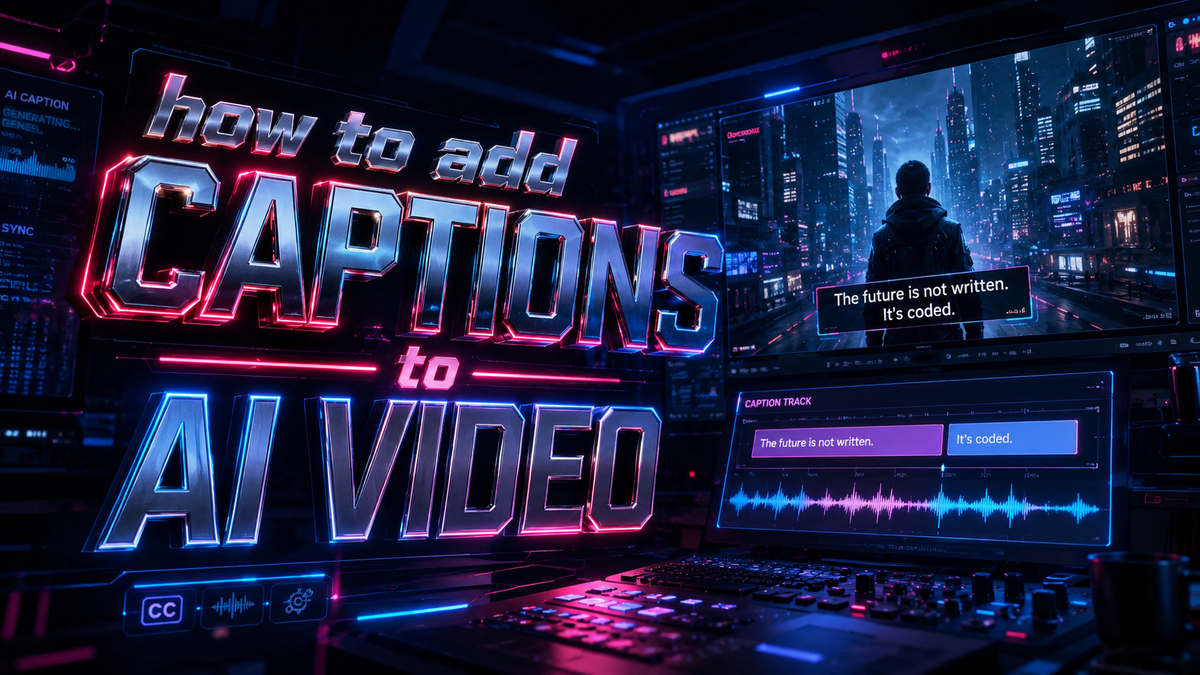
Adding captions to AI-generated video in 2026 is a fast, automatic process thanks to tools like Filmora's Auto Caption Generator and Mirage's Captions app—you simply import your video, activate the AI caption engine, review the transcription, and export with perfectly timed subtitles in just a few clicks.
AI video captioning is the process of using artificial intelligence to automatically generate accurate, time-synced text subtitles for video content. Modern tools like Filmora, Mirage's Captions app, and Cloudflare Stream use speech recognition and natural language processing to transcribe dialogue, detect speakers, and create ready-to-export caption files—eliminating the need for manual typing or external transcription services.
- ✓ AI captioning tools in 2026 can generate subtitles with over 95% accuracy in dozens of languages using advanced speech-to-text models.
- ✓ Filmora's Auto Caption Generator and Mirage's Captions app are two leading solutions, with Mirage recently securing $75M from General Catalyst to further develop its AI video-editing models.
- ✓ YouTube now offers auto-captions when videos are muted, a feature that rolled out in February 2026, making captions essential for viewer retention on the platform.
- ✓ Cloudflare Stream's AI-powered caption generation, built on Workers AI, provides developers with a serverless way to add captions at scale.
- ✓ Following a structured workflow—import, transcribe, review, style, and export—ensures the highest quality results every time you add captions to AI video.
What Is AI Video Captioning and Why Does It Matter in 2026?
AI video captioning uses machine learning models—typically based on deep neural networks—to automatically convert spoken dialogue into written text and align that text with the video's timeline. Unlike older captioning methods that required manual transcriptions or expensive human services, modern AI solutions can process a 10-minute video in under two minutes with accuracy rates that often exceed 95%.
In 2026, the importance of captioning has grown exponentially. According to a report from Social Media Today, YouTube added auto captions when muted as a new AI feature in February 2026, signaling that major platforms now treat captions as a core accessibility and engagement tool. Studies show that over 80% of social media videos are watched without sound, making captions critical for reaching audiences who scroll in silent mode. Moreover, captions improve SEO by providing search engines with indexable text content, boost comprehension for non-native speakers, and ensure compliance with global accessibility standards such as the Web Content Accessibility Guidelines (WCAG) 2.2.
The technology behind AI captioning has matured rapidly. Tools like Filmora's Auto Caption Generator, which Programming Insider covered in May 2026, now offer subtitle generation that is virtually indistinguishable from manual transcription. Meanwhile, Mirage—the company behind the popular Captions app—raised $75 million from General Catalyst in early 2026 to continue building advanced AI models for video editing, as reported by TechCrunch and The Tech Buzz. This investment underscores the industry's confidence in AI-powered video captioning as a cornerstone of modern content creation.
How to Add Captions to AI Video: A Step-by-Step Guide

Whether you are a content creator, marketer, or educator, learning how to add captions to AI video using the latest tools is straightforward. The following step-by-step workflow works across all major captioning platforms and will help you produce professional results every time.
- Choose your AI captioning tool. Select a platform that supports your video format and language needs. Popular options in 2026 include Filmora (with its dedicated Auto Caption Generator), Mirage's Captions app, and Cloudflare Stream for developers who want server-side processing. Each offers a free trial or tiered pricing based on video length.
- Import your video file. Open your chosen tool and upload the video you want to caption. Most tools accept common formats like MP4, MOV, and AVI. For cloud-based solutions like Cloudflare Stream, you can upload directly via the dashboard or via API.
- Activate the AI caption generation feature. In Filmora, this is labeled "Auto Caption Generator." In Mirage's Captions app, it is simply called "Captions." Choose the source language of your video—most tools support 30+ languages. Click the generate button to start the speech recognition process.
- Review and edit the transcript. Once the AI finishes processing, review the generated captions for accuracy. Pay special attention to proper names, industry-specific terms, and words with homophones. Most tools allow you to click on individual caption blocks to make corrections. Filmora's interface, for instance, displays the full transcript alongside the timeline for easy editing.
- Customize caption style and placement. Adjust font, size, color, background, and positioning to match your brand or video aesthetic. Many AI captioning tools offer preset styles for social media, presentations, and cinema. For maximum accessibility, use high-contrast colors and ensure captions do not obscure important visual elements.
- Export your captioned video. Choose your export format. Most creators export a single video file with burned-in captions (also called "open captions") for social media platforms like TikTok, Instagram, and YouTube. Alternatively, you can export a sidecar file such as SRT, VTT, or SSA for platforms that support separate caption tracks—perfect for YouTube's built-in caption system.
- Upload to your target platform. If you exported burned-in captions, simply upload the video as usual. If you exported a separate caption file, upload it alongside your video. On YouTube, for example, you can upload SRT files in the "Subtitles" section of YouTube Studio. Since the platform added auto captions when muted in February 2026, captions are now more crucial than ever for reaching viewers who watch without sound.
This seven-step process works whether you are captioning a 30-second TikTok or a 60-minute webinar. Each AI tool has its own interface nuances, but the core workflow remains consistent: import, transcribe, review, style, export. Mastering how to add captions to AI video using this method will save hours of manual work while delivering professional-grade subtitles.
Comparing the Top AI Captioning Tools of 2026
With multiple AI captioning solutions on the market, choosing the right one depends on your specific needs: video length, language support, budget, and whether you need server-side or desktop processing. Below is a comparison of the three most prominent tools mentioned in recent industry news.
| Feature | Filmora Auto Caption Generator | Mirage Captions App | Cloudflare Stream Captions |
|---|---|---|---|
| Platform | Desktop (Windows, Mac) + mobile | Mobile-first (iOS, Android) + web | Cloud / API (serverless) |
| Languages Supported | 30+ (including English, Spanish, French, Mandarin, Arabic) | 20+ with focus on English and European languages | 15+ (expandable via Workers AI models) |
| AI Model Source | Proprietary deep-learning speech recognition | Custom multimodal models funded by $75M General Catalyst round | Workers AI (based on open-weight Whisper-style models) |
| Export Formats | Burned-in, SRT, VTT, SSA | Burned-in, SRT, VTT | SRT, VTT, WebVTT (via API) |
| Pricing | Freemium; paid plans from $7.99/month | Free tier with watermark; Pro from $9.99/month | Pay-per-minute; ~$0.01/min for captioning |
| Best For | Content creators, YouTubers, and educators who want a full video editor | Social media creators and short-form video producers | Developers and enterprises needing scalable, server-side captioning |
| Notable 2026 Update | Auto Caption Generator featured by Programming Insider (May 2026) | $75M funding from General Catalyst (March 2026) to expand AI models | Stream Generated Captions powered by Workers AI (since mid-2024, continuously updated) |
Each tool excels in different scenarios. Filmora is ideal if you already use the software for video editing and want an all-in-one solution. Mirage's Captions app is perfect for mobile-first creators who need fast, stylish captions for TikTok, Reels, and Shorts. Cloudflare Stream is the best choice for developers building video platforms who need to generate captions at scale without managing infrastructure.
According to Programming Insider, Filmora's Auto Caption Generator has become "remarkably accurate" in 2026, with the ability to handle multiple speakers and background noise. Meanwhile, the $75 million investment in Mirage from General Catalyst—as covered by Slator and TechCrunch—signals that the industry expects AI captioning to become even more sophisticated, with improvements in speaker diarization and emotional tone transcription on the horizon.
Best Practices for AI-Generated Captions
Accuracy and Editing Workflow
Even the best AI speech recognition models make mistakes, especially with unusual names, technical jargon, or heavy accents. Always allocate time to review and edit the AI-generated transcript. Use the in-tool editor to listen to each segment as you read the text. Most tools let you adjust timing by dragging caption blocks on the timeline, ensuring perfect synchronization. According to best practices across the industry, you should aim for a minimum of 99% accuracy before publishing, particularly for educational or legal content.
Style and Readability
Caption style directly impacts viewer engagement. Use a sans-serif font like Helvetica or Arial at a size that is readable on mobile screens (typically 36–48px for mobile-optimized exports). Place captions in the lower third of the video to avoid covering faces or key visuals. For accessibility, always include a semi-transparent background behind the text to ensure readability against light or busy scenes. Filmora and Mirage both offer one-click style presets that comply with WCAG contrast ratios.
Compliance and Platform-Specific Requirements
Different platforms have different captioning expectations. YouTube now auto-generates captions when a video is muted—a feature launched in February 2026—but these auto-captions are based on your uploaded audio track. If you upload a video with burned-in captions, YouTube's system may still attempt to overlay its own captions, causing double-subtitling. To avoid this, either disable YouTube's auto-captions on your uploaded video or use a sidecar SRT file instead of burned-in captions. For enterprise and educational content, ensure your captions meet WCAG 2.2 Success Criterion 1.2.2 (Captions for Prerecorded Media).
Integrating AI Captions with Social Media and Streaming Platforms
In 2026, captions are no longer optional—they are expected. YouTube's February 2026 update added auto captions when muted, meaning every video on the platform now displays captions by default if the viewer has sound off. This change, reported by Social Media Today, makes it essential for creators to ensure their captions are accurate and well-formatted. If your AI-generated captions contain errors, they will be visible to every viewer who watches in silent mode, potentially harming credibility.
Cloudflare Stream's AI-powered caption generation offers a serverless solution for platforms that host large volumes of video content. As noted on the Cloudflare Blog, Stream Generated Captions uses Workers AI to process videos on upload, automatically creating SRT or WebVTT files that can be served alongside the video. This is particularly valuable for media companies, educational institutions, and any organization that needs to caption thousands of hours of video without manual intervention.
For short-form video platforms like TikTok, Instagram Reels, and YouTube Shorts, the Mirage Captions app has emerged as a favorite among creators. With its $75 million funding round from General Catalyst—reported by both TechCrunch and The Tech Buzz in March 2026—the company is investing heavily in models that understand not just speech but also visual context, allowing for captions that adapt to scene changes and speaker identity. Mirage's app exports directly to the mobile camera roll in the format required by each platform, saving creators significant time.
Troubleshooting Common Issues When Adding Captions to AI Video
Even with advanced AI, you may encounter challenges when learning how to add captions to AI video. One frequent issue is poor audio quality leading to inaccurate transcriptions. If your video has background noise, music, or multiple speakers talking over each other, the AI may produce garbled text. Solution: pre-process your audio using a noise reduction filter before importing into the captioning tool. Filmora includes a built-in audio denoiser, and Cloudflare Stream allows you to upload a cleaned audio track separately.
Another common problem is timing misalignment—where captions appear too early or too late. This often happens when the AI misidentifies speech boundaries. In most tools, you can manually drag caption segments on the timeline to fix sync issues. If the misalignment is widespread, try regenerating the captions with a different language model setting (e.g., "speech-only" mode instead of "music and speech" mode). According to user reports following the May 2026 Filmora update, the Auto Caption Generator now includes a "fine-tune timing" button that automatically adjusts sync based on visual lip movement.
Finally, some users report that exported SRT files fail to upload to platforms like YouTube or Vimeo. This is usually a formatting issue. Ensure your SRT file uses standard numbering (starting at 1), the correct timecode format (HH:MM:SS,mmm), and no extra blank lines between entries. Most AI tools export in the correct format by default, but if you edit the file manually in a text editor, you can inadvertently introduce errors. Use a dedicated subtitle editor like Subtitle Edit or the built-in validator in YouTube Studio to check your file before uploading.
If you are using Cloudflare Stream's API and encounter issues with caption generation, check that your video's audio track is encoded in a supported codec (AAC or MP3) and that the sample rate is 16 kHz or higher. The Cloudflare Blog documentation notes that Workers AI performs best with clear, mono audio tracks. For stereo recordings, the system automatically downmixes, but excessive channel imbalance can reduce accuracy.
Frequently Asked Questions About AI Video Captioning
How accurate are AI-generated captions in 2026?
Modern AI captioning tools like Filmora's Auto Caption Generator and Mirage's Captions app achieve 95–99% accuracy for clear, single-speaker audio in supported languages. Accuracy can drop in noisy environments or with heavy accents, but most tools allow manual editing to reach 100% accuracy.
Can I add captions to AI video without using any paid software?
Yes. Cloudflare Stream offers a pay-per-minute serverless solution that can be cost-effective at scale, while YouTube provides free automatic captions for uploaded videos. However, paid tools like Filmora and Mirage offer more editing features and higher accuracy for professional use.
What is the difference between burned-in captions and sidecar caption files?
Burned-in captions are permanently visible on the video image and cannot be turned off by the viewer. Sidecar files (SRT, VTT) are separate text files that the platform overlays on the video, allowing viewers to toggle captions on or off. YouTube, Vimeo, and most streaming platforms support sidecar files, while social media platforms often require burned-in captions.
Does YouTube still support auto captions in 2026?
Yes, and the feature has been enhanced. In February 2026, YouTube added auto captions that display automatically when the video is muted—a significant update reported by Social Media Today. Creators can still upload their own SRT files or use YouTube's built-in caption editor for additional control.
Which AI captioning tool is best for social media short-form videos?
Mirage's Captions app is widely considered the best option for TikTok, Instagram Reels, and YouTube Shorts. With its $75 million investment from General Catalyst in early 2026, the app continues to roll out features tailored for short-form content, including animated caption styles and direct export to each platform's preferred format.
Can I caption a video in a language different from the spoken audio?
Most AI captioning tools generate captions in the same language as the audio. However, you can use a translation plugin or second-pass AI tool to convert the generated transcript into another language. Some platforms, like Filmora, offer integrated translation modules that can output captions in 10+ languages from the original transcript.
How do I ensure my captions are accessible to viewers with disabilities?
Follow WCAG 2.2 guidelines: use a minimum font size of 28px, ensure high contrast between text and background (a semi-transparent dark box works best), limit captions to 32 characters per line, and keep caption speed at 150–200 words per minute. Both Filmora and Mirage include accessibility presets that automatically meet these standards.



Comments ()