
Google Veo 4 Tutorial: Master AI Video Generation in 2026
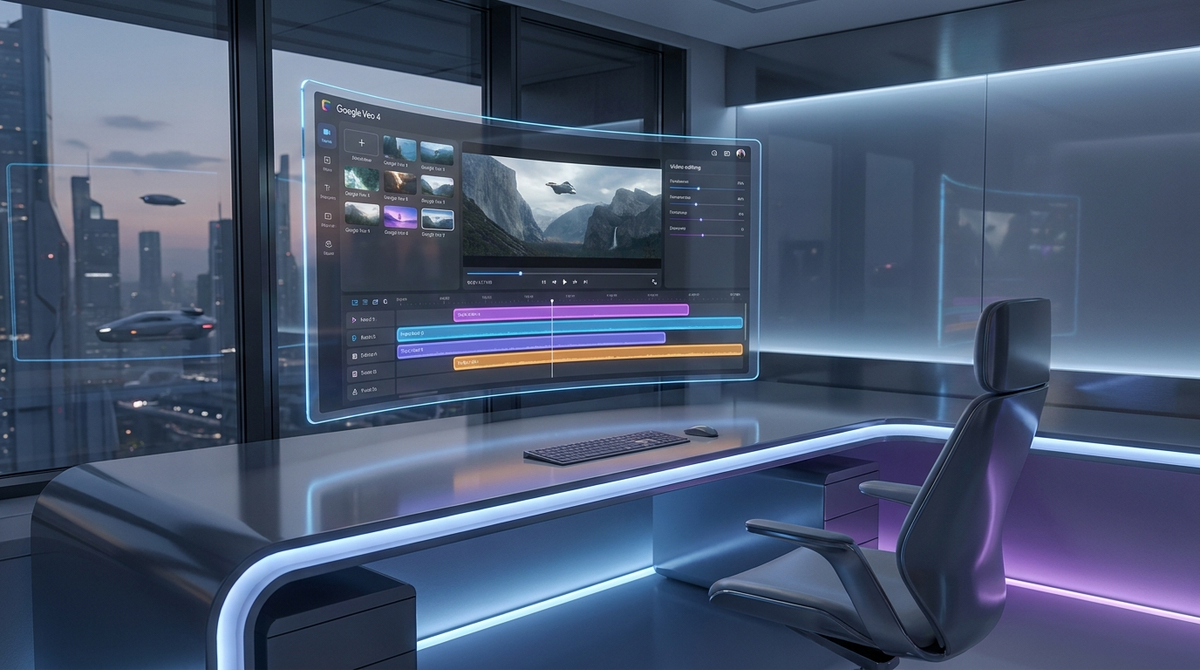
As we move through 2026, the landscape of digital content creation has been fundamentally reshaped by generative video technology. Leading this revolution is Google’s latest powerhouse, the Veo 4 model. This Google Veo 4 tutorial will guide you through the intricacies of the most advanced video generation engine to date, helping you transition from basic text prompts to professional-grade cinematic outputs. Whether you are a creative director, a social media influencer, or a developer utilizing the Gemini API, understanding the nuances of Veo 4 is essential for staying competitive in today's visual economy.
Google Veo 4 is an advanced generative AI video model released in 2026 that produces high-definition, cinematic video from text, image, or video prompts. It integrates seamlessly with Google Flow, offering enhanced temporal consistency, 4K resolution, and sophisticated camera control for professional creators and developers via the Gemini API ecosystem.
- ✓ Master the new 'Cinematic Prompting' syntax for precise control over lighting and motion.
- ✓ Leverage Google Flow for real-time iterative editing and layer-based video adjustments.
- ✓ Generate high-fidelity 4K clips up to 90 seconds with perfect temporal consistency.
- ✓ Seamlessly export and refine projects across the Google Workspace and Gemini API.
Understanding the Evolution: From Veo 3 to Veo 4
The leap from the previous generation to the current 2026 iteration is significant. While Veo 3 introduced the world to high-quality video via the Gemini API in mid-2025, Veo 4 has refined the underlying architecture to eliminate the 'morphing' artifacts that previously plagued AI video. According to Google’s technical documentation, the Veo 4 model utilizes a new latent diffusion transformer that processes spatial and temporal data simultaneously, resulting in physics-accurate movements that were impossible just a year ago.
One of the most notable upgrades in this Google Veo 4 tutorial is the inclusion of 'Global Consistency' checks. In earlier versions, a character's clothing or the background architecture might subtly shift between frames. In 2026, Veo 4 uses a persistent world-state memory, ensuring that every frame remains logically connected to the last. This makes it a viable tool for long-form storytelling and commercial-grade production where continuity is non-negotiable.
Key Features of the 2026 Update
Veo 4 introduces several features that set it apart from its predecessors and competitors like Seedance 2.0. These include native 4K upscaling, integrated Foley sound generation, and 'Director’s Mode.' Director’s Mode allows users to specify camera angles, focal lengths, and even specific lens types (like anamorphic or wide-angle) within the prompt, giving creators granular control over the aesthetic of their footage.
Google Veo 4 Tutorial: Getting Started with the Interface
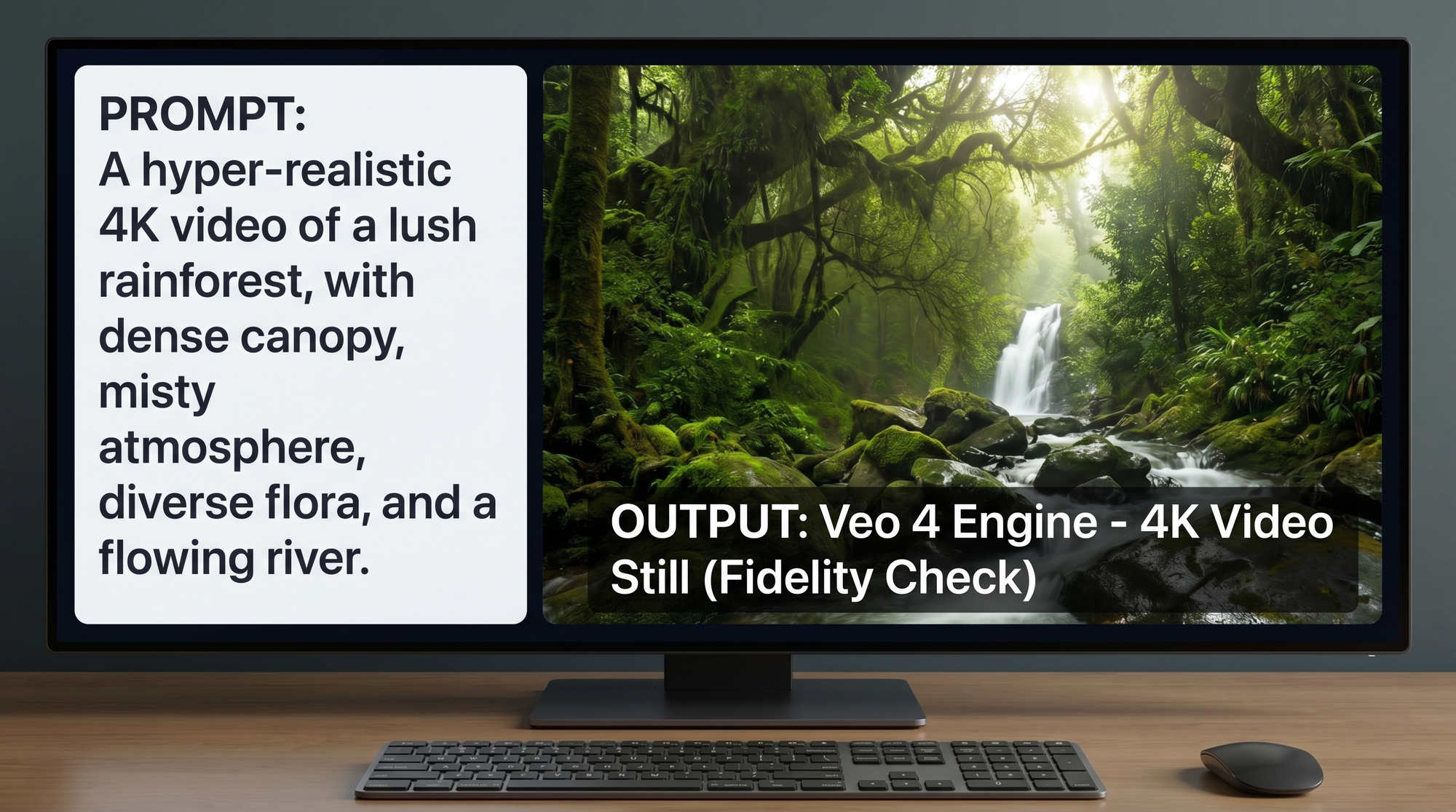
To begin using Veo 4, you must first access the Google Flow interface or the Vertex AI dashboard. Google Flow has become the primary creative hub for video generation in 2026. According to Simplilearn, Google Flow acts as a bridge between raw AI generation and traditional timeline-based editing, allowing users to 'flow' between different versions of a scene without starting from scratch. Once you log in, you will be greeted by a minimalist workspace designed to prioritize your visual canvas.
The first step in our Google Veo 4 tutorial is setting your project parameters. On the right-hand sidebar, you can select your aspect ratio (16:9 for film, 9:16 for social media, or 1:1 for ads). You also have the option to toggle 'Neural Rendering,' which increases generation time but produces significantly higher detail in textures like skin, water, and hair. For most professional projects in 2026, keeping this enabled is the standard practice.
Step-by-Step: Your First Generation
Start by entering a descriptive prompt in the primary text field. For example: 'A cinematic drone shot of a futuristic Tokyo in 2026, neon lights reflecting on wet pavement, 4K, 60fps, anamorphic lens.' After hitting 'Generate,' Veo 4 will provide four low-resolution previews. Select the one that best matches your vision, and then use the 'Enhance' button to begin the full-resolution rendering process. This iterative workflow ensures you don't waste compute credits on generations that don't fit your needs.
Advanced Prompting Techniques for Veo 4
Prompting in 2026 has evolved beyond simple keywords. To get the most out of this Google Veo 4 tutorial, you need to understand 'Multi-Modal Prompting.' This involves providing a text description alongside a reference image or a 'motion sketch.' By uploading a rough sketch of the camera path, you can dictate exactly how the scene unfolds. This level of precision is what differentiates Veo 4 from earlier, more randomized models.
According to a 2026 report by Nerdbot, the most successful AI cinematographers use a 'Context-Action-Detail' (CAD) framework. You define the context (the setting), the action (what is happening), and the detail (lighting, camera specs, and color grading). For instance, instead of saying 'a car driving,' you would say, 'A sleek silver electric vehicle (Context) speeding through a desert canyon at sunset (Action), dust trails catching the golden hour light, shot on 35mm film (Detail).'
Using Negative Prompts and Weights
Veo 4 also supports negative prompting, which is crucial for removing unwanted elements like 'motion blur' or 'deformed limbs.' By using the '--no' command followed by the unwanted attribute, you can clean up your shots significantly. Furthermore, you can now apply 'Weights' to specific words. If you want more emphasis on the 'sunset' than the 'desert,' you can format your prompt as (sunset:1.5) to tell the engine where to focus its creative energy.
Integrating Google Flow into Your Workflow
Google Flow is the secret weapon of the Veo 4 ecosystem. Unlike standalone generators, Flow allows for 'In-Painting' and 'Out-Painting' within a video timeline. If you have a perfect 10-second clip but want to change the color of a character's jacket, you can highlight the jacket in Google Flow and prompt the change without re-rendering the entire scene. This saves hours of production time and is a cornerstone of any Google Veo 4 tutorial for professionals.
According to Google’s '5 Tips for Getting Started with Flow,' the most effective way to use the tool is through 'Layered Generation.' You can generate the background and the foreground characters separately, then use Flow to composite them with realistic lighting and shadows. This modular approach allows for much higher complexity in the final output, as the AI can focus on perfecting one element at a time.
| Feature | Veo 3 (2025) | Veo 4 (2026) |
|---|---|---|
| Maximum Resolution | 1080p / 2K | 4K Native |
| Clip Length | Up to 60 seconds | Up to 90 seconds (Extended) |
| Consistency Engine | Temporal Smoothing | Persistent World-State Memory |
| Audio Integration | Visuals Only | Integrated Foley & Music |
| API Support | Gemini 1.5 Pro | Gemini 2.0 Ultra |
The Role of the Gemini API in 2026
For developers and enterprise users, the Google Veo 4 tutorial isn't complete without mentioning the Gemini API. In 2026, the API has become significantly more accessible, allowing for the automation of video content at scale. Companies are using the Gemini API to create personalized video ads for millions of customers simultaneously, with Veo 4 handling the high-fidelity rendering on the backend.
The API now supports 'Streaming Generation,' where the first few seconds of a video are delivered almost instantly while the rest of the clip renders in the background. This has revolutionized the gaming and interactive media industries, enabling real-time cinematic cutscenes that adapt to player choices. Studies show that integrated AI video workflows can reduce production costs by up to 70% compared to traditional CGI methods.
Is Google Veo 4 free to use in 2026?
Google Veo 4 offers a tiered pricing model. There is a limited 'Creator's Tier' available for free through Google Flow, but professional 4K rendering and API access require a monthly subscription or pay-per-credit usage via Vertex AI.
Can I use Veo 4 for commercial projects?
Yes, videos generated with Veo 4 are cleared for commercial use, provided you have a valid subscription. Google also includes SynthID watermarking to ensure ethical transparency and copyright protection for your generated assets.
How does Veo 4 compare to Seedance 2.0?
While Seedance 2.0 is excellent for stylized animation, Veo 4 is widely considered the leader in hyper-realistic, cinematic footage. Veo 4 also benefits from deeper integration with the Google Workspace ecosystem and the Gemini 2.0 model.
What is the maximum video length in Veo 4?
As of 2026, Veo 4 can generate continuous clips up to 90 seconds. However, by using the 'Stitch and Flow' feature in Google Flow, creators can combine multiple clips into long-form content with perfect continuity.
Does Veo 4 generate sound?
Yes, one of the major updates in Veo 4 is the ability to generate synchronized Foley sound effects and ambient background music that matches the visual content of the video automatically.
Conclusion: The Future of AI Video
Mastering the tools outlined in this Google Veo 4 tutorial is more than just a technical skill; it is a gateway to a new form of storytelling. As we move further into 2026, the boundaries between human-captured and AI-generated content will continue to blur. By leveraging the power of Google Flow, the precision of the Gemini API, and the sheer visual quality of the Veo 4 engine, you are positioned at the forefront of the next creative frontier. Start experimenting today, and see how your imagination takes shape in 4K resolution.
Comments ()