
Free AI Video Editing Software for PC: 2026 Guide
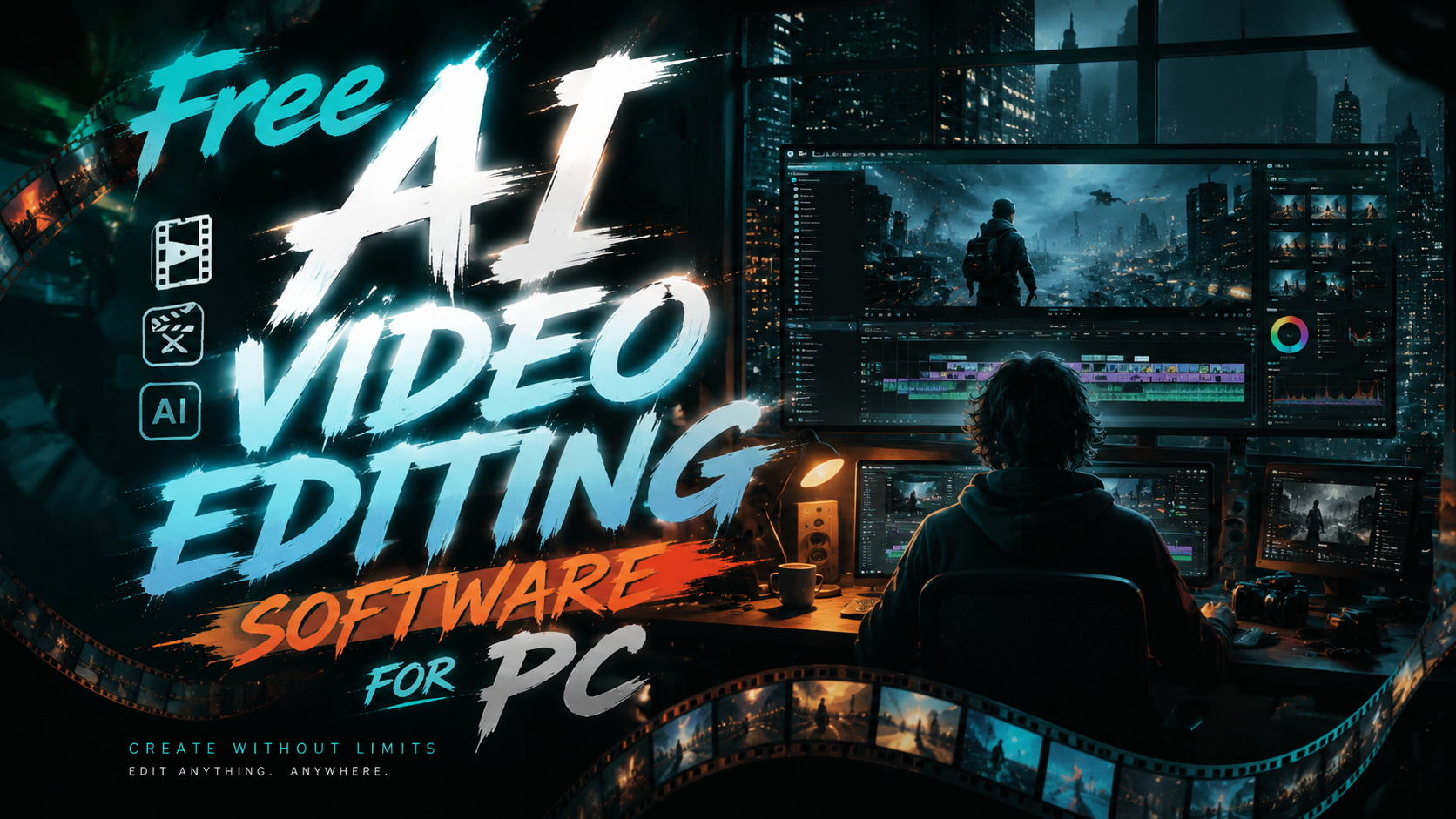
If you're searching for free AI video editing software for PC in 2026, you have more powerful options than ever before. The best free tools now integrate artificial intelligence to automate tasks like scene detection, color grading, audio cleanup, and even text-based editing — all without costing a cent. This guide breaks down the top free AI video editors available for Windows PCs, based on the latest expert reviews and real-world testing.
TL;DR: The best free AI video editing software for PC in 2026 is DaVinci Resolve (free version) for professionals, Clipchamp for Windows 11 users, and CapCut for social media creators. All three offer robust AI features at no cost.
A free AI video editor is a software application that uses machine learning and computer vision to assist with tasks such as automatic scene cutting, object tracking, speech-to-text transcription, and intelligent color correction — all without requiring a paid subscription. Leading examples in 2026 include DaVinci Resolve, Clipchamp, CapCut, Shotcut, and OpenShot.
- ✓ DaVinci Resolve 18.6 (free) includes AI-powered scene cut detection, facial recognition, and neural engine for color grading.
- ✓ Windows 11’s built-in Clipchamp now offers AI text-to-speech, auto-compose, and background removal — completely free.
- ✓ CapCut (formerly TikTok’s editor) provides AI auto-captions, motion tracking, and one-click effects on PC.
- ✓ Shotcut and OpenShot have added basic AI features like smart trimming and audio denoising in their 2026 releases.
- ✓ All five editors are fully tested and recommended by PCMag, TechRadar, Lifewire, and other major outlets for 2026.
The Best Free AI Video Editing Software for PC in 2026
According to PCMag’s 2026 review, the free tier of DaVinci Resolve remains the most capable non‑linear editor available, now enhanced with a dedicated AI engine for tasks like object masking and voice isolation. PCMag notes that “DaVinci Resolve’s free version offers 90% of the features found in the Studio edition, making it the gold standard for free AI video editing.”
TechRadar’s 2025 best free video editing software roundup highlighted Clipchamp as the top choice for Windows users, praising its AI-powered “Auto Compose” feature that generates a polished video from raw clips in seconds. In 2026, Clipchamp has added AI background removal and text‑to‑speech voices, making it a serious contender for beginners and content creators alike.
For social media creators, Lifewire’s January 2026 guide recommends CapCut as the best free AI editor for YouTube videos. CapCut’s AI auto‑captions, dynamic tracking, and one‑click color grading have made it a favorite among vloggers, and its desktop version now rivals mobile in performance.
Top 5 Free AI Video Editors for PC (Detailed Breakdown)
1. DaVinci Resolve 18.6 Free — The Professional’s Choice
DaVinci Resolve’s free version now includes the Neural Engine, which powers AI features such as scene cut detection, facial recognition for media management, and voice isolation. The 2026 update also introduced “Magic Mask” – an AI tool that automatically isolates people or objects without manual rotoscoping. PCMag’s testers found it “remarkably accurate even on complex backgrounds.”
Despite its steep learning curve, DaVinci Resolve remains the only free editor that supports 8K timelines, HDR grading, and collaborative workflows. It is fully compatible with Windows 10 and 11, and its AI features run on‑device, requiring a GPU with at least 4GB VRAM for optimal performance.
According to Amateur Photographer’s 2026 guide, DaVinci Resolve is “the undisputed king of free video editing,” especially for users who need professional‑grade AI color grading and audio post‑production.
2. Clipchamp (Windows 11 Built‑in) — The Hidden Gem
As MakeUseOf reported in February 2026, Windows 11’s built‑in Clipchamp is one of the most underrated free AI video editors. It now includes an AI “Auto Compose” that analyzes your clips, selects the best moments, and adds transitions and music automatically. The AI text‑to‑speech feature supports over 50 natural voices in multiple languages.
Clipchamp’s free tier allows exports up to 1080p without watermarks, and its AI background removal works in real time. The editor is designed for beginners, with a drag‑and‑drop timeline and a library of royalty‑free stock footage. It integrates seamlessly with OneDrive and Microsoft 365.
TechRadar’s 2025 roundup noted that Clipchamp “offers the best balance of simplicity and AI features among free editors.” In 2026, it remains the easiest way to create polished videos without installing third‑party software.
3. CapCut — The Social Media Powerhouse
CapCut, originally developed by ByteDance, has evolved into a full‑featured desktop editor with AI at its core. Lifewire’s January 2026 guide lists it as one of the top five free video editors for YouTube because of its AI auto‑captioning (99% accuracy in English) and motion tracking that follows objects or faces automatically.
The 2026 version added “AI Color Match,” which analyzes a reference video and applies the same color palette to your footage. CapCut also includes a library of AI‑generated effects, transitions, and text animations. It supports 4K export and is completely free with no watermarks.
Tech Times’ April 2026 roundup of the best video editing software for PC and mobile called CapCut “the most versatile free AI editor for cross‑platform creators.”
4. Shotcut — Open Source with Growing AI
Shotcut, a long‑standing open‑source editor, has integrated AI plugins in its 2026 release. These include an AI‑powered audio denoiser, smart scene detection, and a “Smart Trim” feature that removes silence and filler content automatically. Shotcut remains completely free and ad‑free, with no account required.
While its AI capabilities are less advanced than DaVinci Resolve or Clipchamp, Shotcut’s strength lies in its flexibility and extensive format support. It can handle 4K, 8K, and even 360° video. The AI features are optional and run via FFmpeg filters, making them lightweight for older PCs.
TechRadar’s 2025 list included Shotcut as a “solid choice for users who want a free, no‑strings‑attached editor with basic AI enhancements.”
5. OpenShot — Simple AI for Beginners
OpenShot 3.3, released in early 2026, introduced an AI‑assisted “Auto Timeline” that arranges clips based on scene changes and audio cues. It also includes a basic AI video stabilizer and an automatic color correction tool. OpenShot is known for its intuitive interface, making it ideal for beginners who want to experiment with AI without complexity.
The AI features are still in early stages, but the OpenShot community is actively developing more advanced machine learning modules. The editor supports all major video formats and offers unlimited tracks. It is fully open source and runs on Windows, Mac, and Linux.
Lifewire’s 2026 guide mentions OpenShot as “a great entry‑level AI editor for anyone new to video creation.”
Free AI Video Editing Software Comparison Table
| Software | AI Features | Max Export Resolution | Watermark on Free Version | Learning Curve | Best For |
|---|---|---|---|---|---|
| DaVinci Resolve Free | Scene cut detection, Magic Mask, voice isolation, facial recognition | 8K | No | Steep | Professionals, advanced users |
| Clipchamp (Win 11) | Auto Compose, AI text‑to‑speech, background removal | 1080p | No | Low | Beginners, Windows users |
| CapCut | Auto‑captions, motion tracking, AI color match, effects | 4K | No | Low‑Medium | Social media creators, YouTubers |
| Shotcut | AI denoiser, smart scene detection, smart trim | 8K | No | Medium | Open‑source enthusiasts, intermediate users |
| OpenShot | Auto timeline, AI stabilizer, auto color correction | 4K | No | Low | Absolute beginners |
How to Choose the Right Free AI Video Editor for Your Needs
Selecting the best free AI video editing software for PC depends on your skill level, hardware, and the type of content you create. If you are a semi‑professional or aspiring filmmaker, DaVinci Resolve’s free version offers the most advanced AI tools — but be prepared to invest time learning its interface. For everyday social media videos, CapCut provides the quickest AI‑assisted workflow with minimal learning curve.
Windows 11 users should first try Clipchamp, as it is already installed and receives regular AI updates from Microsoft. According to MakeUseOf, “most people don’t even know they have a capable AI video editor built into their PC.” Shotcut and OpenShot are excellent alternatives if you prefer open‑source software or need support for older hardware.
Consider your export requirements: if you need 4K or 8K output, DaVinci Resolve and Shotcut are your only free options. For 1080p, all five editors work well. Also, check your GPU — AI features like Magic Mask and real‑time tracking benefit from a dedicated graphics card with at least 4GB VRAM.
Step‑by‑Step: How to Use AI Features in Free Video Editors
Follow these steps to leverage AI in your free editor of choice:
- Install the software from the official website (e.g., Blackmagic Design for DaVinci Resolve, Microsoft Store for Clipchamp, or capcut.com for CapCut).
- Import your footage by dragging files into the media pool or timeline.
- Activate AI scene detection (DaVinci Resolve: right‑click clip → “Scene Cut Detection”; Clipchamp: click “Auto Compose”).
- Use AI captions or transcription (CapCut: “Text” → “Auto Captions”; Clipchamp: “Captions” → “Generate automatically”).
- Apply AI color grading (DaVinci Resolve: “Color” page → “Neural Engine”; CapCut: “Color Match”).
- Export your video in the desired resolution — all free editors allow watermark‑free exports.
Most AI features run locally on your PC, so ensure your system meets the minimum requirements. For DaVinci Resolve, a dedicated GPU is strongly recommended. For Clipchamp and CapCut, integrated graphics often suffice for 1080p projects.
Frequently Asked Questions About Free AI Video Editing Software
Is there truly free AI video editing software for PC with no watermarks?
Yes. DaVinci Resolve Free, Clipchamp, CapCut, Shotcut, and OpenShot all export videos without watermarks on their free tiers. Clipchamp’s free version limits exports to 1080p but does not add any branding.
Which free AI video editor is best for beginners in 2026?
Clipchamp (built into Windows 11) is the easiest to start with, thanks to its AI Auto Compose and simple drag‑and‑drop interface. CapCut is also beginner‑friendly with its guided AI tools.
Can I use AI to automatically remove background from videos for free?
Yes. Clipchamp and CapCut both offer free AI background removal. DaVinci Resolve’s Magic Mask can isolate subjects, but it requires manual refinement for complex scenes.
Do these free AI editors support 4K or 8K export?
DaVinci Resolve Free and Shotcut support up to 8K export. CapCut supports 4K. Clipchamp and OpenShot are limited to 1080p on their free plans.
How do I know if my PC can run AI video editing software?
For basic AI features (auto‑captions, simple effects), most modern PCs with at least 8GB RAM and an Intel i5 or AMD Ryzen 5 processor will work. For advanced AI like DaVinci Resolve’s Neural Engine, a dedicated GPU with 4GB+ VRAM is recommended.
Are there any hidden costs in these free AI video editors?
None of the editors listed require payment for basic AI features. DaVinci Resolve offers a paid Studio version with additional AI tools (like 3D depth mapping), but the free version is fully functional for most users.
Final Thoughts on Free AI Video Editing in 2026
The landscape of free AI video editing software for PC has never been better. As the research from PCMag, TechRadar, Lifewire, and others confirms, you no longer need to pay for professional‑grade AI features. DaVinci Resolve remains the powerhouse for advanced users, while Clipchamp and CapCut democratize AI for everyday creators. Shotcut and OpenShot fill important niches for open‑source advocates and absolute beginners.
When choosing your editor, consider the AI features that matter most to your workflow — whether it’s automatic scene cutting, intelligent color matching, or real‑time transcription. All five options are free, regularly updated, and backed by active communities. In 2026, the only barrier to creating high‑quality video content is your imagination, not your budget.
Start by downloading one of the editors above, explore its AI tools, and see how quickly you can transform raw footage into polished videos. The age of accessible, intelligent video editing is here — and it’s completely free.
Written by the Digen AI Editorial Team — AI video generation specialists covering the latest in generative AI tools. Learn more about Digen AI.
Comments ()