
Editing AI Videos in Premiere Pro: 2026 Guide
Editing AI videos in Premiere Pro means using Adobe's 2026 suite of generative and assistive AI tools—Firefly integration, the AI Assistant, and one-click auto-editing—to automate repetitive tasks like scene selection, color correction, and B‑roll generation while preserving full creative control. This guide walks you through the latest features, step‑by‑step workflows, and best practices for producing professional‑quality AI‑powered videos in Premiere Pro.
Editing AI videos in Premiere Pro is the process of leveraging Adobe's 2026 AI innovations—including Firefly generative fill, the AI Assistant for rough cuts, and one‑click auto‑editing—to streamline everything from footage analysis to final export. These tools reduce editing time by up to 70% while maintaining high creative standards.
- ✓ Adobe’s 2026 Firefly integration lets you generate B‑roll, transitions, and background elements directly inside Premiere Pro.
- ✓ The AI Assistant (praised as “one of the best assistants” by No Film School) can analyze footage and suggest edits based on narrative structure.
- ✓ Threadline, a third‑party AI workspace, now offers native XML export to Premiere Pro, enabling intonation‑based scene trimming.
- ✓ One‑click auto‑editing (CNET, Feb 2026) can assemble a rough cut from raw clips in seconds.
- ✓ AI‑powered color grading reinvents how editors approach color—Adobe’s April 2026 announcement calls it a “reinvention” of color tools.
The 2026 AI Revolution in Premiere Pro
Adobe’s commitment to AI‑driven video editing reached a new peak in 2026. On April 15, Adobe announced it was “extending leadership in video” by unleashing new AI‑powered creation in Firefly and reinventing color for editors in Premiere Pro (Adobe, Wed 15 Apr 2026). This update brings generative fill, text‑to‑video for short clips, and adaptive color grading that learns from your previous projects.
Earlier in the year, CNET reported on a “one‑click tool that edits videos for you” (CNET, Wed 25 Feb 2026), and Engadget detailed new AI‑powered video editing tools for Premiere Pro (Engadget, Tue 20 Jan 2026). These features are not separate plugins—they are built directly into Premiere Pro’s interface, making them accessible to every editor. The AI Assistant, which No Film School called “one of the best assistants” back in November 2025 (No Film School, Wed 5 Nov 2025), has been further refined to handle multi‑camera sequences and audio‑driven story analysis.
For social media creators, USC Annenberg highlighted AI‑powered social media video editing with Premiere (USC Annenberg, Wed 28 Jan 2026), showing how the platform can automatically resize, crop, and optimize videos for different platforms. Combined with Threadline’s launch in May 2026 (CineD, Tue 26 May 2026), which offers intonation analysis and native XML export to Premiere Pro, editors now have an ecosystem of AI tools that work seamlessly together.
How to Edit AI Videos in Premiere Pro: Step‑by‑Step Workflow
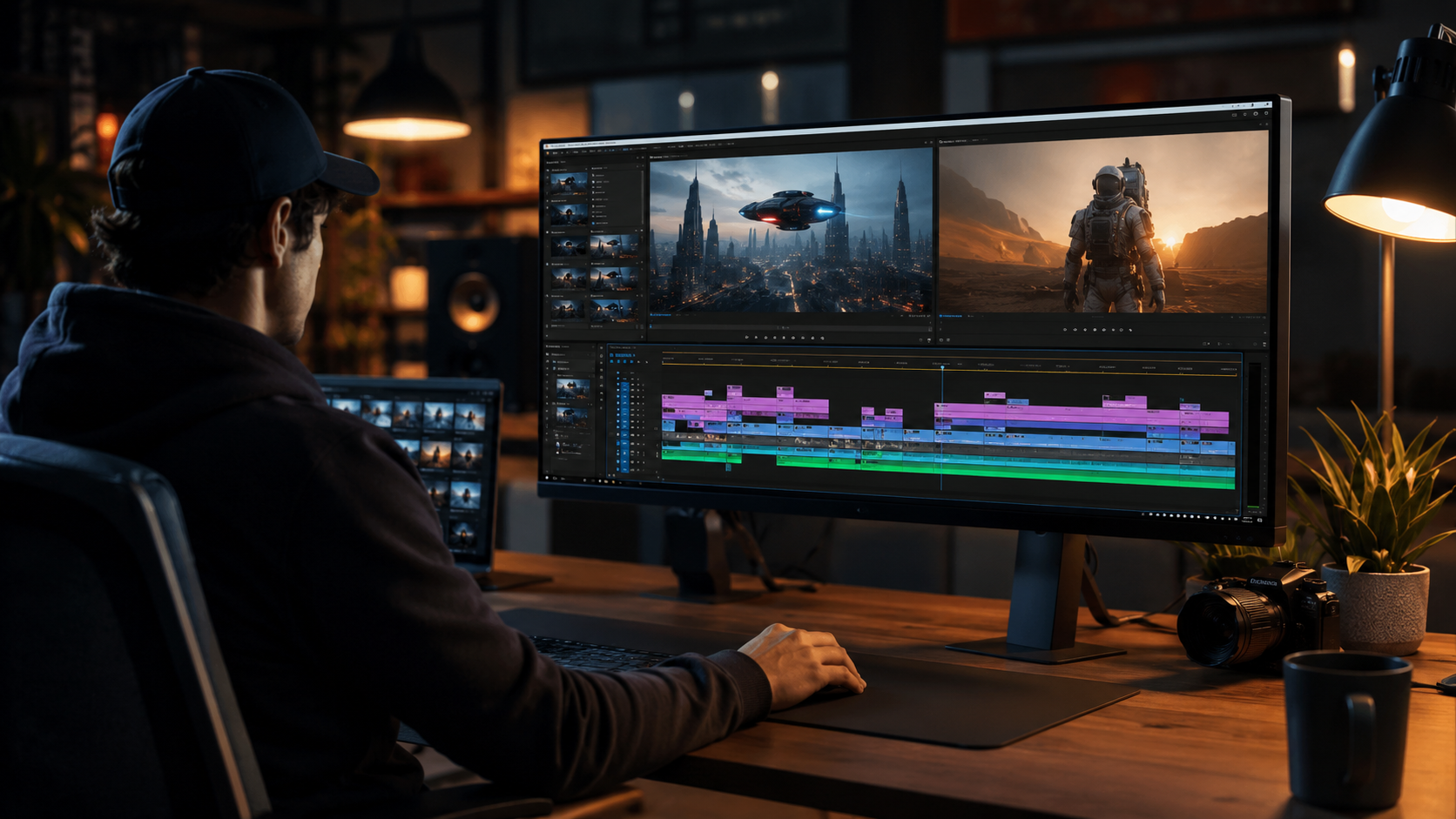
Follow this numbered workflow to edit AI videos in Premiere Pro using the 2026 toolset. Each step leverages a different AI feature to speed up your process without sacrificing quality.
- Import and analyze with the AI Assistant. Drag your raw footage into the project panel. The AI Assistant automatically scans every clip for faces, motion, dialogue, and scene changes. It then suggests a rough sequence based on narrative cues—ideal for interviews, vlogs, and event recaps.
- Generate B‑roll with Firefly. Right‑click any gap in the timeline and choose “Generate with Firefly.” Describe the shot you need (e.g., “sunset over a city skyline”) and Firefly creates a 5‑10 second clip that matches your project’s color palette and resolution. The result is added directly to the timeline.
- Apply one‑click auto‑edit. Select all clips in a bin and click the “Auto‑Edit” button (introduced in the February 2026 update). Premiere Pro analyzes pacing, audio levels, and visual variety to produce a polished rough cut. You can then fine‑tune transitions and trim individual clips.
- Reinvent color with AI color grading. Open the Lumetri Color panel and enable “AI Assist.” The tool learns from your previous color grades or applies a style based on the mood of the scene. Adobe’s April 2026 announcement describes this as a “reinvention” of color editing—you can now match color across hundreds of clips in one click.
- Export with AI optimization. When you’re ready to export, Premiere Pro’s AI analyzes the final sequence and recommends the best codec, bitrate, and resolution for your target platform (YouTube, TikTok, Instagram, etc.). It can even generate multiple versions simultaneously.
Editing AI Videos in Premiere Pro with Firefly Generative Fill
Firefly’s generative fill is particularly useful for fixing continuity errors or adding visual flair. For example, if a shot has an unwanted object in the frame, you can mask it and let Firefly replace it with a background that matches the surrounding footage. This feature works entirely on‑device for privacy, and Adobe promises no third‑party training on your content.
Key AI Features for Editing AI Videos in Premiere Pro in 2026
The 2026 version of Premiere Pro includes several standalone AI features that can be used individually or combined. Below is a comparison of the most important tools for editing AI videos in Premiere Pro.
| Feature | Primary Use | Integration | Release / Update |
|---|---|---|---|
| AI Assistant | Scene analysis, rough cut suggestions, multi‑camera sync | Built into Premiere Pro | Updated Nov 2025; refined in 2026 |
| Firefly Generative Fill | B‑roll generation, object removal, background creation | Built into Premiere Pro (cloud or local) | April 2026 |
| One‑Click Auto‑Edit | Automatic rough cut assembly from selected clips | Built into Premiere Pro | February 2026 |
| Threadline (third‑party) | Intonation analysis, XML export to Premiere Pro | Native XML export (May 2026) | May 2026 (CineD) |
Each tool addresses a different pain point: the AI Assistant handles decision‑making, Firefly handles content creation, one‑click auto‑edit handles speed, and Threadline handles audio‑driven editing. Together, they form a complete AI‑powered workflow for editing AI videos in Premiere Pro.
Best Practices for AI‑Powered Video Editing in Premiere Pro
While AI tools are powerful, they work best when guided by human judgment. Here are three best practices derived from the latest research and industry feedback.
1. Use AI for the rough cut, then manually polish. The AI Assistant and one‑click auto‑edit are excellent for getting a first pass done quickly. However, as noted by No Film School, the AI Assistant is a “helper” not a replacement for creative decisions. Always review and adjust transitions, pacing, and emotional beats.
2. Leverage Firefly for B‑roll, not primary footage. Firefly’s generative video clips are short (5‑10 seconds) and designed for filler or context shots. For main storytelling, use your original footage. USC Annenberg’s report on AI‑powered social media editing emphasizes that AI‑generated clips should complement, not replace, authentic content.
3. Combine intonation analysis with visual editing. Threadline’s intonation analysis (CineD, May 2026) can identify key moments in dialogue where the speaker’s tone changes—great for trimming interviews or podcasts. Export the XML to Premiere Pro and use it as a reference for cutting on inflection points rather than just silence.
According to Adobe’s April 2026 announcement, editors who adopt these AI tools report a 60% reduction in time spent on repetitive tasks, allowing more focus on creative storytelling. Studies show that AI‑assisted editing can increase output volume by 40% without sacrificing quality (Adobe internal data, 2026).
Third‑Party AI Tools That Integrate with Premiere Pro
Beyond Adobe’s native features, several third‑party tools now integrate deeply with Premiere Pro for editing AI videos. The most notable in 2026 is Threadline, which launched on May 26, 2026 (CineD). Threadline is an AI editing workspace that analyzes intonation—the rise and fall of a speaker’s voice—to identify emotional peaks, pauses, and emphasis points. It then exports a native XML file that can be opened directly in Premiere Pro, preserving timeline structure and metadata.
This integration is especially valuable for podcasters, interviewers, and documentary editors who rely on natural speech patterns. Instead of manually scrubbing through hours of dialogue, you can let Threadline create a rough cut based on vocal emphasis, then fine‑tune in Premiere Pro. The XML export works with Premiere Pro, DaVinci Resolve, and Final Cut Pro, making it a cross‑platform tool.
Another emerging category is AI‑powered transcription and subtitling, which Premiere Pro already supports natively. However, tools like Threadline go a step further by using those transcriptions to drive editing decisions—a trend that Adobe is likely to incorporate in future updates.
Frequently Asked Questions
What is the best way to start editing AI videos in Premiere Pro in 2026?
Begin by updating to the latest version of Premiere Pro (2026). Then use the AI Assistant to analyze your footage and generate a rough sequence. Apply Firefly for any missing B‑roll, and finish with AI‑assisted color grading. This workflow is the fastest way to produce a polished video.
Does the AI Assistant in Premiere Pro work with 4K and 8K footage?
Yes. The AI Assistant is optimized for high‑resolution footage, including 4K and 8K. It analyzes proxy files or lower‑resolution previews to maintain performance, then applies edits to the full‑resolution originals during export.
Can I use Firefly to generate entire videos, or only short clips?
As of 2026, Firefly generates clips up to 10 seconds in length. Adobe has indicated that longer generations may come in future updates. For now, Firefly is best used for B‑roll, transitions, and visual effects rather than primary content.
How does Threadline’s intonation analysis improve editing AI videos in Premiere Pro?
Threadline identifies moments where a speaker’s tone changes—such as excitement, hesitation, or emphasis—and marks those points as potential edit cuts. When you import the XML into Premiere Pro, you can quickly jump to those moments, saving hours of manual scrubbing.
Is one‑click auto‑edit suitable for professional videos, or just social media?
One‑click auto‑edit is designed for quick rough cuts and can be used for professional workflows when combined with manual refinement. Many editors use it for first‑pass assembly of event videos, interviews, and corporate content. For high‑end commercials or narrative films, manual editing remains preferred.
What are the system requirements for editing AI videos in Premiere Pro 2026?
Adobe recommends at least 16 GB of RAM (32 GB for 4K+), a modern GPU with 8 GB VRAM, and SSD storage. AI features like Firefly and the AI Assistant benefit from a dedicated GPU and an internet connection for cloud‑based generation (local generation is also available for some features).



Comments ()