
🔊 Digen.ai Tutorial: How to Add Sound (Voice) to Your Video
Digen.ai uses lip-sync technology (Lip Motion) to generate talking-head videos from a static image. To ensure your output video has sound, you must provide voice input—either by uploading an audio file or using Digen.ai’s built-in voice generation tools.
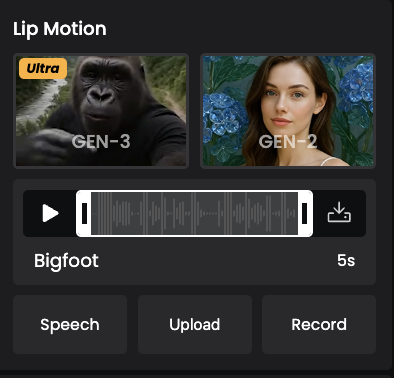
- ✅ GEN-3: Native audio-visual co-generation — natural lip-sync, facial expressions, and speech timing; up to 15 seconds; 720p
- ✅ GEN-2: Two-step pipeline: video generation first, then voice synthesis; up to 2 minutes; 720p
Currently, Digen.ai offers three generation modes, all of which can produce videos with synchronized audio:

Lip-Motion Gen-2 | ✅ Yes | 0 credits | 2 minutes | Upload up to 2 min of audio |
Lip-Motion Gen-3 | ❌ No | 30 credits | 10 seconds | Upload up to 10 sec of audio |
Image-to-Video + Voice | — | — | Varies by model | Requires voice input |
✅ Key Reminder:
No voice input = silent video.
You must provide audio (via upload, text-to-speech, or recording) to generate a video with sound.
🎧 Method 1: Upload Your Own Audio File (Recommended)
Use this if you already have a voiceover, narration, or recorded audio.
Steps:
- Prepare an audio file in MP3 or WAV format.
- Gen-2: Max 2 minutes
- Gen-3: Max 10 seconds
- Upload a single portrait image of the person who will “speak.”
- Choose your generation mode:
- For videos longer than 10 seconds (e.g., 30s, 60s, 2 min) → Select Lip-Motion Gen-2
- For ultra-high-quality clips ≤10 seconds → Select Lip-Motion Gen-3
- Click “Upload Audio” and select your file.PC :

Wap&app:

- Click “Generate” — the system will create a video with synchronized lip movements and your voice.
📌 Tip: The audio upload button location is shown in the platform’s demo video or interface guide.
🗣️ Method 2: Generate Voice Directly in Digen.ai (No Pre-Recorded Audio Needed)
If you don’t have an audio file, Digen.ai offers two built-in ways to create voice:
Option A: Use “Speed” (Text-to-Speech)
- Choose an Avatar (digital human).
Type the full script you want the character to say (e.g., “Welcome to Digen.ai!”).PC -

Wap&app:

PC :

Wap&app:

3. The system will convert your text to speech and animate the lips accordingly.

- The output video will include AI-generated voiceover.
✅ Best for: Quick explainers, product intros, or when you lack recording equipment.
Option B: Use “Record” (Live Microphone)
- Click the “Record” button.PC :

Wap&app:

2.Allow microphone access and speak clearly.
PC :

Wap&app:

3.After recording, the system generates a video using your real voice with synced lip motion.
4.Max recording length follows model limits: 2 min (Gen-2) or 10 sec (Gen-3).
🎤 Tip: Record in a quiet environment for best audio quality.
❗ Common Issues
Q: Why is my generated video silent?
A: You likely didn’t provide any voice input—no uploaded audio, no text in “Speed,” and no use of “Record.” Voice input is required.
Q: Can I generate a video without sound?
A: Not with the current Lip-Motion features. Audio input is mandatory to generate a talking-head video.
Q: Can I add background music in Digen.ai?
A: Not directly. You can add background music later using video editing tools like CapCut, iMovie, or Adobe Premiere after downloading your video.
✅ Summary: 3 Ways to Add Sound to Your Video
Upload Audio | Provide your own voiceover file | Professional voice, multilingual content, precise timing |
Speed (TTS) | Type text → AI speaks it | Fast creation, no mic needed |
Record | Speak live into your microphone | Personalized, authentic human voice |
🎯 Remember: As long as you provide voice input (audio, text, or recording), your Digen.ai video will have sound and realistic lip-sync!
For visual guidance, please refer to the in-app demo video on the Digen.ai platform.
Let us know if you need help with file formats, script writing, or editing your final video!

Comments ()