
Digen.ai ✖️Seedance 2.0 official Day 0 Global Debut: Usage Guidelines

- ✅ Combining Images, Videos, Audio, and Text Freely
- ✅ official Day 0 Global Debut
- ✅ Global availability—All-New Multimodal Creation Experience!
- ✅ Browser-based—no app download, no GPU required
As an official Day 0 launch partner, we're thrilled to bring you early access to Seedance 2.0 – ByteDance's latest break through in AI video generation.
For details, see the ByteDance Seedance2.0 official guide on
It’s happening fast
— Elon Musk (@elonmusk) February 11, 2026
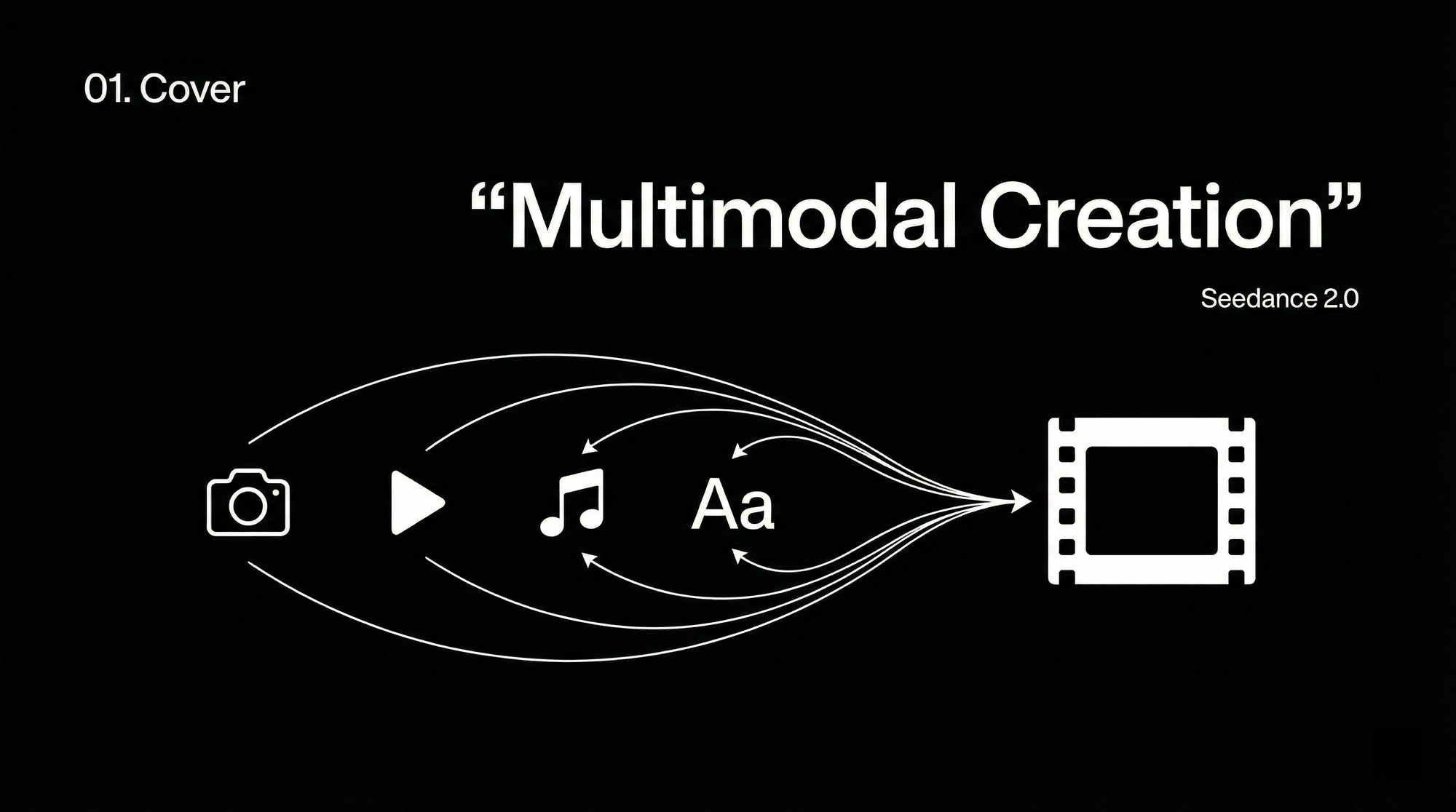
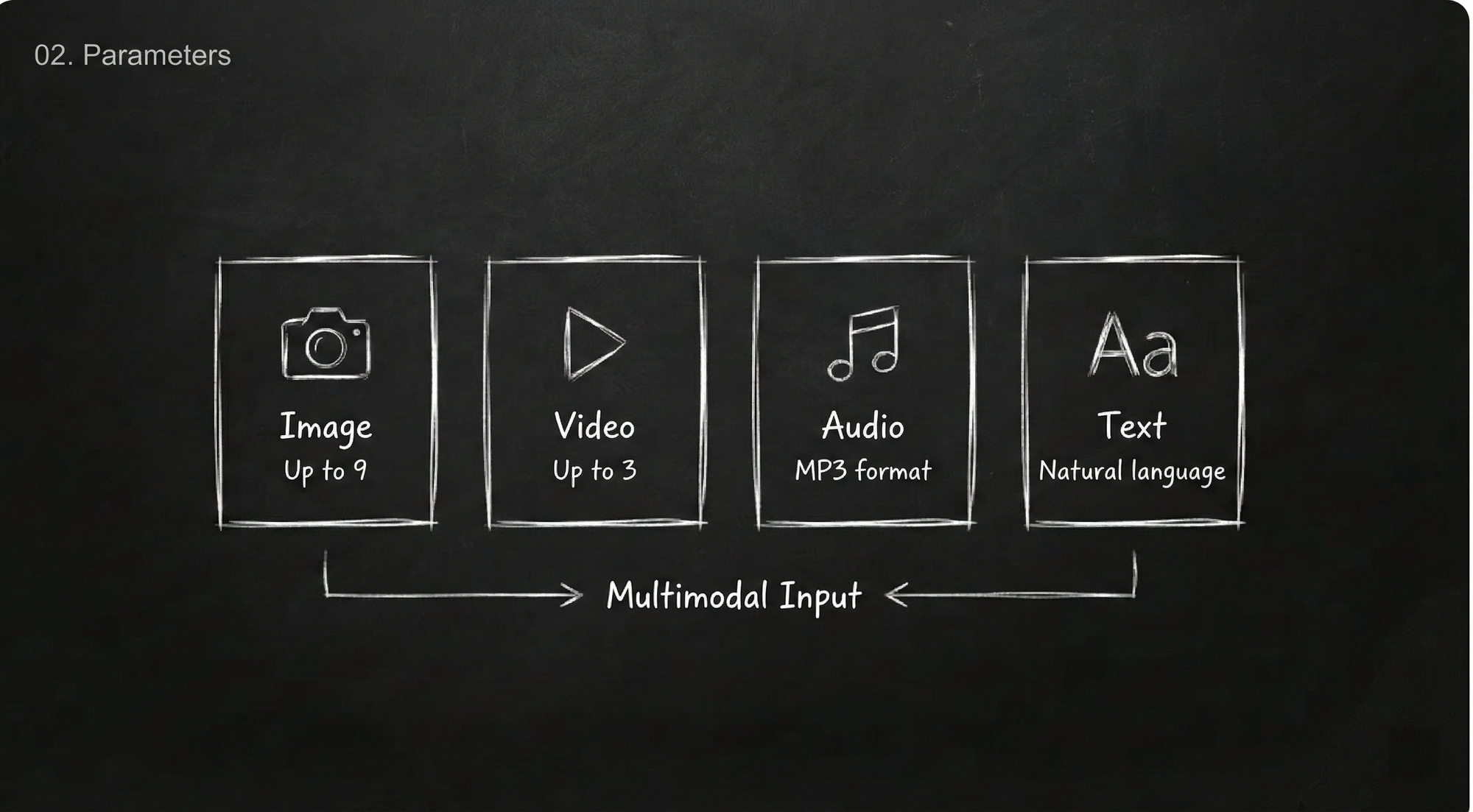
Seedance 2.0 now supports four modal inputs: images, videos, audio and text—enabling richer expression and more controllable generation.
These past few days, digen.ai's AI video model Seedance 2.0 has gone completely viral.
You can set the visual style with a single image, define character movements and camera transitions with a video clip, and set the rhythm and mood with just a few seconds of audio...Combined with prompts, it makes the creation process more natural, efficient, and truly feels like being a director.
AI-generated works created with Seedance 2.0 are everywhere.
It's no exaggeration to say that this update from Seedance 2.0 has essentially flattened the threshold for AI video generation to the ground.
Words are unnecessary, let's start with a mashup ↓
How is the effect???
Parameter Preview
Parameter | Specification |
|---|---|
Core Specifications | Seedance 2.0 |
Image Input | ≤ 9 images |
Video Input | ≤ 3 clips, total duration ≤ 15s |
Audio Input | MP3 upload supported; ≤ 3 files, total duration ≤ 15s |
Text Input | Natural language |
Generation Duration | ≤ 15s (4–15s optional) |
Audio Output | Built-in sound effects / background music |
Interaction Restriction: The current maximum limit for mixed input files is 12. It is recommended to prioritize uploading content that significantly impacts visuals or pacing, while rationally allocating the number of files across different modalities.
Interaction Mode
⚠️Note:
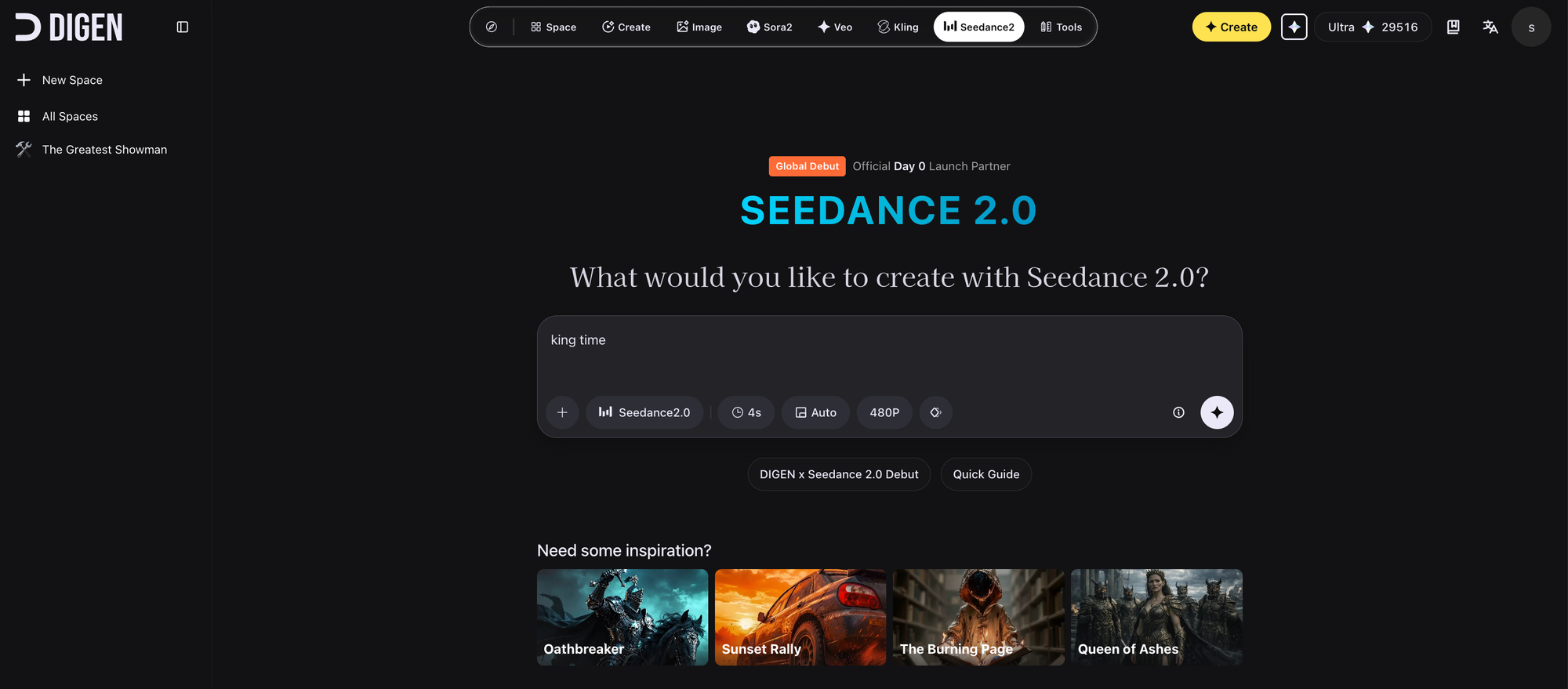
- Seedance 2.0 only supports the 「First and Last Frames」 and 「All-in-One Reference」 entry points. Smart Multi-Frame and Subject Reference are unavailable for selection. If you only upload a first-frame image + prompt, select the First & Last Frame entry. For multimodal mixed input (images, videos, audio, text), you must access the All-in-One Reference entry.
- The currently supported interaction mode is to specify the usage of each image, video and audio file by @[Material Name]. For example: @Image 1 as the first frame, @Video 1 for camera language reference, @Audio 1 for background music.
Main Interface:
How to Use @ in All-in-One Reference Mode:
Method 1: Enter "@" to activate reference call
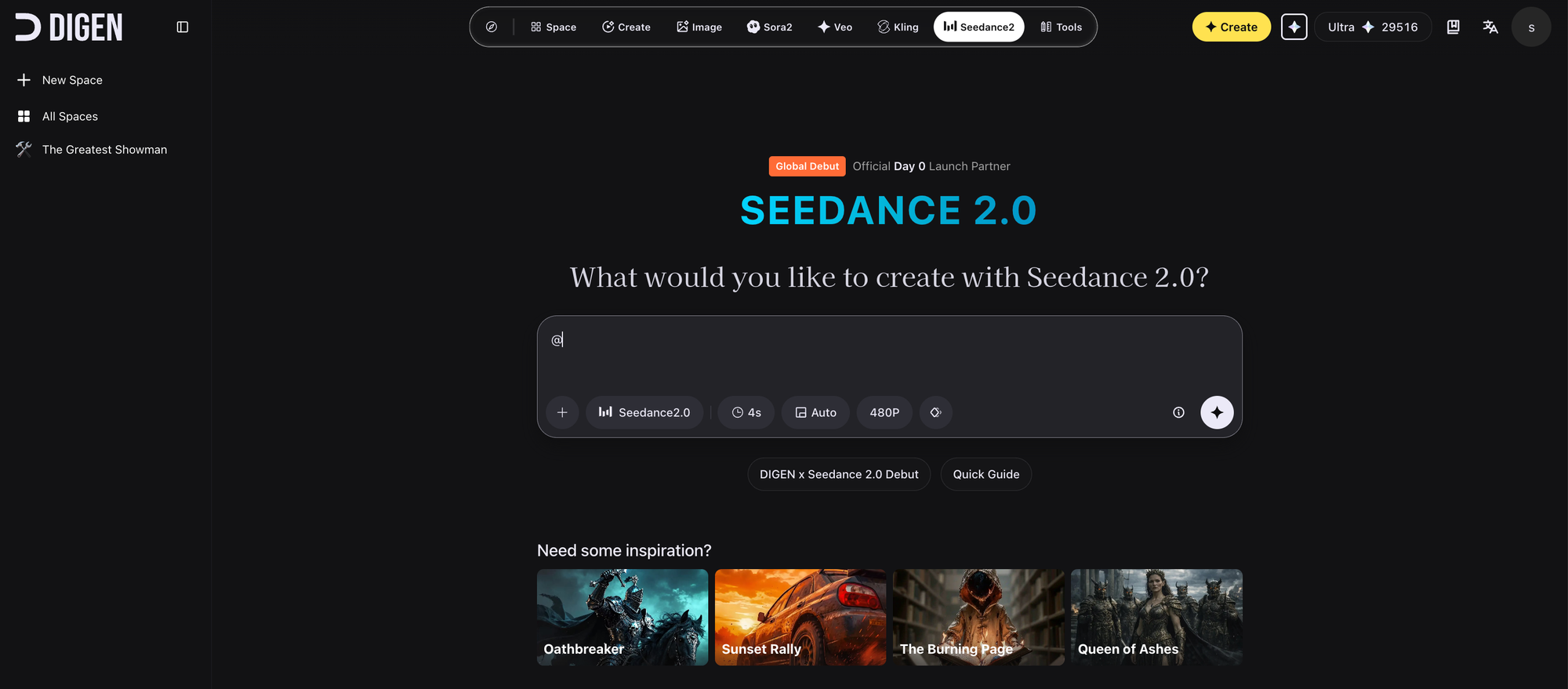
Click the upload button and select files from your local device. Images, videos, and audio can all be directly dragged in. After successful upload, all materials will appear in the input box area, and you can preview the content by hovering your mouse over them.
Method 2: Click the "@" in the parameter tool to activate reference call
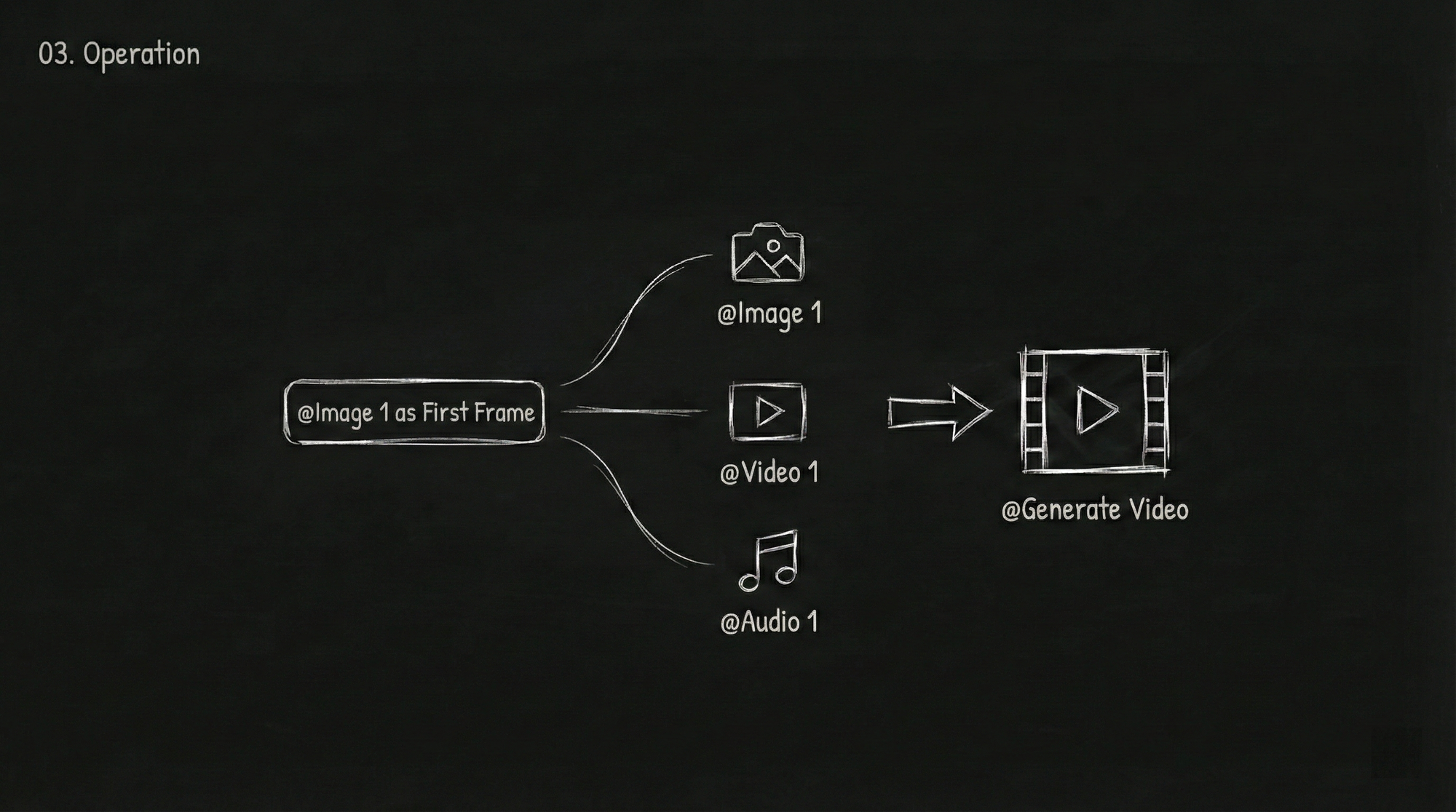
This step is the core operation for Seedance 2.0 and is also a place where many newcomers easily get confused.
After uploading your materials, you need to tell the model what each specific material is for within your prompt using @MaterialName. The model won't guess on its own; if you don't make it clear, it might misuse them.
For example:
@Image1as the first frame@Video1reference for camera language@Audio1for background music
How to invoke @:
Method 1: Type the "@" character directly into the input box, and a list of uploaded materials will automatically pop up. Click the material you want to reference, and it will fall into the input box.
Method 2: Click the "@" button in the parameter toolbar next to the input box, and a list will pop up as well.
Examples of correct @ usage:
Specify first frame and reference: @Image1 as the first frame, reference @Video1's camera language, @Audio1 for background music
Specify character image: The girl in @Image1 as the main character, the boy in @Image2 as the supporting character
Specify camera movement reference: Fully reference all camera movement effects and transitions from @Video1
Specify scene reference: Left scene references @Image3, right scene references @Image4
Specify action reference: The character in @Image1 references the dance moves from @Video1
Specify voice tone reference: Narrator's voice tone references @Video1
Pitfall reminder: When there are many materials, be sure to repeatedly check whether each @ reference is correct. If you reference an image as a video, or label character A's image as character B, the model's output will be chaotic.
Method 3: Write Your Prompt Well
After assigning tasks with @, the rest is to describe the imagery and actions you want using natural language.
Four techniques for writing prompts:
Technique 1: Segment by timeline. If the video contains multiple scenes or plot twists, it's recommended to describe them segment by second count.
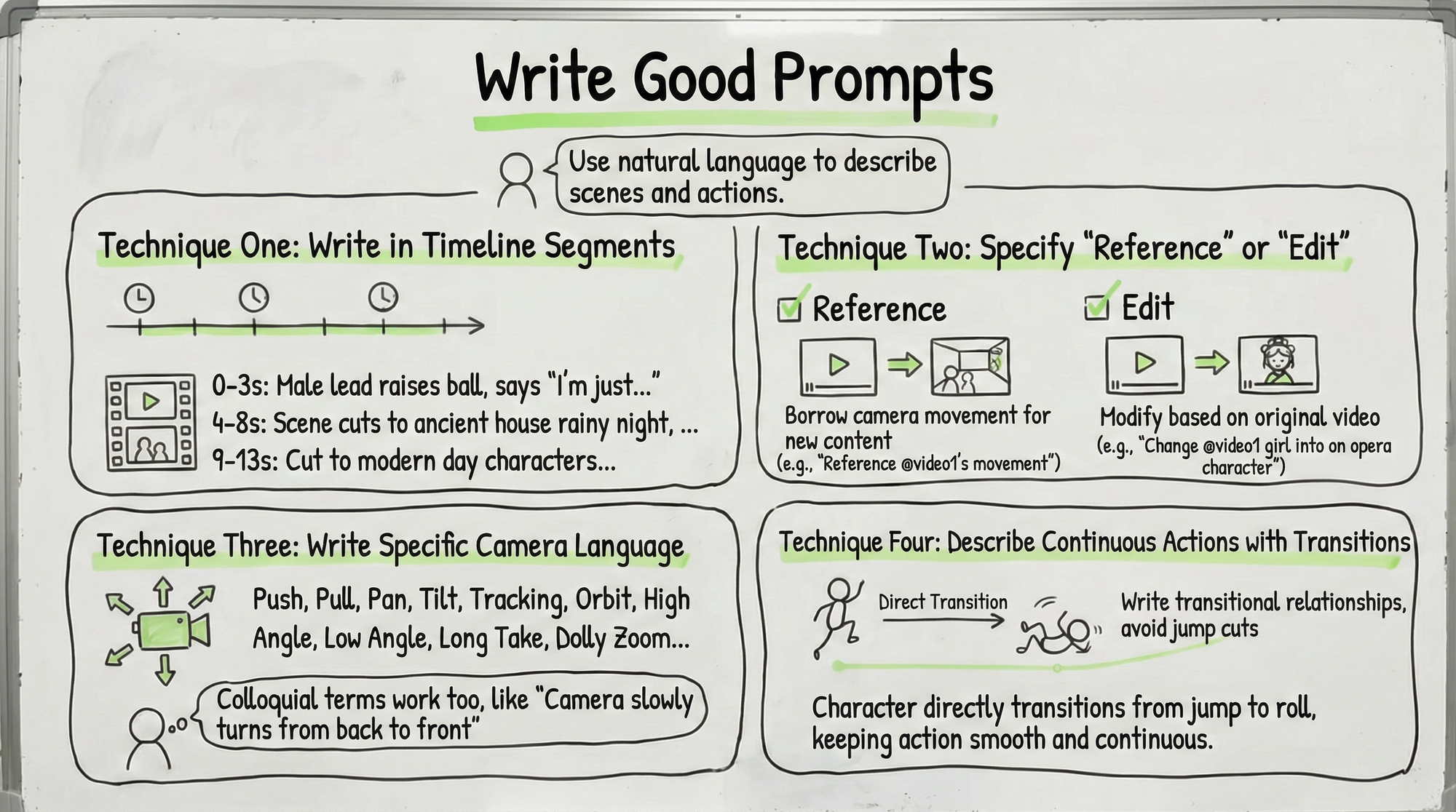
For example:
0-3 second frame: The male lead raises a basketball in his hand, looks up at the camera, and says, "I just wanted a drink, surely I'm not going to time travel..."
4-8 second frame: The camera suddenly shakes violently, the scene switches to a rainy night in an ancient mansion, a female lead in period costume coldly looks in the direction of the camera.
9-13 second frame: The camera cuts to a figure wearing Ming dynasty attire...
Writing it this way allows the model to grasp the rhythm and content of each segment more accurately.
Technique 2: Clearly state "reference" or "edit." These two concepts are different. "Reference @Video1's camera movement" means borrowing the camera movement style to generate new content; "replace the girl in @Video1 with an opera performer" means modifying the original video. Write clearly so the model can respond correctly.
Technique 3: Be specific about camera language. Don't be afraid to write a lot; the model's current understanding ability is strong. Push, pull, pan, tilt, follow shot, circle shot, overhead shot, low angle shot, one-take shot, dolly zoom, fisheye lens... it recognizes these professional terms. If you don't understand the terminology, you can describe it in plain language too, like "the camera slowly turns from behind to the front."
Technique 4: Add transition descriptions for continuous actions. If you want the character to perform a series of consecutive actions, remember to add transitional relationships, like "the character directly transitions from jumping to rolling, keeping the action smooth and fluid," to avoid unnatural cuts in the pics.
Method 4: Select the Generation Duration and Click Generate
Choose a duration you need between 4 and 15 seconds.
Note: If you are extending a video (for example, adding 5 seconds after an existing clip), the duration selected here is the length of the "added part," not the total duration. To extend by 5 seconds, select 5 seconds.
Then click generate and wait for the results. If unsatisfied, you can generate multiple times. AI inherently has randomness; the same input will yield different results each time, so pick the one you like best.
Seedance 2.0 Core Capabilities Explained
Below are the ten strongest capabilities of Seedance 2.0, each with usage methods and practical examples.
Capability 1: Significant Improvement in Basic Image Quality
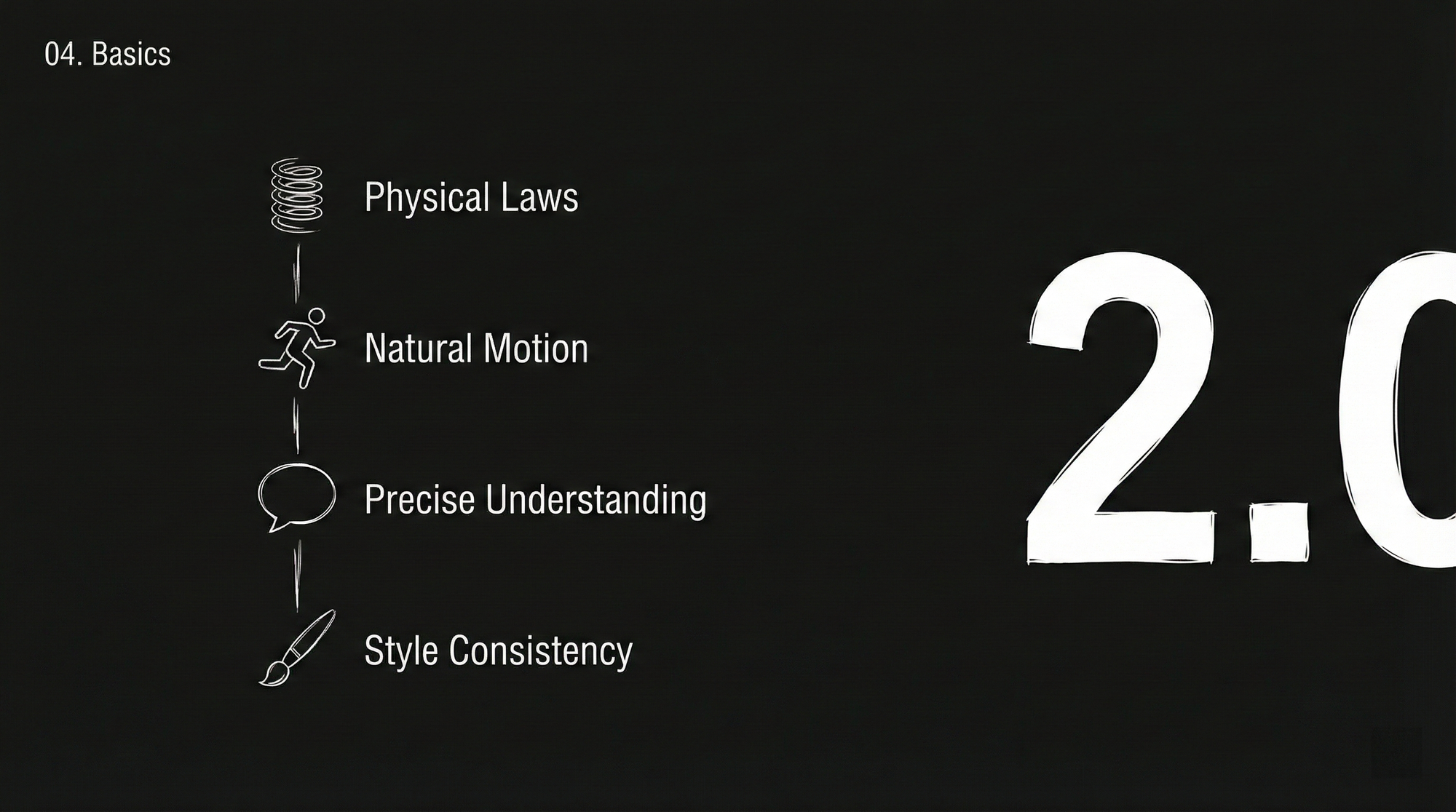
Let's start with the basics. Seedance 2.0 underwent comprehensive upgrades at its foundation, resulting in more reasonable physical laws, smoother actions, and more stable styles.
Seedance 2.0 has achieved a qualitative leap in the fundamental image generation capabilities:
- Physical laws are more reasonable: Clothing movement, water splash, and object collisions are more realistic.
- Actions are more natural and fluid: Characters walking, running, and performing complex actions are no longer stiff.
- Command understanding is more accurate: If you say "a girl elegantly hangs laundry," it truly understands what "elegant" means.
- Style consistency is more stable: The remains consistent from start to finish, without sudden changes in style.
Usage example:
The girl elegantly hangs clothes, after finishing, she takes out another piece from the bucket and vigorously shakes it. What concept does this illustrate? "The girl elegantly hangs clothes, after finishing, she takes out another piece from the bucket and vigorously shakes it." In the generated, the clothing's movement, arm strength, and fabric texture are very close to the effect of real filming.
More complex scenes are no problem either:
The camera follows a black-clad man running fast to escape, with a group chasing behind, the camera turns to a side-following shot, the character panics, bumps into a fruit stand by the roadside, gets up, and continues escaping. Even complex scenes with chases, collisions, and camera switches can be stably generated by 2.0.
There are even more extreme examples. Someone used a prompt to make the character in the painting secretly reach out to take a can of cola to drink, hurriedly put it back upon hearing footsteps, and finally the camera zooms in on a pure black background with only a can of cola and artistic subtitles. Such narrative complexity was unimaginable before.
Capability 2: Free Combination of Multi-Modal Inputs
This is the core upgrade of 2.0—you can use any material as a "reference."
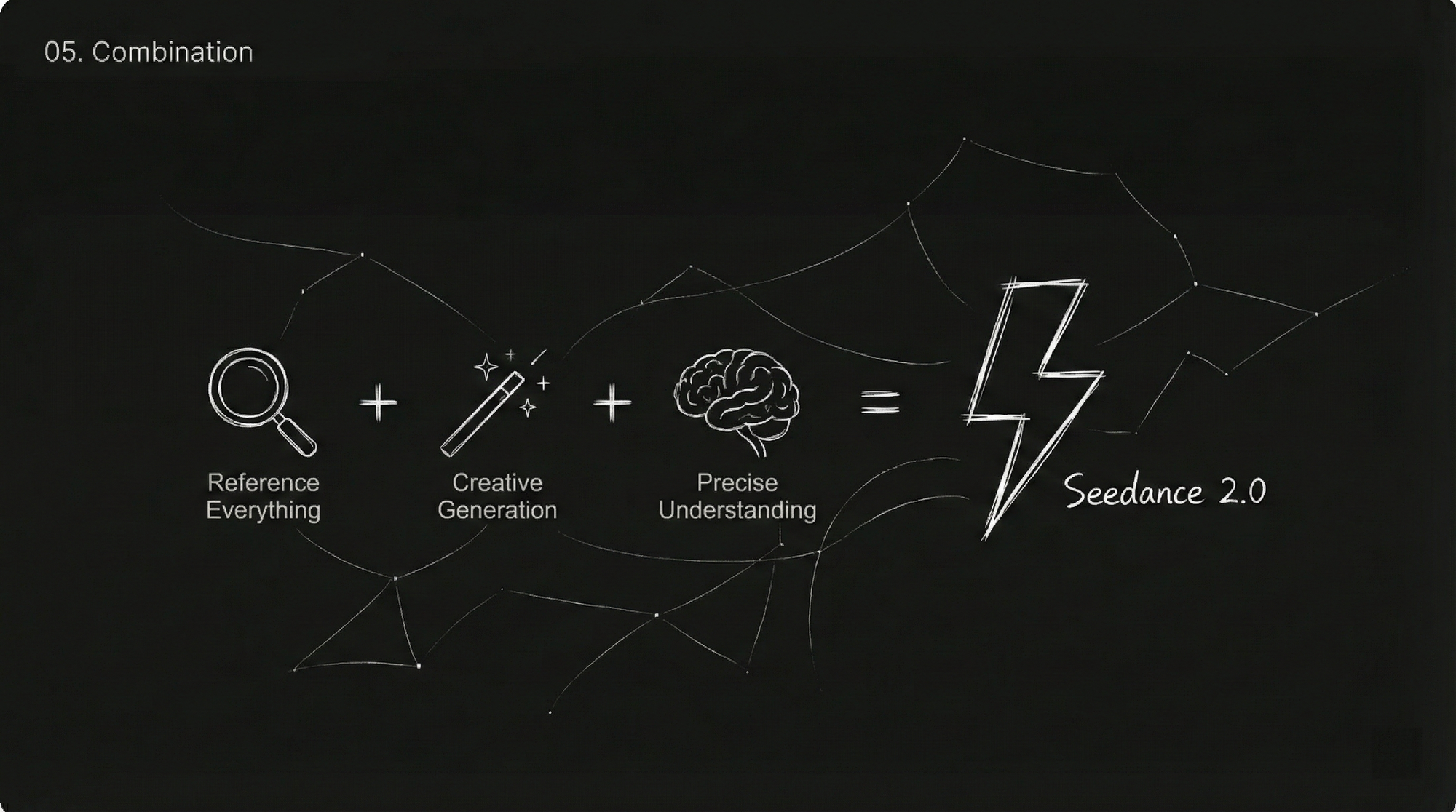
Formula: Seedance 2.0 = Multi-Modal Reference (Reference Anything) + Strong Creative Generation + Precise Command Understanding
Things you can reference include:
- Actions, effects, forms
- Camera movement styles, lens language
- Character images, scene styles
- Sounds, music rhythms
Practical tips:
| What You Want to Do | How to Write the Prompt |
|---|---|
| Have a first-frame image and also want to reference video actions | "@Image1 as first frame, reference the fight scene from @Video1" |
| Extend an existing video | "Extend @Video1 by 5s" (also select 5s for generation duration) |
| Merge multiple videos | "Add a scene between @Video1 and @Video2, content is xxx" |
| Use sounds from the video | No need to upload audio separately, directly reference the video |
| Continuous actions | "Character directly transitions from jumping to rolling, keeping the action smooth and fluid" |
Capability 3: Comprehensive Enhancement of Consistency
Anyone who has worked with AI videos knows that consistency is the most tormenting issue. Character faces differ before and after, product details disappear when viewed from a different angle, scene styles suddenly change...
2.0 has put significant effort into this aspect. After uploading a character reference image, the character's appearance, clothing, and posture can remain consistent throughout the entire video. Product displays are the same; when rotating a bag to show multiple angles, the material details on the front and side won't be lost.
Elements that can maintain consistency:
- Facial features (facial features, skin tone, expression style)
- Clothing details (texture, color, pattern)
- Brand elements (Logo, font, color scheme)
- Scene style (lighting, atmosphere, tone)
Here, the character image is specified through @Image1, remaining consistent throughout.
Capability 4: Precise Replication of Camera Movements and Actions
This is the capability of 2.0 that has been most widely shared. In the past, getting AI to imitate movie-like camera work either required writing a bunch of technical terms hoping for luck or was simply impossible.
Now it only takes two steps: Upload a camera movement reference video you like, then write "reference the camera effects from @Video1."
The model can identify the camera movement methods (push, pull, pan, tilt, circle, follow, zoom, one-take, etc.) in the reference video, and then apply the same camera logic to your new content.
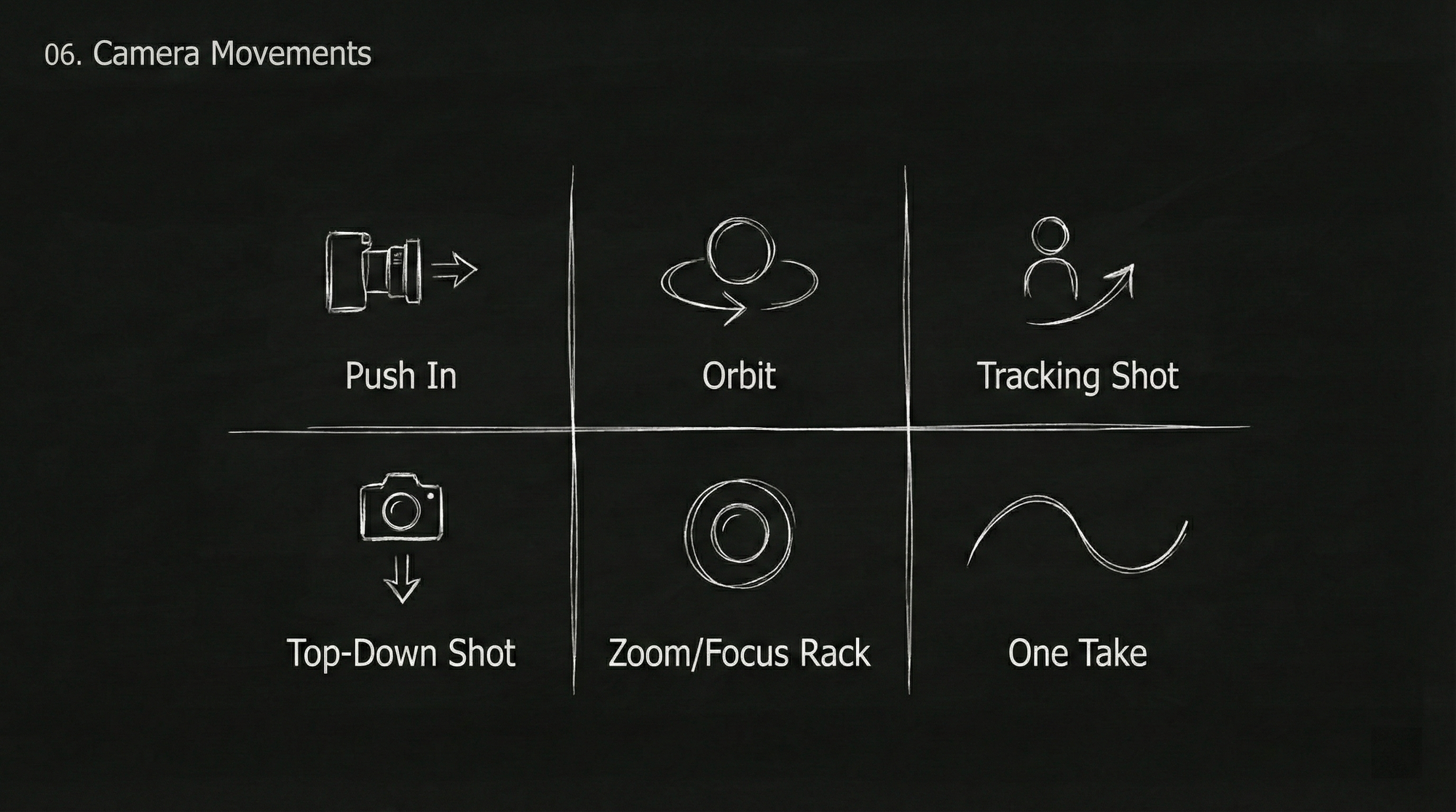
Types of camera movements that can be replicated:
- Dolly Zoom (Hitchcock Zoom)
- Circular Follow Shot
- One-Take Shot
- Push, Pull, Pan, Tilt
- Low Angle Shot
- Bird's Eye View
Author: He said this video used to take 10 days to make, but now only takes 1 hour. Uploading a reference video can quickly replicate martial arts actions.
Capability 5: Precise Replication of Creative Templates and Effects
Seen a cool advertisement idea, transition effect, or movie clip? Upload it directly as a reference. The model can identify the action rhythm, visual structure, and camera language within it, helping you replicate your own version.
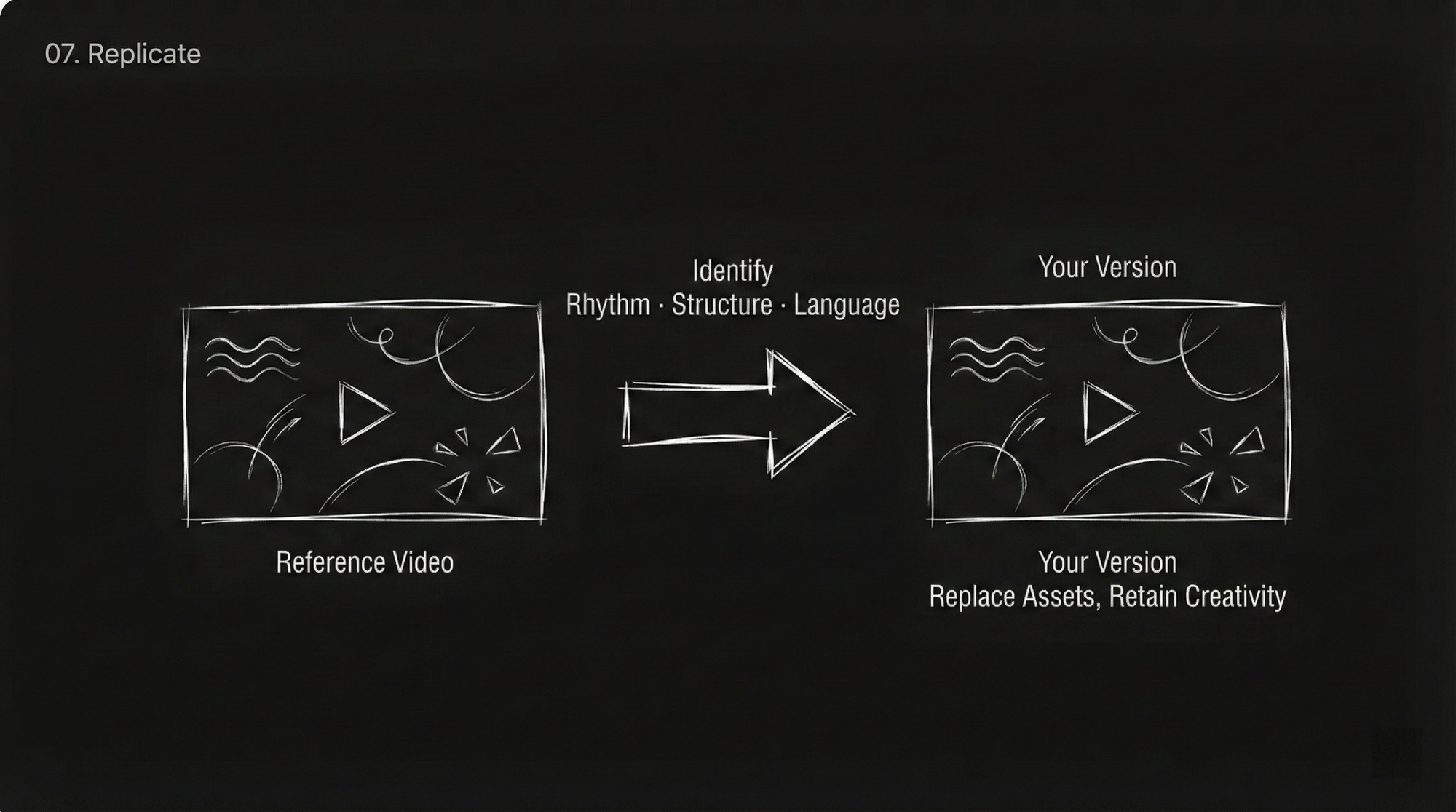
Types of creativity that can be replicated:
- Creative transitions (puzzle pieces breaking, particles dissipating, pupil transition, etc.)
- Complete advertisement styles
- MV rhythm editing
- Movie special effect
- Costume change / face swap effects
Example:
Special effect maxed out...
Capability 6: Video Extension and Connection
Already have a satisfactory video clip and want to continue filming afterward? Or want to add a preceding scene? The video extension function handles it directly.
Extend backwards: Upload the existing video, write "extend @Video1 by X seconds" along with a description of the new.
Extend forwards: Write "extend forward by X seconds" along with a description of the preceding content.
Usage rules:
- Tell the model "extend @Video1 by X seconds"
- The generation duration should be set to the length of the extended part (for example, extend by 5 seconds, select 5 seconds for generation length)
- New plot and画面 descriptions can be added to the extended part
- Supports extending forward or backward
Usage example:
By referencing an image and a reference video, the 2-second video above is extended to 15 seconds.
The extended content can be very specific, including camera movement,elements, text appearance, etc.
Capability 7: More Realistic Sound
The videos generated by 2.0 come with built-in sound effects and background music, and the sound quality is much better than before.
Several sound-related:
Reference voice tone: Upload a video or audio clip, letting the model imitate the speaking voice tone or narrator style within.
Multi-language dialogue: Characters can speak multiple languages like Chinese, English, Spanish, Korean, etc., and emotional expression is relatively good.
Multi-character dialogue: Supports multiple characters saying their respective lines in one video. Success cases include cat and dog talk shows, period drama dialogues, and military-themed tactical conversations.
Dialect support:
Sound effect matching: Footsteps, thunder, crowd noise, equipment collision sounds, these environmental sound effects can be generated relatively accurately.
Do senior brothers like it?
Capability 8: More Coherent Single-Take Shots
"A single-take shot" requires maintaining continuity for a long time while handling complex spatial transformations and camera movements, which has always been a hard nut for AI to crack.
Seedance 2.0 has made obvious progress in this area. Upload several pictures of different scenes, write "a single-take tracking shot, following a runner from the street up stairs, through corridors, into the roof, finally overlooking the city," and the model can complete natural transitions between scenes without obvious breaks.
More complex single-take shots are also possible. For example, "starting from a first-person perspective, passing through a porthole to see clouds turn into ice cream, the camera pulls back into the cabin, the character picks up the ice cream and takes a bite," this type of single-take involving perspective switching and the combination of reality and illusion, Seedance 2.0 can handle.
There's also a spy thriller-style single-take: The camera follows a red-clad female agent weaving through crowds, encountering a masked girl at a corner, continuing the pursuit until disappearing into a mansion, all without cutting. The narrative density of such a single-take is quite impressive when achieved at this level.
Usage example:
@Image1@Image2@Image3@Image4@Image5, a single-take tracking shot, following a runner from the street up stairs, through corridors, into the roof, finally overlooking the city.
Tip: Arrange multiple images in order, and the model will sequentially display these scenes in the single-take shot according to the order.
Capability 9: Video Editing Capability
Already have a video, don't want to start over, just want to modify a part of it? Now you can directly use the existing video as input to make targeted modifications.
Character replacement: Replace A in the video with B, keeping actions and expressions unchanged. For example, "replace the female lead singer in Video1 with the male lead singer from Image1, actions completely mimic the original video."
Plot reversal: Keep the scene and characters unchanged, but completely rewrite the plot direction. Someone turned a romantic moon-watching video on a bridge into a reverse plot where the male lead pushes the female lead into the water. Another person turned a tense bar negotiation into a funny reversal where someone pulls out a large bag of snacks.
Element modification: Change hairstyles, add props, change backgrounds. For example, "change the woman's hairstyle in Video1 to long red hair, and let the great white shark from @Image1 slowly emerge half its head behind her."
Brand placement: Insert brand elements into an existing video. For example, add a close-up shot of a paper bag with the brand logo in a fried chicken video.
Example—Replacing Characters:
Recreate Black Myth: Wukong fight
Capability 10: Beat Synchronization
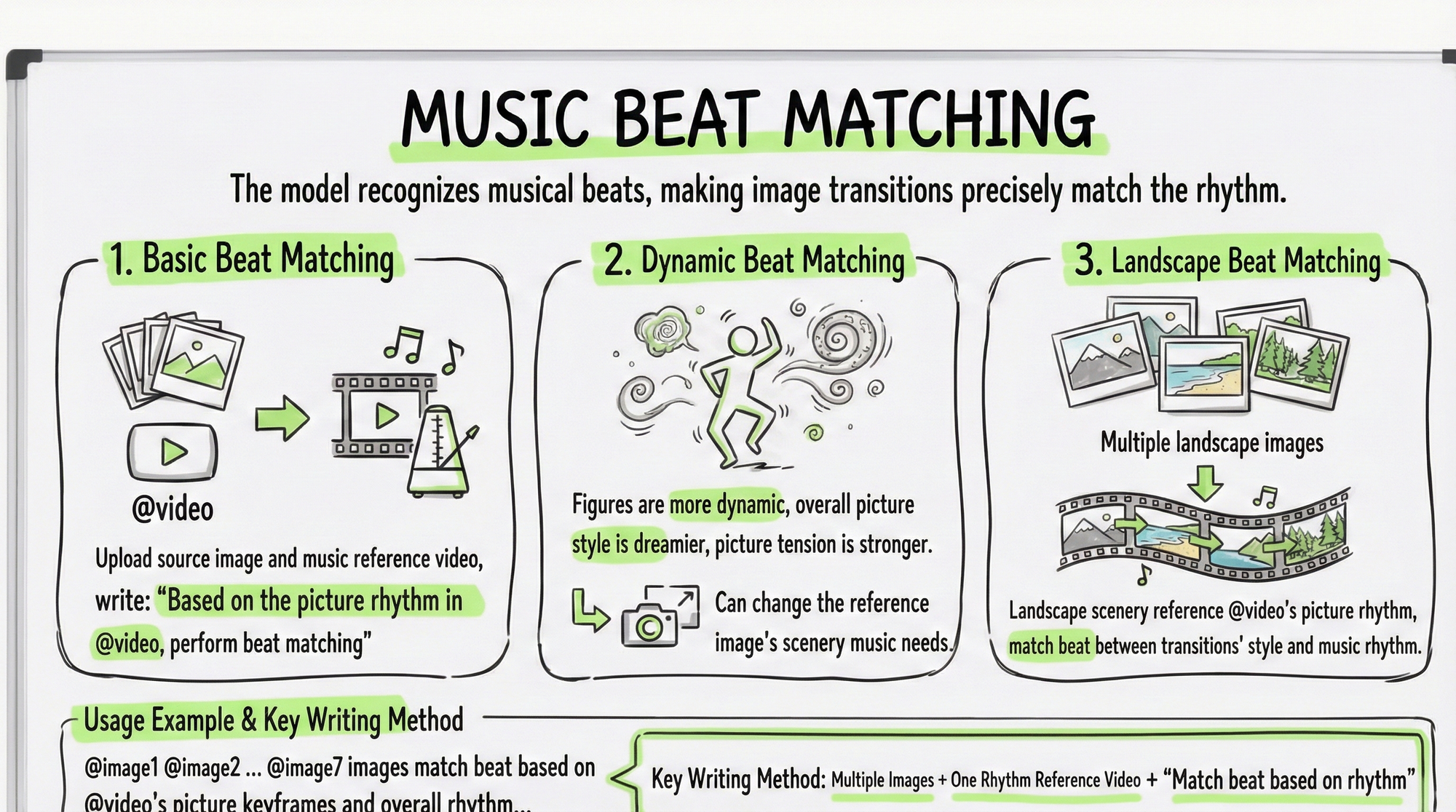
Upload a music video with a rhythmic feel as a reference. The model can identify the music's beat changes, allowing transitions to precisely hit the beat.
Basic beat sync: Upload material images and a music reference video, write "sync to the beat according to the rhythm in @Video."
Dynamic beat sync: Write "the characters in the have more dynamism, the over all style is more dreamy, the tension is strong, and the of the reference image can be changed according to musical needs."
Scenery beat sync: Pair multiple landscape images with music, write "landscape scene images reference the rhythm in @Video, and sync transitions between styles and music rhythm."
Usage example:
@Image1@Image2@Image3@Image4@Image5@Image6@Image7 images sync to the beat according to the position of frames and the overall rhythm in @Video, the characters in the have more dynamism, the overall style is more dreamy.
Key writing method: Multiple images + one rhythm reference video + "sync to the beat according to the rhythm."
Capability 11: More Adequate Emotional Expression
Stiff character expressions and awkward emotional transitions have always been chronic problems in AI videos. 2.0 has made obvious improvements in this area.
You can upload an emotional reference video, letting the model imitate the expression changes within. For example, "the woman in @Image1 walks to the mirror, contemplates for a moment, suddenly starts sobbing loudly, the action of grabbing the mirror and the emotion of sobbing loudly completely reference @Video1."
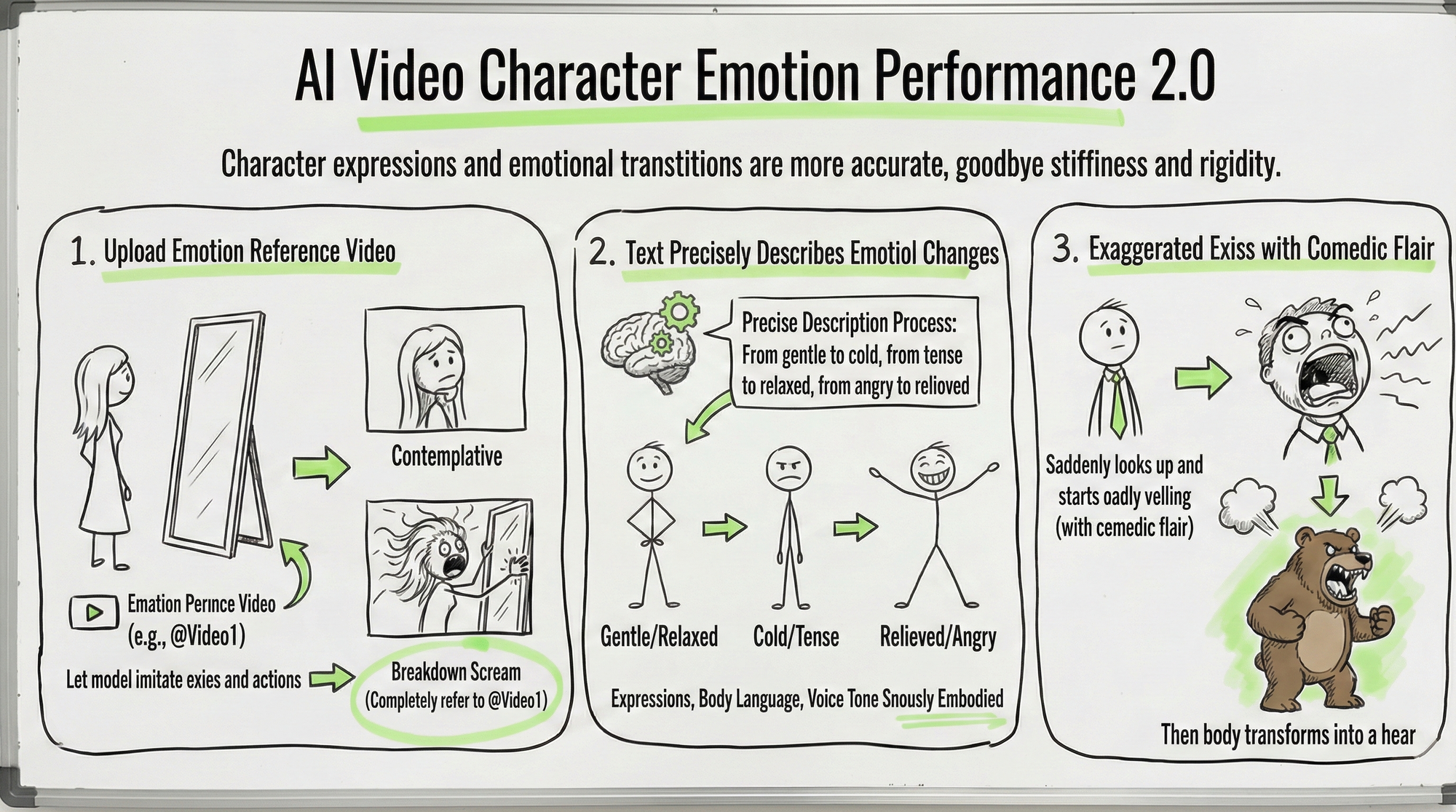
You can also accurately describe the emotional transition process with text: from gentle to cold, from nervous to relaxed, from angry to serene. The model can understand these emotional transitions and synchronize them in the character's expressions, body language, and vocal tones.
Even exaggerated expressions with a comedic flair are possible: for example, "the character suddenly looks up and starts roaring loudly."
Prompt Writing Skill Summary
Good vs. Average Writing
| Average Writing | Better Writing |
|---|---|
| "Reference this video" | "Reference @Video1's camera movement and transition effects" |
| "Use this image" | "@Image1 as first frame, character image reference @Image2" |
| "Make a rhythmic video" | "Reference @Video1's画面 rhythm and beat sync" |
| "Extend video" | "Extend @Video1 by 5 seconds, new content is xxx" |
| "Change a person" | "Replace the female lead in @Video1 with the image from @Image1, actions completely mimic the original video" |
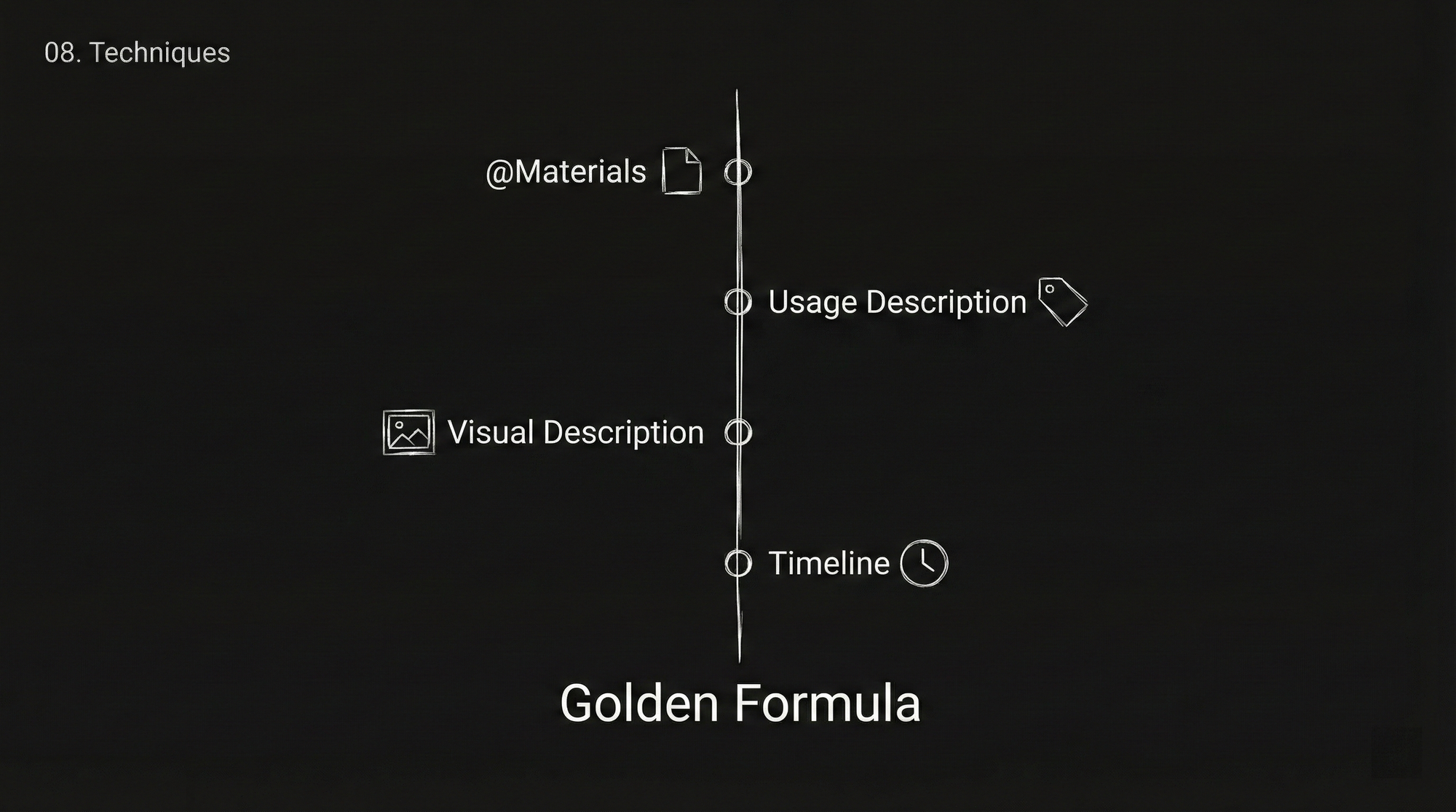
Golden Formula
@Material + Purpose Description + SpecificDescription + Timeline (Optional)
For example:
@Image1 as first frame, reference @Video1's camera movement and transition effects, 0-5 seconds the camera slowly pushes from a wide shot to a close-up of the character, 5-10 seconds a circular shot displays the full scene, 10-15 seconds the camera quickly pulls back to a bird's eye view.
Notes
- When there are many materials, be sure to check if each @ is clearly marked, don't mix up images, videos, and characters.
- When extending a video, the generation duration should be set to the "added part's" duration.
- No audio material is fine; you can directly reference the sound in the video.
- Writing descriptions by timeline allows the model to control rhythm more precisely.
Five Practical Templates, Ready to Use
Template 1: E-commerce Product Advertisement
Material preparation: Front view, side view, and material detail images of the product, one each.
Prompt: Commercially display the bag from @Image2, referencing the bag's side from @Image1 and the surface material from @Image3, requiring all bag details to be displayed, with a grandiose background sound.
Template 2: Short Play Trailer
Material preparation: 1-2 character reference images.
Prompt: Using the character images from the reference images, generate a short historical time-travel drama trailer. 0-3 second : The male lead from the reference image 1 holds up a basketball, looks up at the camera, and says, "I just wanted a drink, surely I'm not going to time travel..." 4-8 second camera: The camera suddenly shakes violently, the scene switches to a rainy night in an ancient mansion...
Template 3: Brand Promotion Video
Material preparation: 2-3 scene photos, 1 narrator reference video.
Prompt: Based on the provided office building promotional photos, generate a 15-second movie-level realistic style real estate documentary, referencing the narrator's voice tone from @Video1, shooting "the ecosystem of the office building," presenting the operations of different companies inside.
Template 4: Camera Movement Replication
Material preparation: 1 character reference image, 2-3 scene images, 1 camera movement reference video.
Prompt: Referencing the character image from @Image1, in the scene from @Image2, fully reference all camera movement effects and the protagonist's facial expressions from @Video1, the camera follows the protagonist running, circles to the front, then pulls back to show the full view.
Template 5: Video Extension + Advertisement Ending
Material preparation: 1 existing video, 1-2 brand element images.
Pitfall Avoidance Guide
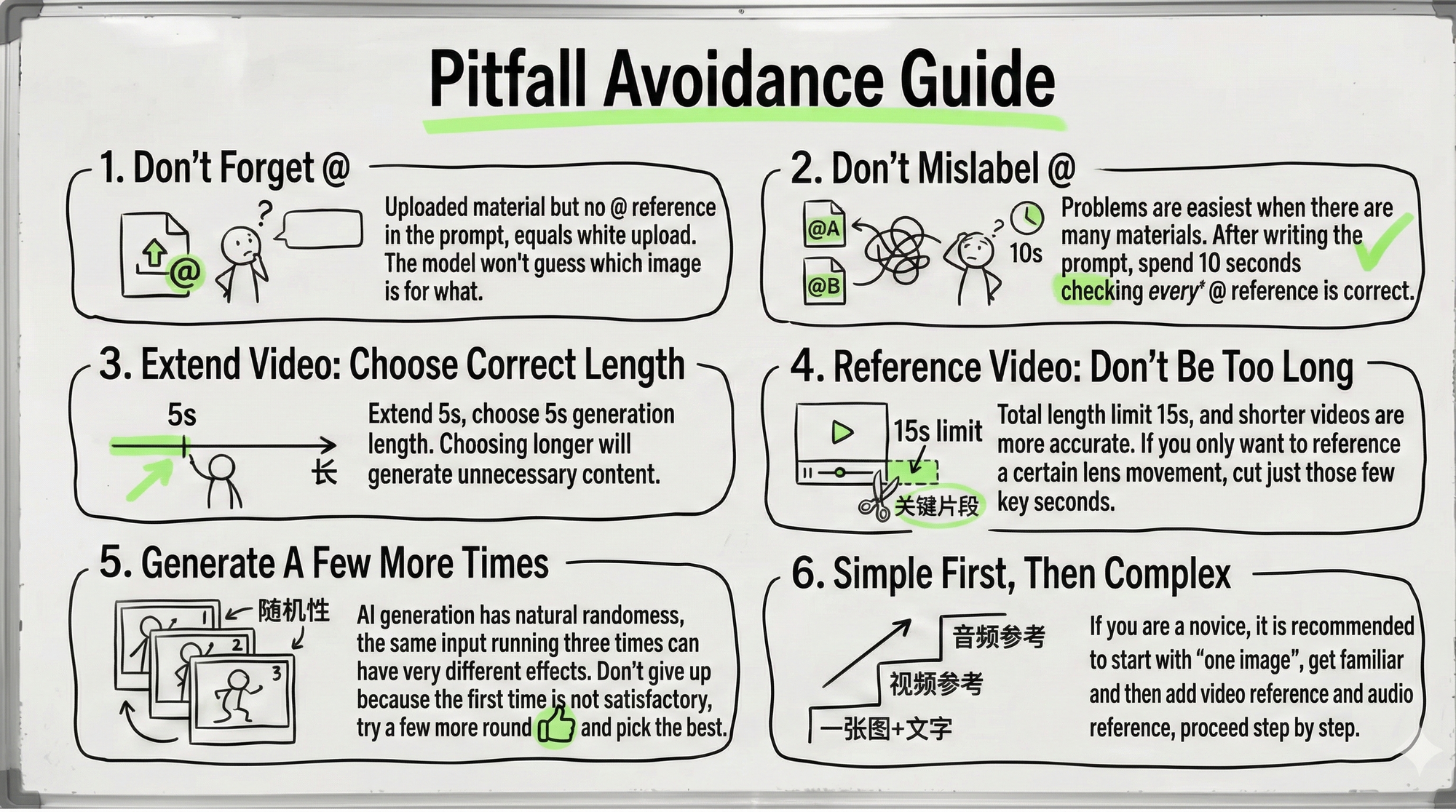
Don't forget @: Uploading materials but not referencing them with @ in the prompt is equivalent to uploading nothing. The model won't guess what each image is for.
@ Don't label wrong: It's easiest to have problems when there are many materials. After writing the prompt, spend 10 seconds checking if each @ reference is correct.
Choose the correct duration when extending a video: Extending by 5 seconds means selecting a generation duration of 5 seconds; selecting a longer duration will generate unnecessary additional content.
Reference videos shouldn't be too long: The total duration limit is 15 seconds, and shorter videos are more precise. If you only want to reference a certain camera movement, cut that few-second key segment.
Generate multiple times: AI generation inherently has randomness; the same input run three times might yield very different results. Don't give up because the first attempt is unsatisfactory; try a few rounds and pick the best one.
Start simple then go complex: If you're a newcomer, it's recommended to start with "one image + text," familiarize yourself with it, then add video and audio references, progressing step by step.
Final Thoughts
The reason Seedance 2.0 is trending makes sense. It's not just that the画质 got better or the actions are smoother; more importantly, it changed the interaction method for AI video creation.
Through multimodal input and @ referencing mechanisms, creators can, for the first time, precisely tell AI "what I want," instead of writing prompts and then leaving it to fate.
Of course, it's still evolving continuously, and some extremely complex scenes might not be perfect yet. But judging by its current capabilities, it's already a productivity tool that can truly be used in actual creation.
It's suggested that everyone first bookmark this guide, then open digen.ai and give it a try. Merely scrolling through others' trending works isn't satisfying; actually getting your hands on it is where the real fun lies.
The above is based on the officialSeedance 2.0 user manual.
The multimodal capabilities of Seedance 2.0 are constantly evolving. We will continue to update our features and support a wider range of input combinations. We hope this manual empowers you to unleash your creativity with even more freedom!
Comments ()