
Canva AI Video Generator Tutorial 2026: Step-by-Step Guide
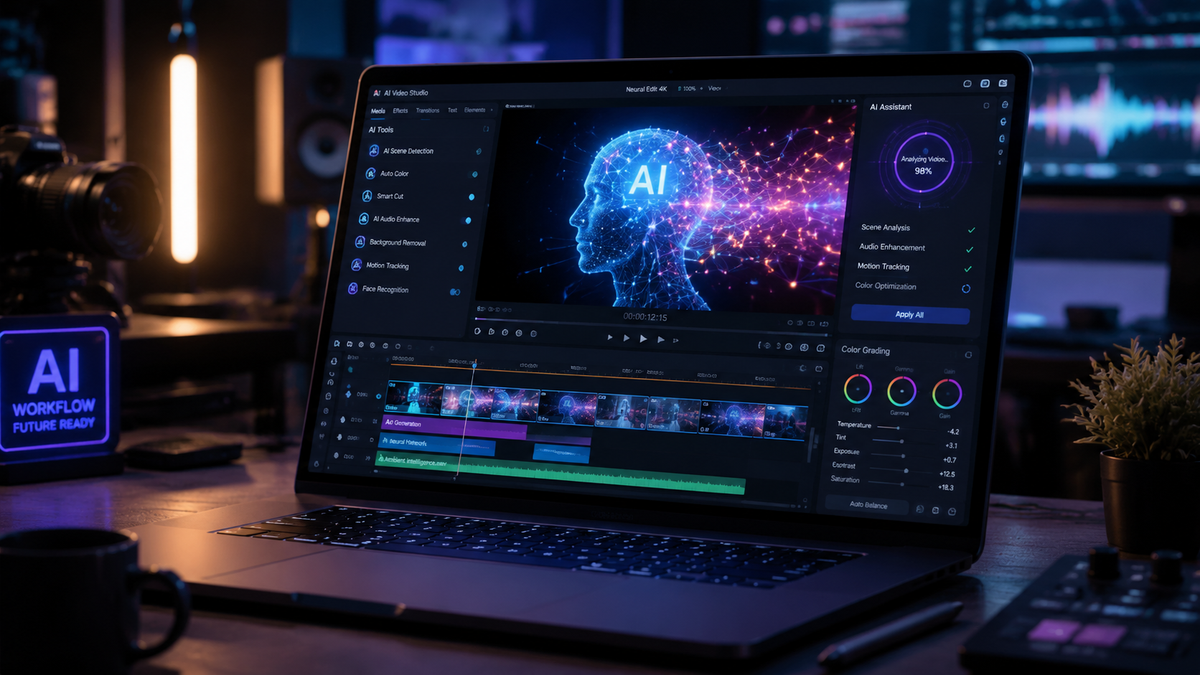
The canva ai video generator tutorial 2026 edition provides a comprehensive roadmap for creators looking to leverage the latest advancements in generative video technology. To use the Canva AI video generator, simply open a video project, navigate to the "Magic Media" tab, and enter a detailed text prompt to generate high-definition cinematic clips or social media shorts instantly. This tool has become a cornerstone for digital marketing in 2026, allowing users to transform static ideas into professional-grade motion content without needing complex editing software.
Canva AI video generation is a generative AI feature within the Canva Magic Studio that utilizes text-to-video and image-to-video models to create high-quality visual content. By 2026, it has evolved to include spatial consistency, advanced character lip-syncing, and multi-scene generation, making it the premier tool for rapid, professional video production for creators of all skill levels.
- ✓ Access the Magic Media tool to generate 4K video clips from simple text descriptions.
- ✓ Utilize the 2026 "Magic Switch" feature to instantly resize AI videos for TikTok, YouTube, and Instagram.
- ✓ Combine AI-generated clips with Canva’s library of over 100 million stock assets.
- ✓ Leverage real-time collaboration tools to edit AI video prompts with team members globally.
How to Use the Canva AI Video Generator: Step-by-Step Guide
The evolution of generative AI has reached a peak in 2026, with Canva leading the charge in accessibility. According to TechRadar, which tested over 70 AI tools this year, Canva’s integration of visual AI remains the most user-friendly for non-designers. The process is now more intuitive than ever, focusing on natural language processing that understands complex cinematic directions.
- Log in and Select Video: Open your Canva dashboard and click on the "Video" icon. Choose your desired format, such as a 16:9 cinematic video or a 9:16 mobile-first layout.
- Access Magic Media: On the left-hand sidebar, click on "Apps" and search for "Magic Media." This is the central hub for all generative video and image tasks.
- Enter Your Prompt: In the text box, describe the video you want to create. For the best results in 2026, include details about lighting (e.g., "golden hour"), camera movement (e.g., "slow drone pan"), and subject matter.
- Select Style and Aspect Ratio: Choose from styles like "Filmic," "Watercolor," or "3D Render." Ensure your aspect ratio matches your project settings.
- Generate and Refine: Click "Generate Video." In about 30 seconds, Canva will provide a 5-10 second clip. You can click "Generate again" for different variations or add the clip directly to your timeline.
- Enhance with Magic Edit: Use the 2026 Magic Edit tools to swap objects within your generated video or extend the clip length using AI frame interpolation.
Key Features of Canva AI Video in 2026
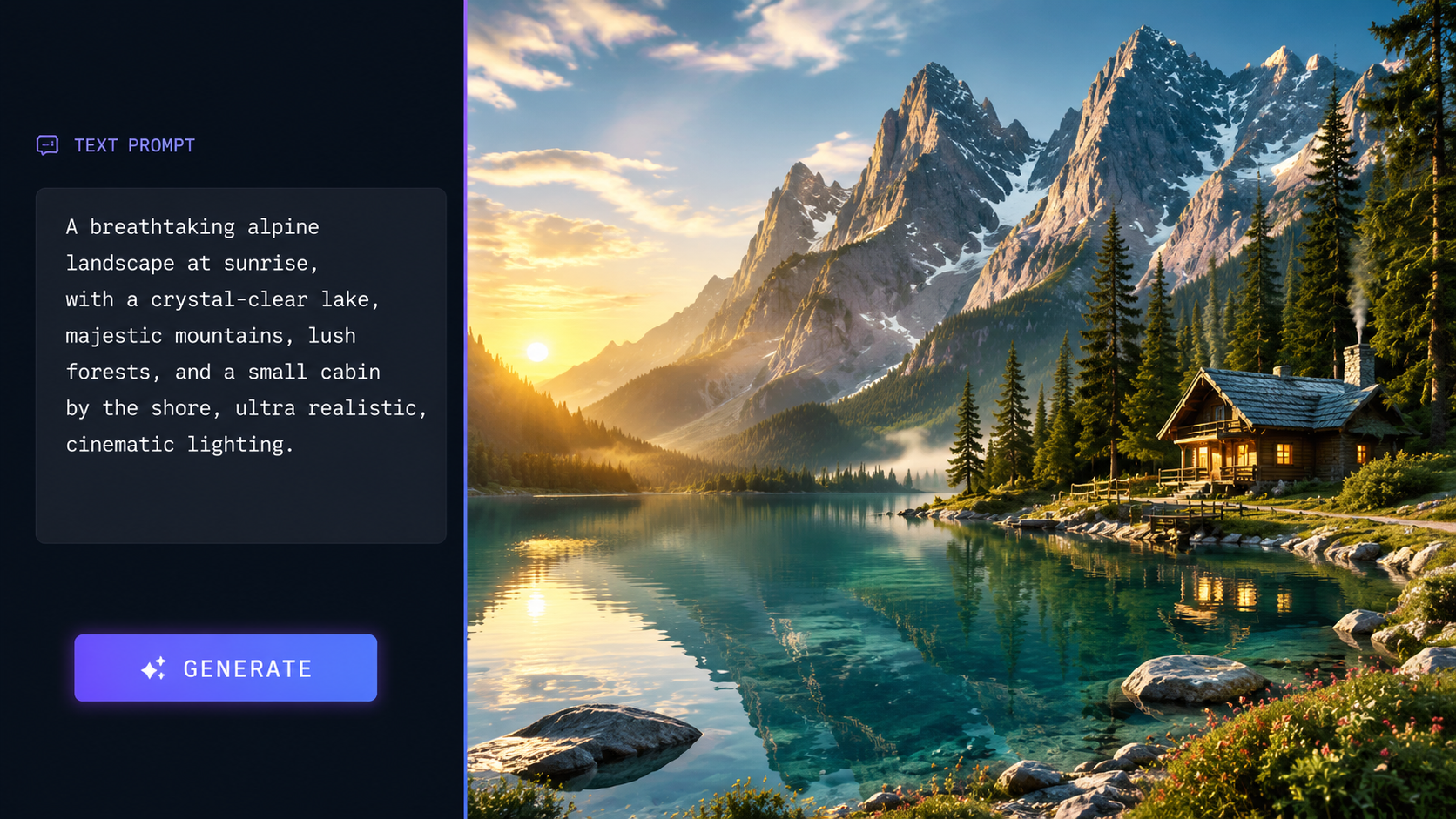
The 2026 update to Canva’s video suite has introduced several features that were previously only available in high-end studio software. One of the most significant upgrades is the "Temporal Consistency" engine, which ensures that characters and environments remain identical across multiple generated clips. This allows for long-form storytelling that was difficult to achieve in earlier iterations of generative AI.
Text-to-Video and Image-to-Video
While text-to-video is the standard, the image-to-video feature has seen massive adoption this year. Users can upload a brand photograph and use AI to animate specific elements, such as flowing water or moving clouds. CNET reports that Canva’s 2026 AI model has improved its "physics engine," making the movement of fabrics and hair look indistinguishable from real-life footage.
AI Voiceovers and Lip-Sync
No canva ai video generator tutorial 2026 would be complete without mentioning the integrated AI voiceovers. You can now type a script and select from hundreds of emotionally resonant AI voices. The "Magic Sync" feature automatically aligns the mouth movements of any human character in your video to the generated audio, providing a seamless "talking head" experience for tutorials and corporate presentations.
Comparing Canva AI Video to 2026 Industry Standards
As the market for generative content grows, it is important to see how Canva stacks up against other specialized tools. While NVIDIA focuses on high-end local generation for RTX PCs, Canva prioritizes cloud-based accessibility. According to a 2026 report by Tycoonstory Media, Canva is ranked as one of the best "Free-to-Premium" AI video generators due to its massive asset library and ease of use.
| Feature | Canva AI Video (2026) | Standard AI Video Tools | Professional Suites |
|---|---|---|---|
| Resolution | Up to 4K Generative | 1080p | 8K Raw |
| Max Clip Length | 15 Seconds per prompt | 5-10 Seconds | 60+ Seconds |
| Learning Curve | Beginner / Instant | Intermediate | Advanced / Professional |
| Stock Integration | 100M+ Elements | Limited | Requires external plugins |
| Collaboration | Real-time Multi-user | Single User | Local Server Based |
Advanced Techniques for Your Canva AI Video Generator Tutorial 2026
To truly master the canva ai video generator tutorial 2026, you must look beyond basic prompts. Professional creators are now using "Prompt Chaining" within Canva. This involves generating a background first, then using the "Overlay AI" to place specific subjects into the scene. This layered approach provides much higher creative control than a single text prompt.
Mastering Cinematic Lighting Prompts
Lighting is the difference between a "cheap" looking AI video and a professional one. In 2026, Canva’s AI responds incredibly well to specific lighting terminology. Try using terms like "Volumetric lighting," "Bi-color LED aesthetics," or "Rim lighting for silhouette." These keywords trigger the AI to render higher contrast and more depth, significantly increasing the production value of your social media content.
Integrating AI with Brand Kits
Canva’s 2026 Enterprise features allow the AI video generator to reference your Brand Kit. When you generate a video, the AI can prioritize your brand colors in the background or suggest styles that align with your previously uploaded assets. This ensures that even though the video is AI-generated, it remains "on-brand" without requiring extensive color grading in post-production.
The Impact of AI Video on Content Strategy in 2026
The landscape of digital media has shifted. G2 Learning Hub noted in their May 2026 study that 85% of marketing teams now use at least one generative AI tool for video production. Canva has become the bridge for these teams, offering a platform where the "blank page syndrome" is eliminated. Instead of starting from scratch, creators start with an AI-generated base and refine it.
Furthermore, the cost of video production has plummeted. What used to require a camera crew and a day of shooting can now be conceptualized and "filmed" in the Canva interface in under ten minutes. This democratization of video production means that small businesses can compete with global brands in terms of visual quality, provided they understand how to prompt the AI effectively.
Ethical AI and Content Labeling
In 2026, transparency is key. Canva automatically embeds metadata into AI-generated videos to comply with global "Right to Know" AI acts. When following this canva ai video generator tutorial 2026, users should be aware that generated content is watermarked in the metadata as "AI-generated." This builds trust with your audience and ensures your content remains compliant with social media platform algorithms that prioritize transparency.
Optimizing AI Videos for Social Media Performance
Creating the video is only half the battle; the 2026 algorithm favors "high-retention" content. Use Canva’s "Magic Beat Sync" to automatically time your AI video transitions to the rhythm of your background music. Research shows that videos synced to music have a 40% higher retention rate on short-form video platforms.
Additionally, use the "Auto-Caption" feature. In 2026, Canva’s AI captions are 99.8% accurate and can be styled with dynamic animations that pop on screen. This is essential because, as Scott Coop highlights in his 2026 tool reviews, over 70% of mobile users watch video with the sound off in public spaces. Captions are no longer optional; they are a core component of video SEO.
Is the Canva AI video generator free to use in 2026?
Canva offers a tiered system where Free users get a limited number of lifetime credits for AI generation. Canva Pro and Enterprise subscribers receive a recurring monthly allowance of credits, allowing for significantly more text-to-video generations and access to higher resolution outputs.
Can I use Canva AI videos for commercial purposes?
Yes, videos generated through Canva Magic Media can be used for commercial projects, provided you follow Canva's licensing agreement. In 2026, this typically means you have the right to use the output in advertisements, social media, and websites, though you do not "own" the underlying AI model.
What is the maximum length of an AI-generated clip in Canva?
As of May 2026, individual AI video clips generated from a single prompt are typically 10 to 15 seconds long. However, you can use the "Extend Video" feature or stitch multiple clips together seamlessly using Canva's AI transition tools to create much longer content.
Does Canva AI support 4K video generation?
Yes, the 2026 update to the Magic Media engine supports 4K resolution for Pro and Enterprise users. This ensures that generative clips can be used in high-quality professional presentations and large-screen displays without pixelation.
How do I fix "hallucinations" in my AI videos?
If the AI generates a video with visual glitches (like extra limbs or distorted faces), the best approach is to refine your prompt. Use "Negative Prompts" to tell the AI what to avoid, or use the "Magic Grab" tool to manually adjust or delete specific elements within the video frame.
Mastering the canva ai video generator tutorial 2026 is about blending human creativity with machine efficiency. As AI continues to evolve, the most successful creators will be those who use these tools not to replace their vision, but to amplify it. By following the steps outlined in this guide, you are well-positioned to produce cutting-edge video content that stands out in the crowded digital landscape of 2026.



Comments ()