
Canva AI Video Generator Features 2026: Full Overview
Canva AI Video Generator is a comprehensive suite of generative AI tools built into the Canva platform that enables users to create, edit, and enhance videos using text prompts, AI avatars, voiceovers, and automated editing. As of 2026, it has become one of the most accessible and feature-rich AI video solutions, particularly praised for its seamless integration with Canva’s broader design ecosystem.
Canva AI Video Generator is a cloud-based video creation tool that leverages generative AI to turn text descriptions into full video clips, add realistic AI voiceovers, animate still images, and apply smart editing effects — all within the familiar Canva interface. It is designed for beginners and professionals alike, offering a low learning curve without sacrificing advanced capabilities.
- ✓ Seamless integration with Canva’s design suite — no need to switch between apps.
- ✓ Advanced text-to-video generation with scene control and style presets.
- ✓ AI avatars and voiceovers with natural intonation and lip-sync.
- ✓ One-click video resizing and smart background removal.
- ✓ Real-time collaboration and cloud storage for team projects.
What Makes Canva AI Video Generator Stand Out in 2026?
Since its major update in late 2025, Canva’s AI video generator has evolved from a simple clip creator into a full-fledged video production engine. According to a November 2025 report by Android Police, the latest video update “turned CapCut into its next big victim,” highlighting how Canva consolidated features that previously required separate apps. The update introduced multi-track timeline editing, keyframe animations, and AI-driven scene transitions — all powered by the same generative models that drive Canva’s image and text tools.
ZDNet’s October 2025 coverage called Canva’s new Creative Operating System a “one-stop-shop for AI design,” emphasizing that video generation is now a core pillar alongside graphic design, document creation, and website building. This integration means that a user can start with an AI-generated image, animate it with a text prompt, add an AI voiceover, and export a polished video — all without leaving the browser.
In the G2 Learn Hub’s April 2026 list of “7 Best AI Video Generators I’ve Tried (and Loved!) for 2026,” Canva earned a spot for its balance of ease-of-use and output quality. The review noted that while dedicated video AI tools may offer more granular controls, Canva’s advantage lies in its all-in-one ecosystem — especially for social media marketers and small business owners who need speed and consistency.
Key Features of Canva AI Video Generator in 2026
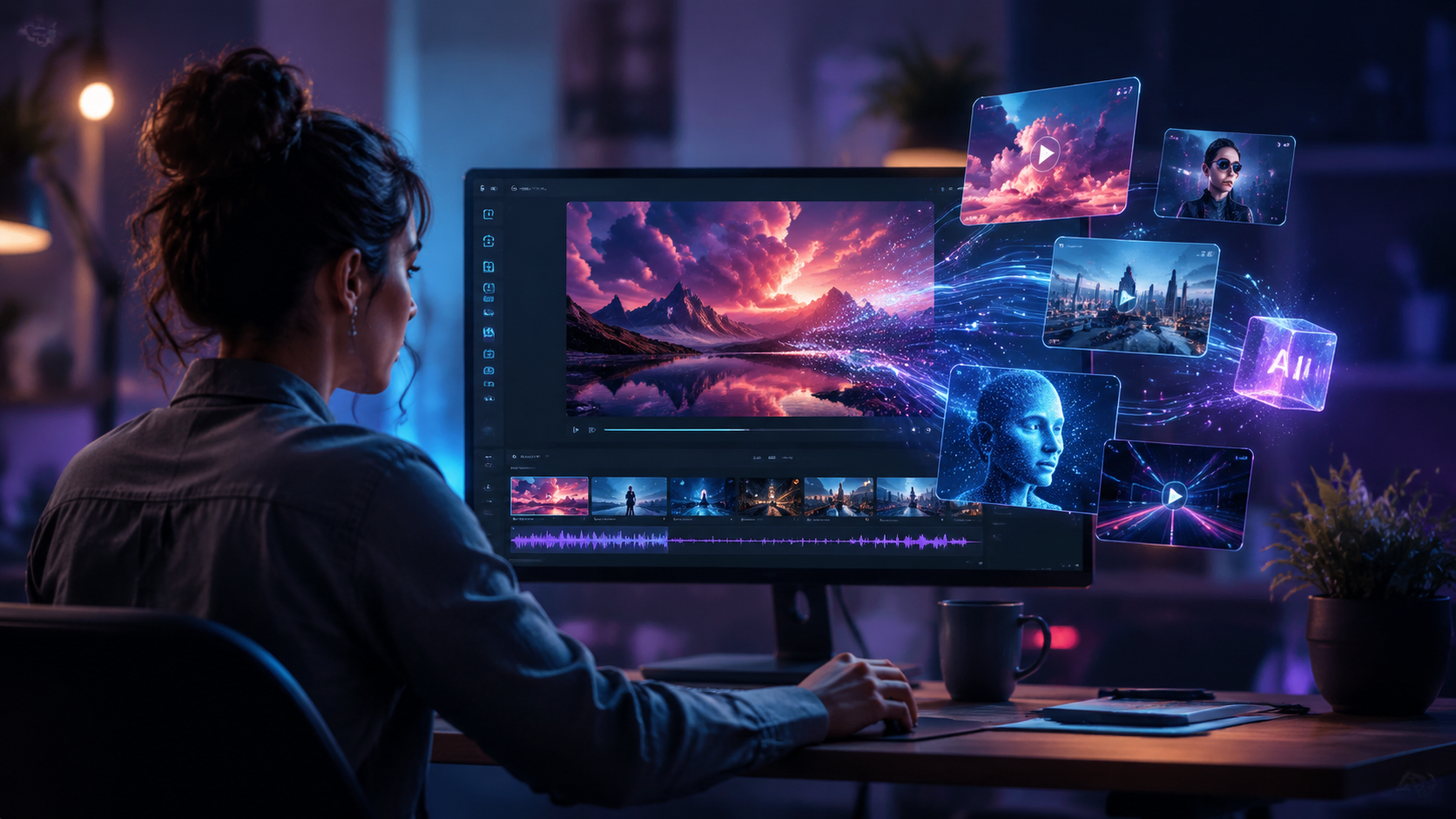
Text-to-Video Generation
Type a description of the scene you want, and Canva’s AI generates a short video clip matching the prompt. You can specify style (cinematic, cartoon, 3D, etc.), aspect ratio, and color palette. The model uses a diffusion-based architecture trained on millions of video-text pairs, producing coherent motion and lighting. As of 2026, the tool supports up to 15-second clips per prompt, with the ability to chain multiple clips into a longer sequence.
AI Avatars and Voiceovers
Canva’s AI avatar library includes over 50 realistic human and stylized characters that can speak your script with natural lip-sync. You can upload your own photo to create a custom avatar, or choose from diverse ethnicities and ages. The voiceover engine offers 120+ voices in 30 languages, with adjustable pitch, speed, and emotion. According to CNET’s October 2025 review, Canva’s AI image generator was already the top recommendation for beginners, and the video team extended that same user-friendly approach to avatars.
AI-Powered Editing Suite
Beyond generation, Canva’s AI assists with mundane editing tasks: smart trim (automatically removes silences), background removal, color grading presets, and motion tracking. The “Magic Cut” feature analyzes your footage and suggests the best moments to keep. For marketers, the AI can generate captions, highlight reels, and social media snippets from a longer video in one click.
Real-Time Collaboration and Templates
Teams can work on the same video project simultaneously, with changes reflected instantly. Canva’s template library now includes thousands of AI-optimized video templates for Instagram Reels, TikTok, YouTube Shorts, and corporate presentations. Each template comes with pre-set AI prompts that you can customize — reducing the time to create a branded video from hours to minutes.
How Canva AI Video Generator Compares to Other Tools
To help you decide whether Canva fits your video creation needs, here is a comparison with other leading AI video generators available in 2026. The table focuses on key differentiators that matter most to content creators and marketers.
| Feature | Canva AI Video Generator | Dedicated AI Video Tools (e.g., Runway, Pika) | Mobile-First Editors (e.g., CapCut) |
|---|---|---|---|
| Ease of use | ★★★★★ Beginner-friendly | ★★★☆☆ Moderate learning curve | ★★★★☆ Intuitive on mobile |
| Text-to-video quality | Good for social media & explainers | Excellent for cinematic scenes | Limited to short clips |
| AI avatar & voiceover | Built-in, extensive library | Often third-party integrations | Basic voiceover only |
| Integration with design tools | Full Canva suite (images, docs, web) | Standalone, limited integration | None |
| Collaboration | Real-time team editing | Single-user focused | Limited sharing |
| Pricing | Free tier with watermark; Pro $12.99/mo | $15–$30/mo for full features | Free with ads; Pro $7.99/mo |
As the table shows, Canva excels in accessibility and ecosystem integration. While dedicated tools may offer higher fidelity for cinematic projects, Canva’s AI video generator is the best choice for rapid content creation, especially when you need to maintain brand consistency across multiple formats.
How to Use Canva AI Video Generator: Step-by-Step Guide
Getting started with Canva’s AI video generator is straightforward. Follow these steps to create your first AI-powered video.
- Open Canva and select “Video” project type. Log into your Canva account (free or Pro) and click “Create a design” → “Video.” You can also start from an AI video template in the template library.
- Use the “Text to Video” tool. In the left sidebar, click “Apps” and search for “Text to Video.” Enter a descriptive prompt (e.g., “a golden retriever running through a field of sunflowers at sunset”). Choose a style (realistic, 3D, anime) and aspect ratio. Click “Generate” — the AI will produce a 5–15 second clip.
- Add AI voiceover or avatar. Click “Audio” → “Text to Speech” to type a script and select a voice. For an avatar, use the “Avatar” app to pick a character and sync your script. Canva’s AI automatically aligns lip movements.
- Edit with AI tools. Use “Magic Cut” to trim silences, “Background Removal” to isolate subjects, and “Smart Resize” to adapt your video for different platforms (e.g., square for Instagram, vertical for TikTok).
- Export and share. Once satisfied, click “Share” → “Download” and select MP4 or GIF. You can also publish directly to social media channels from within Canva.
This workflow can be completed in under 10 minutes for a simple social media clip. For longer projects, use the multi-track timeline to layer multiple AI-generated clips, transitions, and effects.
Why Canva’s AI Video Generator Is a Game-Changer for Marketers and Creators
According to Cybernews’ April 2026 roundup of “Best AI marketing tools in 2026,” Canva was highlighted as the top choice for visual content creation because of its unified approach. Marketers no longer need to juggle separate tools for images, videos, and documents — Canva’s Creative Operating System (as ZDNet described it) brings everything into one workspace. This reduces friction and speeds up campaign delivery.
For small business owners and solopreneurs, the free tier of Canva’s AI video generator provides enough capability to produce professional-looking videos without hiring a designer. The CNET review from October 2025 noted that Canva’s AI image generator was the “No. 1 recommendation for beginners,” and the same philosophy applies to video: the tool guides you with templates, suggestions, and one-click enhancements.
Furthermore, the constant updates — such as the November 2025 overhaul that Android Police praised — show Canva’s commitment to staying ahead of the curve. The platform now supports 4K export, HDR color grading, and AI-driven storyboarding. As the Ventureburn article from May 2026 on free AI image generators demonstrates, Canva’s ecosystem is expanding rapidly, and video is a central part of that growth.
Frequently Asked Questions About Canva AI Video Generator
What is Canva AI Video Generator?
It is a set of AI-powered features within Canva that allow users to create videos from text prompts, add AI avatars and voiceovers, and apply smart editing tools — all without requiring prior video editing experience.
Is Canva AI Video Generator free?
Yes, Canva offers a free tier that includes limited AI video generation (with a watermark) and basic editing. For unlimited access, higher resolution exports, and premium templates, the Pro plan costs $12.99 per month (or $119.99 per year).
Can I use my own images or footage with the AI video generator?
Absolutely. You can upload your own photos, videos, and audio, and then apply AI effects like animation, background removal, or style transfer. The AI can also generate new scenes that match your existing media.
How long can AI-generated videos be in Canva?
Currently, each text-to-video generation produces clips up to 15 seconds. However, you can combine multiple clips on the timeline to create longer videos — up to 30 minutes for Pro users, with no limit on the number of scenes.
Does Canva AI video generator support multiple languages?
Yes. The AI voiceover engine supports over 30 languages, including English, Spanish, French, German, Japanese, and Mandarin. Text-to-video prompts can be written in any language, though the visual output is language-agnostic.
Can I remove the Canva watermark from AI-generated videos?
The watermark is automatically removed on the Pro plan. Free users can remove it by using a one-time “remove watermark” credit (available once per month) or by upgrading.
How does Canva AI video generator compare to dedicated AI video tools like Runway?
Canva is easier to use and integrates with a full design suite, making it ideal for quick social media content and brand collateral. Dedicated tools like Runway offer more advanced controls and higher fidelity for cinematic projects, but require a steeper learning curve and separate subscriptions.



Comments ()