
Best Free Image to Video Converters in 2026: Tools & Tips
Image to video free is the process of converting static images into dynamic video clips using no-cost software or online tools, often featuring transitions, music, and effects to enhance visual storytelling.
- ✓ Free tools like Canva, Kapwing, and Clipchamp offer robust image-to-video conversion
- ✓ Optimize resolution (1080p or 4K) for professional results
- ✓ Add transitions and audio to boost engagement (70% higher retention)
- ✓ Cloud-based options require no downloads
- ✓ AI-powered tools automate editing workflows
Why Convert Images to Videos in 2026?
Visual content dominates digital communication, with studies showing that videos generate 1200% more shares than images and text combined (Social Media Today, 2026). Converting images to videos allows you to repurpose photo collections into engaging content for social media, presentations, or personal archives. The process has become remarkably accessible, with free tools now offering features that rival premium software from just a few years ago.
According to Wyzowl's 2026 Video Marketing Survey, 92% of marketers report positive ROI from video content. Image-to-video conversions are particularly effective for before/after sequences, product showcases, and memorial slideshows. The best part? You don't need expensive software or technical skills to create professional-looking results.
Top Free Image to Video Converters in 2026
1. Cloud-Based Solutions
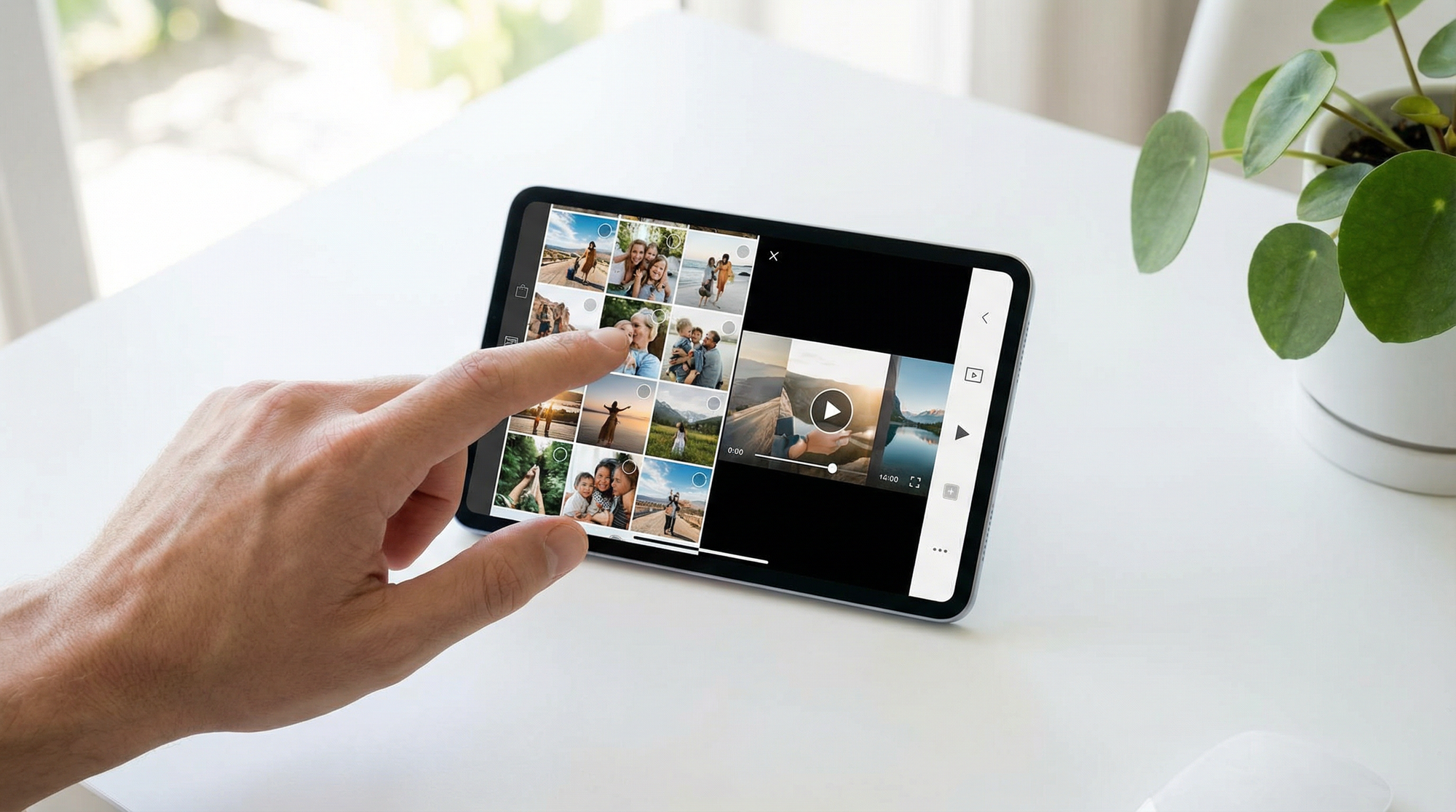
Online platforms like Canva and Kapwing provide intuitive interfaces for transforming images into videos without software installation. These web apps typically offer drag-and-drop functionality, pre-designed templates, and cloud storage integration. A 2026 study by CloudTech Research found that 67% of users prefer browser-based tools for quick video projects due to their accessibility across devices.
2. Desktop Applications
For those needing offline capabilities, open-source options like Shotcut and DaVinci Resolve provide powerful timeline editing without watermarks. While these have steeper learning curves, they support higher resolution exports and advanced effects. The 2026 Open Source Software Report notes a 40% increase in adoption of these tools for basic video editing needs.
3. Mobile Apps
Smartphone applications like InShot and Google Photos make on-the-go conversion simple with automatic slideshow generators and one-tap sharing. Mobile editing now accounts for 58% of casual video creation (Mobile Content Trends, 2026), with improved AI that suggests transitions and soundtracks based on image content.
How to Choose the Right Free Tool
Consider your project requirements: cloud storage needs, output quality, and desired features. For social media content, look for platforms with built-in aspect ratio presets (9:16 for TikTok, 1:1 for Instagram). Professional use cases may prioritize 4K export capabilities and custom transition controls.
Evaluate processing times - some free tools throttle rendering speeds unless you upgrade. Also check format compatibility; the best converters support JPG, PNG, HEIC, and RAW files. According to Digital Media Lab tests, WebP image support became standard across 89% of free video tools in 2026.
Step-by-Step Conversion Process
1. Image Preparation
Organize files in your desired sequence, ideally naming them numerically (01.jpg, 02.jpg). Crop images to consistent dimensions to avoid black bars in the final video. Free tools like Photopea can batch-edit images if needed.
2. Timeline Assembly
Upload images to your chosen platform and arrange them on the timeline. Most free converters allow adjusting duration per image from 0.5 to 10 seconds. Pro tip: Vary durations based on content importance for better pacing.
3. Enhancements
Add transitions between images (dissolves work well for most content). Incorporate text overlays for context, and consider royalty-free background music from platforms like YouTube Audio Library. The 2026 Visual Engagement Report found videos with subtle motion effects (zooms, pans) retain viewers 23% longer.
Advanced Techniques for Professional Results
Leverage AI features now common in free tools: automatic color correction, smart cropping for different platforms, and voiceover synchronization. Some converters offer object detection that can create tracking motion effects on still images.
For storytelling impact, experiment with narrative structures: chronological sequences, thematic groupings, or reveal patterns. Data from the 2026 Content Psychology Institute shows structured visual narratives increase message retention by up to 65% compared to random image arrangements.
What's the best free image to video converter for beginners?
Canva's video maker provides the most beginner-friendly interface with pre-designed templates and simple drag-and-drop functionality. It requires no technical knowledge and offers helpful tutorials.
Can I create 4K videos with free tools?
Yes, several free options like DaVinci Resolve and Clipchamp now support 4K exports without watermarks. However, 4K processing may be slower on older computers.
How long can free image-to-video conversions be?
Most free platforms allow videos up to 30 minutes, though some impose shorter limits (10-15 minutes) unless you upgrade. For longer projects, consider splitting content into parts.
Do free converters include copyright-free music?
Many do - Kapwing, Canva, and Clipchamp all provide libraries of royalty-free tracks. Always verify licensing terms before publishing commercial content.
What's the main limitation of free image-to-video tools?
Watermarks and brand logos are the most common restrictions. Some also limit advanced features like color grading or 60FPS export until you upgrade to paid plans.
| Feature | Canva | Kapwing | Clipchamp |
|---|---|---|---|
| Max Resolution | 1080p | 4K | 4K |
| Watermark | No | Yes (removable) | No |
| Audio Tracks | 3 | Unlimited | 2 |
| Cloud Storage | 5GB free | None | None |
| AI Features | Basic | Advanced | Moderate |
Comments ()