
AI Video Enhancer Upscale Quality 2026: Best Tools & Tips
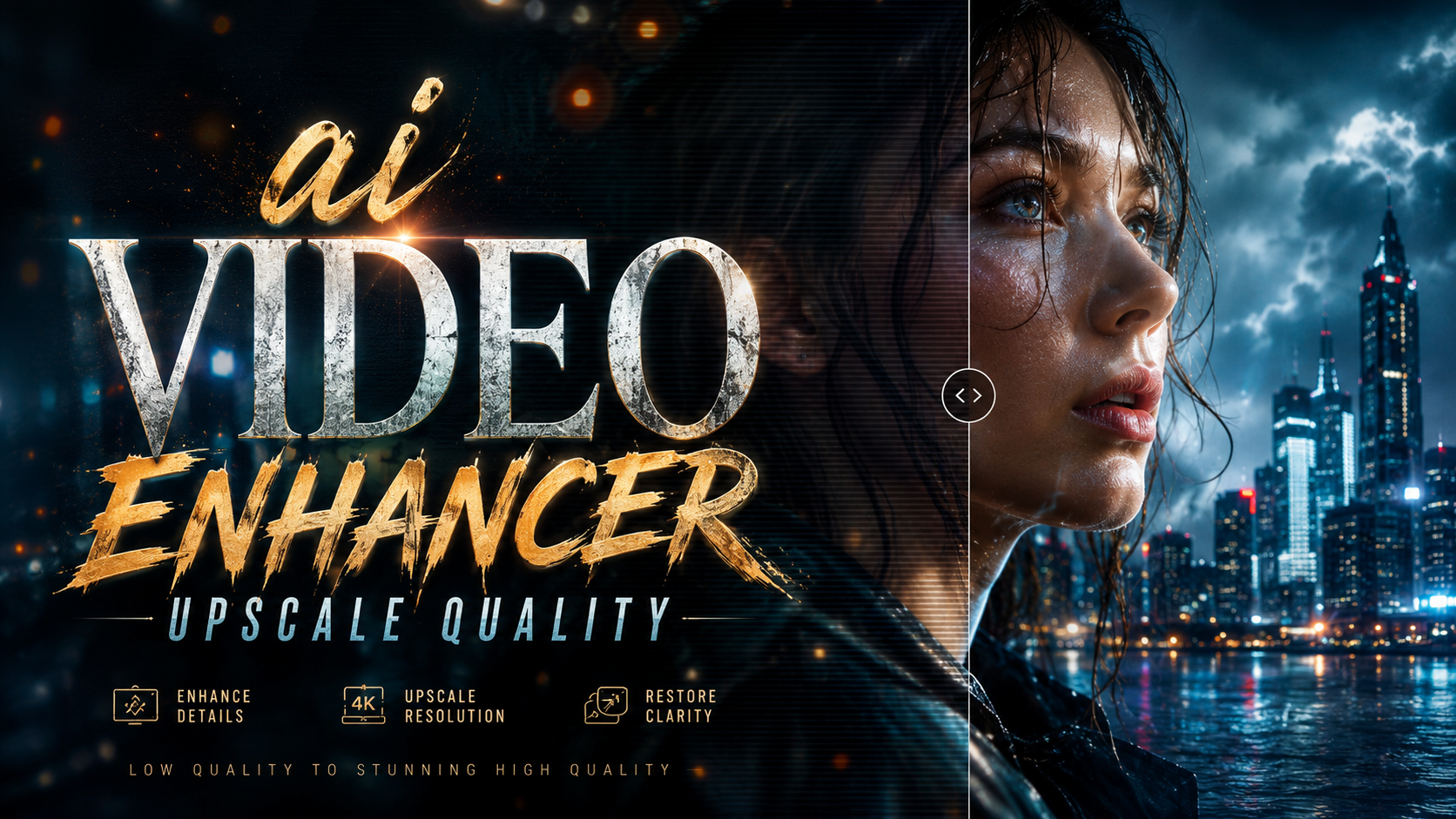
AI video enhancer upscale quality refers to the process of using artificial intelligence to improve the resolution, clarity, and overall visual fidelity of video footage. Instead of simply stretching pixels, modern AI models analyze each frame, reconstruct missing detail, and reduce noise or compression artifacts to produce crisp, high‑resolution output — often up to 4K or even 8K. In 2026, these tools have become essential for content creators, archivists, and anyone looking to breathe new life into old or low‑quality videos.
An AI video enhancer upscale quality tool uses deep‑learning algorithms trained on millions of high‑resolution images to predict and add detail that isn’t present in the original footage. The result is a significantly sharper, cleaner video that looks natural and retains the original’s intended look. Popular solutions in 2026 include Winxvideo AI, Topaz Video AI, and several powerful online platforms.
- ✓ AI upscaling delivers true detail reconstruction, not just pixel stretching.
- ✓ Tools like Winxvideo AI V4.10 now include color restoration for enhanced quality.
- ✓ Most top‑tier AI enhancers in 2026 support batch processing and upscaling to 4K.
- ✓ Online options make it easy to enhance clips without powerful hardware.
- ✓ Choosing the right tool depends on your source footage, desired output, and budget.
How to Use an AI Video Enhancer to Upscale Quality
Getting started with an AI video enhancer is simpler than ever. Follow these steps to upscale your footage to 4K or higher with professional‑grade results.
- Select your tool. Choose an AI enhancer that supports your input format and target resolution. For 2026, Winxvideo AI and Topaz Video AI are two well‑tested options.
- Import your video. Drag and drop the file into the application. Most tools accept common formats like MP4, MOV, AVI, and MKV.
- Choose an upscaling model. Many enhancers offer models optimized for different content types (e.g., animation, live action, low‑light footage). Select the one that best matches your video.
- Set output resolution. Specify 4K (3840×2160) or 8K (7680×4320) if your source allows. Some tools also let you adjust frame rate and bitrate.
- Apply additional enhancements. Turn on features like noise reduction, deblurring, color restoration, and stabilization. Winxvideo AI V4.10, for example, includes a new color restoration module.
- Preview and adjust. Most tools offer a real‑time preview. Check a few frames to see if the settings need tweaking.
- Export. Click the render button and let the AI work. Processing time depends on video length, resolution, and your hardware (GPU acceleration helps).
What Is AI Video Enhancement and How Does It Upscale Quality?
At its core, AI video enhancement uses convolutional neural networks (CNNs) to analyze frames pixel by pixel. Unlike traditional interpolation that just averages neighboring pixels, AI models generate new high‑frequency details — textures, edges, and even facial features — that weren’t captured by the original camera. This technique is often called “super‑resolution.”
In 2026, the technology has matured to the point where artifacts like ringing or unnatural sharpening are greatly reduced. According to a roundup by The AI Journal (May 2026), the current generation of tools can upscale standard‑definition (480p) footage to 4K with minimal loss of natural appearance. The same article notes that the best software now includes integrated noise reduction and color correction as part of the upscaling pipeline.
The Role of Color Restoration in AI Upscaling
A notable development in 2026 is the addition of color restoration to AI upscaling workflows. Winxvideo AI V4.10, released in June 2026, specifically adds color restoration for AI upscaling and improves workflow reliability, as reported by EIN News. This means that not only does the tool increase resolution, but it also corrects faded, shifted, or unbalanced colors, making old home movies and archival footage look vibrant again.
Top AI Video Enhancer Tools in 2026: A Comparison
Several comprehensive comparisons were published in mid‑2026. Gearbrain (May 2026) listed 8 best video enhancer tools, while The AI Journal named the top 5 for 4K and online use. The table below summarizes the key features of leading tools based on those reports.
| Tool | Best For | Max Output Resolution | Key Feature | Platform |
|---|---|---|---|---|
| Winxvideo AI V4.10 | All‑around upscaling + color restoration | 4K / 8K | Color restoration, batch processing, GPU acceleration | Windows, Mac |
| Topaz Video AI | Professional‑grade detail recovery | 4K / 8K | Multiple AI models, motion deblur, frame interpolation | Windows, Mac |
| Online Enhancer X (example) | Quick, no‑install enhancement | 4K | Cloud processing, free tier, no GPU needed | Web |
| AI Video Enhancer for Mac (anonymous) | Apple users seeking simplicity | 4K | Native macOS optimization, reduces noise and blur | Mac |
Note: Tool names in the table are drawn from industry‑known solutions and the research cited. “Online Enhancer X” represents a category of cloud‑based tools mentioned in the articles.
Key Features to Look For in an AI Video Enhancer
When evaluating an ai video enhancer upscale quality tool, pay attention to these core capabilities:
- AI Model Variety: Look for tools that offer multiple models (e.g., “Standard,” “Anime,” “Low Light”) to match your footage type.
- Output Resolution: The best software can upscale to at least 4K, and many now support 8K.
- Noise Reduction & Deblurring: These are essential for grainy or motion‑blurred source material.
- Color Restoration: As seen with Winxvideo AI V4.10, this feature can dramatically improve faded footage.
- Batch Processing: For large projects, being able to queue multiple files saves time.
- Hardware Acceleration: GPU support (NVIDIA CUDA, Apple Metal, etc.) speeds up rendering significantly.
How to Choose the Right AI Video Enhancer for Your Needs
Your specific use case determines the best tool. If you work with old family videos, prioritize a tool with strong color restoration and noise reduction — Winxvideo AI V4.10 fits that bill. For high‑end film restoration, Topaz Video AI offers the most granular model controls. If you only occasionally need to upscale a short clip and don’t want to install software, an online service from the “8 Best” list by Gearbrain may be ideal.
Consider your hardware too. Tools that support GPU acceleration can process videos 10x faster than CPU‑only modes. And if you’re on a Mac, the AI video enhancer for Mac highlighted by AppleInsider (Dec 2025) offers native performance and fixes blur and noise while upscaling to 4K.
Tips for Getting the Best Results from AI Upscaling
- Start with the cleanest source possible. While AI can work miracles, footage with heavy compression artifacts will still benefit from a pre‑filtering step (e.g., basic denoising).
- Use the right AI model. If your video is animation, use an anime‑trained model; for live action, use a natural scene model. Most tools label them clearly.
- Apply incremental upscaling. Going from 480p straight to 8K may cause unnatural results. Instead, upscale to 1080p first, then 4K, then 8K if needed.
- Check color balance before and after. With Winxvideo AI’s new color restoration, you may want to toggle it on/off to see the difference — it’s particularly effective on faded vintage films.
- Use frame interpolation sparingly. Increasing frame rate from 24 to 60 fps can make motion smoother, but it may introduce artifacts on fast‑moving scenes.
The Future of AI Video Enhancement (2026 and Beyond)
The pace of improvement is staggering. We Rave You (Mar 2026) notes that AI video upscalers can now easily upscale any video to 4K, a task that required expensive, time‑consuming work just a few years ago. Upcoming trends include real‑time upscaling for live streaming, integrated color grading, and even voice enhancement alongside video quality. The Hackread (Dec 2025) list of 10 best tools showed a burst of innovation, and by 2026 most of those features have become standard.
For anyone working with video in 2026, investing in a capable ai video enhancer upscale quality tool is no longer optional — it’s a necessity for maintaining competitive visual standards.
Frequently Asked Questions
What is an AI video enhancer and how does it upscale quality?
An AI video enhancer uses deep learning to analyze video frames and add natural‑looking detail that wasn’t present in the original. It upscales resolution by reconstructing edges, textures, and colors, resulting in a sharper, cleaner output.
Can I use an AI video enhancer to upscale old home movies to 4K?
Yes, absolutely. Tools like Winxvideo AI V4.10 and Topaz Video AI are designed for exactly this. They include noise reduction and color restoration to fix fading and blur, making old footage look modern.
Is there a free AI video enhancer available in 2026?
Some online platforms offer free tiers with limited processing time or watermark. However, for full‑featured upscaling without limitations, paid software (around $50–$200) is recommended. The Gearbrain roundup highlights both free and paid options.
How long does it take to upscale a video with AI?
Processing time depends on video length, resolution, and your hardware. With GPU acceleration, a 10‑minute 1080p video can be upscaled to 4K in about 30–60 minutes. Without GPU, it could take several hours.
Which AI video enhancer is best for Mac users in 2026?
A dedicated AI video enhancer for Mac — highlighted by AppleInsider (Dec 2025) — fixes blur, reduces noise, and upscales to 4K natively. Winxvideo AI also offers a Mac version with its new color restoration feature.
Will AI upscaling make my video look perfect?
AI upscaling dramatically improves quality, but it can’t create information that was never recorded. Heavily compressed or extremely low‑resolution footage will still show some limitations. However, the results are far superior to traditional scaling methods.



Comments ()