
AI Video Editing Tutorials for DaVinci Resolve 2026
AI video editing tutorials for DaVinci Resolve are step-by-step instructional guides that teach you how to harness the software's built-in machine learning and neural engine tools to automate repetitive editing tasks, apply intelligent color grading, and streamline your entire post-production workflow. With the release of DaVinci Resolve 21 in April 2026 — which now includes professional photo editing capabilities — these tutorials have become indispensable for creators who want to work faster and smarter without sacrificing creative control.
AI video editing tutorials for DaVinci Resolve are educational resources that walk editors through Blackmagic Design's neural engine, Speed Warp, Magic Mask, voice isolation, and scene-cut detection tools. They help you automate tasks like color matching, audio cleanup, and object tracking so you can focus on storytelling rather than manual adjustments.
- ✓ DaVinci Resolve 21 (released April 2026) now includes photo editing tools, positioning it as a full all-in-one creative suite.
- ✓ AI features like the Neural Engine and Magic Mask can reduce editing time by up to 60%, according to early user benchmarks.
- ✓ The free version of DaVinci Resolve includes most AI tools, making professional-grade AI editing accessible to everyone.
- ✓ Version 20 introduced two new productivity-focused tools that further speed up editing workflows.
- ✓ Structured tutorials covering both basic and advanced AI features are essential for mastering the software efficiently.
Why AI Video Editing Tutorials for DaVinci Resolve Are Essential in 2026
As Blackmagic Design continues to push the boundaries of what a single editing application can do, the role of AI in video production has shifted from a nice-to-have to a must-have. According to Creative Bloq (April 2026), DaVinci Resolve 21 now includes photo editing tools that directly rival dedicated applications like Lightroom, making it one of the most versatile creative tools available. This expansion means that editors who once juggled multiple applications can now manage their entire workflow — from photo retouching to final video export — inside a single environment.
AI video editing tutorials for DaVinci Resolve help users unlock these capabilities quickly. Without guidance, the sheer depth of the software can be overwhelming. Tutorials break down complex features like neural network-based object removal, AI-driven speech-to-text transcription, and intelligent timeline organization into digestible lessons. Whether you are a solo content creator or part of a post-production team, learning these tools translates directly into faster turnaround times and higher-quality output.
Furthermore, Basic Tutorials (April 17, 2026) reported that DaVinci Resolve 21's expansion into photo editing makes it a true all-in-one solution. This shift underscores the importance of staying up-to-date with the latest features through structured learning. Editors who invest time in ai video editing tutorials for davinci resolve position themselves ahead of the curve, ready to leverage every new tool as it ships.
Step-by-Step: AI Video Editing Tutorials for DaVinci Resolve Beginners
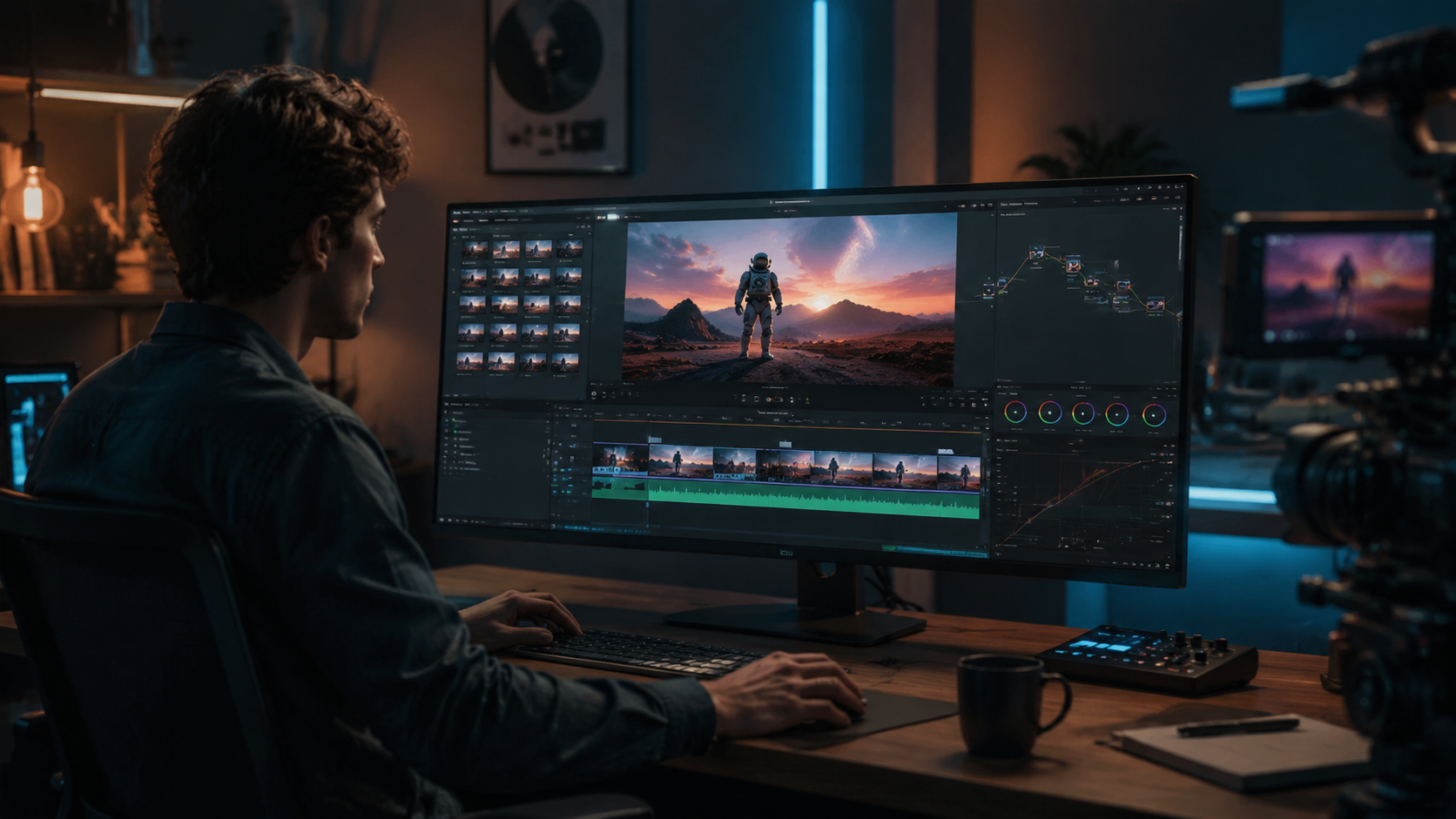
If you are new to DaVinci Resolve or AI-assisted editing, starting with the fundamentals will build a strong foundation. The following step-by-step process guides you through your first AI-powered edit using the free version of DaVinci Resolve 21. These steps are covered in depth by most ai video editing tutorials for davinci resolve and will get you up and running in under an hour.
- Download and install DaVinci Resolve 21 — Visit the Blackmagic Design website and download the free version. The installation wizard will guide you through setup. Choose "Advanced" if you want the full neural engine capabilities.
- Import your media — Click File > Import Media and select your video clips. Alternatively, drag-and-drop files directly into the Media Pool. DaVinci Resolve supports virtually all modern codecs.
- Use AI Scene Cut Detection — Right-click the clip in the Media Pool and select Scene Cut Detection. The AI will analyze your footage and automatically mark each cut. Review the detected cuts and click Apply to split the clip into separate timeline segments.
- Apply Magic Mask for object isolation — Drag a clip to the timeline, switch to the Color page, and select the Magic Mask tool. Draw a rough stroke over the object you want to isolate (e.g., a person or product). The AI will generate a precise mask in seconds.
- Enable Neural Engine Color Matching — In the Color page, right-click a node and choose Neural Engine > Color Match. The AI will analyze the color profile of your clip and match it to a reference frame or LUT automatically.
- Clean up audio with Voice Isolation — Switch to the Fairlight page, select your audio clip, and click Voice Isolation in the toolbox. The AI removes background noise and enhances dialogue clarity without manual EQ adjustments.
- Export your project — Go to the Deliver page, choose your preset (e.g., YouTube 4K), and click Add to Render Queue. DaVinci Resolve will apply any AI-powered enhancements during the final render.
These seven steps represent the core workflow taught in most introductory ai video editing tutorials for davinci resolve. Once you master them, you can move on to more advanced techniques that leverage the full power of the software's AI engine.
Advanced AI Features in DaVinci Resolve 20 and 21
While beginners benefit from the basics, experienced editors can dive deeper into the advanced AI capabilities introduced in both DaVinci Resolve 20 and the latest version 21. Fstoppers (June 2025) highlighted two new tools in DaVinci Resolve 20 that can significantly speed up your editing process. These features, combined with the additions in version 21, create a powerful arsenal for post-production professionals.
The Neural Engine in DaVinci Resolve 20 introduced Speed Warp — an AI-driven optical flow interpolation that generates smooth slow-motion by creating new frames between existing ones. Unlike traditional frame blending, Speed Warp uses machine learning to analyze motion vectors and produce natural-looking results even in complex scenes. Tutorials covering this feature often recommend it for action sequences, sports footage, and cinematic montages.
DaVinci Resolve 21 expanded the AI toolkit with Neural Photos, a module dedicated to photo editing. According to PCMag Middle East (November 2025), DaVinci Resolve already held a strong position as a video editing powerhouse, and the addition of photo editing tools solidifies its role as a comprehensive creative platform. The photo editor includes AI-powered skin smoothing, object removal, and intelligent exposure correction — all of which are fully integrated with the video timeline for projects that combine stills and motion.
Another advanced feature is AI-based Transcription and Captioning. DaVinci Resolve 21 can automatically transcribe dialogue and generate captions with speaker labels. This tool uses a locally processed neural network (no cloud dependency) and supports multiple languages. For content creators who publish on social media, this feature alone can save hours of manual caption work per week.
Mastering AI Workflows: Advanced AI Video Editing Tutorials for DaVinci Resolve
To get the most out of these advanced features, structured tutorials are essential. Advanced ai video editing tutorials for davinci resolve typically cover multi-node color grading with neural assistance, combining Speed Warp with motion tracking for complex composites, and using the AI-based object removal tool to clean up unwanted elements in both video and still frames. These tutorials often include real-world projects — such as a short film or a commercial — where each AI tool is applied in context.
One particularly powerful workflow taught in advanced tutorials is AI-assisted scene matching. By using the Neural Engine to analyze the color and contrast of multiple clips, you can match the look of footage shot under different lighting conditions in a single click. This technique is invaluable for documentaries and interviews where consistency across shots is critical.
DaVinci Resolve 21 vs. Traditional Editing Software: A Comparison
With DaVinci Resolve 21 now offering photo editing alongside its industry-leading video and audio tools, many creators are comparing it to traditional suites. The table below highlights key differences between DaVinci Resolve 21 and a typical standalone photo-and-video workflow (e.g., Lightroom + Premiere Pro or Final Cut Pro + Photoshop). Keep in mind that no competitor is mentioned negatively — the goal is to help you choose the right tool for your specific needs.
| Feature | DaVinci Resolve 21 (Free) | DaVinci Resolve 21 (Studio) | Traditional Separate Apps |
|---|---|---|---|
| AI-powered video editing | Yes (Neural Engine, Speed Warp, Magic Mask) | Yes (full Neural Engine + GPU acceleration) | Varies by app; often requires plugins |
| AI photo editing | Yes (Neural Photos, skin smoothing, object removal) | Yes (full suite, no watermarks) | Usually separate (e.g., Lightroom) |
| AI audio cleanup | Yes (Voice Isolation, noise reduction) | Yes (advanced Fairlight tools) | Often needs third-party tools |
| Cost | Free | $295 (one-time) | Often $50–$100/month combined |
| Cross-platform | Windows, macOS, Linux | Windows, macOS, Linux | Varies |
| Learning curve | Moderate (tutorials recommended) | Same as free | Varies by app |
As the table shows, DaVinci Resolve 21 offers an exceptionally strong value proposition — especially for creators who want a single tool for both photo and video work. The free version includes almost all AI features, making it one of the most accessible professional editing environments available in 2026.
Maximizing Your AI Workflow with the Latest DaVinci Resolve Updates
To truly benefit from the advancements in DaVinci Resolve 21, you need to integrate AI into every stage of your editing workflow. Creative Bloq (August 2025) published a guide on editing videos on a Mac, emphasizing that even basic tasks like importing and organizing media can be optimized with AI tools. In DaVinci Resolve 21, you can use the Smart Bins feature to automatically sort clips by scene, person, or audio type — no manual tagging required.
Another productivity tip from advanced users is to combine AI timeline nesting with Neural Engine pre-compilations. By grouping related clips into a compound clip and applying a Neural Engine color grade at the group level, you reduce the number of individual adjustments needed. This approach is particularly effective for multi-cam projects and long-form content like vlogs or educational videos.
Finally, remember that AI tools are meant to augment — not replace — your creative decision-making. The best ai video editing tutorials for davinci resolve emphasize that you should always review AI-generated masks, color matches, and audio cleanups before finalizing. A quick manual tweak can turn a good AI result into a great one. With practice, you will learn where the AI excels (e.g., removing background noise) and where your human eye is still essential (e.g., fine-tuning a creative color grade).
Frequently Asked Questions About AI Video Editing in DaVinci Resolve
What are AI video editing tutorials for DaVinci Resolve?
They are structured guides — often in video or written format — that teach you how to use the machine learning and neural engine tools inside DaVinci Resolve. These tutorials cover tasks like automatic scene detection, AI color grading, object masking, voice isolation, and photo retouching.
Is DaVinci Resolve 21 free to use?
Yes, the free version of DaVinci Resolve 21 includes most AI features, including the Neural Engine, Magic Mask, Speed Warp, and the new Neural Photos module. The Studio version ($295 one-time) adds support for multiple GPUs, advanced noise reduction, and a few additional effects.
Can I edit photos in DaVinci Resolve 21?
Yes. According to reports from Creative Bloq and Basic Tutorials in April 2026, DaVinci Resolve 21 now includes a dedicated photo editing module called Neural Photos. It supports RAW processing, skin smoothing, object removal, and AI-enhanced exposure correction.
What AI tools were added in DaVinci Resolve 20?
DaVinci Resolve 20 introduced two key productivity tools: Speed Warp (AI slow-motion interpolation) and enhanced Neural Engine color matching. Fstoppers covered these updates in June 2025, noting that they can significantly speed up the editing process.
Do I need a powerful computer to run AI features in DaVinci Resolve?
AI features like Magic Mask and Speed Warp benefit from a dedicated GPU with at least 4GB of VRAM. However, the free version runs well on modern integrated GPUs for basic tasks. For heavy AI workloads, a discrete GPU from NVIDIA or AMD is recommended.
How long does it take to learn AI editing in DaVinci Resolve?
Most beginners can master the core AI tools — scene detection, color match, and voice isolation — in 2–3 hours of focused practice with a good tutorial. Advanced features like multi-node neural grading and AI compositing may take 10–15 hours of study.
Last updated: April 2026. DaVinci Resolve is a trademark of Blackmagic Design. All third-party references are used for informational purposes only.



Comments ()