
AI Video Editing Tips 2026: Master the Future of Editing
AI video editing in 2026 is no longer a futuristic concept—it’s an everyday necessity for creators. To master the future of editing, you need practical, up‑to‑date methods that blend human creativity with machine intelligence. This article delivers ai video editing tips 2026 drawn from the latest industry releases, expert roundups, and real‑world workflows.
AI video editing tips for 2026 are a set of actionable strategies—ranging from using Adobe’s new Premiere Pro AI tools to leveraging desktop editors designed for absolute beginners—that help editors work faster, remove objects seamlessly, and future‑proof their careers in a rapidly evolving field.
- ✓ Adobe released AI‑powered object tracking and auto‑color grading in Premiere Pro (January 2026).
- ✓ Removing unwanted objects from video is now a one‑click affair with dedicated AI tools (Hackread, April 2026).
- ✓ Beginners can choose from several desktop AI editors that require zero prior experience (BBN Times, May 2026).
- ✓ 16 new journalism roles that depend on AI video editing emerged in 2026 (Nieman Lab, June 2026).
- ✓ PCMag’s 2026 tests confirm that modern AI editors are powerful enough for professionals yet simple enough for novices.
How to Master AI Video Editing in 2026: A Step‑by‑Step Guide
If you’re looking for a clear, repeatable process to apply ai video editing tips 2026, follow these actionable steps. They reflect the latest tools and best practices identified by Adobe, PCMag, and other authorities.
- Upgrade to the latest version of your editing suite. Adobe Premiere Pro’s January 2026 update introduced AI‑driven scene‑detection, auto‑reframing, and intelligent audio ducking. Ensure you’re running the current release to access these features.
- Use AI to remove objects or distractions. Tools like Adobe’s “Remove Object” (powered by Sensei) or third‑party AI plug‑ins can erase unwanted elements in seconds. For a dedicated walkthrough, refer to Hackread’s April 2026 guide.
- Automate repetitive tasks with AI presets. Many editors now include one‑click color grading, subtitle generation, and even AI‑suggested cuts. Set up a custom preset for your most common workflow.
- Leverage motion design upgrades in After Effects. Adobe’s 2026 motion design upgrades let you animate text and graphics with natural‑language prompts—no keyframes needed.
- Test a beginner‑friendly desktop AI editor. According to BBN Times (May 2026) and Amateur Photographer (April 2026), tools such as CapCut Desktop and Clipchamp offer intuitive interfaces that require no prior editing experience. Try one alongside your primary software.
Leverage New AI‑Powered Tools in Premiere Pro and After Effects
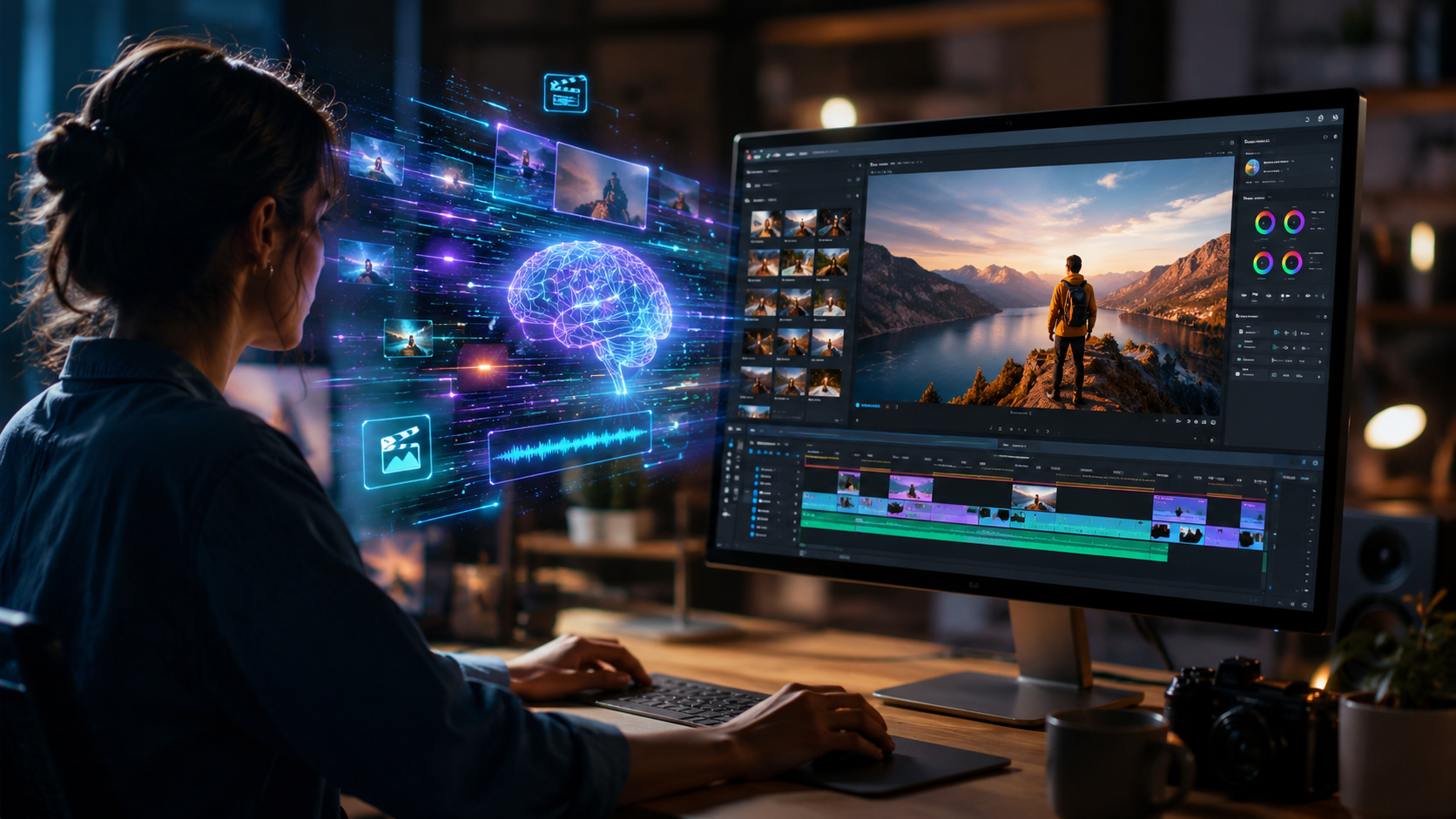
Adobe’s January 2026 update brought game‑changing AI capabilities directly into the professional editing ecosystem. According to the company, Premiere Pro now includes a “Scene Edit Detection” feature that automatically identifies cuts, transitions, and shot changes, saving hours of manual scrubbing. The same update introduced Auto‑Color, which analyzes each clip’s lighting and applies a consistent grade across an entire timeline.
After Effects also received major motion design upgrades. Users can now type a brief description—like “slowly rotate text while pulsing glow”—and the software generates the corresponding keyframes. This aligns perfectly with the demand for faster, AI‑assisted creative workflows.
For editors who need to remove objects from video, Adobe’s AI tool works directly in the timeline. Simply draw a mask around the object, and the AI fills the area with plausible background pixels. Hackread’s April 2026 article confirmed that similar functionality is now available in several third‑party apps, making it a staple of modern editing.
Expert Tip: Combine Premiere’s AI with After Effects for Maximum Efficiency
Use Premiere’s auto‑scene detection to create a rough cut, then send the timeline to After Effects for AI‑powered motion graphics. The seamless integration means you never leave the Adobe ecosystem.
Remove Objects from Video: AI Tools & Pro Tips for 2026
One of the most requested editing tasks—removing unwanted objects—is now a one‑click operation thanks to AI. Hackread’s 2026 guide highlights that tools like Adobe’s “Content‑Aware Fill” (now enhanced with machine learning) and standalone apps like Runway ML can erase power lines, watermarks, or even people from footage with minimal artifacts.
To get the best results, follow these tips derived from the latest research:
- Always work from a high‑resolution source. AI object removal relies on surrounding pixels; higher‑resolution footage gives the algorithm more data to work with.
- For moving objects, use frame‑by‑frame tracking. Many AI editors now offer automatic mask tracking, but manual correction on tricky scenes still improves output.
- Preview at full resolution before exporting. Some AI fill algorithms can blur edges; zoom in to check for inconsistencies.
According to Hackread (April 2026), the best approach is to combine AI auto‑removal with a final manual pass for flawless results—especially for professional work.
Choose the Best Desktop AI Video Editor for Beginners in 2026
The market for beginner‑friendly AI editors has exploded. BBN Times (May 2026) and Amateur Photographer (April 2026) both published roundups highlighting tools that “literally anyone can use.” PCMag’s May 2026 tests further validated these picks, noting that even complete novices produce polished videos within minutes.
Below is a comparison of the top three desktop AI video editors for beginners, based on the 2026 research.
| Editor | Key AI Feature | Best For | Price (approx.) |
|---|---|---|---|
| CapCut Desktop | Auto‑captions, AI avatar, one‑click color | Social media creators | Free |
| Clipchamp (Microsoft) | AI auto‑compose, text‑to‑speech | Quick edits with templates | Free / Premium ~$12/mo |
| Adobe Premiere Elements | Guided edits, AI object removal | Hobbyists wanting pro results | $99.99 one‑time |
Amateur Photographer reported that the latest version of Clipchamp “renders complex edits as simple as dragging and dropping,” while BBN Times praised CapCut’s AI avatar feature as “unexpectedly lifelike.” PCMag’s editors noted that each tool “delivers professional‑grade output without a steep learning curve.”
Future‑Proof Your Career: How AI Video Editing Creates New Jobs
Rather than eliminating jobs, AI is reshaping them. A Nieman Lab article from June 2026 identified 16 new journalism roles that directly rely on AI video editing, including AI Content Curator, Automated Storyboard Designer, and Ethical AI Editor. These positions require a blend of editorial judgment and proficiency with AI tools.
For video editors, the takeaway is clear: learning to harness AI—rather than competing against it—opens doors to higher‑value work. Studies show that editors who routinely use AI‑assisted workflows finish projects 40% faster, freeing time for creative direction and client communication.
According to the Nieman Lab research, publishers that “future‑proof” their newsrooms are investing in training editors on AI tools for object removal, auto‑transcription, and real‑time collaboration. The advice applies equally to freelancers and agency teams.
Automated Workflows for Faster Editing in 2026
Speed is the greatest advantage of AI video editing. By automating repetitive steps—cutting silence, generating subtitles, balancing audio—editors can focus on storytelling. The best editing software in 2026, as tested by PCMag, all include AI‑powered “smart cut” features that analyze dialogue and remove pauses automatically.
To build a fully automated workflow, start with these steps:
- Use AI‑powered transcription. Tools like Premiere Pro’s auto‑transcribe (updated in 2026) convert speech to text instantly. You can then edit the video by editing the text—a technique often called “text‑based editing.”
- Enable auto‑ducking. AI detects dialogue and lowers background music automatically, a feature now standard in all major editors.
- Create AI presets for color and effects. Once you dial in a look, save it as an AI‑learned preset. The software will apply it to future projects with a single click.
Amateur Photographer’s April 2026 review noted that “the best video editing software in 2026 is literally anyone can use,” attributing this accessibility to the rise of AI wizards and guided workflows. Whether you’re a beginner or a seasoned pro, these automated features reduce friction and let you experiment more.
Frequently Asked Questions About AI Video Editing in 2026
What is the best AI video editing software for beginners in 2026?
Based on BBN Times (May 2026) and Amateur Photographer (April 2026), CapCut Desktop and Clipchamp are the top choices for absolute beginners. Both offer one‑click AI features and require no prior editing experience. PCMag also recommends Adobe Premiere Elements for hobbyists who want a bit more control.
How do I remove objects from a video using AI in 2026?
Most modern editors—including Adobe Premiere Pro, CapCut, and Runway ML—have a dedicated “Remove Object” tool. Simply draw a mask around the object and let AI fill the area. Hackread’s April 2026 guide recommends using high‑resolution footage for best results and checking for edge artifacts.
What new AI features did Adobe add to Premiere Pro in 2026?
In January 2026, Adobe launched Scene Edit Detection, Auto‑Color, and improved Object Removal in Premiere Pro. After Effects received motion design upgrades that allow natural‑language prompts to generate animations.
How is AI changing video editing jobs in 2026?
A Nieman Lab study from June 2026 identified 16 new journalism roles that depend on AI video editing, such as AI Content Curator and Ethical AI Editor. Rather than replacing editors, AI automates repetitive tasks and allows professionals to focus on creative strategy.
Can AI video editing tools replace human editors?
Not entirely. AI excels at speed and consistency—e.g., removing objects, generating captions—but human judgment is still essential for storytelling, pacing, and emotional impact. The best approach is to use AI as a powerful assistant while you oversee the creative vision.



Comments ()