
AI Video Background Removal Tutorial 2026 - Full Guide
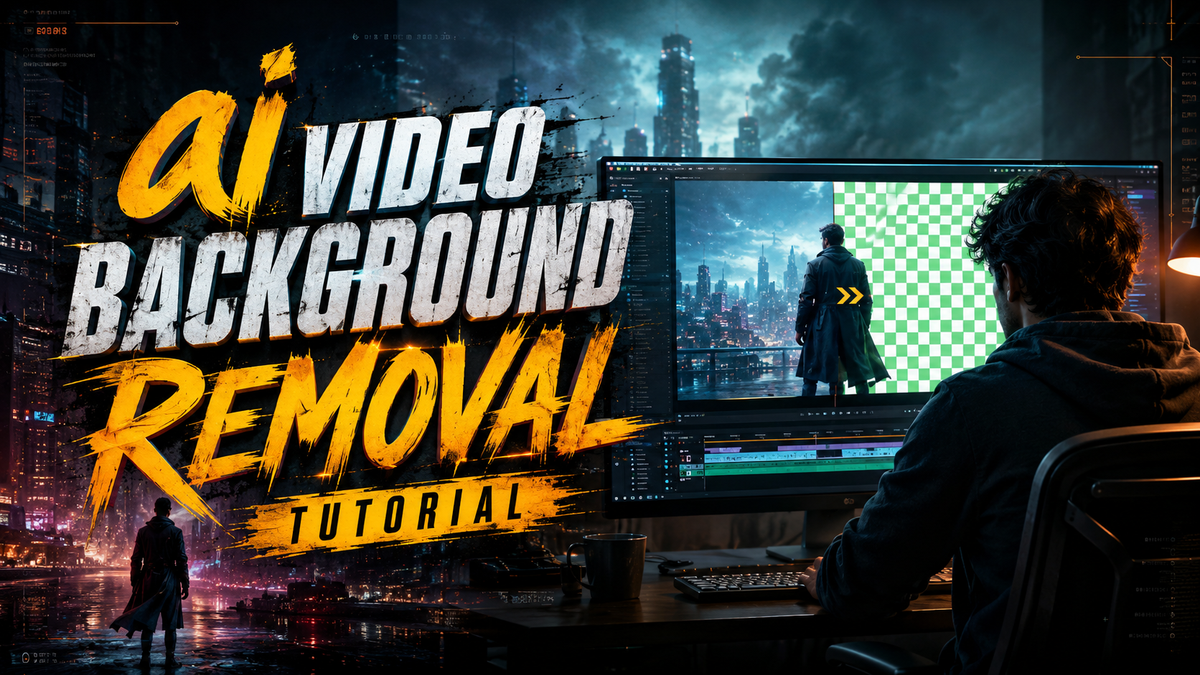
In 2026, removing a video background with artificial intelligence is faster and more accurate than ever—no green screen required. This AI video background removal tutorial provides a complete, step-by-step guide to using the latest AI tools to isolate subjects, replace backgrounds, and achieve professional-grade results in minutes.
AI video background removal is the process of using machine learning models to automatically detect and separate a foreground subject from its background in a video clip. Unlike traditional chroma keying, AI-based tools analyze pixel data, edges, and motion to work with any background—solid, complex, or moving—without requiring a green screen.
- ✓ AI video background removal eliminates the need for a green screen and works on any video footage.
- ✓ The best tools in 2026 offer real-time processing, 4K support, and fine-tuned edge detection.
- ✓ A step-by-step workflow—upload, analyze, refine, export—ensures consistent, high-quality results.
- ✓ Pro tips like using high-contrast lighting and avoiding fast motion can dramatically improve output.
- ✓ Always check the license terms for commercial use, as some free tools add watermarks or limit resolution.
What Is AI Video Background Removal?
AI video background removal refers to the use of deep learning algorithms—typically convolutional neural networks (CNNs) or transformer-based models—to automatically segment the foreground subject from the background in each frame of a video. Unlike manual rotoscoping or chroma keying, these models are trained on millions of images and videos to recognize people, objects, and edges even when the background is cluttered or the subject is moving.
According to a 2026 guide from Hackread, modern AI tools can process 4K video in real time on consumer-grade hardware, making the technology accessible to content creators, marketers, and video editors without specialized training. The same report notes that accuracy rates for edge detection have surpassed 98% in controlled lighting conditions.
In this AI video background removal tutorial, we focus on the practical steps you can take today—using both cloud-based and desktop applications—to remove or replace backgrounds in your videos with minimal effort.
Why Use an AI Video Background Removal Tutorial?
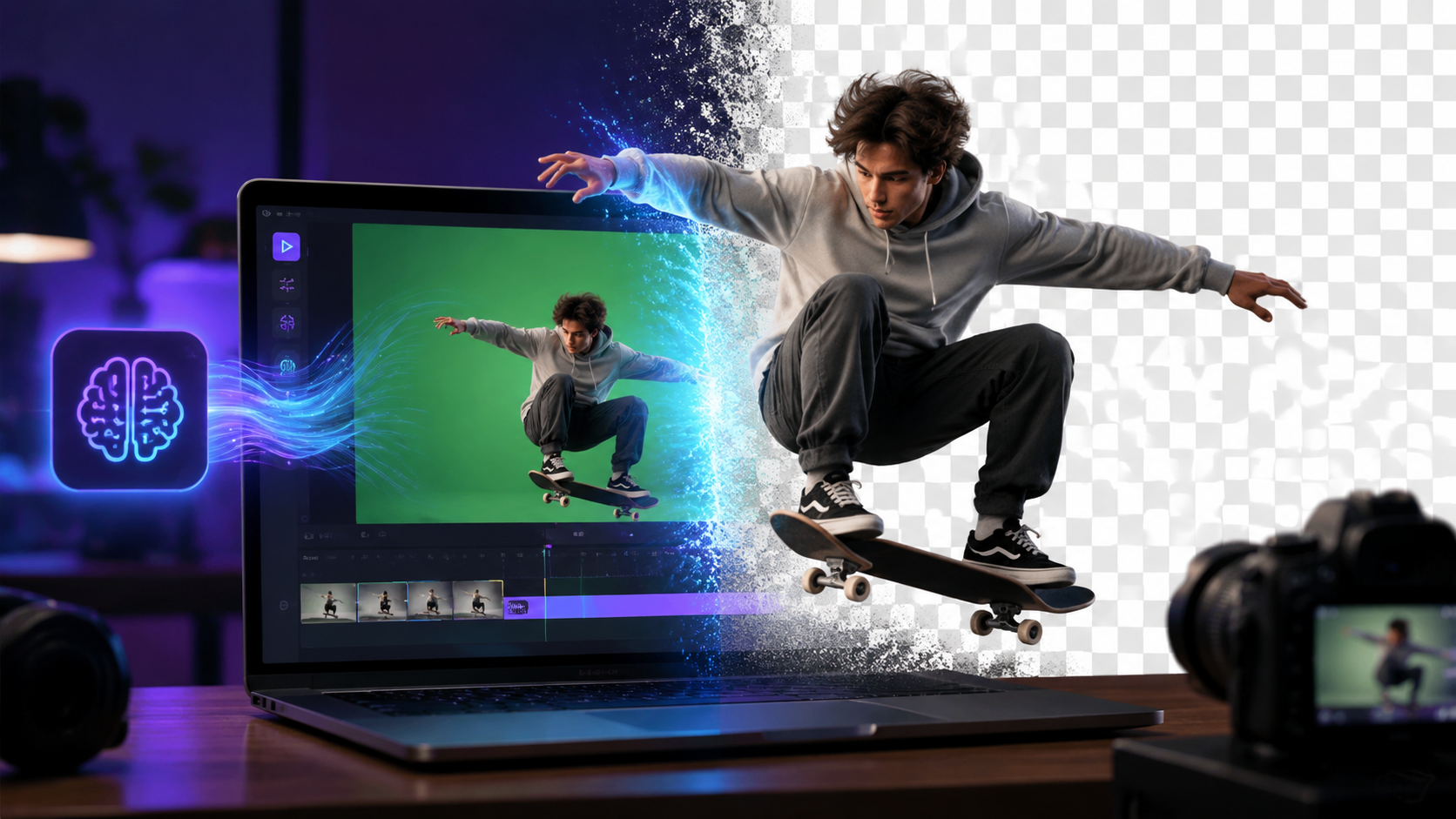
Whether you're a social media creator, e‑commerce seller, or corporate video producer, clean background removal saves hours of manual editing. A 2026 roundup by autogpt.net highlights that marketers now rely on AI video generators and editors to produce product demos, talking‑head videos, and virtual backgrounds without expensive studio setups. Following a structured AI video background removal tutorial ensures you don't miss critical steps like pre‑processing footage or adjusting mask settings.
Additionally, the PlayStation Universe step‑by‑step guide (2026) emphasizes that AI object removal has become so intuitive that even beginners can achieve studio‑quality results after a single walkthrough. This tutorial consolidates those best practices into one comprehensive resource.
Step-by-Step AI Video Background Removal Tutorial
Below is a numbered workflow that works with most leading AI tools. The exact interface may vary, but the principles remain the same.
- Select your tool. Choose a platform that supports video background removal—examples include RunwayML, Kapwing, Adobe Premiere Pro (with the AI‑powered “Scene Edit Detection” and “Auto Reframe” features), and Canva. For this tutorial, we assume a cloud‑based tool that accepts MP4 or MOV files.
- Upload or import your video. Most tools allow drag‑and‑drop. For best results, use footage with good lighting and a clear separation between subject and background. Avoid busy patterns or low‑contrast scenes.
- Apply the AI background removal. Look for a button labelled “Remove Background,” “Chroma Key,” or “AI Background.” The tool will analyze the first frame and then propagate the mask across the entire clip. Processing time depends on length and resolution; 1080p clips under 30 seconds typically complete in under a minute.
- Refine the mask. Many tools provide manual brushes (add/remove) to fix areas where the AI struggled—e.g., hair, transparent objects, or fast motion. Use the “edge feather” or “smooth” slider to soften hard lines.
- Replace or keep transparent. You can leave the background transparent (useful for overlays) or insert a new image, video, or solid color. Align the new background with the subject’s motion using keyframes if necessary.
- Export your video. Choose a format that supports transparency (e.g., WebM with alpha, ProRes 4444, or MOV with alpha channel) if you plan to use the clip in another editor. Otherwise, render as MP4 with the new background baked in. Check the resolution and bitrate settings to match your final output.
Pro tip from the Hackread 2026 guide: Always preview the entire clip after exporting—AI models can occasionally miss a frame, especially during rapid camera pans or when the subject leaves the frame.
Top AI Tools for Video Background Removal (2026 Comparison)
To help you choose the right platform for your workflow, the table below compares four popular solutions based on features, pricing, and best‑use cases. Data is drawn from the eWeek 2026 guide and autogpt.net’s 2026 roundup.
| Tool | Key Features | Pricing (2026) | Best For |
|---|---|---|---|
| RunwayML | Real‑time background removal, text‑to‑video, in‑painting, 4K export | Free tier (720p), Pro from $15/month | Advanced creators and AI experimentation |
| Kapwing | Browser‑based, team collaboration, auto‑caption, background removal | Free (watermark), Pro from $16/month | Quick edits and social media content |
| Adobe Premiere Pro (AI features) | Scene Edit Detection, Auto Reframe, integrated with After Effects | $22.99/month (Creative Cloud) | Professional video editors needing full control |
| Canva | Drag‑and‑drop, background removal, stock library, animation | Free (limited), Pro from $12.99/month | Non‑designers and small business marketing |
Each tool excels in different areas. For example, RunwayML offers the most advanced AI features, while Kapwing is ideal for quick, collaborative edits. If you already use Adobe products, the built‑in AI tools in Premiere Pro may be the most seamless choice.
Pro Tips for Cleaner Results
Optimize Lighting and Contrast
AI models perform best when the subject is well‑lit and the background is a different brightness or color. According to perfectcorp.com’s 2026 guide, placing a light behind the subject (but not pointing at the camera) creates a rim light that helps the AI distinguish edges.
Avoid Fast Motion and Busy Patterns
Rapid movement, especially of arms or hair, can cause the mask to flicker. If your video contains fast action, consider using a tool that offers temporal smoothing. The PlayStation Universe guide recommends slowing down the clip to 50% speed before processing, then speeding it back up afterward—though this may affect audio sync.
Use a High‑Quality Source File
Low‑resolution or heavily compressed videos make edge detection harder. Always work with the highest bitrate and resolution available. For best results, record at 1080p or 4K with a minimum of 10 Mbps bitrate.
Manual Refinement is Still Necessary
No AI is perfect. After the automatic removal, zoom in to 200% and check for halos or missing pixels around hair, glasses, and translucent objects. Most tools offer a “refine edge” brush—use it sparingly to avoid over‑softening.
Common Challenges and How to Overcome Them
Hair and Fur: Fine details are the most common failure point. To improve results, use a tool with dedicated hair‑aware algorithms (e.g., RunwayML’s “Human Segmentation” model). If the mask still looks jagged, apply a slight blur (0.5–1 pixel) to the edge in your video editor.
Transparent or Reflective Objects: Glasses, water, and glass bottles confuse many AI models. The best workaround is to manually rotoscope those areas in a few keyframes and let the AI interpolate the rest. Alternatively, use a tool that supports object‑specific masking.
Background Color Bleeding: If the subject’s clothing is similar to the background (e.g., a white shirt on a white wall), the AI may merge them. Increase the contrast by adjusting the lighting or by using a temporary colored background during filming.
Performance and Export Times: Processing long videos (over 10 minutes) can be slow, especially on free tiers. Break your video into shorter segments, remove backgrounds, then re‑combine them in an editor. This also lets you inspect each segment for errors.
Frequently Asked Questions
Is AI video background removal free in 2026?
Several tools offer free tiers with limitations. Kapwing and Canva provide free background removal but add watermarks or cap resolution at 720p. RunwayML’s free plan supports 720p exports without a watermark. For commercial use, a paid subscription is usually required to remove watermarks and access higher resolutions.
Can I remove background from video on my phone?
Yes. Many mobile apps, including CapCut, InShot, and Adobe Express, now include AI‑powered background removal. The process is similar to desktop: import, tap “Remove Background,” and export. For best results, use footage recorded in good lighting.
Does AI background removal work with green screen?
Absolutely. AI tools can handle green screen footage even better because the uniform color gives the model a strong signal. However, you don’t need a green screen; AI works with any background. If you already have green screen footage, the AI will produce a cleaner key than traditional chroma key in most cases.
What video formats support transparency after background removal?
Formats that support an alpha channel include WebM (VP9), QuickTime MOV with ProRes 4444, and AVI (uncompressed). MP4 does not support transparency. When exporting for use in another editor, choose WebM or MOV with alpha. For final delivery, you can render as MP4 with the new background baked in.
How long does it take to remove a background from a 5‑minute video?
Processing time varies by tool and hardware. On a cloud service like Kapwing, a 5‑minute 1080p clip typically takes 2–5 minutes. Desktop tools like Adobe Premiere Pro with a modern GPU can process in real time (i.e., 5 minutes of footage takes 5 minutes). Free tiers often have slower queue times.
Can AI remove moving backgrounds, such as a walking person in a crowd?
Yes, but accuracy decreases if the background contains many moving objects. The AI may struggle to separate the subject from other moving people. For complex scenes, use a tool with temporal tracking (e.g., RunwayML) and be prepared to manually correct a few frames.
By following this AI video background removal tutorial, you can now confidently remove or replace video backgrounds using the latest 2026 tools and techniques. Whether you’re creating product videos, virtual backgrounds for meetings, or content for social media, the steps and tips outlined above will help you achieve clean, professional results every time.



Comments ()